Recently, we hosted a free webinar on Dynamics 365 Business Rules. During the webinar, there was one question regarding server side execution of the business rule: “Will it execute during Create request”? And I answered, "It depends. If you are setting any field which has business rule associated with it, it will fire; but if you are not using that field, the business rule will not fire".
Then, I thought of writing a quick article to demonstrate this. So, here is what we need.
- A business rule associated to some field which we are going to set in our code.
- A sample console application to crate entity record using CRM SDK.
Before jumping into action, make sure you are meeting the following requirements.
Prerequisite
- Dynamics 365 Trial (You can refer my earlier article to setup Dynamics 365 trial here)
- You should have Windows Identity Foundation installed in your machine.
- Downloaded latest Dynamics 365 SDK.
- Visual Studio 12 or later with .NET 4.5.2 or later framework installed.
So, let’s get started.
Setting up Business Rule for Demo
In our business rule, we are going to use account entity and we want to implement the following logic.
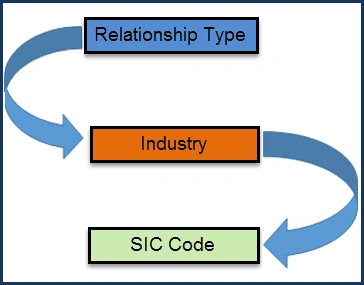
Let’s say, if user will select Consultant under relationship type, we will setup Consulting under Industry drop down and will setup it’s consulting SIC Code under "SIC Code" field. In our business rule, we need to use two actions if the type of customer is consultant. You can see it in the following screenshot.

You can create this business rule by following our
earlier article for business rules. Make sure to select Entity under scope and activate business rule once it is completed.
Setting up console application
Our business rule is ready. Now, we need to develop our console application using the following steps.
- Start Visual Studio and select console application.
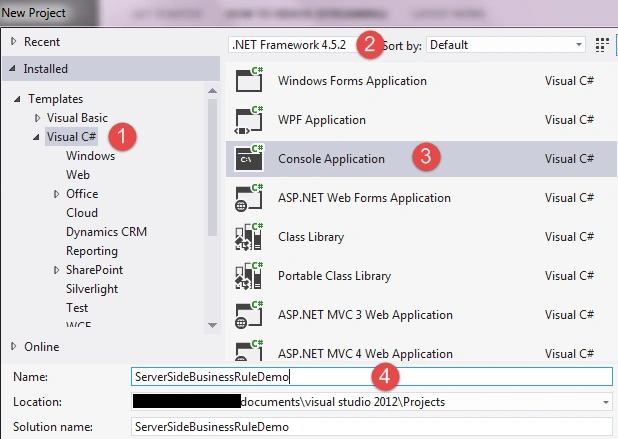
- Now, add reference of the following .NET and Dynamics 365 assemblies.

Also, add the following .NET assemblies.
- System.Runtime.Serialization
- System.configuration
- System.ServiceModel
- Go to App.config file and add the following connection string.

** Make sure to change the underlined string based on your organization details.
- Open Program.cs and include the following assemblies.
- using System.Configuration;
- using Microsoft.Xrm.Sdk;
- using Microsoft.Xrm.Tooling.Connector;
- Now, add the following sample code under Main method.
- CrmServiceClient conn = new Microsoft.Xrm.Tooling.Connector.CrmServiceClient(ConfigurationManager.ConnectionStrings["Dynamics365"].ToString());
- IOrganizationService service = (IOrganizationService)conn.OrganizationWebProxyClient != null ? (IOrganizationService)conn.OrganizationWebProxyClient : (IOrganizationService)conn.OrganizationServiceProxy;
-
- Entity account = new Entity("account");
- account["name"] = "Server Side Business Rule Example1"; account["address1_city"] = "Delhi";
- service.Create(account);
-
- Console.WriteLine("Record created, press Enter to close window !!"); Console.ReadLine();
- Press F5 to start execution. It should show us the following message once the Create request is completed.

- Now, let’s go to Dynamics 365 -> Accounts and check for the new account record. If we open this new record, we should see something like below.

You can see that Relationship Type field is blank here, because we are not setting it yet and "Industry" and "SIC Code" fields are also blank.
- Now, let’s update our Create request to use a different account name and set our Relationship Type field as well. Press F5 to execute the updated code.
- CrmServiceClient conn = new Microsoft.Xrm.Tooling.Connector.CrmServiceClient(ConfigurationManager.ConnectionStrings["Dynamics365"].ToString());
- IOrganizationService service = (IOrganizationService) conn.OrganizationWebProxyClient != null ? (IOrganizationService) conn.OrganizationWebProxyClient : (IOrganizationService) conn.OrganizationServiceProxy;
-
- Entity account = new Entity("account");
- account["name"] = "Server Side Business Rule Example2";
- account["address1_city"] = "Delhi";
- account["customertypecode"] = new OptionSetValue(2);
- service.Create(account);
- Console.WriteLine("Record created, press Enter to close window !!");
- Console.ReadLine();
- Once the record is created, go back to Dynamics 365 again and open new record. We should be able to see the following.

Here, we can see that "Industry" and "SIC Code' fields are also set because of our server side business rule execution.
So, as we discussed above, the server side business rule will execute only when we are changing the field which has business rule associated with it. Hope it will help someone !!
Stay tuned for more Dynamics 365 content !!


thetechiedoodPosted Jul 28, 2021, 4:35 AM
What if the fields are not in the form. will the BR be setting the values at the record level (db level) or at UI level only ?!
Mahender PalPosted Jan 31, 2017, 1:41 AM
This article is about when we set these scopes (Entity/All forms) how and when it executes on server side, for example even if you will set these scope, but won't use associated field under server side code, business rule won't run. thanks
sudha lakshPosted Jan 30, 2017, 1:19 AM
Hi, Good article. I have a doubt here. In earlier we used to set the business rules for entity/form in scope drop down. what is the difference between the above server side execution and entity scope. Sorry if am wrong.