

Introduction
SET and LET statements are very useful for QlikView applications. These are the script statements. The LET statement defines an area in your script in which the declared variables are used. The SET script statements prints the values that we defined within the text object.
Use of SET and LET script statements in QlikView application
Use the following procedure to create a sample QlikView application.
Step 1: Open the QlikView application
It is the first step, in this step you need to open the QlikView application then go to "File" -> "New" then this window will be opened.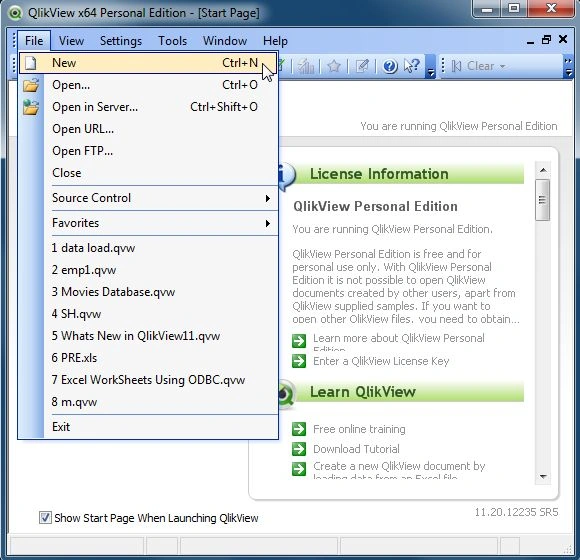
Step 2: Open Edit Script
The second step is to open the edit script window from using "File"-> "Edit Script".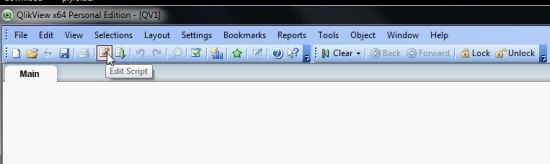
- Then this window will be opened.
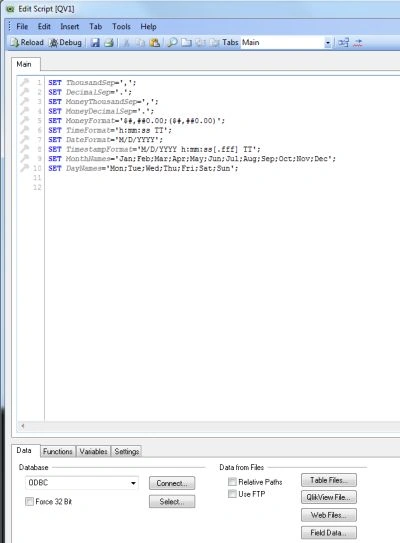
Step 3: Write code for the SET script statement
The next step is to write the code of the SET script statement in an edit script and reload it.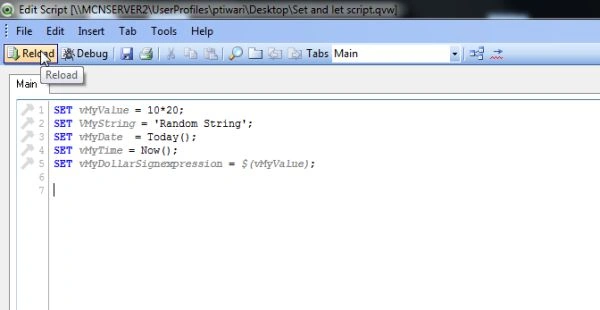
Step 4: Save QlikView file
After reloading the edit script, the next step is to save the QlikView file and click on the Save button.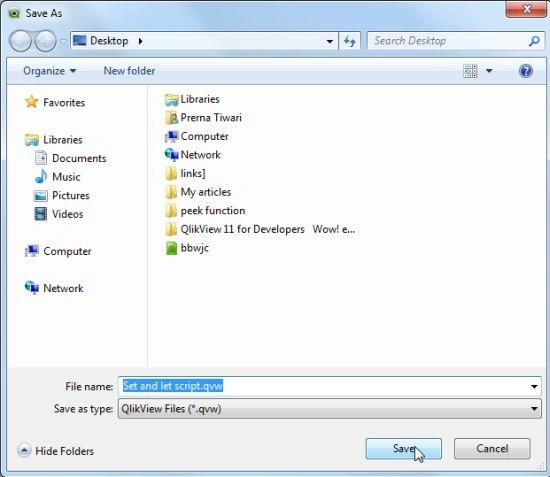
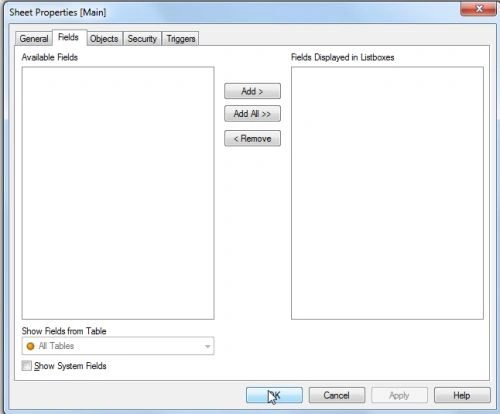
Step 5: Sheet property Window
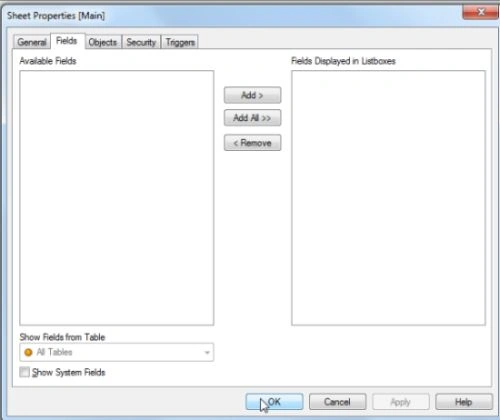
After this process, the sheet property window will be opened. There is no field to open because we did not open any database and Excel sheet and click on the OK button.
- Then this window will be opened.
Step 6: Select text object
Right-click anywhere in the blank sheet and select "New Sheet Object" -> "Text Object...".
Step 7: New text object
In this window, in the General tab you need to specify a variable in text and click on the OK button.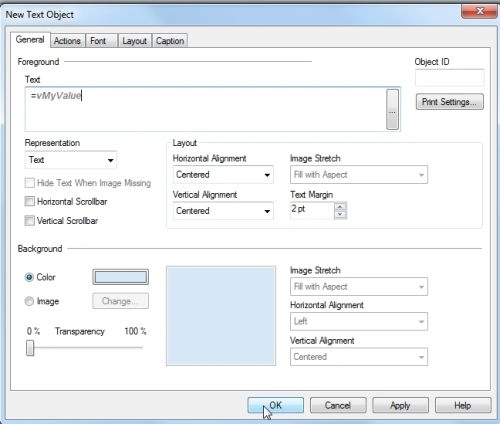
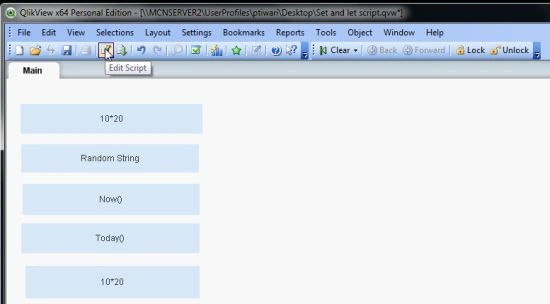
Now follow this process to create all the text objects that we declared with the SET statement.
- Now you will see this window and open the edit script.
Step 8: Write code of LET script statement
The next step is to again open the edit script and we write the code of the LET script statement in the edit script and reload it.
Step 9: Sheet property Window
After this process, the sheet property window will be opened. There is no field to open because we did not open any database and Excel sheet and click on the OK button.
- Then this window will be opened.
Step 10: Now you can see the LET statement will show the result of the declared variables that we declared in the SET statement.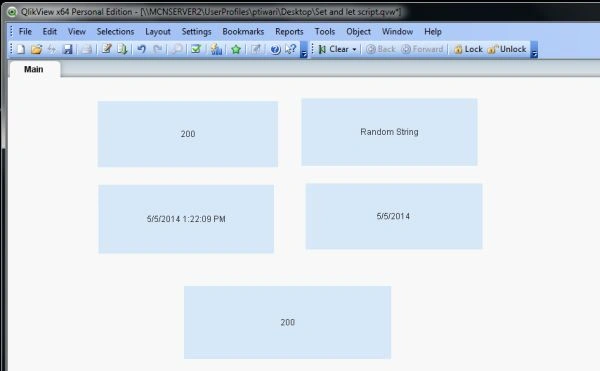
This window shows the current date and time and value of the variable that we declared with the dollar ($) sign and also shows the string.
Summary
This article provided a basic introduction to LET and SET statements in QlikView applications and how they are used.
Lakshmanan Sethu SankaranarayanPosted May 6, 2014, 12:49 AM
Nice one