

Suppose you are working on your project and you have your own docker images and you want to host those docker images locally in office network then you need to host your own docker registry. Due to security reason, you may not use public docker repository like docker hub to store images for your organization.
So, in that case we will be having a node that will be a separate machine and we'll install docker registry there then we can do push pull images.
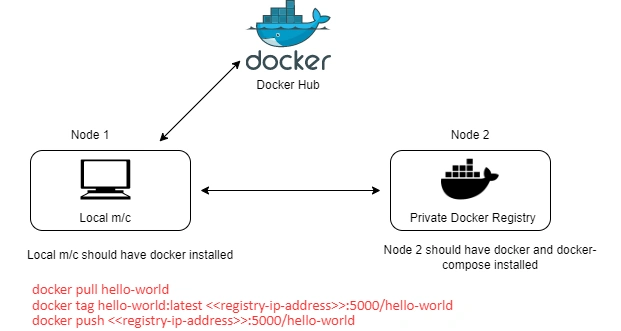
Docker private registry acts as a centralized store of custom images that you created for your application. We can easily push images to this private remote Docker registry and pull images from there whenever we needed.
This article demonstrates how to setup a basic private docker registry, and then later we will see how to configure HTTP Authentication, etc. Here we configure entire steps in latest Ubuntu 20.04 server.
Prerequisites
- Ubuntu 20.04 server.
- Docker & Docker-compose installed on Ubuntu server.
Here, we created Linux VM from Azure and Docker & Docker-compose up and running into this server. For Docker & Docker-compose installation on Linux m/c, we can follow my earlier article mentioned here - Setup Docker And Docker-compose On Linux VM
STEP 1 - Up and Running Docker & Docker-compose
To begin with the setup process first we need to make sure docker and docker- compose up and running in Linux VM.
STEP 2 - Configuring registry using docker-compose
Let’s create directories to keep the things organized and execute below commands step by step:
mkdir docker-registry
cd ~/docker-registry
mkdir volume
nano docker-compose.yml
docker-compose.yml
version: '3'

services:
  docker-registry:
    image: registry:2
    container_name: docker-registry
    restart: always
    ports:
    - "5000:5000"
    volumes:
      - ./volume:/var/lib/registry

  docker-registry-ui:
    image: konradkleine/docker-registry-frontend:v2
    container_name: docker-registry-ui
    restart: always
    ports:
    - "8080:80"
    environment:
        ENV_DOCKER_REGISTRY_HOST: docker-registry
        ENV_DOCKER_REGISTRY_PORT: 5000
You can exit and save using CTRL+X then Y and then ENTER.
At this point, we successfully created an entire configuration in docker compose yml file.
STEP 3 - Run docker-compose.yml
Let’s run the docker-compose using below command.
sudo docker-compose -f docker-compose.yml up -d

To make sure that the registry is running, a simple docker ps should display the running containers.
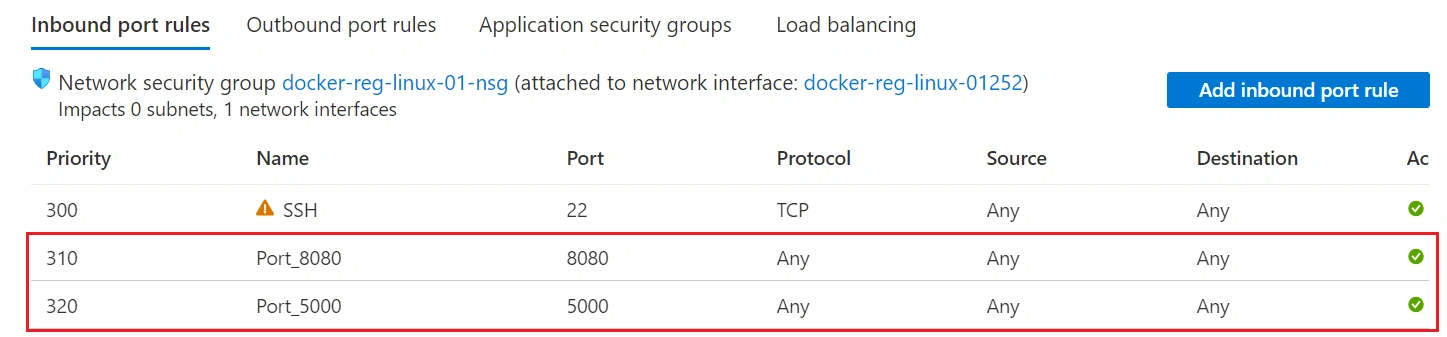
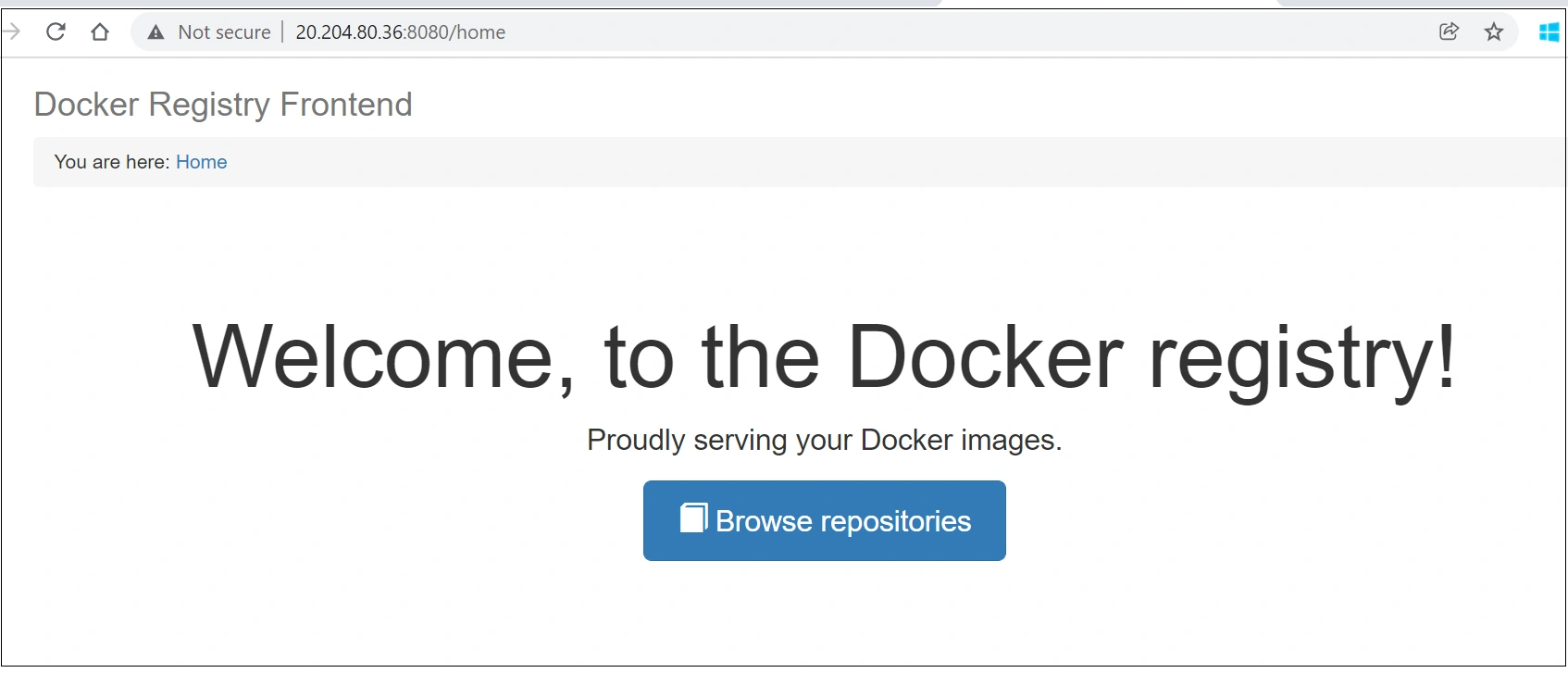
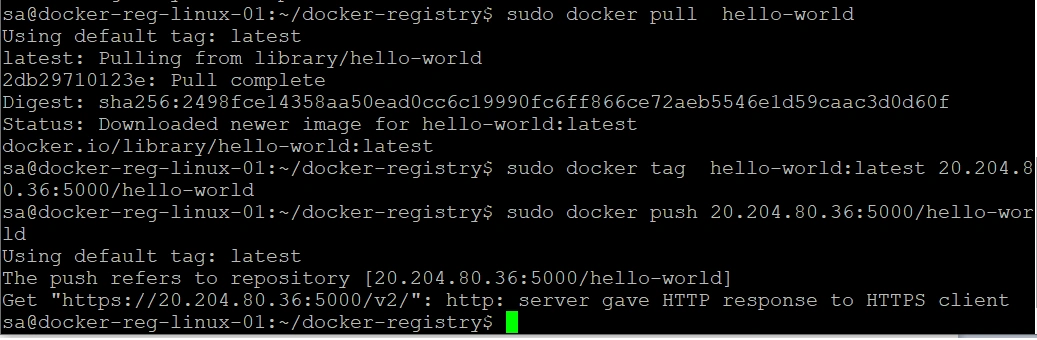
STEP 4 - Allow Inbound port rule of Linux VM




Join the conversation! Your thoughts help the community grow.