

React is one of the leading technologies that is used to create single page applications(SPA). Some others are Angular and Vue.js. In this article we will learn how to set up a React project using Webpack, Node.js and Typescript.
If you are new to React or want to get some basic knowledge, then you can refer to the below URL.
Before staring the setup process it will be better to have a basic intro about terminologies that we are going use. Let’s read about them one by one.
React
React is a JavaScript library for building the user interface. React uses the component to divide the whole user interface into small sections and at each component contains its own property and state. If you are using the Redux in React app then the application will have a common state instead of the individual state for each component. React makes it easy to create UI interface and update the particular section of UI when any data or state is changed for that component. You can find more about the React here.
Node.js
Node.js is an open-source , cross platform JavaScript run time environment for executing the JavaScript code at server side. Node.js built on chrome V8 JavaScript engine. Node.js is used to create Real time, web application and command line applications. Find out more about the Node.js here.
Webpack
Webpack is module bundler that takes your modules with dependencies and generates static assets representing those modules. If we are working with a website, then it is possible that it contains a large number of JS and CSS files. Webpack not only bundles our resources like JS and CSS but it also transforms them and allows us to write our code in ES6 (ECMA Script 6). In current time, all the technologies like Angular2, React etc. use ES6 for the development. But every browser doesn’t necessarily understand the ES6, so Webpack compiles the code into ES5 such that the browser can understand the code. If you are new to Webpack or want to get some basic stuff about the Webpack then refer to the below link.
TypeScript
TypeScript is a superset of JavaScript which primarily provides optional static typing, classes and interfaces. TypeScript make it easy to organize our code and provides Object Oriented Programming. At compile time TypeScript checks for the error and generates the error if it finds any kind of syntax or type error otherwise it converts the TypeScript code into JavaScript. Find more about TypeScript here.
After getting the brief intro, I know we can start to set up our project. Let’s set up a React application from scratch.
Step 1 Create package.json file
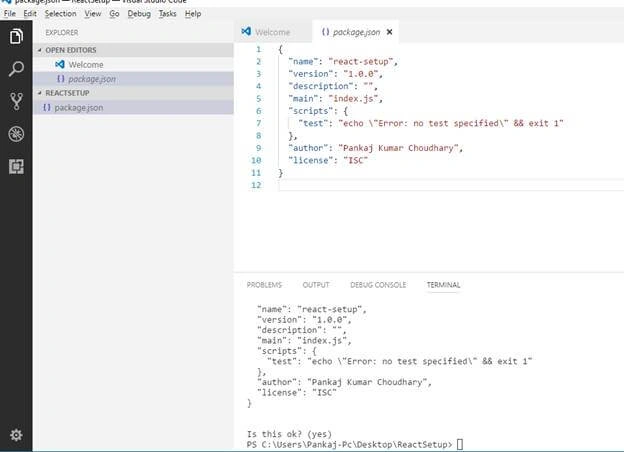
First of all create a folder in any directory and name this folder “ReactSetup;” or you can give any name that you want. Now open this folder into any IDE. Here I am using the “Visual Studio Code” If you are using the VS Code then go to “view” menu and open the “Integrated Terminal” window. If you are using another IDE then open a command prompt for following project directory and run the “npm init” command. When you run this command it will ask some details to fill in and generates a package.json file for the project. This file contains information about packages that we install and also contains that script for several commands.
Step 2 Setup Node Server
Now run the below command into terminal window.
npm install --save express
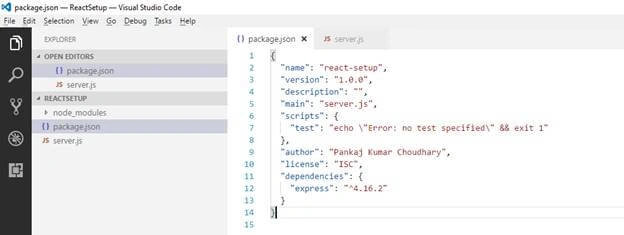
Above command installs the express packages for the project. Express is a Node.js web application framework that provides a robust set of features to set up and run the web and mobile applications. After installing the package now create a “server.js” in root directory of the application and paste the following code into this file.
- var express=require('express');
- var path=require('path');
- var app=express();
- var port=5000;
- app.get('/',function(req,res){
- res.send('<html><body><h2>Congrts!!! Server Configured</h2</body></html>');
- });
- app.get('/api',function(req,res){
- res.send('<p>This is a api Data</p>');
- });
- app.listen(port,function(error){
- if(error) {
- console.log(error);
- } else {
- console.log("Application running on port: "+port);
- }
- })
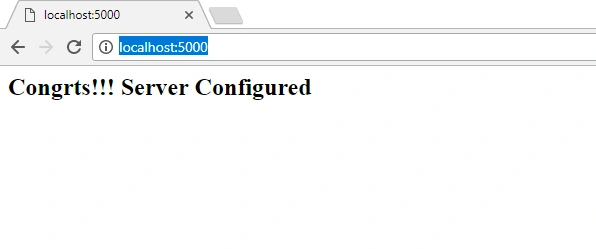
Save all the changes and run the “node server.js” command into the terminal. This command runs over applications at the 5000 port, now open the browser and type the http://localhost:5000/ URL and press enter. If you get the below output that means your node.js server is configured successfully.
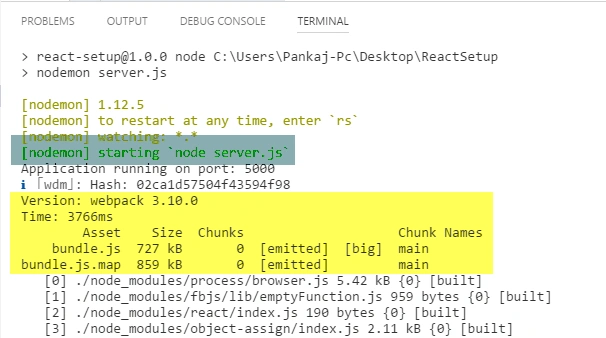
If you want to make any changes into “server.js” file then after making the changes you have to stop the current execution of node.js server and restart the node.js server using the “node server.js” command, so this process is very time consuming. To overcome this issue we can use the “nodemon”. Actually “nodemon” monitors the utility for any changes if any changes are done then it will restart your server automatically. If “nodemon” is not installed in your machine then you can install “nodemon” using the “npm install -g nodemon” command. This command installs the “nodemon” packages globally. After installing the nodemon now run the “nodemon server.js” command in terminal. This command runs the node server and also monitors the changes into code. When you make any change into “Server.js” file, you will find that nodemon restarts the “node” server and you don’t need to restart the node server again.
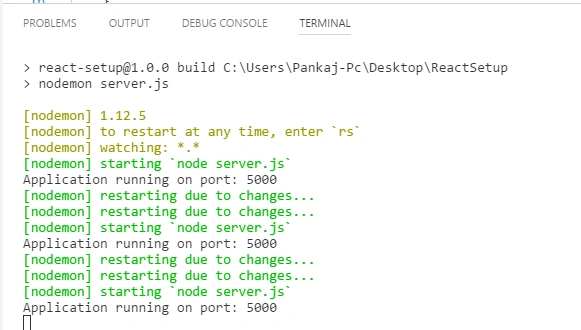
Let’s make some modification into our code. So far we have directly run either “node server.js” or “nodemon server.js” command into command terminal. Instead of this we can create a script in “package.json” file that will run this command for us. So add the below line of code into “scripts” section of package.json file.
"node":"nodemon server.js"
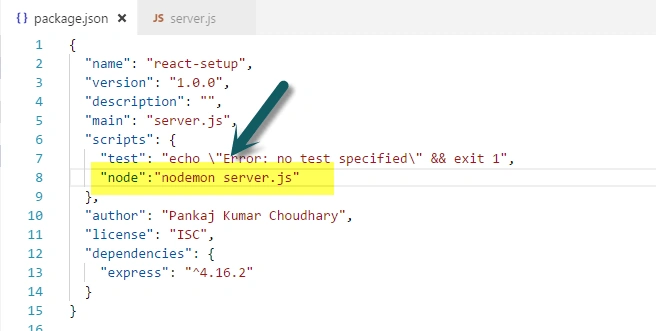
After adding the above script now we run “npm run node” command in terminal and this command runs the “nodemon server.js” script for us.
Step 3 Setup Client App:
So far we configured the “node” server that provides the back end functionality for our application. Now we setup the client side(front end) for our application. First of all we create a React app using the webpack and later we configure this React app(client app) to our node server that we configured.
Now run “npm install react react-dom --save” command; this command installs the react and react-dom packages into our project.
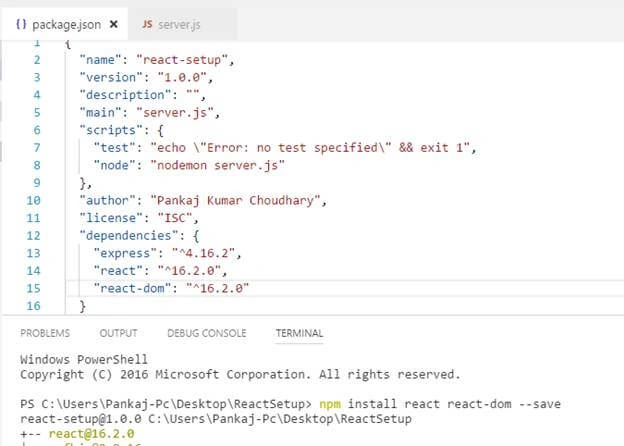
Now we install the webpack related dependencies, for this run the “npm install --save-dev webpack webpack-dev-server” command.
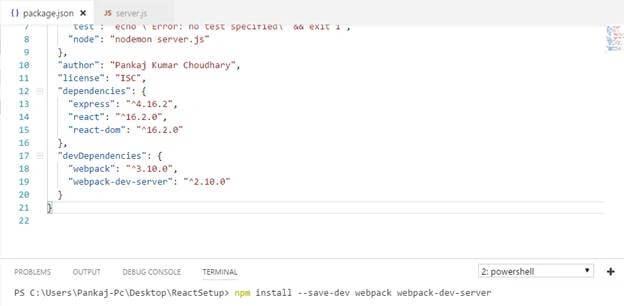
We install the webpack packages as “devDependencies” because we need the webpack only for development and don’t need it at production time.
React uses the JSX(JavaScript Syntax XML) to create the component. JSX provide the XML syntax in JavaScript, we can create a React app with the JSX but JSX makes the React more elegant. We can use the JSX in React application but browser doesn’t understand the JSX format, so we need a compiler that can convert the JSX syntax to plane JavaScript .In React we use the JSX and write the JavaScript code into ES6 format and all the browsers don’t understand the ES6 format. So we need an intermediary that can convert the ES6 code to ES5 code. So babel runs the ES6 code in our browser. So run the below command to install all required babel packages.
npm install --save-dev babel-core babel-loader babel-preset-es2015 babel-preset-react babel-preset-react-hmre babel-preset-stage-2.
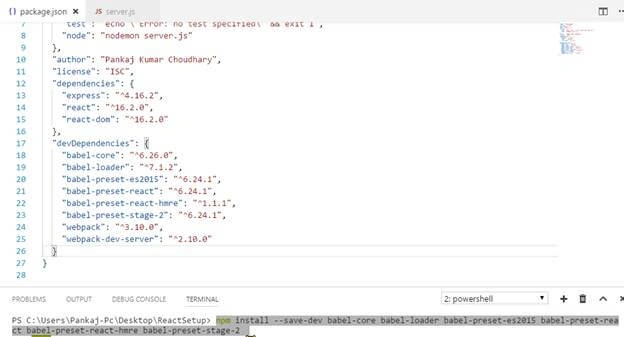
Here babel-core and babel-loader are main dependencies and other dependencies provide the set of rules to babel for the react development.
Add index.html file
After installing all the required packages now add index.html file in root directory of the application and paste following code into this file.
- <html>
- <head>
- <title>
- MEAN Stack
- </title>
- </head>
- <body>
- <div id="app"></div>
- <script src='bundle.js'></script>
- </body>
- </html>
In the above lines of code we write simple html code and add path for “bundle.js” file, that will be generated by the webpack and contains the React code into JavaScript format.
Add webpack.config.js file
Add a file in root directory of the project and name this file as “webpack.config.js”, this file provides the configuration code for the webpack. After creating this file now paste the following code into this file.
- var webpack=require('webpack');
- var path=require("path");
- var srcPath=path.resolve(__dirname,"client");
- var distPath=path.resolve(__dirname,"public");
- var config={
- devtool:'source-map',
- entry:[
- srcPath+"/app.js"
- ],
- output:{
- path:distPath,
- publicPath: '/',
- filename:"bundle.js"
- },
- resolve: {
- extensions: [ '.js', '.jsx']
- },
- module:{
- loaders:[
- {
- test:/\.js?$/,
- exclude: /node_modules/,
- include: /client/,
- loader:"babel-loader",
- query: {
- presets: ['es2015']
- }
- },
- {
- test:/\.jsx?$/,
- exclude: /node_modules/,
- include: /client/,
- loader:"babel-loader",
- query: {
- presets: ['es2015','stage-2','react']
- }
- }
- ]
- },
- devServer:{
- hot:true,
- port:4500
- }
- }
- module.exports=config;
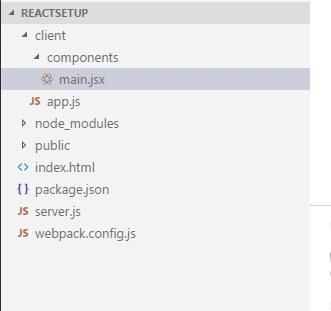
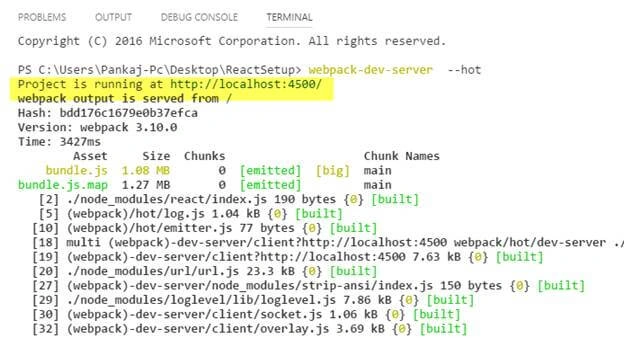
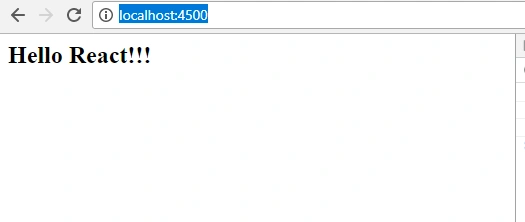
Hadshana KamalanathanPosted Jul 15, 2018, 12:38 PM
Thank you for sharing