

Today in this article we will see all the settings available in our Document Library & Lists in our New SharePoint 2013 site.
Let's go through them one after the other.
List name, description and navigation
Here you can provide a name, a brief description of the list or document library and a choice to put your list or document library on the quick launch.
Versioning Settings
Enabling the versioning settings help you to see the history of the documents or the list items.
We have options like:
- Requires content approval for submitted items: If you choose Yes then once you have uploaded an item or a document library it will be viewable in the list or the library once approved.
- Create a version each time you edit a file in this document library: You can enable the versions as you would like in whole numbers or in decimals.
- Draft Item Security: If the item is not published or is awaiting approval then you can choose from the following options as to who can view it.
- Require Check Out: if you want the document when it is being edited by someone to be checked out and that other person will not edit it then you can choose the option Yes.


Advanced Settings
Advanced Settings have plenty of options for us to modify content types.
- Allow management of content types: If you choose Yes you can view, modify the content type your library or list is using.
- Document Template: You can provide a location of this template to create another document libraries and lists using this as a default template.
- Opening Documents in a Browser: As the name suggests you can enable if you want to open the document in a browser or a in a client application.
- Custom Send to Destination: You can specify a name and the URL to which this library or list should refer to.
- Folders: You can allow users to create folders in your document libraries or lists.
- Search: You can enable or disable a document library and its contents from search opions.
- Reindex Document Libray: By clicking, on the next crawl you can have the contents reindexed.
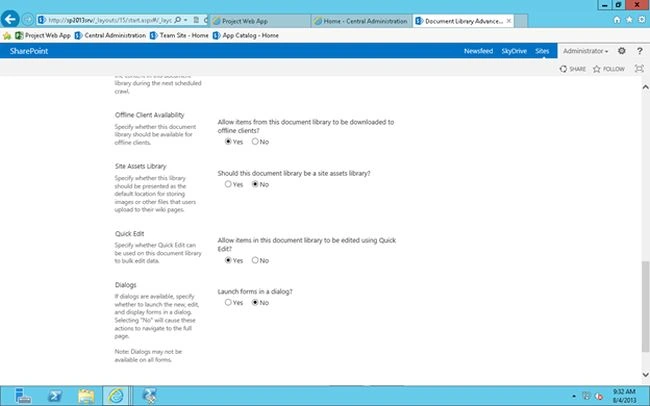
- Site Assets Library: if a person uploads an image or a wiki page then you can enable this so that both images and the pages are saved into site assets.
- Quick Edit: if you enable a quick edit then it helps you to edit a document library in bulk.
- Dialogs: when you open a new or edit or view a form, if you want them in a separate dialog option then you can choose Yes.


Validation Settings
Validation Settings are used if you want to provide the user to provide a specific kind of validation on their each submission of their documents or items.




Sr KarthigaPosted Apr 19, 2016, 10:10 PM
good one
Sr KarthigaPosted Apr 19, 2016, 10:10 PM
Nice explanation
Kumaresh RajalingamPosted Feb 20, 2016, 4:39 AM
Nice explanation
Mohammed IbrahimPosted Jan 11, 2016, 4:33 AM
nice