

You might already know that Microsoft announced the preview version of SharePoint 2013 (aka SharePoint 15) last month. In this article I would like to give an overview of the installation of it on a Windows Server 2012 machine.
Download
Please note that there are 2 versions to download:
- SharePoint Foundation 2013
- SharePoint Server 2013
Choose the version you require:


Please note that the file is in Image (.img) format. You need an Image File Extractor to extract and run the setup. The folloing is the link for an Image File Extractor:
(http://www.winimage.com/)
No Client Operating System Installation
The Client Operating Systems like Windows 7 / Vista etc. are not supported in the SharePoint 2013 version. So you might require one of the following for installation:
- Windows Server 2012 R2
- Windows Server 2008
- Windows 8 Hyper V virtual machine
Pre-Requisites
The following are the prerequisites for SharePoint Foundation 2013:
- Microsoft .NET Framework 4.5
- Windows Management Framework 3.0 (CTP2)
- Application Server Role, Web Server (IIS) Role
- Microsoft SQL Server 2008 R2 SP1 Native Client
- Windows Identity Foundation (KB974405)
- Microsoft Sync Framework Runtime v1.0 SP1 (x64)
- Windows Server AppFabric
- Microsoft Identity Extensions
- Microsoft Information Protection and Control Client
- Microsoft WCF Data Services 5.0
- Cumulative Update Package 1 for Microsoft AppFabric 1.1 for Windows Server (KB2671763)
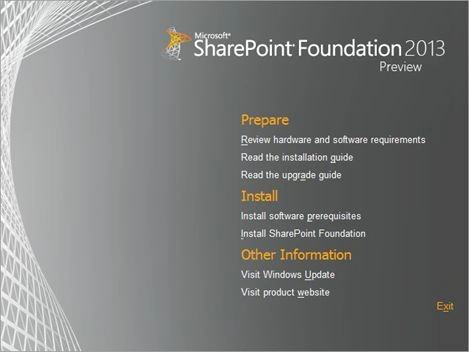
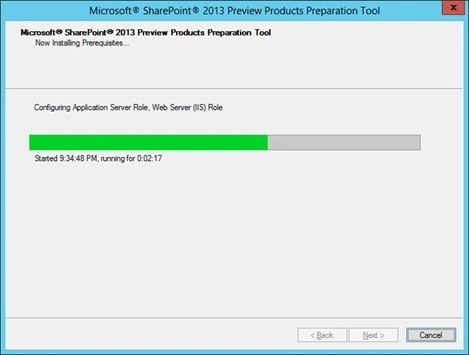
You can install the prerequisites using the Install software prerequisites option from the main screen. In case an internet connection is unavailable, a download & install would be possible.
Windows Server 2012
For the installation I have used the Windows Server 2012 R2 trial version. If you already have a server operating system installed you can skip this step and proceed directly to SharePoint 2013 Installation.
Download Windows Server 2012 Image
You can download the image file from the following location:
http://technet.microsoft.com/en-us/evalcenter/hh670538.aspx
The image file is 3.37 GB in size and you can extract or burn the image file to proceed with the installation. (ImgBurn is a tool to burn .img files to DVD.)
On running the bootable DVD you should be prompted with the setup.exe as shown below:
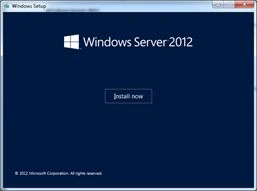
Use the GUI option in the further step:
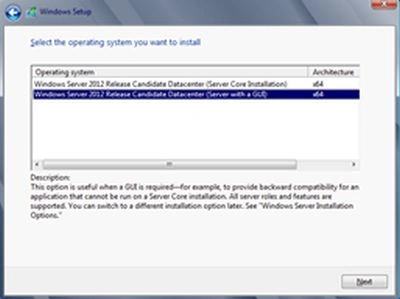
Please note that this operating system installation step can be skipped if you already have Windows Server in place. Ensure your Operating System has a valid domain integration.
Tips
- Inside Windows 2012, Use Ctrl + Alt + Delete to view the Power Options screen and you can choose Shut Down, Restart etc.
- To access your Start Menu (Screen) use your Windows button or move the mouse to the left bottom end of the toolbar.
SQL Server 2012
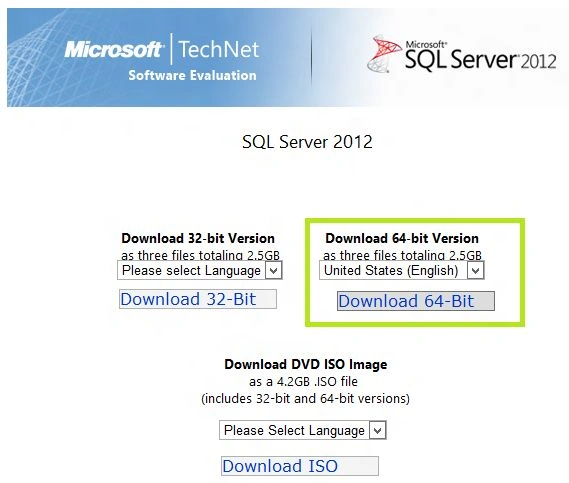
SharePoint 2013 requires SQL Server 2012. You can download a trial version from the following link:
http://www.microsoft.com/betaexperience/pd/SQL2012EvalCTA/enus/default.aspx
Join the conversation! Your thoughts help the community grow.