
This article provides a comprehensive guide on how SharePoint Permissions work in SharePoint Online. Proper permission configuration ensures that users have the correct level of access while protecting sensitive information and maintaining governance standards.
SharePoint permissions allow administrators to control who can:
View content
Edit documents
Create or delete items
Manage site settings
Control access for others
Accessing Site Permissions:
To manage permissions for a SharePoint site:
Navigate to your SharePoint site. Click the Settings (⚙️) icon in the top-right corner. Select Site permissions.
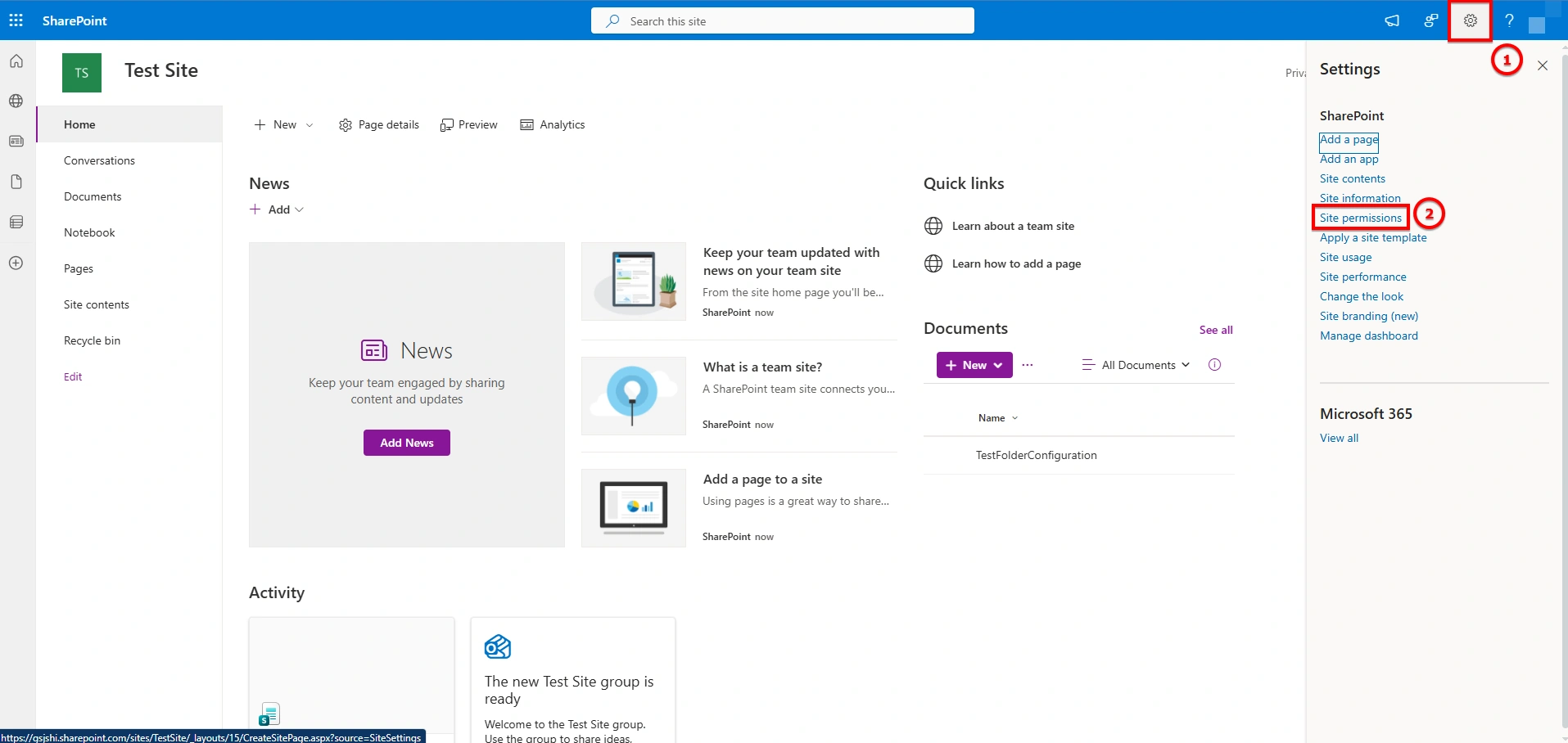
Click Advanced permission settings to access detailed permission page.
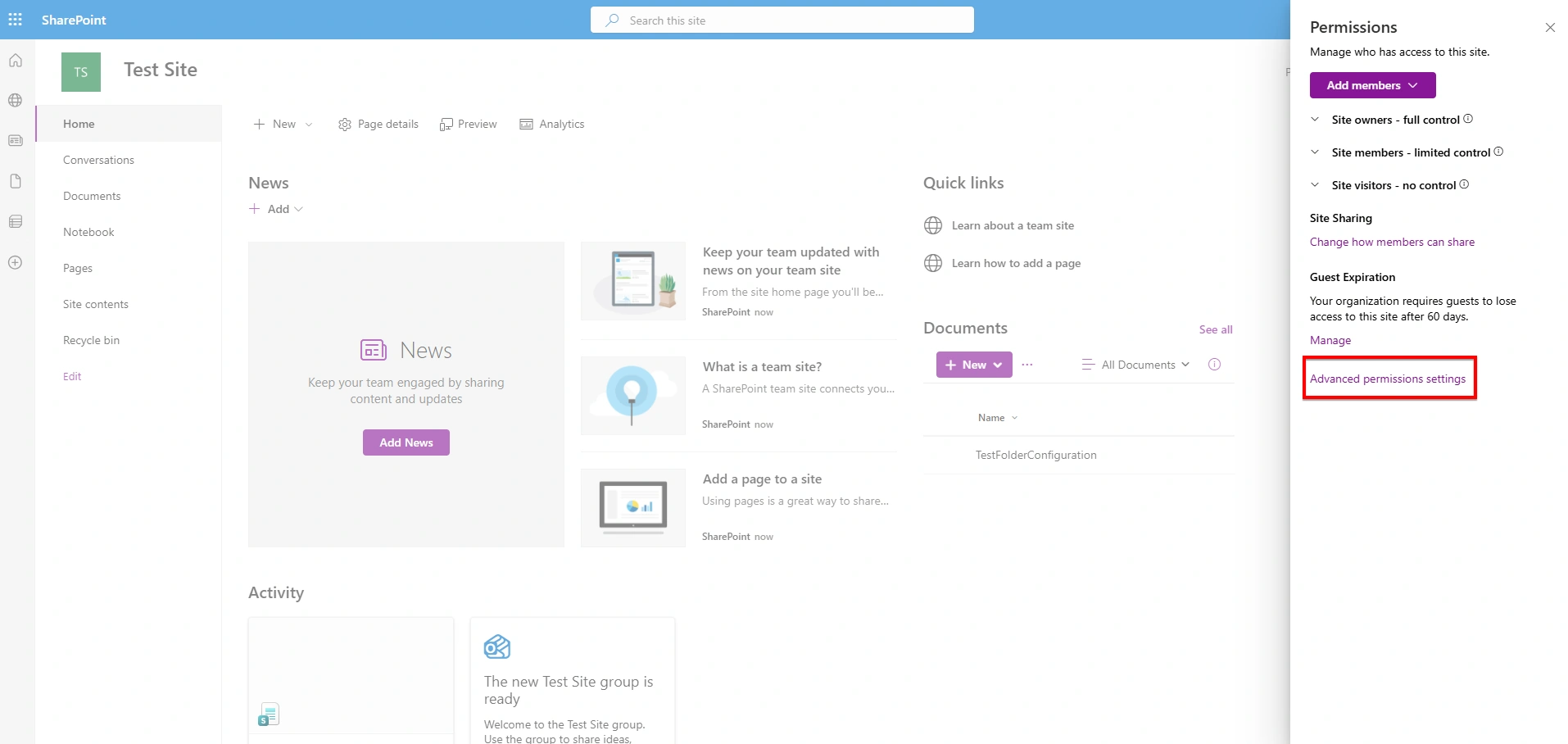
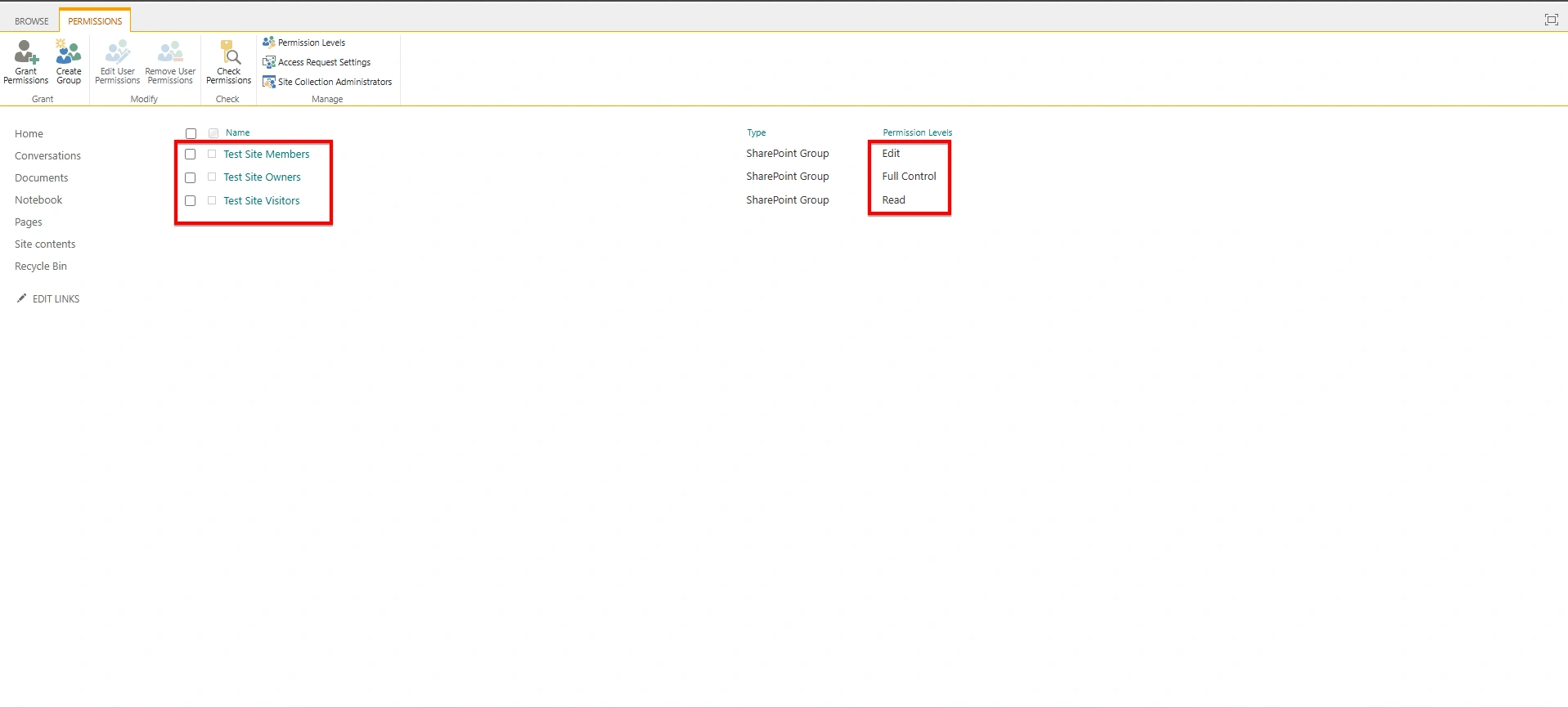
From this page, existing groups can be viewed, users can be added or removed from groups, and assigned permission levels can be modified as needed.
SharePoint Groups:
SharePoint provides three default permission groups that suit most collaboration scenarios.
Visitors (Read Only): Visitors function as guests within a site. They can view pages, open files and read documents. They cannot edit or delete any content.
Members (Edit Permission): Members act as contributors. They can add files, update content, and delete items. They cannot modify site settings.
Owners (Full Control): Owners manage and administer the site. They can adjust site settings, create or delete pages, lists, or libraries, manage access and permissions and add or remove site features
Creation of SharePoint Permission Groups
A SharePoint permission group is created to manage user access efficiently by assigning permissions to a group instead of individual users. This simplifies administration and improves governance.
To create a new SharePoint group:
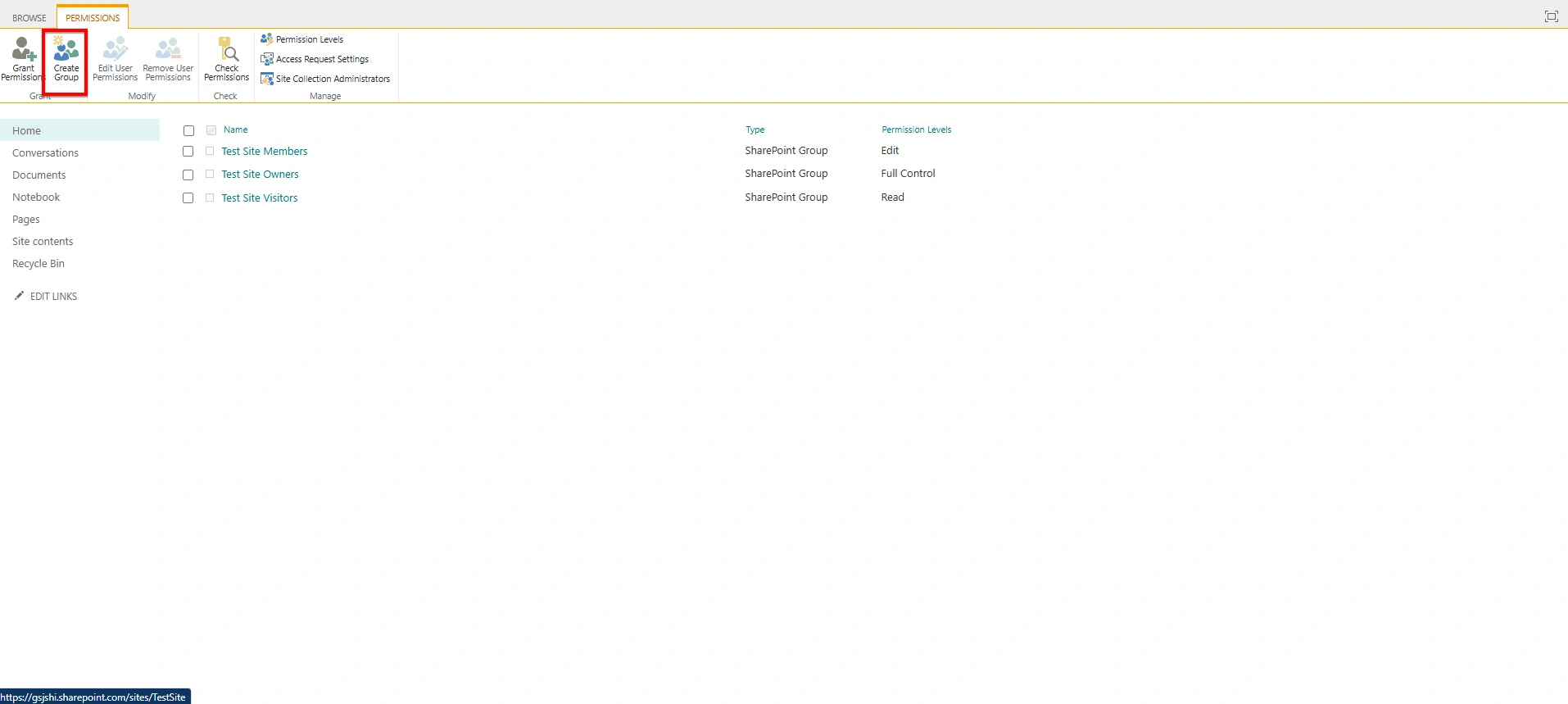
Navigate to the SharePoint site. Click Settings (⚙️) → Site permissions → Advanced permission settings → Create Group from the top ribbon.
Enter a Group Name, Description and Owner details.
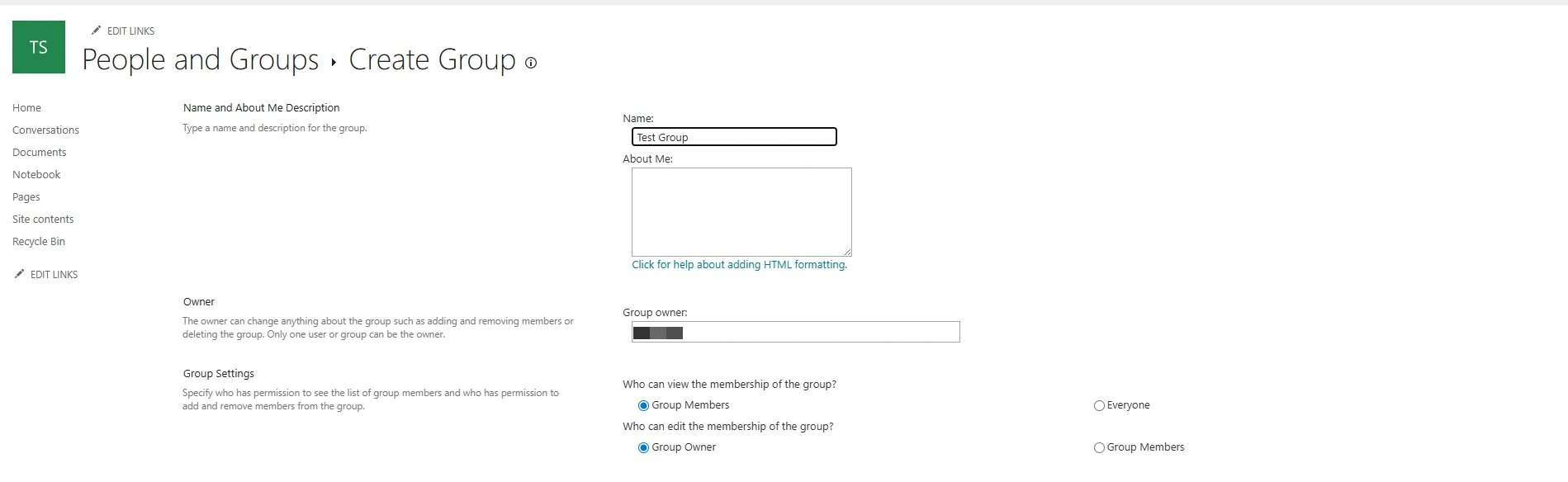
Configure settings such as:
Group settings: Who can view membership and Who can edit membership
Membership Requests: The Membership Requests setting allows users to request to join or leave a group, with requests sent for approval or automatically accepted if auto-approval is enabled.
Give permissions to this site: The Give Group Permission to this Site setting determines the permission level assigned to the SharePoint group for the site, and if no permission level is selected, the group will not have access to the site.
Select the required Permission Level and click Create.
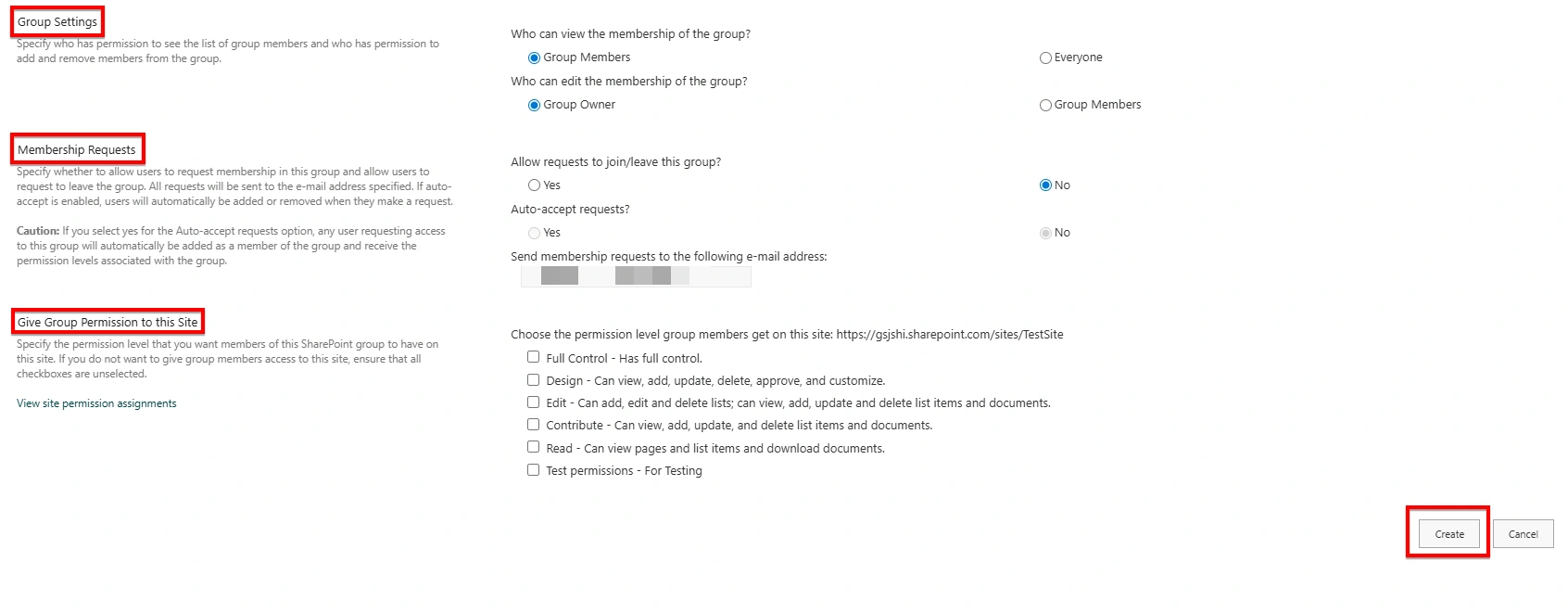
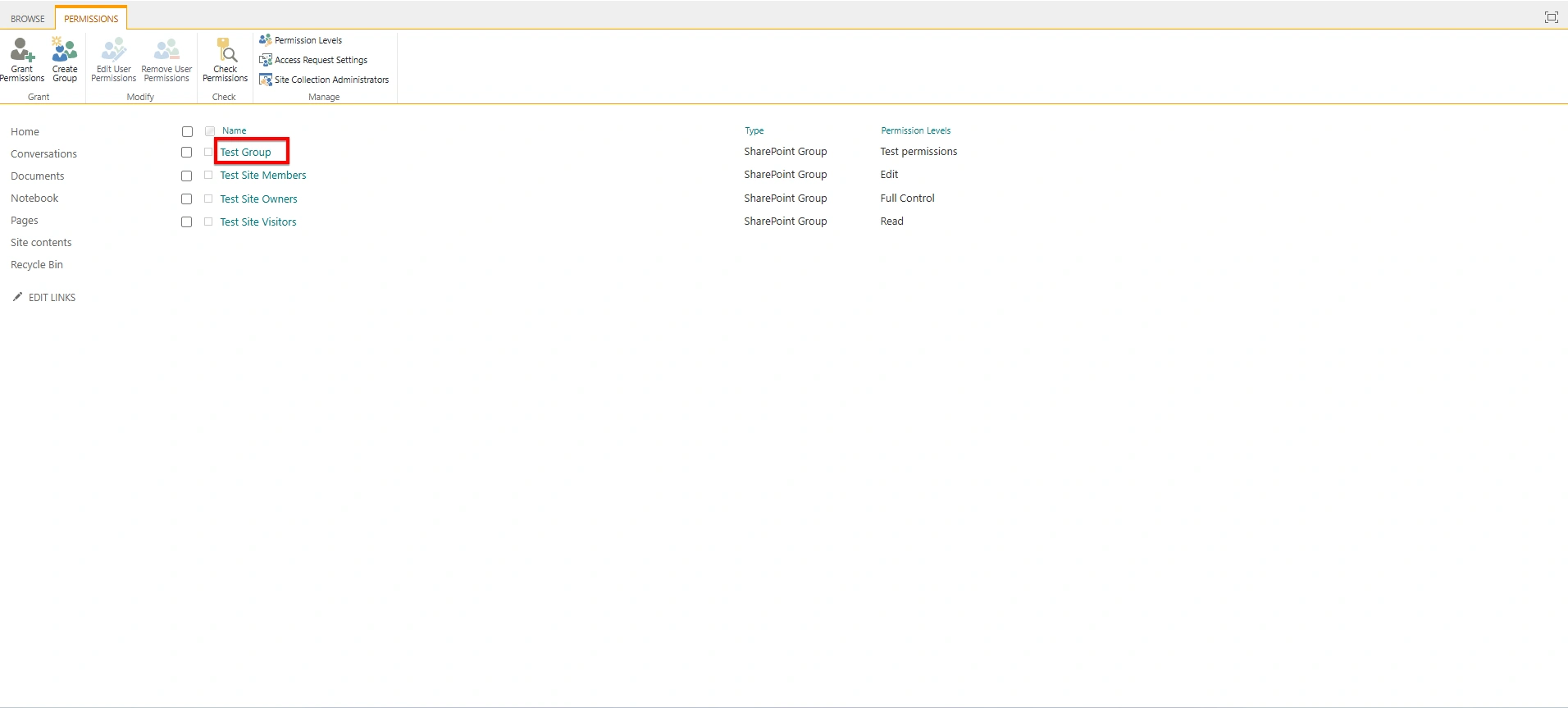
The newly created group can then be used to add users, ensuring permissions are managed centrally and consistently. It is considered a best practice to assign permissions to groups rather than directly to individual users. Newly created group is visible along with the default group:
Permission Levels in SharePoint
Permission Levels in SharePoint define what actions users can perform within a site, such as viewing content, editing documents, or managing permissions. SharePoint provides predefined permission levels, and custom levels can also be created if needed.
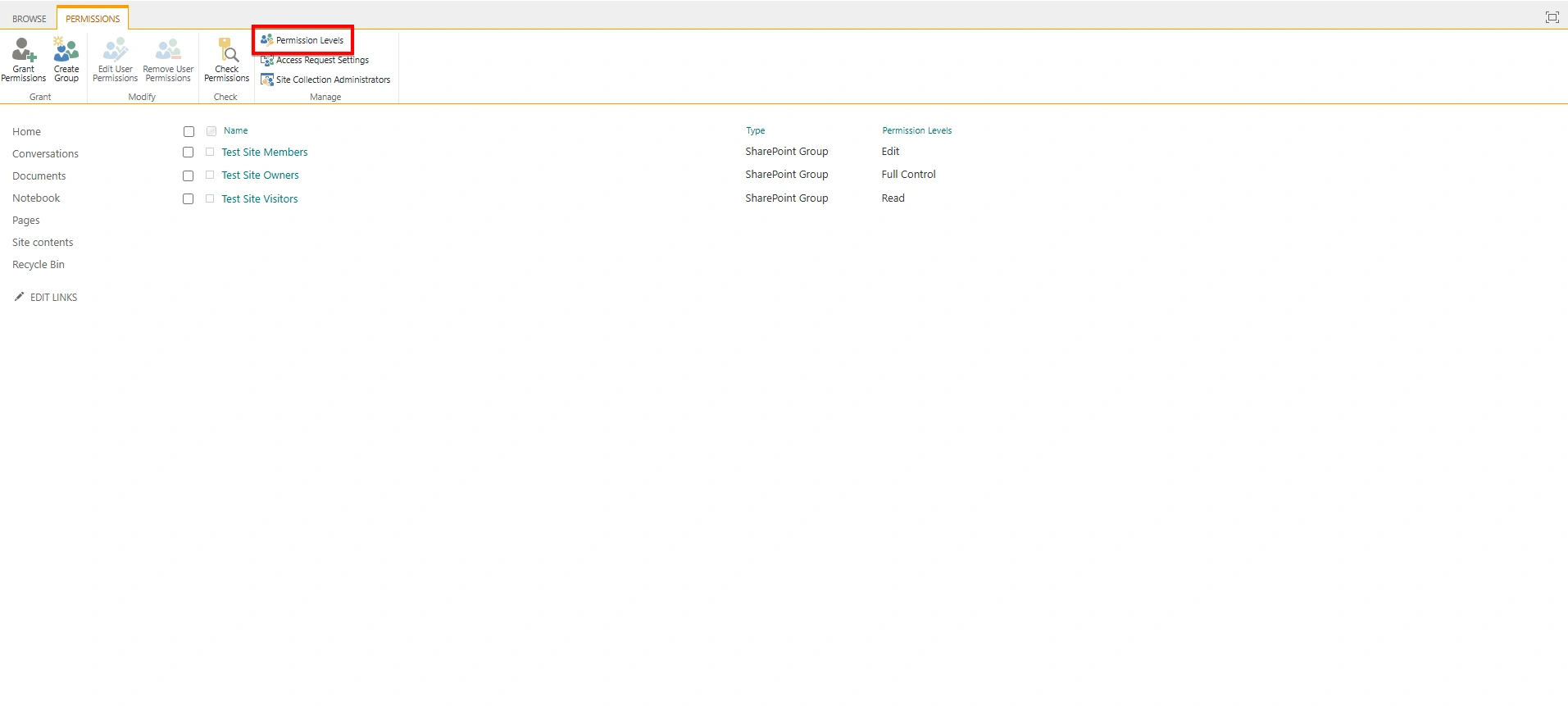
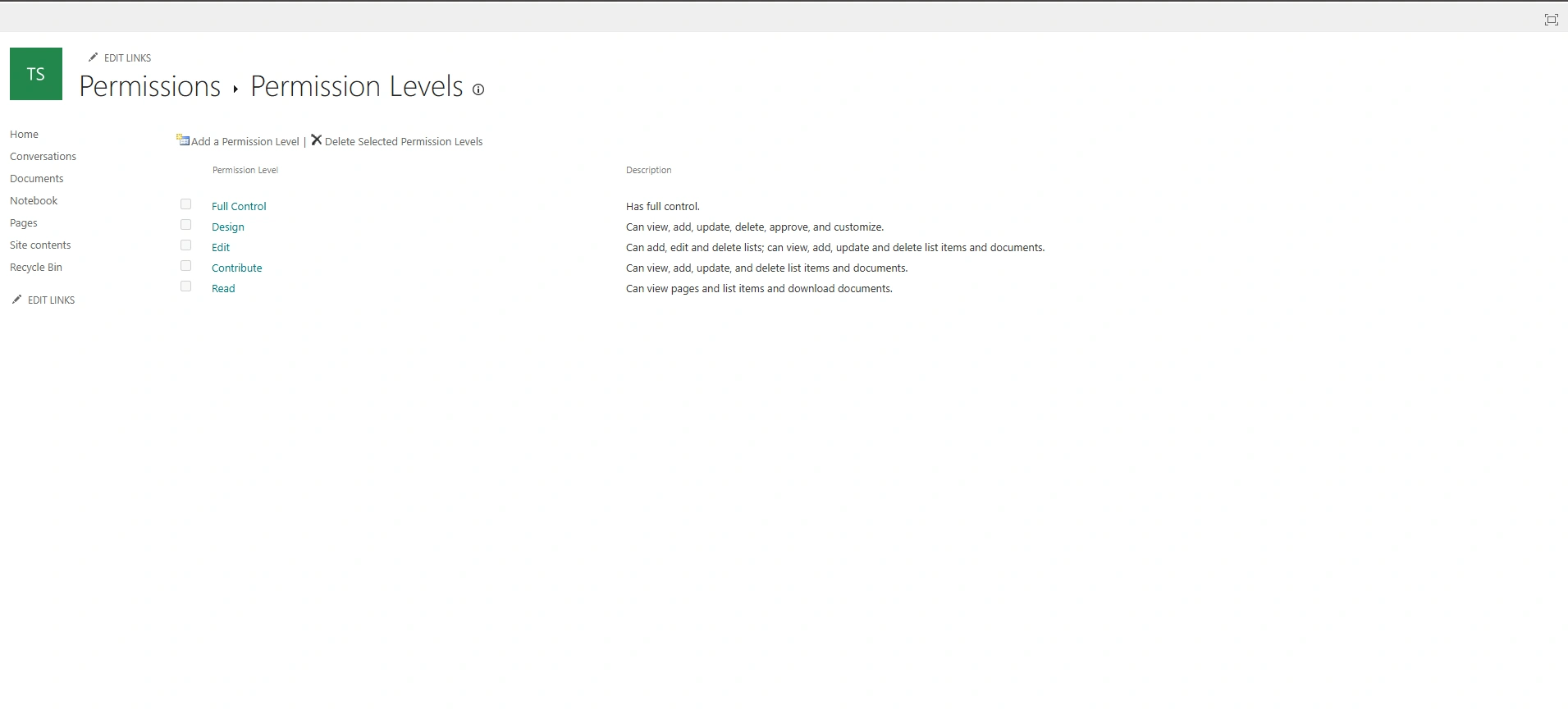
To access permission levels, navigate to the SharePoint site, click the Settings (⚙️) icon in the top-right corner, select Site permissions, then choose Advanced permission settings and click Permission Levels.
Common Permission Levels:
Full Control – Complete access, including managing permissions
Design – Edit pages, lists, and libraries
Edit – Add, edit, and delete lists and documents
Contribute – Add and edit documents only
Read – View content only
Limited Access – Automatically assigned to allow access to a specific item
Creation of a Permission Level in SharePoint:
A custom permission level can be created when predefined permission levels do not meet specific business requirements.
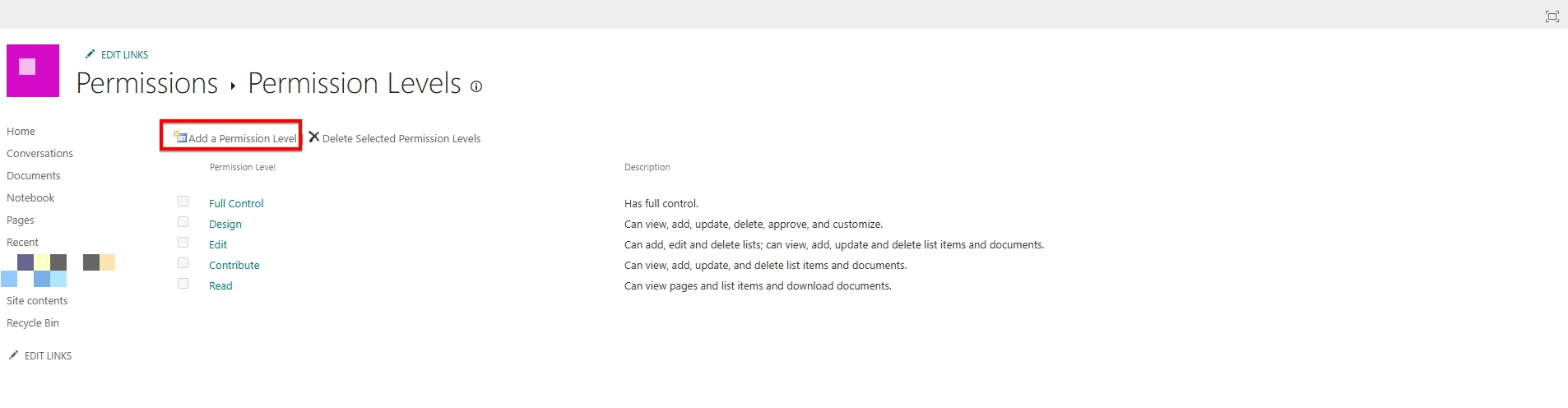
To create a new permission level:
Click Permission Levels from the top ribbon and select Add a Permission Level.
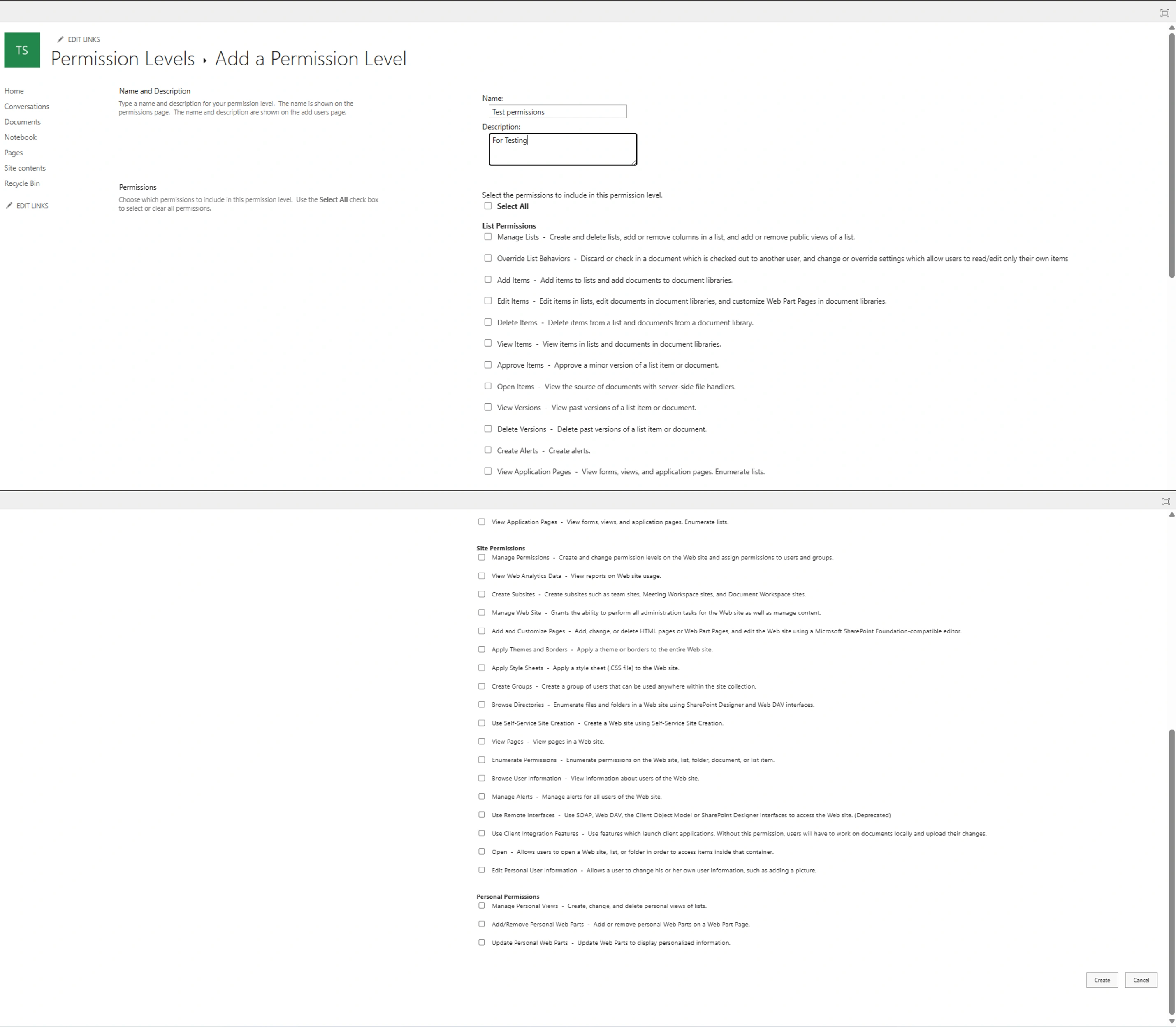
Enter a Name and Description for the new permission level and select the required permissions under categories such as:
List Permissions
Site Permissions
Personal Permissions and click Create.
The newly created permission level can then be assigned to SharePoint groups or users as required.
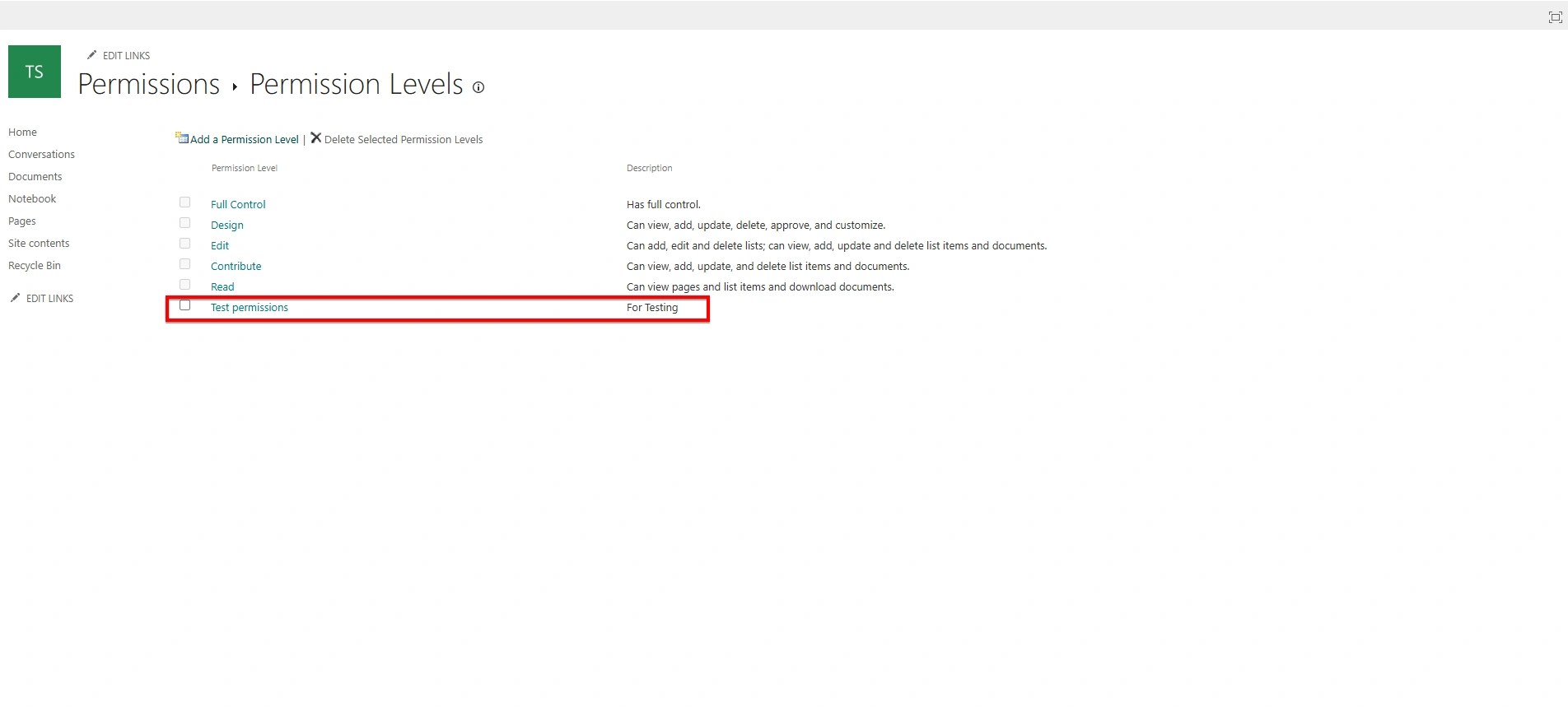
It is recommended to create a custom permission level instead of modifying default permission levels to maintain system integrity and governance. Only users with Full Control permission can create or modify permission levels in SharePoint.
Permission Inheritance
Permission inheritance means permissions are passed from top to bottom. The main (root) site provides permissions to its subsites, and each subsite inherits permissions from its parent site. Similarly, lists, libraries, folders, and documents inherit permissions from the site or library in which they are stored.
Permission inheritance saves time by automatically applying permissions from the parent site. However, permissions can be modified by assigning unique access, changing permission levels, or removing users to ensure appropriate data access while restricting others.
Breaking Permission Inheritance: Before assigning unique permissions to a list or library, inheritance must be stopped.
To break permission inheritance:
1. Navigate to the required List or Library.
2. Click Settings → List settings or Library settings.
3. Under Permissions and Management, select ‘Permissions for this list/library’.
4. Click Stop Inheriting Permissions from the top ribbon.
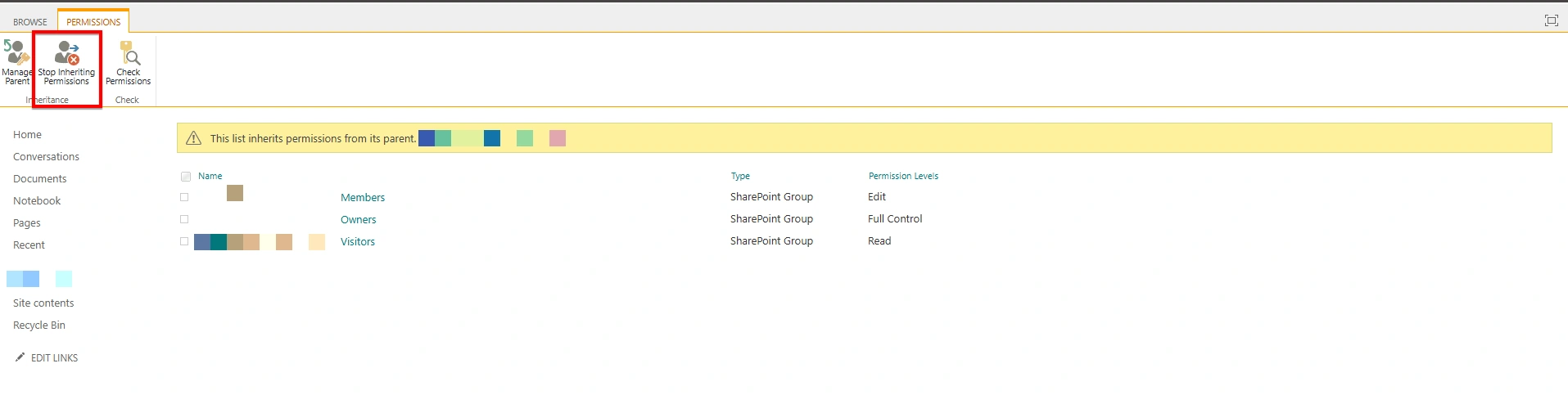
Once inheritance is stopped, the list or library will no longer follow site-level permissions and can have its own unique access settings.
Granting Permissions to a List or Library: After breaking inheritance:
1. Go to the list or library permissions page and click Grant Permissions.
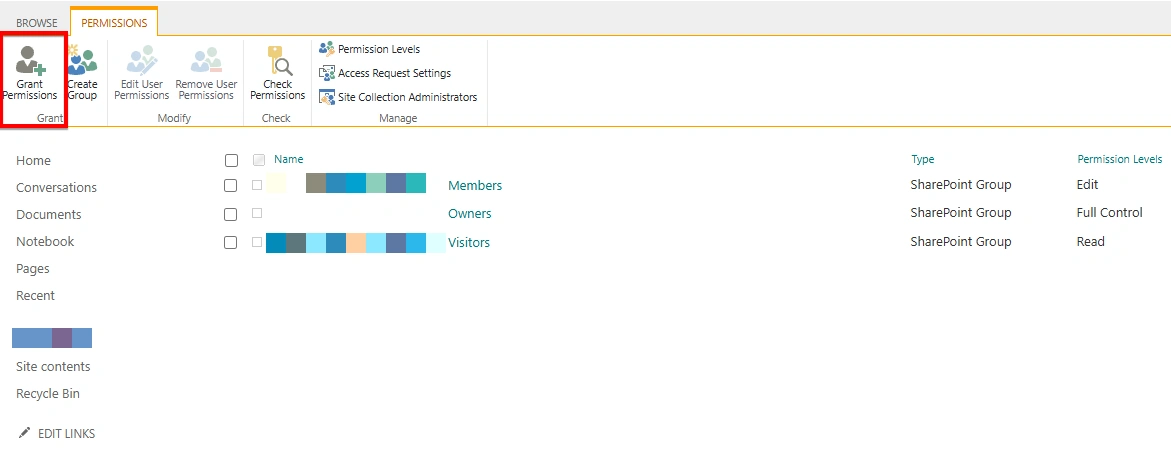
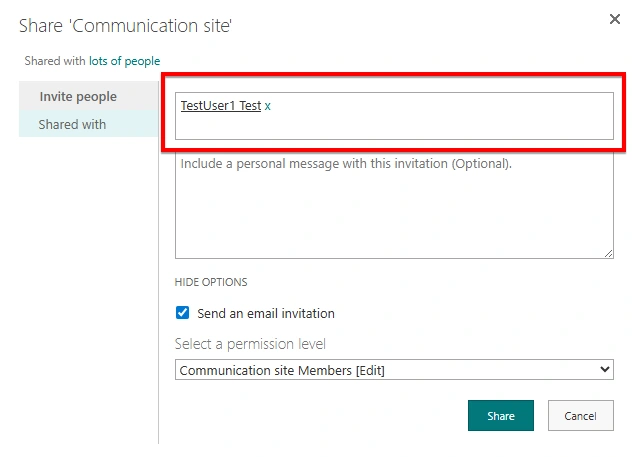
2. Enter the name of users or groups.
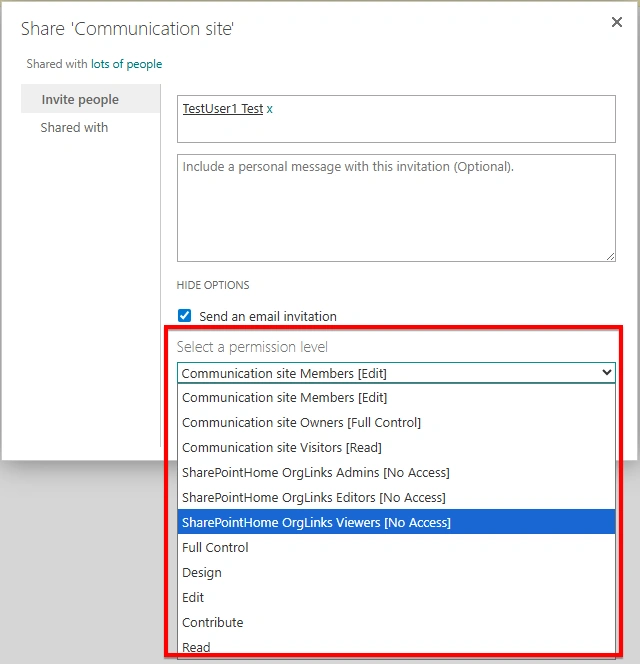
3. Select the appropriate Permission Level (Read, Edit, etc.). Select the “Send an email invitation” option if an email notification should be sent to the user and click the 'Share' button:
This allows specific users or groups to access only that list or library without granting access to the entire site.
Removing User Permissions: To remove access:
1. Select the user or group from the permissions page and click ‘Remove User Permissions’.
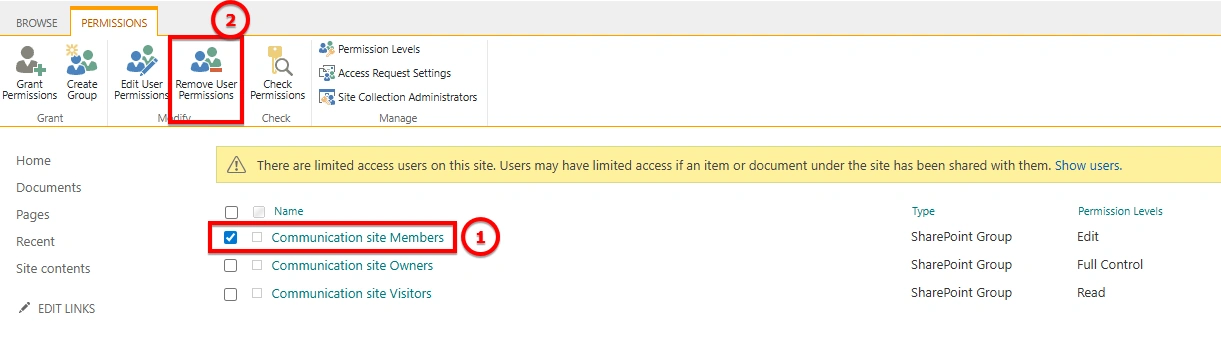
This action immediately revokes access to that specific list or library.
Editing User Permissions: To edit the user permissions:
1. Select the user or group from the permissions page and click ‘Edit User Permissions’.
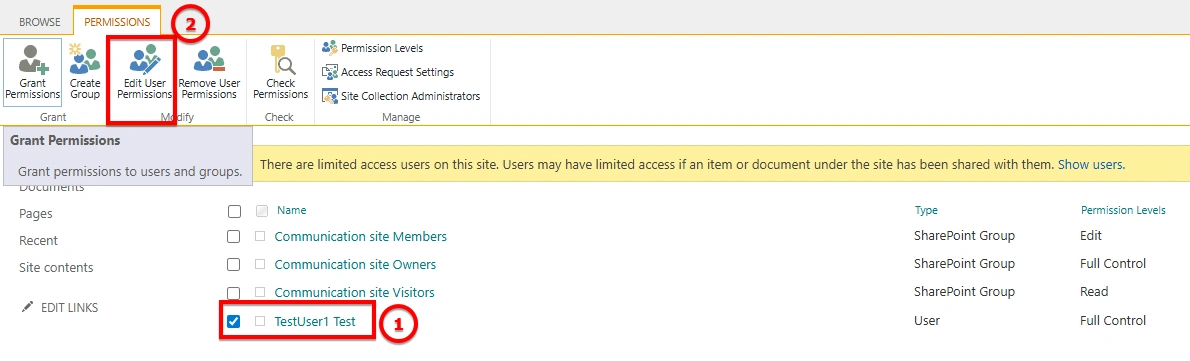
2. Modify the permissions and click on ‘OK’:
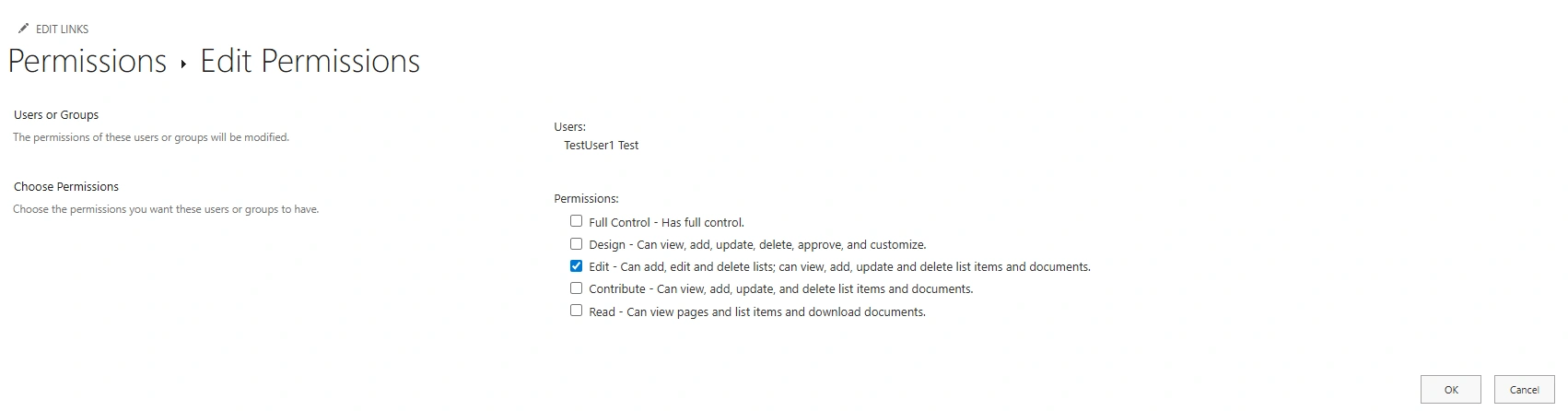
This action updates the user’s permission level for that specific list or library.
Restoring Permission Inheritance: If unique permissions are no longer required:
Go to the list/library setting page → Click on “Permissions for this list”:
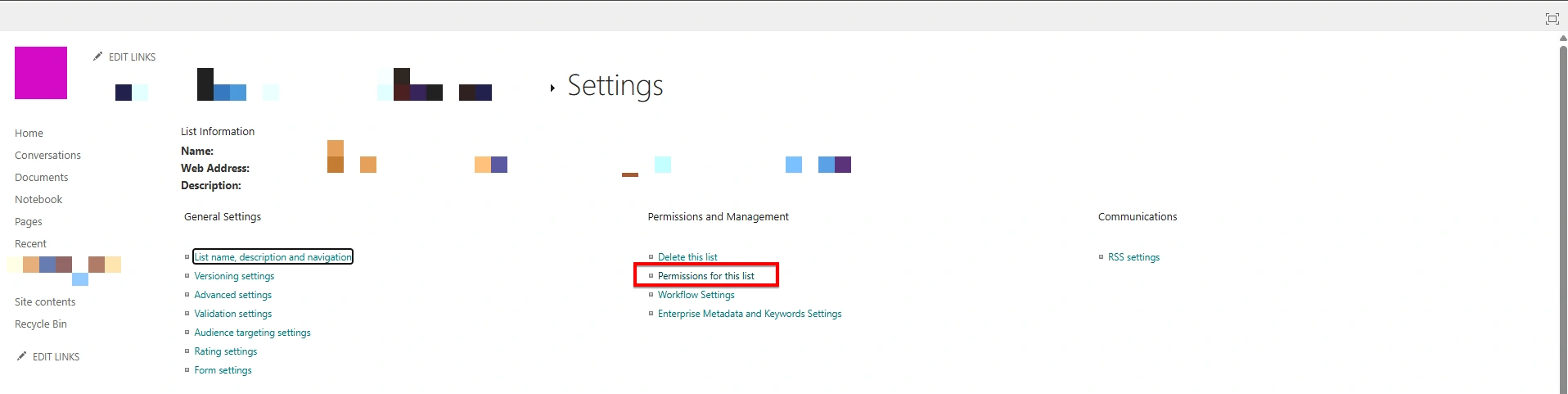
Click Delete Unique Permissions:
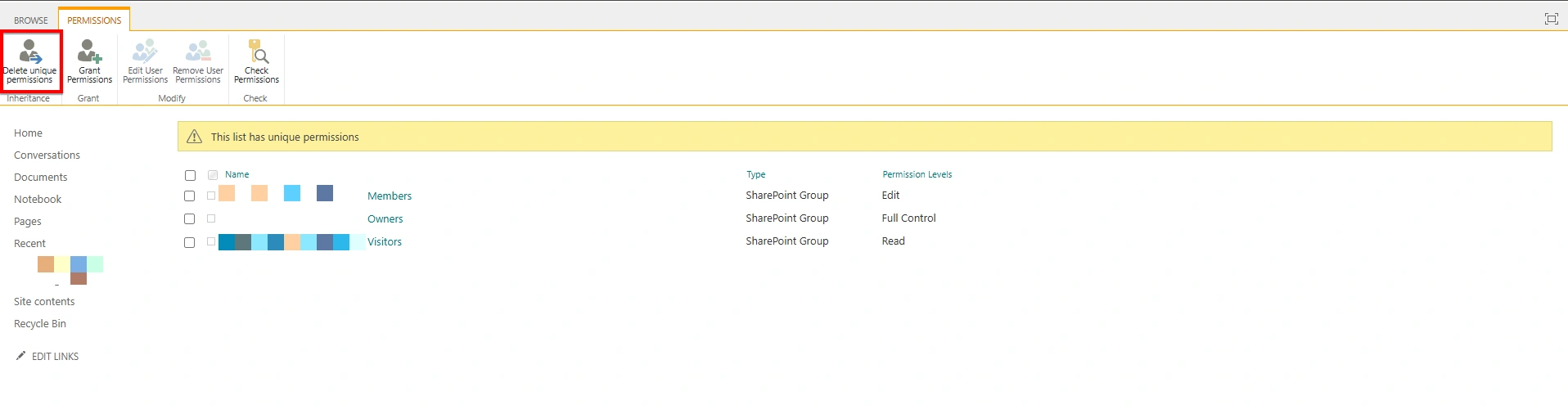
This restores inheritance and aligns permissions with the parent site.
Checking User Permissions:
SharePoint allows administrators to verify the effective permissions assigned to a specific user. This helps in troubleshooting access issues and validating security configurations. To check user permissions:
Navigate to the SharePoint site.
Click Settings (⚙️) → Site permissions → Advanced permission settings → Click Check Permissions from the top ribbon.
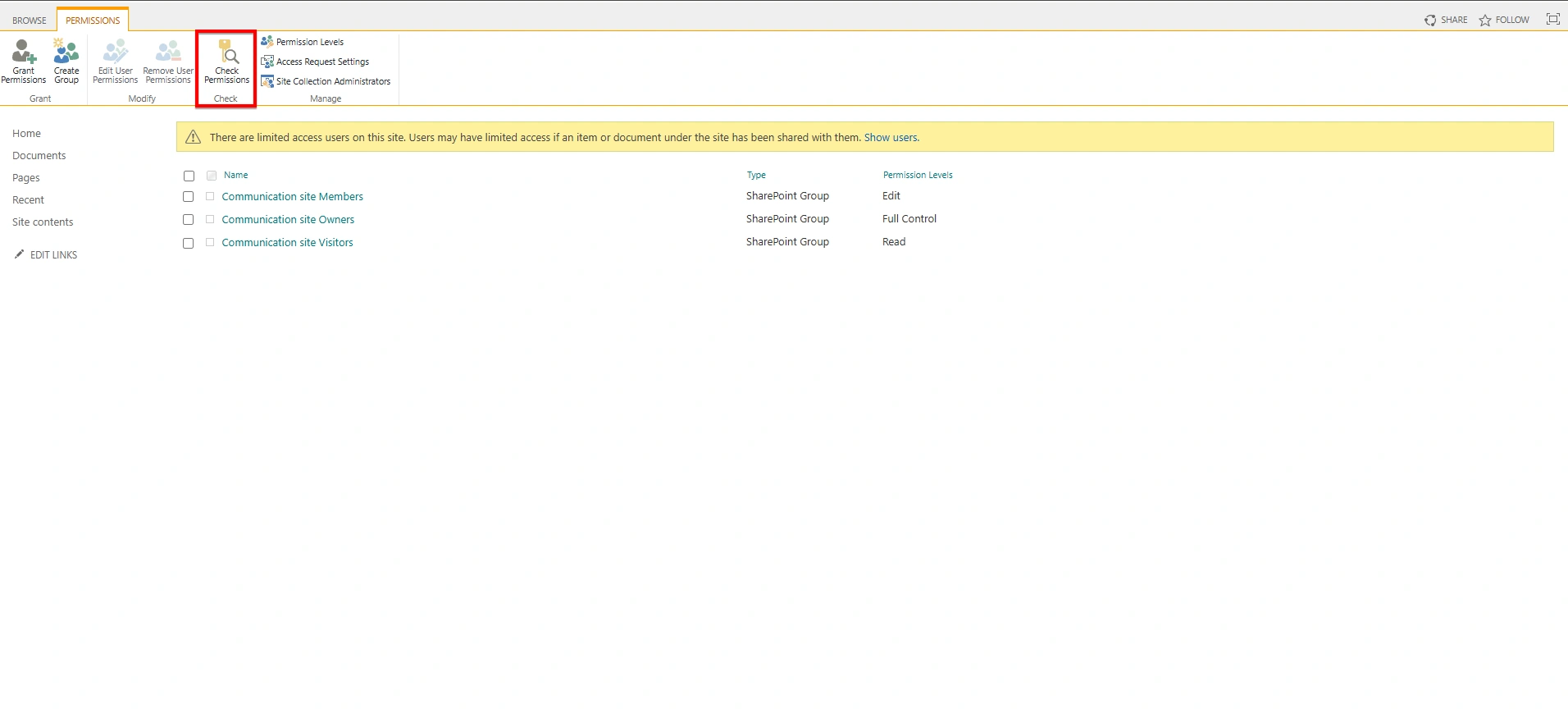
Enter the user name and click Check Now to view the effective permission level.
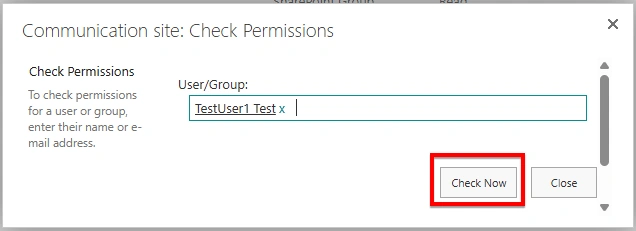
This section displays the exact permissions a user has on the site, including permissions granted through group membership.
Properly managing SharePoint permissions ensures that the right people have the right level of access to content. Understanding permission levels and inheritance helps maintain security, organization, and effective collaboration across the site.
Join the conversation! Your thoughts help the community grow.