

Introduction
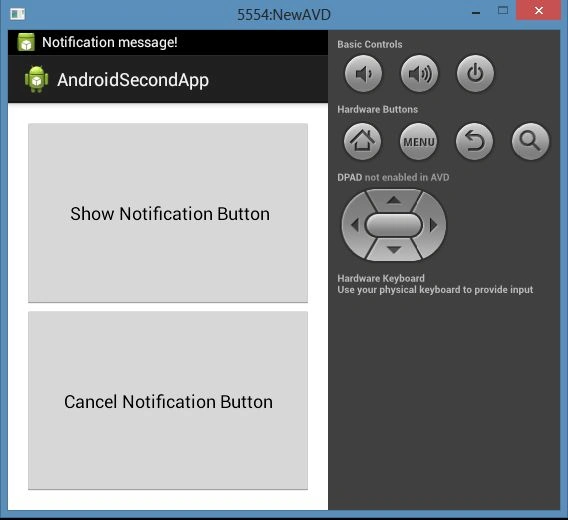
In this article, I will tell you how to produce a notification by the notification manager in Android, but in this article, I will tell you how to generate a notification using a button in Android. To develop this application you can use the following procedure.
Step 1
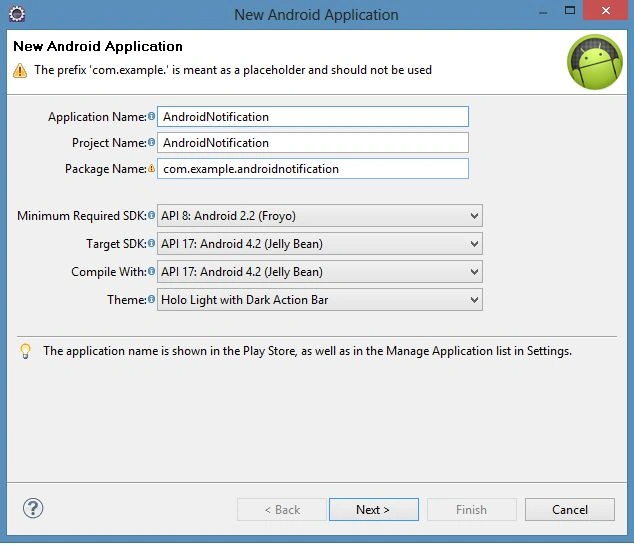
As usual, create a new project file as in the following.
Step 2
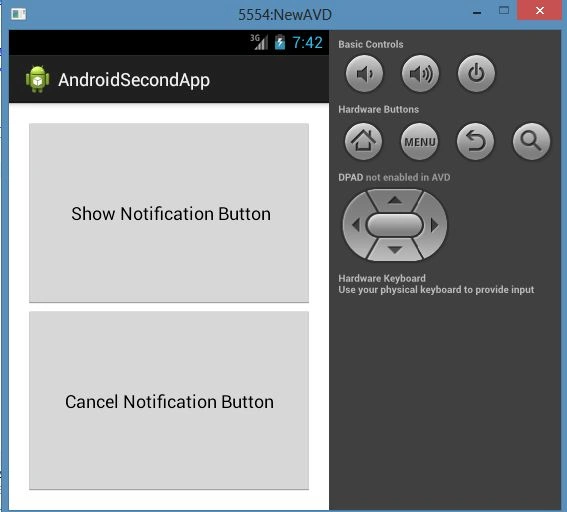
Open the "activity_main.xml" file and update it as in the following code.
- <LinearLayout xmlns:android="http://schemas.android.com/apk/res/android"
- xmlns:tools="http://schemas.android.com/tools"
- android:paddingBottom="@dimen/activity_vertical_margin"
- android:paddingLeft="@dimen/activity_horizontal_margin"
- android:paddingRight="@dimen/activity_horizontal_margin"
- android:paddingTop="@dimen/activity_vertical_margin"
- tools:context=".MainActivity"
- android:orientation="vertical"
- android:layout_width="fill_parent"
- android:layout_height="fill_parent"
- >
- <Button android:id="@+id/notify"
- android:layout_width="fill_parent"
- android:layout_height="fill_parent"
- android:layout_weight="1"
- android:text=" Show Notification Button"
- android:onClick="triggerNotification"
- />
- <Button android:id="@+id/cancel"
- android:layout_width="fill_parent"
- android:layout_height="fill_parent"
- android:layout_weight="1"
- android:text="Cancel Notification Button"
- android:onClick="clearNotification"
- />
- </LinearLayout>
Step 3
Open the "MainActivity.java" file and update it as in the following code.
- package com.example.androidsecondapp;
- import android.app.Activity;
- import android.app.Notification;
- import android.app.NotificationManager;
- import android.app.PendingIntent;
- import android.content.Intent;
- import android.os.Bundle;
- import android.view.Menu;
- import android.view.View;
- public class MainActivity extends Activity {
- //Notification message ID
- private static final int NOTIFY_ME_ID=1337;
- //Counter
- private int count=0;
- //Create NotificationManager object
- private NotificationManager notifyMgr=null;
- @Override
- protected void onCreate(Bundle savedInstanceState) {
- super.onCreate(savedInstanceState);
- setContentView(R.layout.activity_main);
- notifyMgr=(NotificationManager)getSystemService(NOTIFICATION_SERVICE);
- }
- public void triggerNotification(View v) {
- //Instantiate notification with icon and ticker message
- Notification notifyObj=new Notification(R.drawable.ic_launcher,"Notification message!",System.currentTimeMillis());
- //PendingIntent to launch our activity if the user selects it
- PendingIntent i=PendingIntent.getActivity(this, 0,
- new Intent(this, NotifyActivity.class),0);
- //Set the info that show in the notification panel
- notifyObj.setLatestEventInfo(this, "Notification Created","Click here to see the message", i);
- //Value indicates the current number of events represented by the notification
- notifyObj.number=++count;
- //Set default vibration
- notifyObj.defaults |= Notification.DEFAULT_VIBRATE;
- //Set default notification sound
- notifyObj.defaults |= Notification.DEFAULT_SOUND;
- //Clear the status notification when the user selects it
- notifyObj.flags|=Notification.FLAG_AUTO_CANCEL;
- //Send notification
- notifyMgr.notify(NOTIFY_ME_ID, notifyObj);
- }
- public void clearNotification(View v) {
- //Clear the notification
- notifyMgr.cancel(NOTIFY_ME_ID);
- }
- @Override
- public boolean onCreateOptionsMenu(Menu menu) {
- // Inflate the menu; this adds items to the action bar if it is present.
- getMenuInflater().inflate(R.menu.main, menu);
- return true;
- }
- }
Pranav J.DevPosted Mar 29, 2016, 6:37 AM
useful post.