
In this article we are going to see how we can create a Slide in Transition
Effect using Visual State Manager.
We would be using few Blend Dlls . so make sure you have Blend 4 Sdk downloaded
and installed from the Net.
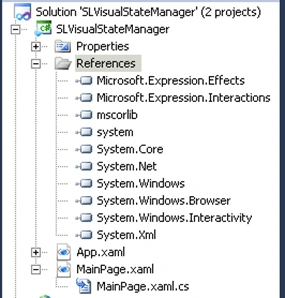
Create a new Project and add reference to the Dlls as shown below :
Adding the Required Namespaces :
Make sure you add the following Namespaces in the xaml code .
xmlns:ei="http://schemas.microsoft.com/expression/2010/interactions"
xmlns:ee="http://schemas.microsoft.com/expression/2010/effects"
Creating the Visual State Manager:
Below is the code for creating a Visual State Manager . Have created a
VisualStateGroup . Have added two states namely Start and New.
In our case Start refers to the Initial State and New refers to the Modified
State . Here I have created an example to demonstrate the Slide in Transition
Effect.
<!-- Visual State Created -->
<VisualStateManager.VisualStateGroups>
<VisualStateGroup
x:Name="PageTrans">
<VisualStateGroup.Transitions>
<VisualTransition
GeneratedDuration="0:0:1">
<ei:ExtendedVisualStateManager.TransitionEffect>
<ee:SlideInTransitionEffect/>
</ei:ExtendedVisualStateManager.TransitionEffect>
<VisualTransition.GeneratedEasingFunction>
<CubicEase
EasingMode="EaseInOut"/>
</VisualTransition.GeneratedEasingFunction>
</VisualTransition>
</VisualStateGroup.Transitions>
PatrickPosted Sep 22, 2011, 11:55 AM
This is great - I wasn't even aware of this nifty method of doing transitions. Question - is there any way to have the transition target just a sub-component of the page? It looks like the visual state group MUST be the first child of the element it animates. What I'm thinking of using it for is animating the transition between views in MVVM - any thoughts on how I'd use this to accomplish that? Even showing how this can be used to animate a SET of items would be all I need to get going but I simply can't penetrate the black box that is the ExtendedVisualStateManager.