
Create a new Blend silverlight project.
Click on the States tab in Blend. The States Panel would open as shown below :
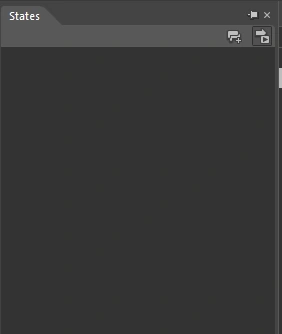
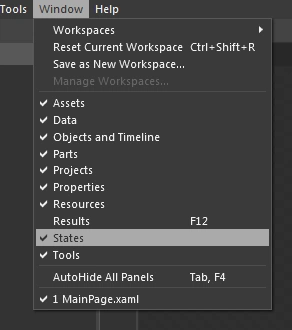
If the States window is unavailable. Check the States option in the Window menu.
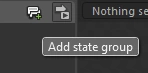
Click on Add State Group shown below :
A new State group is added as shown below :
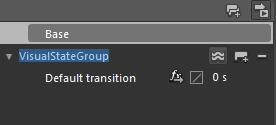
Rename the state group as StatesGroup.
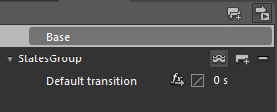
Click and Turn on Transition preview.
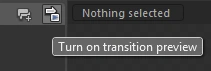
click on Add State.
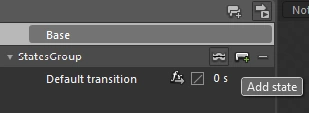
On clicking the Add state button the screen is modified as shown below.
Note that all the changes made hence forth to the screen would be recorded and saved as that state.
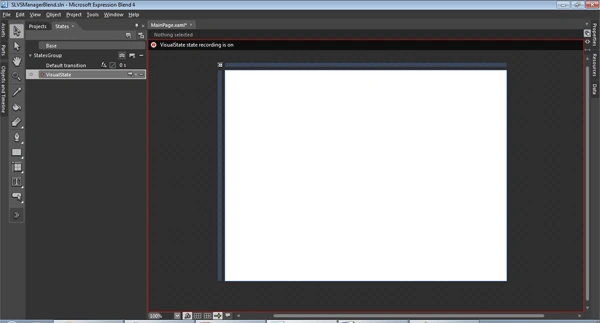
A new State is created.
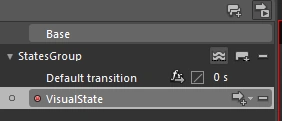
Rename the Visualstate as MouseEnter.
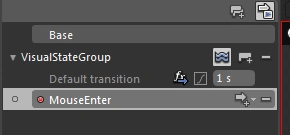
Similarly add a new state as shown below :
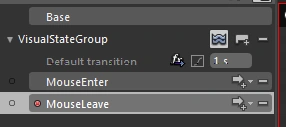
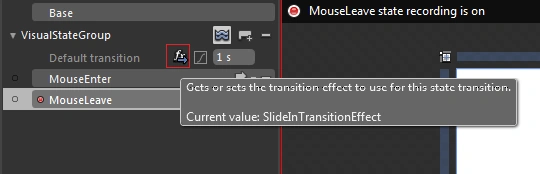
Also add a rectangle keeping the base state as selected as shown below :
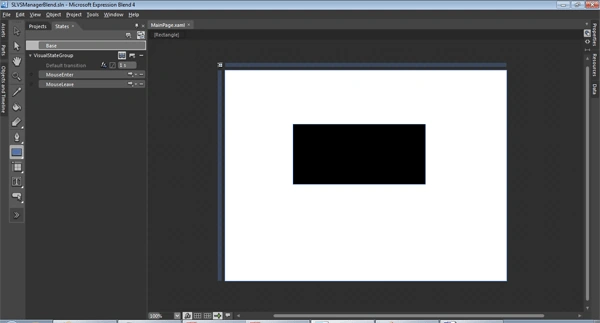
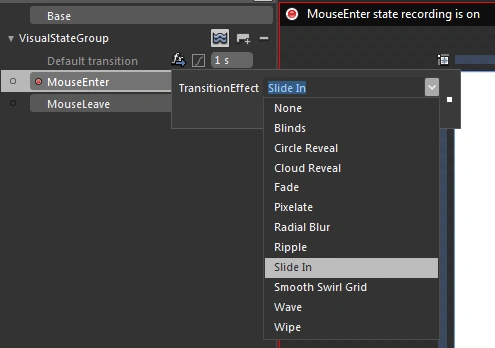
Lets add a Slide In Transition.
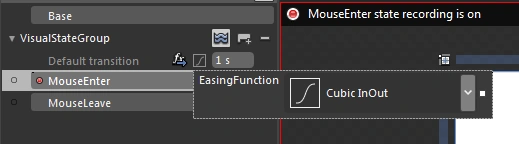
Add a Easing Function to the transition effect as shown below :
Now when you select and swap the states , a nice slide transition is experienced. You could also change the Transition effect to experience different transition effects.
You could easily swap between these states as discussed in the previous article.
http://www.c-sharpcorner.com/UploadFile/Mahadesh/8886/
Thanks. Happy Coding..
Join the conversation! Your thoughts help the community grow.