
Introduction
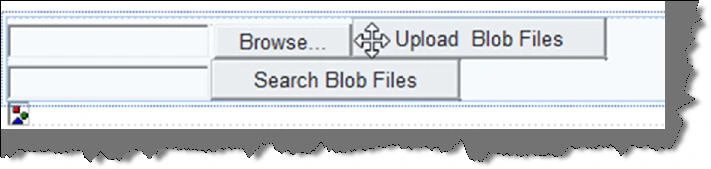
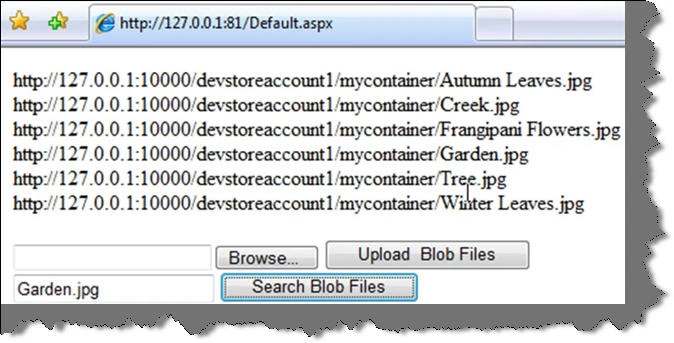
In this section we will create our first program using Azure blobs. This article creates a simple web page where we upload image files which are stored in azure blobs. We have also created a simple search text box which will help us to search the image blobs with the image file name.
In case you are a complete newbie to azure you can download my two azure basic videos which explain what azure is all about Azure Faq Part 1 :- Video1 , Azuer Faq Part 2 :- Video2.
Please feel free to download my free 500 question and answer eBook which covers .NET , ASP.NET , SQL Server , WCF , WPF , WWF@ http://www.questpond.com .
Step 1:- Ensure you have things at place
In case you are a complete fresher to Azure, please ensure you have all the pre-requisite at place. You can read the below article to get the basic prerequisite http://www.c-sharpcorner.com/UploadFile/shivprasadk/136/Default.aspx?ArticleID=06ceb214-4077-4380-81b0-7d2c56021193.
Step 2:- What will we do?
Azure Blobs help to store large items like files, in other words its file storage system. In this article we will create a simple program to upload image files in Azure blob system.
Step 3:- Create a web role
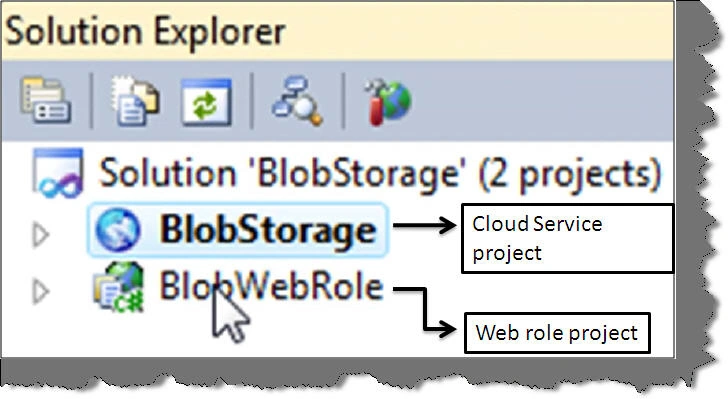
The first step is to a create a web role project. In case you are fresher in Azure, you can go through http://www.c-sharpcorner.com/UploadFile/shivprasadk/136/Default.aspx?ArticleID=06ceb214-4077-4380-81b0-7d2c56021193 to understand how to create a web role project. So let's create a simple project with name 'BlobStorage'. Once you have created the project it creates two projects one is the cloud service project and the other is the web role project. Cloud service project has all the necessary configuration needed for your cloud service project while the web role project is your asp.net project.
Step 4:- Set the blob connection string
Now the next step is to define a blob connection string in the service configuration file. So expand the 'BlobStorage' project, right click on roles and select properties.
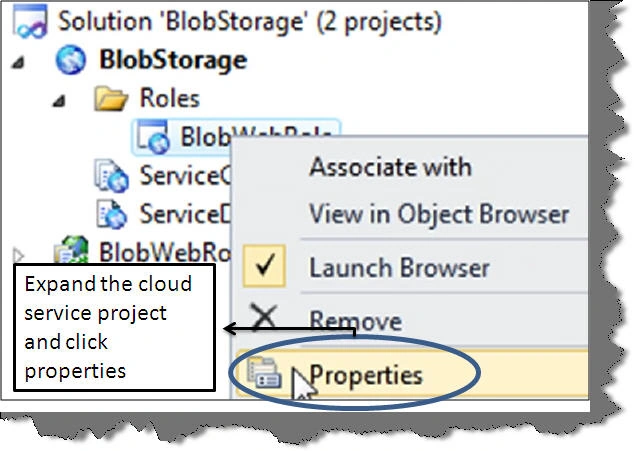
Once you select properties, go to settings tab and add the blob connection string as shown in the below figure. In the below figure we have added blob connection string name as 'BlobConnectionString'.
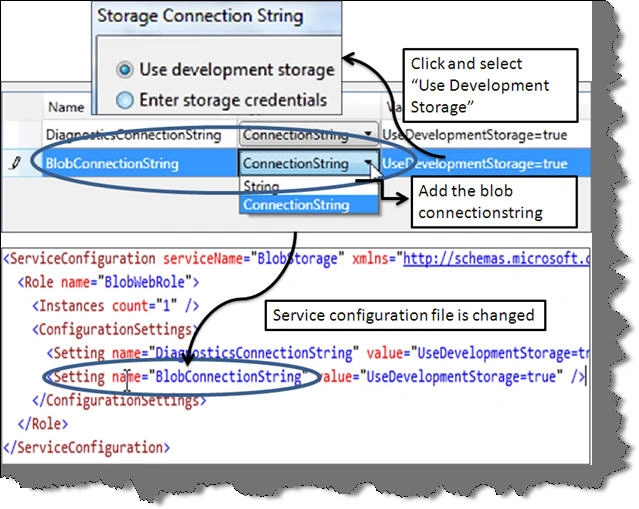
Click on the right hand eclipse and select 'Use development storage'. All the changes done using the setting UI will be reflected in the 'ServiceConfiguration' file as shown above.
Step 5:- Create the blob on webrole onstart
Now it's time to start coding. Open the web role project and open 'WebRole.cs' file.
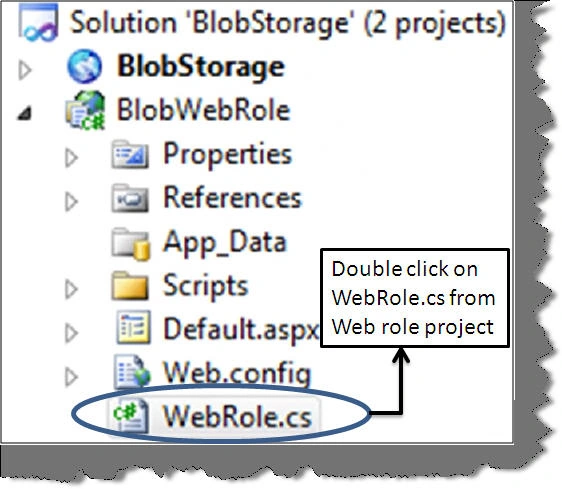
Now let's write a code on the 'onstart' event to create the blob container.
public override bool OnStart() { }
Use the 'CloudStorageAccount' static class to set the configuration environment.
public override bool OnStart()
{
// Set the configuration file
DiagnosticMonitor.Start("DiagnosticsConnectionString");
CloudStorageAccount.SetConfigurationSettingPublisher((configName, configSetter) => { configSetter(RoleEnvironment.GetConfigurationSettingValue(configName));
} ); .... .... .... .... }
The next step is to get a reference of the cloudstorageaccount object using the blob connection string which was provided when you setup your web role project.
// get the blob connection string
CloudStorageAccount objStorage = CloudStorageAccount.FromConfigurationSetting("BlobConnectionString");
Once we have access to the storage account object, use the blob end point to create the blob client.
// get the client reference
CloudBlobClient objClient = new CloudBlobClient(objStorage.BlobEndpoint, objStorage.Credentials);
Give a nice name to the container and create the container object using the client object which you have just created using the blob end point. Call the 'CreateIfnotExist' method of the container to ensure that you create the blob container only if it does not exist to avoid any errors.
// Get the reference to container
CloudBlobContainer objContainer = objClient.GetContainerReference("mycontainer");
// Create the container if it does not exist objContainer.CreateIfNotExist();


Join the conversation! Your thoughts help the community grow.