
A tutorial demonstrating the power of AutoComplete feature of the TextBox control using Windows Forms client and SQL Server 2000 data.
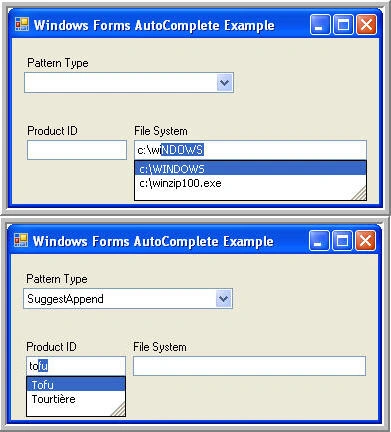
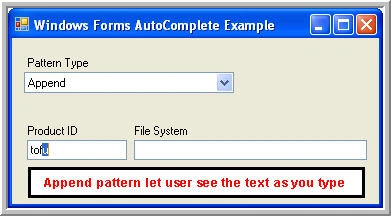
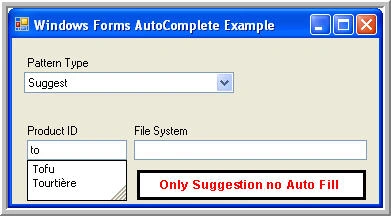
Figure: 1 - Example in run-time mode
Introduction
If you ask any end-user, what is that most desired feature they look for in software application? I bet the most common answer is, "must be easy to use". There're many different ways one can improve the end-user experience. In this article I'll demonstrate you how a simple AutoComplete feature of TextBox control can greatly enhance the Data Entry.
I assume the reader has the basic understanding of the Visual Studio 2005 IDE and comfortable with writing the code using C#. Since this tutorial is using data stored inside SQL Server, basic understanding of SQL statement and data connectivity is desirable.
What is AutoComplete?
It is always a good thing to learn with the help of an example; Internet Explorer includes a feature called AutoComplete that keeps track of information that you've recently typed, such as Web site addresses, information in forms, and search queries. As you type new information, AutoComplete tries to anticipate what you are typing and offers possible matches. You save time because you don't have to type in the full information-just select AutoComplete's match and go!
Say you've recently visited the Web site http://www.ebay.com and you want to go back. You can type "http://www.eb" or even just "eb" and AutoComplete will fill in the rest of the Web address for you. If you've visited more than one place on a Web site, AutoComplete will present you with a list of places you've been on that site.
Well, good it works with Internet Explorer. However, I wanted to see the same can be done with my Accounting Application. If I type data inside Customer ID TextBox, will I be able to see list of all the Customers in the system?
Sure you can, with the help of new functionality built into TextBox control; developer can design application which can have AutoComplete feature. Here is the deal, if you want to be treated like super hero by your end-users? Then you go ahead put this feature in your application and enjoy the fame (trust me on this, I already have three promissory notes of parties from one of my overseas client, imagine if one don't need to remember 2000+ customer ids anymore).
Let's create a Windows Application Project
If VS 2005 IDE is not already started, then you can launch the IDE by clicking on windows Start button --> All programs --> Microsoft Visual Studio 2005 --> click on icon Microsoft Visual Studio 2005. You may have others ways to lunch the IDE, such as clicking it on your desktop and so on.
Please do the following steps to create a Windows Application Project:
-
Click on menu File --> New --> Project... or you can press the hot key Ctrl + Shift + N (please see Figure 2)
-
From New Project dialog box select --> Visual C# --> Windows
-
From Templates select --> Windows Application
-
Please give the name to the application; I've called the project as "WinAutoComplete". You may choose a different location for storing the application files as per your preference. Please see Figure 3 for illustration of the naming process.
-
Click on OK button to finish the process. VS 2005 will create a new project and more or less your project should look like Figure 4.
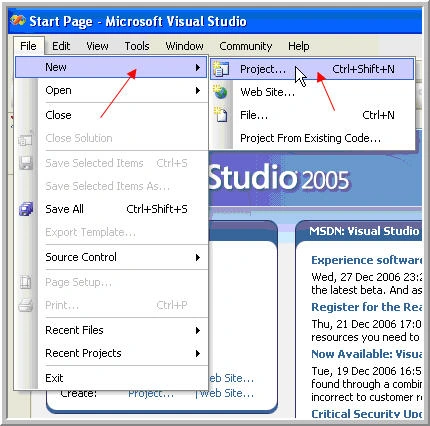
Figure: 2 - Process to create New Windows Application Project
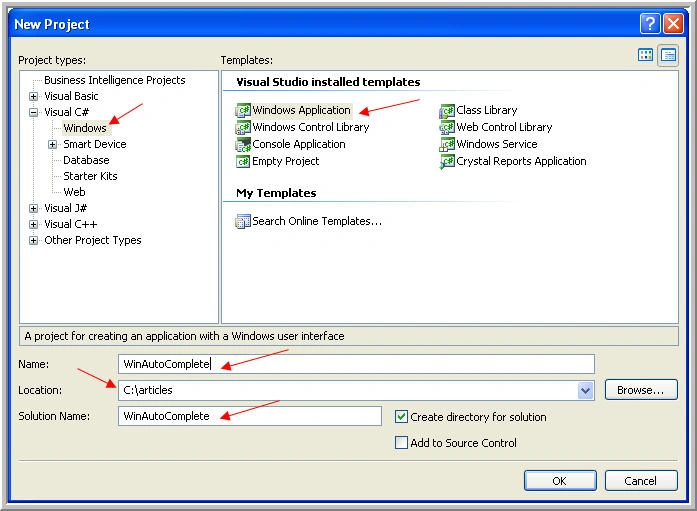
Figure: 3 - Project selection and naming process
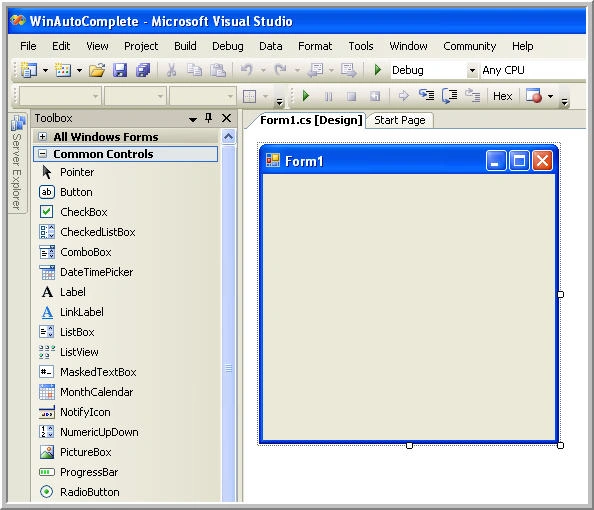
Figure: 4 - View of newly created project
As such, most of you'll see something similar to what the Figure 4 looks like; however, depends on your current VS 2005 IDE settings, you might see some toolbox hidden or floating. In any case, you should see the blank Form1 created for you as a result of new project. Please refer to VS2005 help to customize the look and feel of IDE.
Tip: You can always access the menu View --> Toolbox or press Ctrl + Alt + X, to make Toolbox window visible if it is hidden or you don't see it in IDE. To get the maximum space on designer surface, you may like to use Auto Hide feature of Toolboxes.
Let's set properties of Form1 as per Table 1, to make sure the look and feel is good enough for our end-users to provide input (if any) and view the report. In case if property tool box is not visible in IDE, you may hit F4 key to make it visible. Pease make sure to select Form1 by before applying changes to properties using property toolbox.
Table 1. Properties of Form1
|
Property |
Value |
|
Text |
Windows Forms AutoComplete Example |
|
Size |
375, 200 |
Note: When a new project is created, a solution is also gets created with it. You may have one or more project inside one solution.
Time to add some controls to newly created Form1
This is how the example looks like: I'll create a sample application which let user type the Product Id from NorthWind Database of SQL Server 2000. AutoComplete works in different pattern; I'll make sure user try different pattern and see which one works better for them.
We need the following controls on Form1:
-
ComboBox with different pattern of AutoComplete
-
Three Labels (Pattern Type, Product ID and File System)
-
Two TextBoxs (Product ID and File System)
Let's start by dragging and dropping above mentioned controls on the Form1. Please make sure your Form1 looks like something similar to Figure 5.
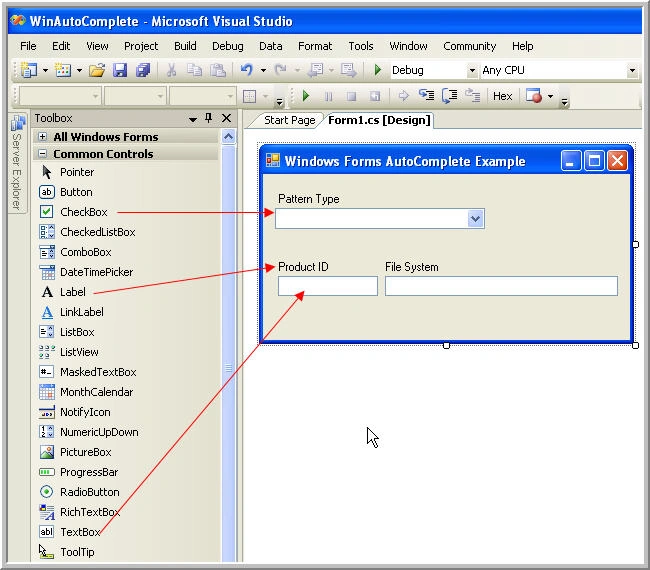
Figure: 5 - Form1 designer surface after adding controls
Please change the properties of controls as per Table 2:
Table 2. Properties setup of controls on Form1
|
Report Item |
Property |
Value |
|
Label1 |
Text |
Pattern Type |
|
Label2 |
Text |
Product ID |
|
Label3 |
Text |
File System |
|
comboBoxPattern |
Collection |
Suggest Append SuggestAppend |
|
comboBoxPattern |
DropDownStyle |
DropDownList |
|
txtFileSystem |
AutoCompleteMode |
SuggestAppend |
|
txtFileSystem |
AutoCompleteSource |
FileSystem |
Let's write some C# code to bring life to Form1
Bulk of the code is written inside Load event of Form1. The instruction to define which Pattern must be applied is written inside selected index change event of comboBoxPatten. Please make sure you code looks like as follows:
using System;
using System.Collections.Generic;
using System.ComponentModel;
using System.Data;
using System.Drawing;
using System.Text;
using System.Windows.Forms;
using System.Data.SqlClient;
using System.Collections;
namespace WinAutoComplete
{
public partial class Form1 : Form
Pawan BhisePosted Apr 24, 2010, 7:17 AM
i need to implement effect like gmail email address textbox.i used autocomplete extender of ajax tool kit,but it works for only one entry,i need to select more user id's in the same textbox. with same autocomplete effect