

Introduction
In this article, we will explore how to simplify repetitive logic in Power Apps using the With() function, which helps make formulas cleaner and easier to maintain. Instead of writing the same control values multiple times, we will learn how to store them once and reuse them inside a single block.
Main Purpose of With()
The With() function store values temporarily and reuse them in a formula, so you don't have to repeat the same controls or expressions multiple times.
Use Case
In many business apps, users need to update employee information such as name, email, phone number, or department. When these values are used multiple times in Lookup or Patch formulas, the expressions become long and repetitive. To avoid repeating the same control values again and again, we need a clean way to store them once and reuse them inside the formula.
Before creating the form and writing formulas, you can use any list or table as per your requirement. For this article, we will use "Users list" with columns like Name, Email, and Phone Number to demonstrate how to update records using the With() function.
Below are the steps to update records using the With() function in Power Apps:
Step 1:
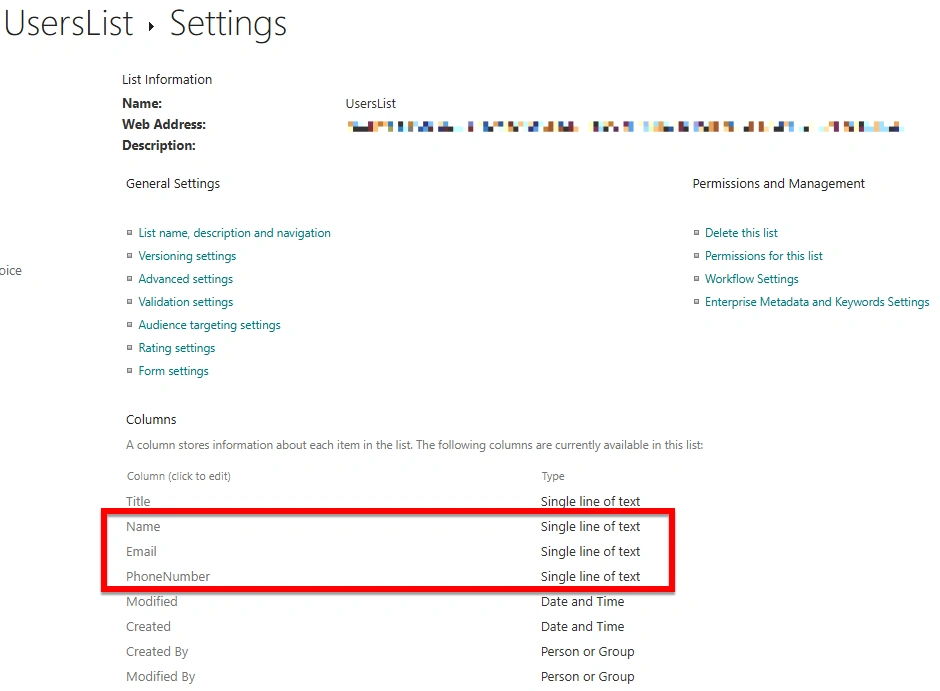
Create a SharePoint list named "UsersList " and Add the following columns as shown in the image.
Step 2:
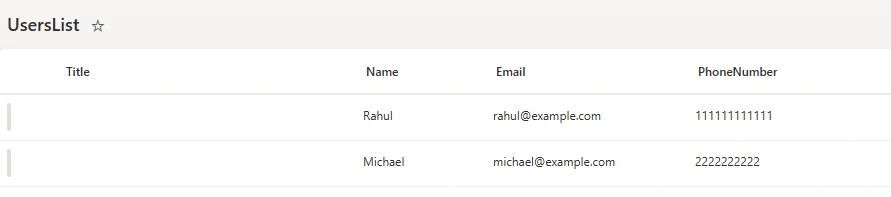
Add some dummy records in your list.
Step 3
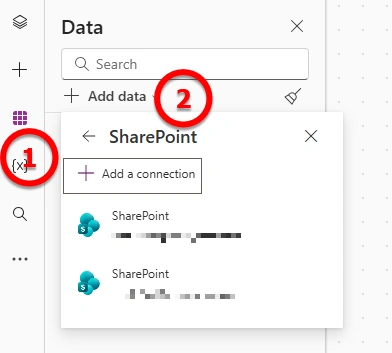
Open your Power Apps Canvas app, and in the left panel click Data and Add data .
Search for the SharePoint list you created in my case, it is "UsersList" and connect it to your app.
Step 4
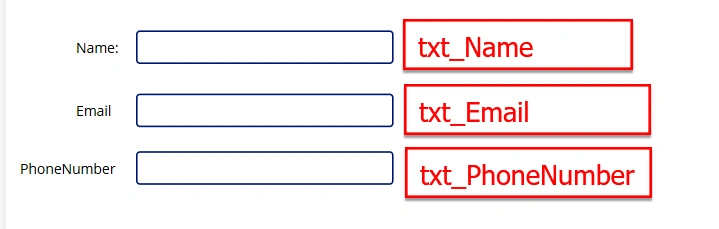
Add Labels and Text Inputs for Name , Email , and PhoneNumber as shown in the image, and rename the Text Inputs using proper naming conventions (txt_Name, txt_Email, txt_PhoneNumber)
Step 5
Insert a Button , rename it to "Save" , and in the OnSelect property add the logic shown below.
For this article, we will update the record based on the Email field (using the dummy records created earlier). In real scenarios, you can replace this with your own lookup logic depending on how you identify records in your app.
    UpdateContext(
    {
        varTempUserRecords: {
            Name: txt_Name.Text,
            Email: txt_Email.Text,
            PhoneNumber: txt_PhoneNumber.Text
        }
    }
);
With(
    {
        varExistingUserRecord: LookUp(
            UsersList,
            Email = txt_Email.Text
        )
    },
    Patch(
        UsersList,
        varExistingUserRecord,
        {
            Name: varTempUserRecords.Name,
            Email: varTempUserRecords.Email,
            PhoneNumber: varTempUserRecords.PhoneNumber
        }
    )
);
Reset(txt_Name);
Reset(txt_Email);
Reset(txt_PhoneNumber)
Logic Explanation:
This formula first saves the Name, Email, and Phone Number that the user typed into a temporary variable called varTempUserRecords . Then it checks the UsersList to see if a record already exists for the entered email and stores that record. After that, it updates that record using Patch with the latest values the user entered. At the end, it resets all three text input control.
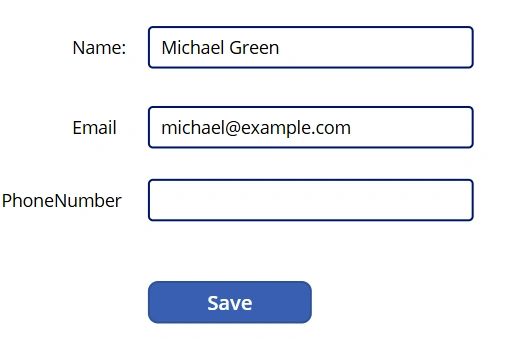
Output
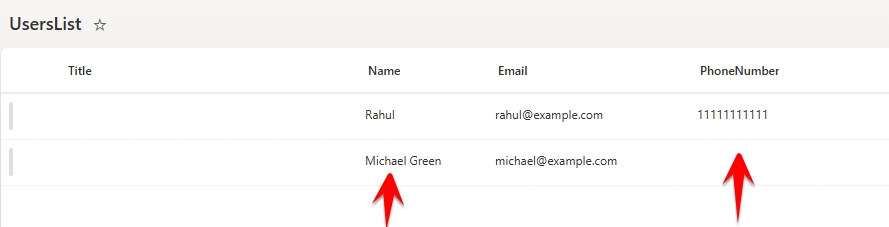
In the output, you can see that Michael's record has been updated.
Conclusion
Using the With() function makes things much easier. You can store temporary values, avoid writing the same thing again and again, and keep your formulas clean and simple. It really helps to organize your app logic and makes updating or maintaining your app much faster.
Krish KanakiyaPosted Dec 26, 2025, 5:48 AM
Very well explained and easy to understand..!!