

Before reading this article, I highly recommend reading my previous parts:
- Site Templates Part 1: Team Site in SharePoint 2013 and Office 365
- Site Templates Part 2: Blogs in SharePoint 2013 or Office 365
- Site Templates Part 3: Project Site in SharePoint 2013 and Office 365
- Site Templates Part 4: Community Site in SharePoint 2013 and Office 365
- Site Templates Part 5: Document Center in SharePoint 2013 and Office 365
Click on create a new site, the following form opens.
- Title and Description:
- Web Site Address: Here you can make it different from your default site name.
- Template Selection: Here you have the option to select the language and to choose a site from a template having many options.
Here in this article we will be seeing the Records Center template under the Enterprise group so select it.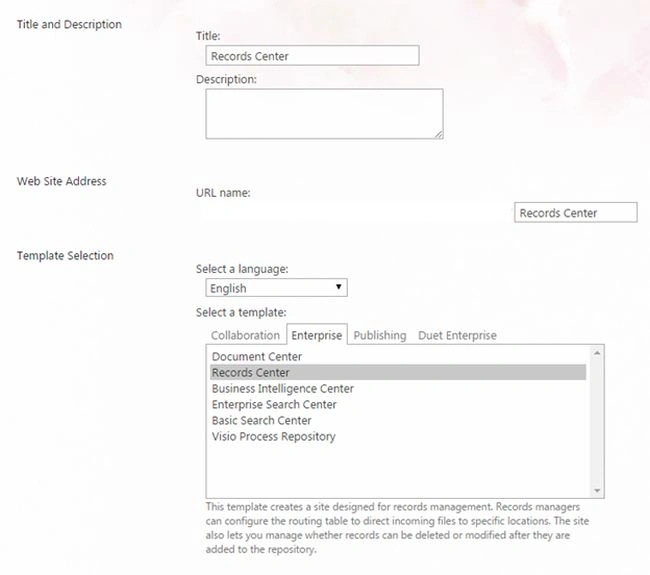
- Permissions: Here you can assign permission to the site directly either by inheriting the permissions from the parent or assigning it unique permissions.
- Navigation Inheritance: Using this option you can inherit the same navigation as your parent site.
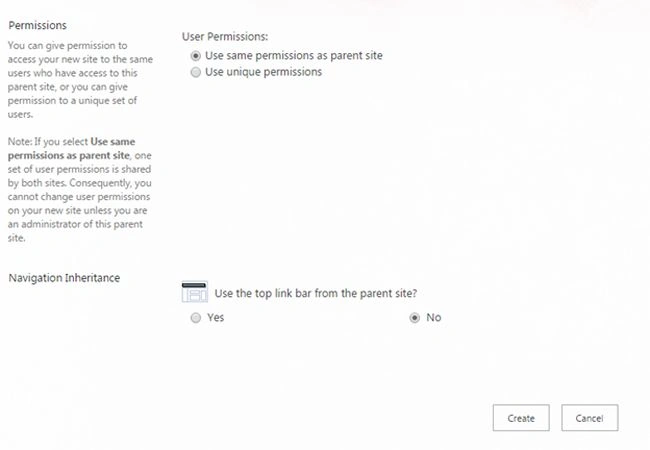
- Click on Create, It will create the site.
Let's see what it has for us.
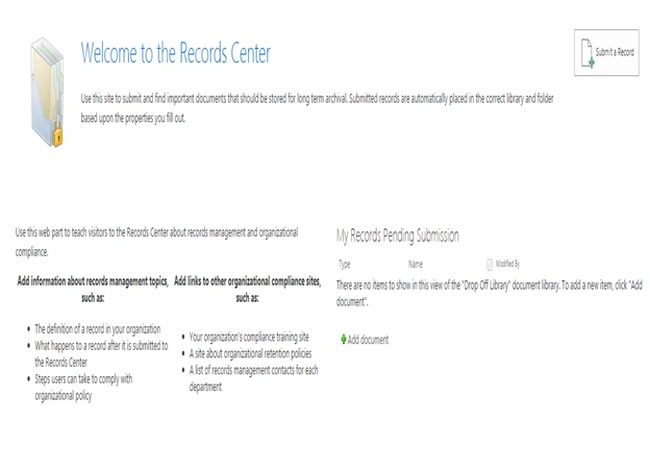
Use this web part to teach visitors to the Records Center about records management and organizational compliance. Here use this template not only to store documents but to automatically place them in the correct library and folder based upon the properties you fill in.
Let's see how it works.
- On the right corner click Submit a Record.
- The following dialog box will open.
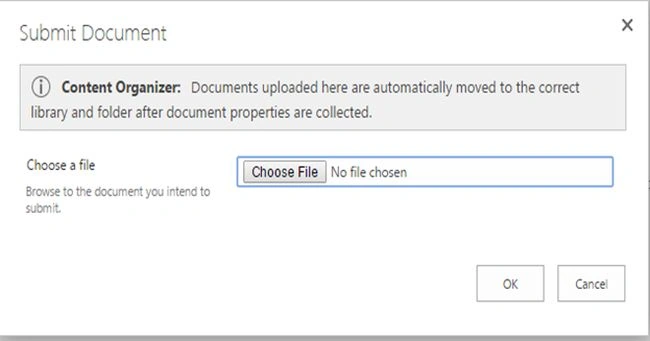
- Choose your file from the system and click Ok to upload it.
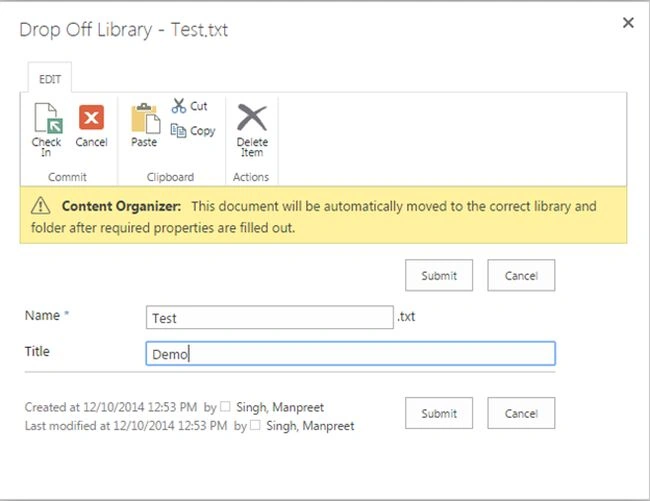
- You will be asked to add a new Title to the document you have uploaded.
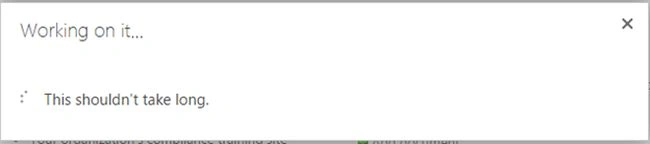
- The following message states “The document was submitted successfully. Its location will change pending action from a site administrator.”
Surprised, yes it has automatically moved the document to another repository.
In our daily activities sometimes we need to review what kind of documents are uploaded to the site. Here we have an option do it.
How? Let's see.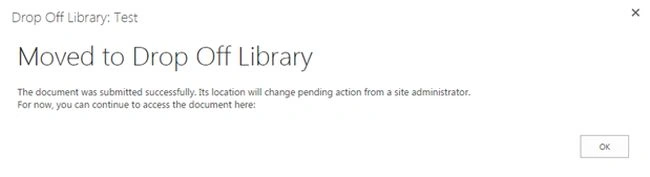
When we click at Site Settings we have a section called Hold.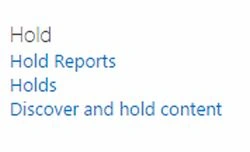
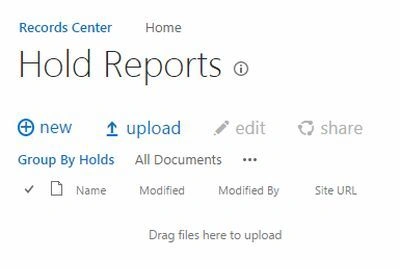
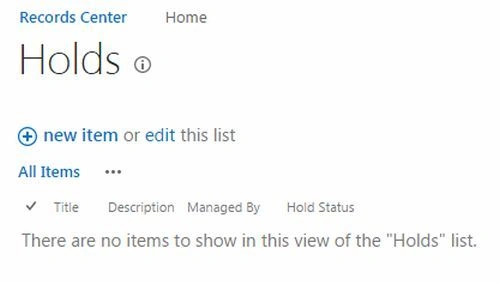
This is a pre-defined library as described in the following.
- Hold Reports, as in the screen shot below.
- Holds, as in the screenshot below.
- Then we have the configuration center, Discover and Hold Content.
- Search Criteria: You can include other sites to be a part of the query of the search of keywords.
- Local Hold or Export
- Relevant Hold
At Local Hold or Export and Relevant Hold, you can configure the files that are uploaded and to which folder they will be uploaded to. Here you can specify whether a newly uploaded item should be put on hold and after approval from the admin or owner go to the respective libraries.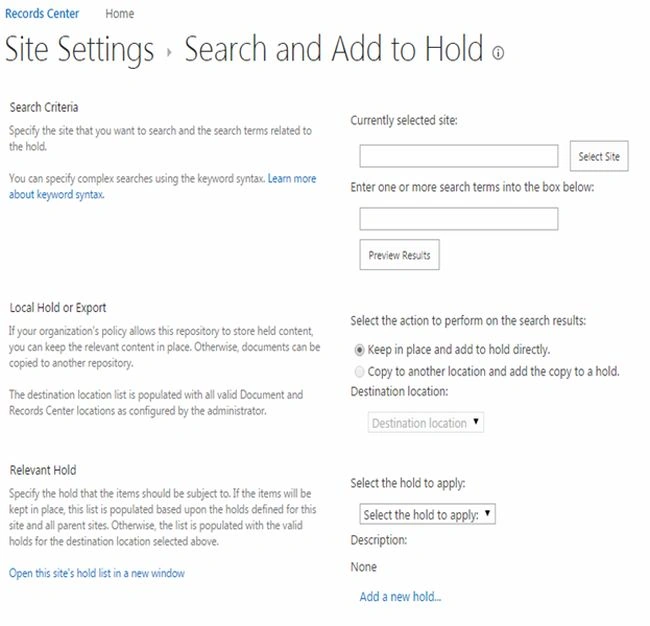 Site Contents:
- Search Criteria: You can include other sites to be a part of the query of the search of keywords.
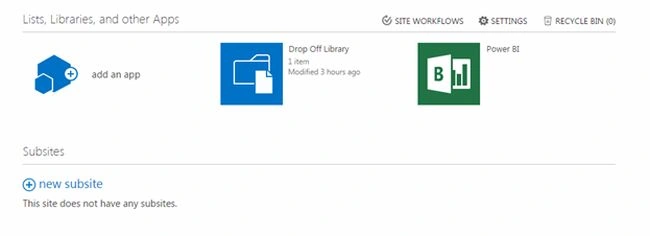
As the site contents we have:
- Drop Off Library: A default library to store all the documents.
- Power BI: Microsoft provides comprehensive BI tools that integrate across Office applications and other Microsoft technologies. These tools enable analysis, reporting, dashboards and visualizations.
Finally we can see the site settings, that you can see from the previous blogs on Site Settings in SharePoint 2013 at C# Corner.
Link: Site Settings in SharePoint 2013.
This article described the Records Center, a portal to manage the documents in an efficient way.
Keep Learning,
Cheers!
Sr KarthigaPosted Apr 19, 2016, 10:19 PM
Nice explanation
Manpreet SinghPosted Dec 18, 2014, 9:48 AM
saravanan vellaisamy Yes it is possible but it will depend on what kind of tool you are using for the migration.
saravanan vellaisamyPosted Dec 18, 2014, 6:56 AM
Hi, I need your help. Is it possible to migrate from sharepoint 2010 server to Sharepoint 2013 migration.We are having a site collection where Record Center as the root template. Are we able to migrate this into sharepoint 2013 foundation.