Introduction
Most of the articles here are focusing on the C# code running on the server, but that's, of course, natural, the site is called C# corner! But hey, we shouldn't forget what we can do with some old school HTML, JavaScript, and CSS. Here comes two, hopefully, useful tip celebrating the client-side.
Sometimes you're able to achieve pretty neat things with just some simple HTML and JavaScript. It could actually spice up that old web page quite rapidly! Please, feel free to download the solution file and change it to suit your needs. First, we look at a simple div acting as a modal dialog and then we create a simple JavaScript slideshow.
Disabling the background
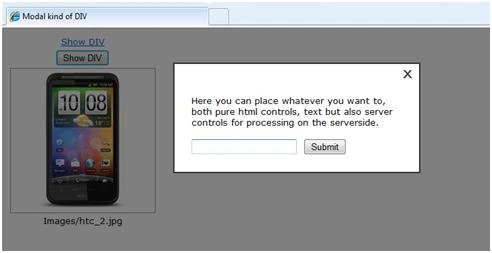
A popular thing to do in some web pages is to fade the background out of focus when displaying some small piece of information to the user. It could be a picture, an informative text or a small form with a submit button asking you for an e-mail address or so. It's a user-friendly way that really sets focus on what you want to display and it can be made quite easy.
Actually, without the CCS styles, I've added to this example, you could do it with three HTML div's, two lines of JavaScript code, one link, some CSS and a small transparent 1x1 image.
Here is a snapshot of the HTML markup basics.
- <div id="overlay">
- <div class="info_div">
- <table width="100%">
- <tr>
- <td align="right">
- <img src="x.gif" onclick="display_overlay(null);" />
- </td>
- </tr>
- </table>
- <div class="inner_div">Here you can place whatever you want.</div>
- </div>
- </div>
The div named overlay is the div making the background appear to be "disabled". This by having the height and the width properties set to 100% and the background image set to the small 1x1 png image with 50% transparency. This creates a div that covers the whole browser window and the background image of it makes the page look as it was disabled. These attributes are set in the CCS code as follows.
- #overlay
- {
- visibility: hidden;
- position: fixed;
- left: 0px;
- top: 0px;
- width:100%;
- height:100%;
- background-image:url('overlay.png');
- z-index:1000;
- }
We set the visibility to hidden by default so that the div doesn't show when loading the page from the start and we set the position to fix. The height and width are set to 100%, the background image to our transparent png image and the z-index to 1000 which places the div in the top most position on the page.
The div named info_div is the one that acts like a dialog and inside that div you could put whatever you like, the CSS for that div looks like follows.
- .info_div
- {
- padding:5px;
- margin:0px;
- background: #ffffff;
- border: solid 2px #333333;
- position: absolute;
- width: 350px;
- left: 250px;
- top: 50px;
- }
The only thing we need now is a function that displays the overlay div. We use the getElementById to get a reference to the overlay div and then we just check whether it's visible or not by setting the visibility property of the div object.
- <script type="text/javascript">
- function display_overlay(div_element)
- {
- el = document.getElementById('overlay');
- el.style.visibility = (el.style.visibility == "visible") ? "hidden" :
- "visible";
- }
- </script>
Now we can display the div with a simple link.
- <a href="javascript:void(0);" onclick="display_overlay('info_div');">Show DIV</a>
You could also add the JavaScript function to a server control by adding the onclick attribute when creating the page.
btnServerControl.Attributes.Add("onclick", "display_overlay('info_div'); return false;");
The last JavaScript statement, return false, is preventing the page from creating a postback.
Enhancements
You could have several div's that you want to display like this on the same page, perhaps a logon form, a picture box, etc. It's easy to extend this solution with that feature, just add more div's to the overlay div and name and style them as you wish. Then add JavaScript code to set all those div's visibility property to hidden before calling the visibility property of the div in question.
Image slideshow using JavaScript
I guess there are one million examples out there. Well, now there are one million and one!
Often you have several images you want to display, but a very limited amount of space to do it on. A simple slideshow might do it for you. I've made a really simple but well working example that could be modified quite easily.
The basic idea is to enumerate thru a C# collection of images on the server to create a block of JavaScript code handling the slideshow. The script is then added to the page during the page load event. We use an Array object in JavaScript to hold a collection of image links and by using the built-in JavaScript setTimeout function, which take two parameters; the function to call and the delay in milliseconds between the calls, we can make a quite simple loop thru our images and set the src property to the IMG object.
The HTML markup for displaying the image and the image name look like follows.
- <table>
- <tr>
- <td style="height:210px;width:210px;border: solid 1px #999999;" align="center" valign="middle">
- <asp:Image ID="img" runat="server" ImageUrl="Images/htc_1.jpg" ImageAlign="Middle" />
- </td>
- </tr>
- <tr>
- <td align="center"><asp:Label runat="server" ID="lblImgHeader"></asp:Label>
- </td>
- </tr>
- </table>
We use an Image control to display the image and Label control to display the image name.
(The names img and lblImgHeader will be referred to in the JavaScript)
Creating the array with images
In the example, we loop through all of the images in a folder, but you could supply the images links from a database as well. First, we create the array by selecting all the images in the folder images in the example web application.
- string[] images = System.IO.Directory.GetFiles(Server.MapPath("Images"));
- foreach (string image in images)
- {
- System.IO.FileInfo fi = new FileInfo(image);
- script.Append("image[" + index.ToString() + "] = 'Images/" + fi.Name + "';");
- index++;
- }
This is just the creation of the array and as you see, you can easily change it to be created from a database or whatever. You just need to supply a valid path to the images. (Note that this only will work on your PC when you run the solution, the website needs to have a virtual folder called Images to make things happen there)
So, the complete listing goes as follows. By checking the length property we can decide whether we should display one image or create and add the script handling the slideshow. We use the HtmlGenericControl class to hold the script we want to create.
- if (images.Length != 0)
- {
- HtmlGenericControl js = new HtmlGenericControl("script");
- js.Attributes.Add("type", "text/javascript");
- // Create a StringBuilder object for the JavaScript
- StringBuilder script = new StringBuilder();
- // Use the setTimeout function to call the function swithImg approx each fourth second.
- script.Append("setTimeout('switchImg()',4000);");
- // Create an array to hold the files an assign the total number if pics
- script.Append("var image = new Array();");
- script.Append("var total = " + images.Length.ToString());
- // The number variable is used to keep track of where we are in the loop
- script.Append("var number = 0");
- // An int to keep track of the array elements
- int index = 0;
- // Loop thru the images in the folder
- // These links could come from a database, as well...
- foreach (string image in images)
- {
- // As we get them from disk, the image string contains of the
- // full file directory path. We use the FileInfo class to change it
- // to map the Images folder in our project.
- System.IO.FileInfo fi = new FileInfo(image);
- script.Append("image[" + index.ToString() + "] = 'Images/" + fi.Name + "';");
- index++;
- }
- // Set the first image to be displayed
- string img_url = "Images/" + new FileInfo(images[0]).Name;
- img.ImageUrl = img_url;
- lblImgHeader.Text = img_url;
- // Create a function displaying each file in the image array
- script.Append("function switchImg() {");
- // Get the image object and the label object
- script.Append("var img = document.getElementById('img');");
- script.Append("var imgHeader = document.getElementById('lblImgHeader');");
- // Increase the current index for the image by one
- script.Append("number = parseInt(number) + 1;");
- // Check wether thats larger than the total amount of images
- script.Append("if(number != total)");
- // If not, display that images url that correspond with the image[index]
- script.Append("{img.src = image[number];}");
- // If number == total, we need to start from scratch again. image [0]
- script.Append("else");
- script.Append("{number = 0; img.src = image[0];}");
- // Make sure to display the current image name in the label
- script.Append("imgHeader.innerHTML = image[number];");
- // Start the switchImg loop by calling setTimeout
- script.Append("setTimeout('switchImg()',4000);");
- script.Append("}");
- // Set the script text
- js.InnerText = script.ToString();
- // Add the control to the header
- Page.Header.Controls.Add(js);
- }
It might be hard to follow, but if you look at the result of the code above it comes much clearer.
- <script type="text/JavaScript">
- setTimeout('switchImg()',4000);
- var image = new Array();
- var total = 4
- var number = 0
- image[0] = 'Images/htc_1.jpg';
- image[1] = 'Images/htc_2.jpg';
- image[2] = 'Images/htc_3.jpg';
- image[3] = 'Images/htc_4.jpg';
-
- function switchImg()
- {
- var img = document.getElementById('img');
- var imgHeader = document.getElementById('lblImgHeader');
- number = parseInt(number) + 1;
- if(number != total)
- {
- img.src = image[number];
- }
- else
- {
- number = 0;
- img.src = image[0];
- }
- imgHeader.innerHTML = image[number];
- setTimeout('switchImg()',4000);
- }
- </script>
Let's walk thru the script.
First, we have the JavaScript setTimeout function which calls the switching() method after four seconds. Then we have the initialization of the
image array holding the image links. Our folder contained four images, so the
total variable holds the total number of images. The
number variable is hardcoded to 0 as we want to start viewing the image with index 0.
(img.src = image[0]) Then is the image links added thru the loop we made.
The function itself adds 1 to the
number variable and checks whether it is larger or not than the total numbers of images. (Variable
total) If not, we display that array index as the image; else we set the
number variable to 0 and set that as the current image. At the end of the function we set the image name to the label and then we call the switchImg() function again starting off the loop each fourth second.
You could do a combination of the two examples given here by adding an onclick event to the image displaying a larger version of the current image in a div with faded background, but I will not do it for you, you've been given the tools now to create that functionality yourself!


Mahesh ChandPosted Apr 3, 2011, 8:06 PM
Great to see some goodies. Thank for sharing Micke. Nicely written!
Karthikeyan AnbarasanPosted Mar 31, 2011, 12:18 PM
Nice article and well done!!!