

Overview
SharePoint Framework (SPFx) is well known for developing the solutions for modern sites in SharePoint Online. Anyway, it isn't just constrained to the cloud. SharePoint Framework development is likewise upheld on SharePoint OnPremise environment (SharePoint 2016 onwards).
In this article, we will explore how we can get our SharePoint 2019 On-Premises environment ready for SharePoint Framework and start developing SPFx client side web parts.
Get SharePoint Server 2019 SPFx Ready
SharePoint Framework is by default supported in SharePoint Server 2019, without any additional feature patch installations. Follow below steps to make your SP2019 environment ready for SPFx development.
Install NodeJS
- Install version 8.x from https://nodejs.org
- If you already have NodeJS installed, check the version
- node -v
Install Code Editor
Install any of below code editor
- Visual Studio Code (https://code.visualstudio.com)
- Atom (https://atom.io)
- Webstorm (https://www.jetbrains.com/webstorm)
Install Yeoman and gulp
Run below command
- npm install -g yo gulp
Install Yeoman SharePoint Generator
SPFx version 1.4.1 is supported with SharePoint 2019 (except MS Graph APIs). Run below command.
- npm install -g @microsoft/generator-sharepoint
Develop SharePoint Framework Web Part
1. Open command prompt. Create a directory for SPFx solution.
- md spfx-sp2019-onprem
2. Navigate to above created directory.
- cd spfx-sp2019-onprem
3. Run Yeoman SharePoint Generator to create the solution.
- yo @microsoft/sharepoint
4. Yeoman generator will present you with the wizard by asking questions about the solution to be created.
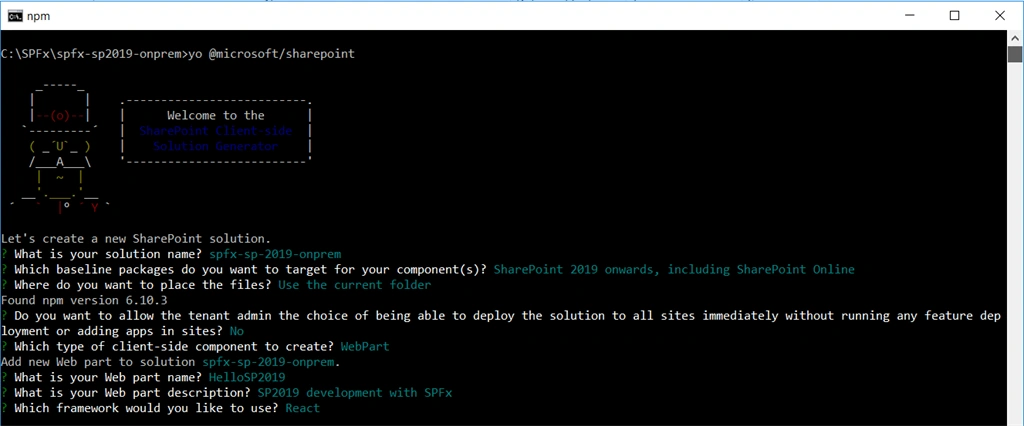
Solution Name: Hit enter to have default name (spfx-sp2019-onprem in this case) or type in any other name for your solution.
Selected choice: Hit enter (default choice)
Target for component: Here we can select the target environment where we are planning to deploy the client webpart i.e. SharePoint Online only (latest) / SharePoint 2016 onwards, including 2019 and SharePoint Online / SharePoint 2019 onwards, including SharePoint Online.
Selected choice: SharePoint 2019 onwards, including SharePoint Online
Place of files: We may choose to use the same folder or create a subfolder for our solution.
Selected choice: Same folder
Deployment option: Selecting Y will allow the app to deployed instantly to all sites and will be accessible everywhere.
Selected choice: N (install on each site explicitly)
Type of client-side component to create: We can choose to create client side webpart or an extension.
Selected choice: WebPart
Web part name: Hit enter to select the default name or type in any other name.
Selected choice: HelloSP2019
Web part description: Hit enter to select the default description or type in any other value.
Selected choice: SP2019 development with SPFx
Framework to use: Select any JavaScript framework to develop the component. Available choices are No JavaScript Framework, React, and Knockout.
Selected choice: React
5. Yeoman generator will perform scaffolding process to generate the solution. The scaffolding process will take significant amount of time.
6. Once the scaffolding process is completed, lock down the version of project dependencies by running below command.
- npm shrinkwrap
7. In the command prompt type below command to open the solution in code editor of your choice.
- code .
SPFx Support for SharePoint 2019
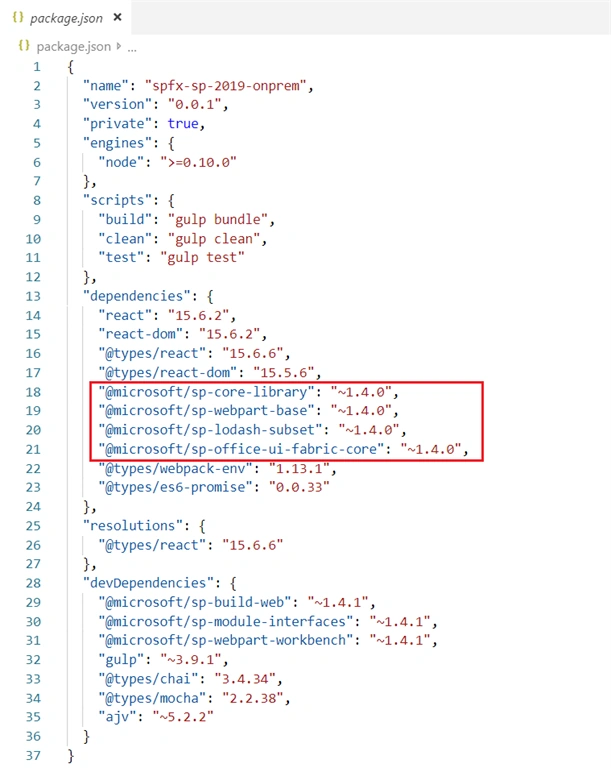
If you use the SharePoint Framework v1.7, you can target scaffolded solution to SharePoint 2019, which will ensure that packages are correct for your target environment.
Open package.json file and observe the SPFx version being used (~1.4.0).
Test the SPFx WebPart On Local SharePoint Workbench
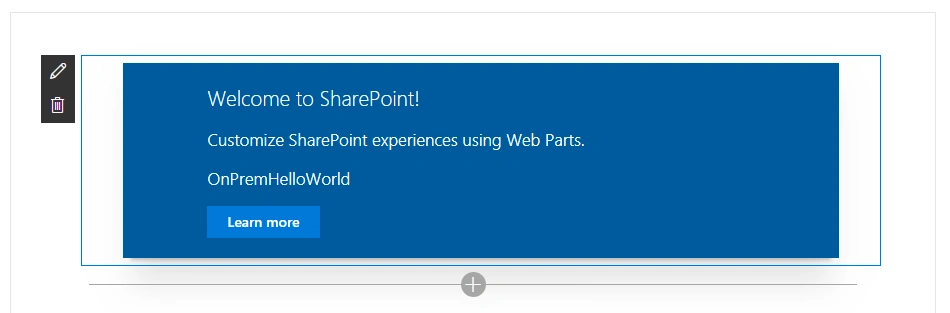
- On the command prompt, type “gulp serve”.
- Open SharePoint site.
- Navigate to /_layouts/15/workbench.aspx
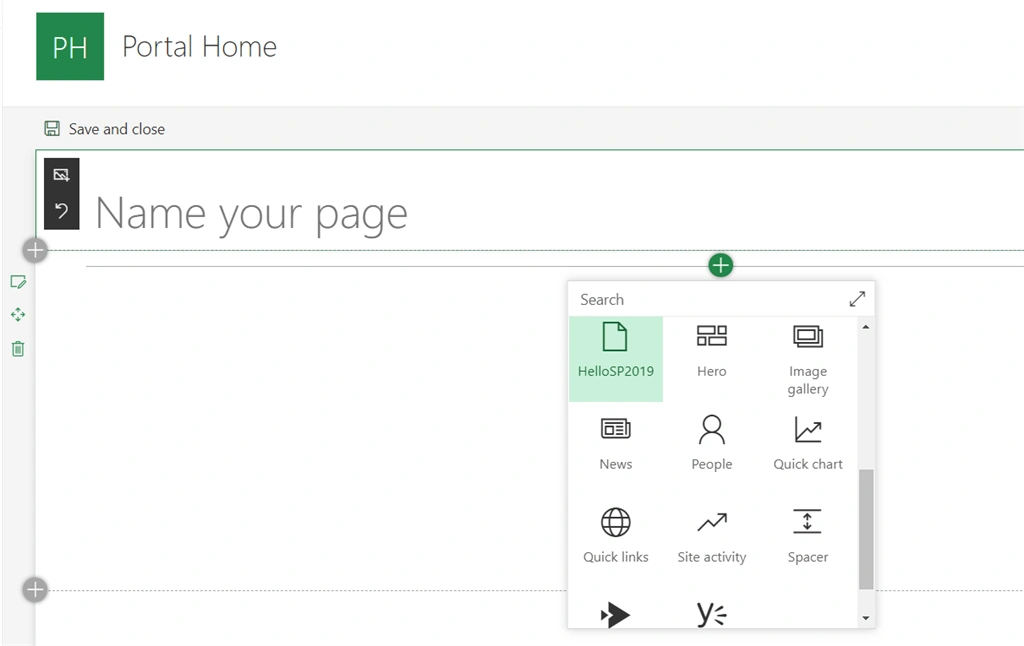
- Add the webpart to page.
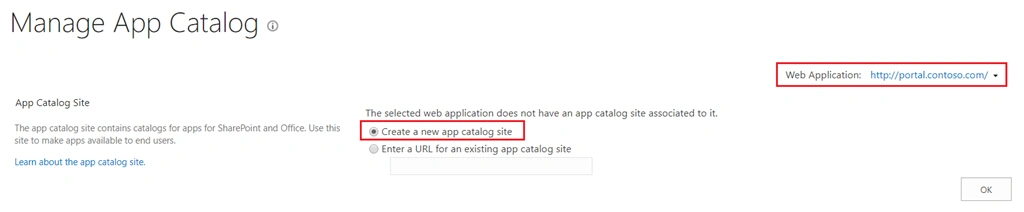
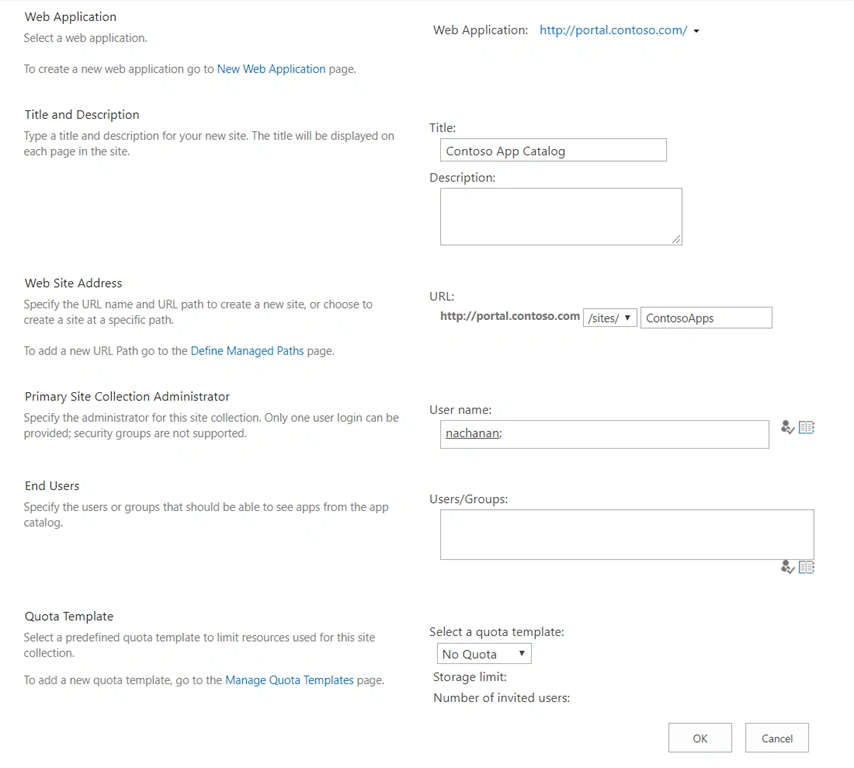
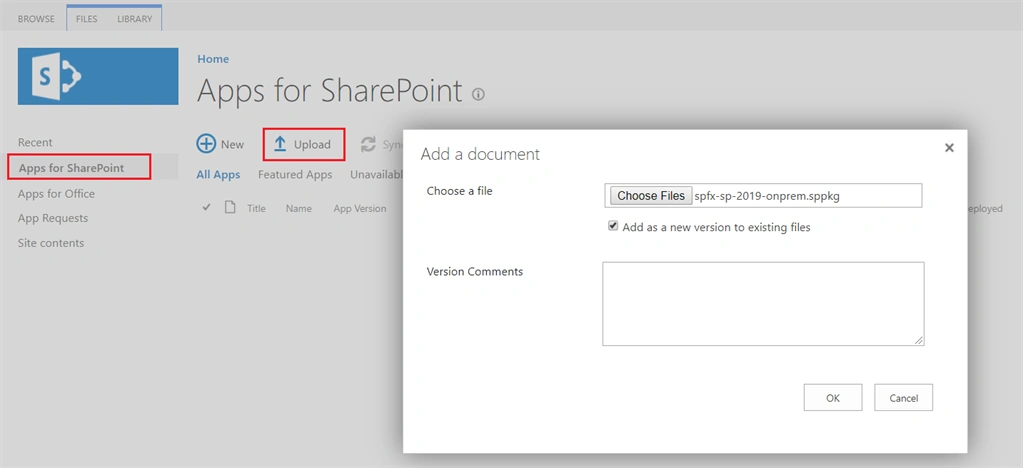
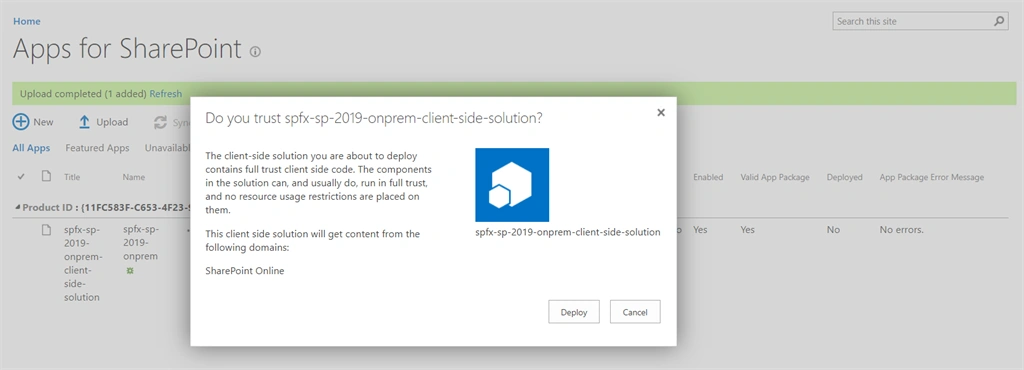
Set Up App Catalog
We will set up an App catalog to add the SPFx solution later. Follow below steps as Farm administrator.
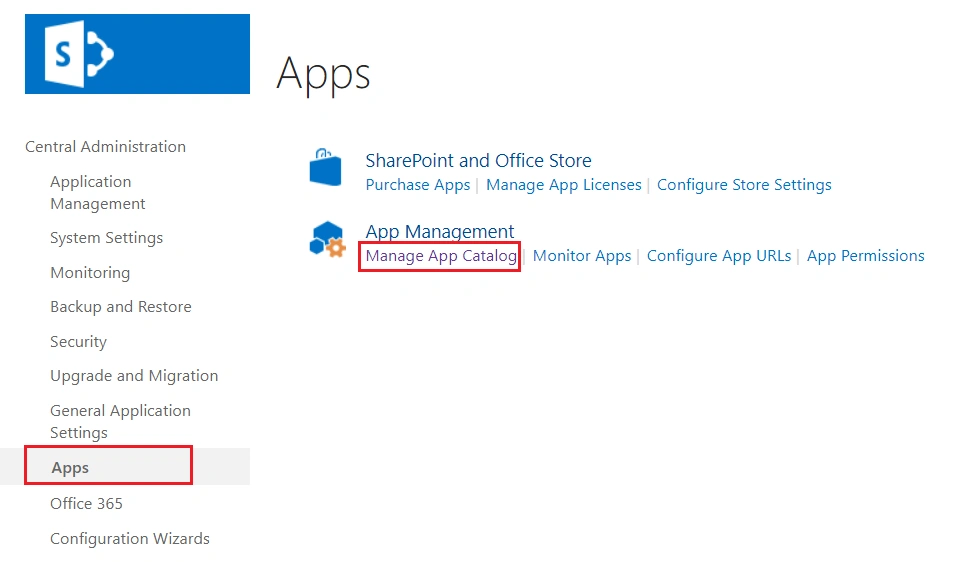
1. Open SharePoint 2019 Central Administration site.
2. From left menu, click Apps.
3. Under App Management, click Manage App Catalog.
Fahim AfserPosted Jul 27, 2022, 4:02 AM
Thanks for sharing
Cyrille GrenierPosted Nov 29, 2021, 8:23 AM
Hello Nanddeep, thanks for this article. I've try to install everything as listed here and it doesn't seems to work. After having install NodeJs 8.17, I've installed [email protected] and [email protected] + microsoft/sharepoint generator. When I try to start the generator, I always get an error "Unexpected token {" ... Can you help me ?
Patrick PereiraPosted Jan 29, 2021, 8:02 AM
Hello Nanddeep, very well explained. . Should i do all this on the server or on my computer? Do i install node on the server?
Ricardo CarneiroPosted Nov 7, 2019, 4:59 AM
Very nice article. In case we make changes in the web part project, how the changes will take effect on the version that is installed in the App Catalog? Do we need to repeat the 5 steps as in "Upload the Package to App Catalog"?
Harsha VardhiniPosted Aug 11, 2019, 12:09 AM
Hi Nanddeep, It is same procedure like deploying in sp2013/2016. Was there anything we need to mind specifically for sp2019?