

Introduction:
In this article we are going to see how to use an Import Column transformation in SSIS. Import column is used to import data from a file to the data flow and do some manipulations and then forward the data to the destination; here the data includes a binary file, an image, a media, or any sort of document which is huge to transfer. If we want to move a huge file from one location to the other using the package we can use this to import them using this transformation.
A practical exposure to this transformation is for example you have a product with some customer reviews; when we need to archive the product (include product image) with the customer reviews then we can use this task. Let's jump start to the actual use and see the steps to do the configurations.
You can look into my series of articles on SSIS at the url - http://f5debug.net/all-articles/
Steps:
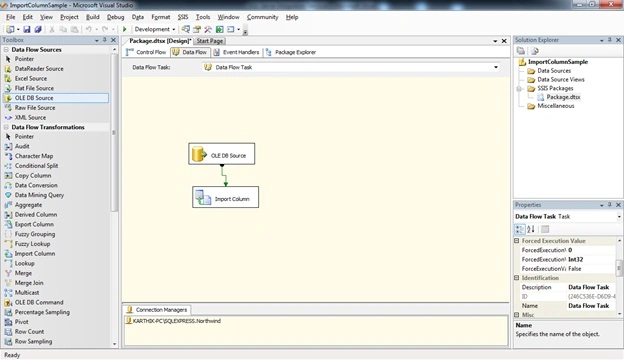
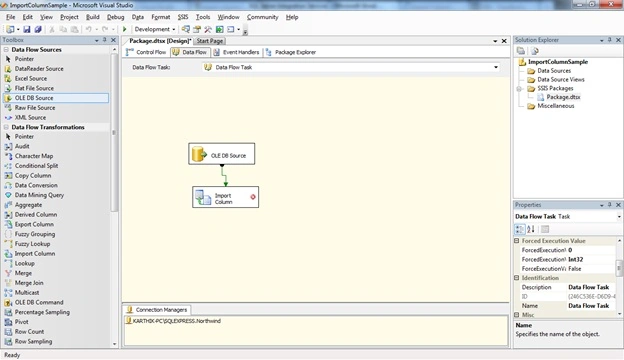
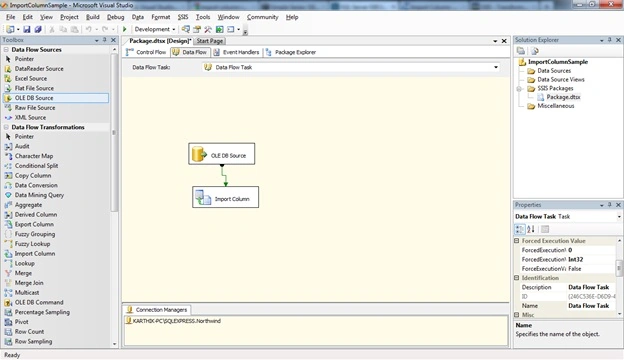
Follow steps 1 to 3 on my first article to open the BIDS project and select the right project to work on an integration services project. Once the project is created, we will see how to use the Import Column Transformation task. Once you open the project, just drag and drop the Import Column control and a source provider as shown in the below image.
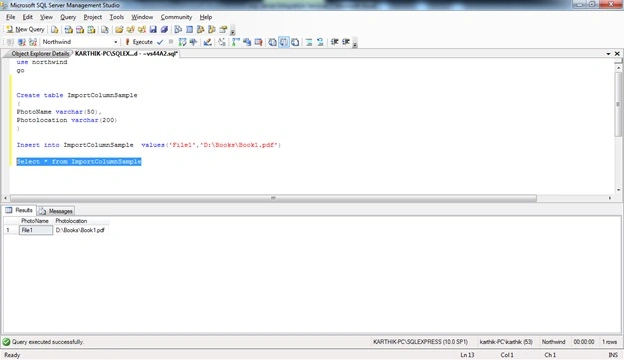
Now we need to create a table which has the file location. I have created a table as shown in the below script with a record having the file path.
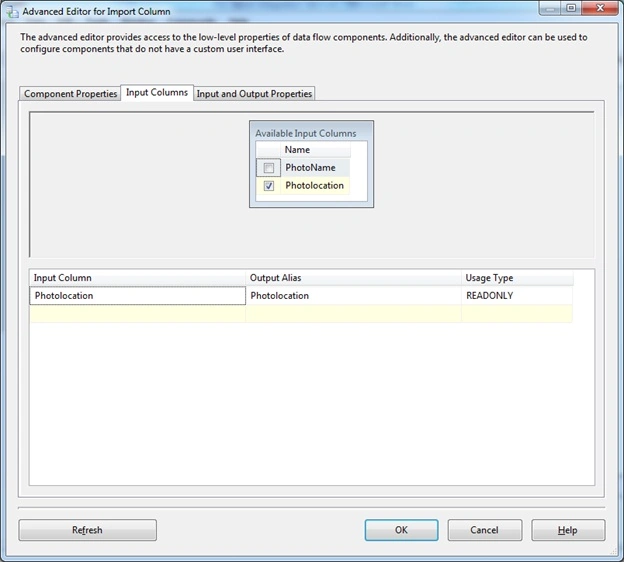
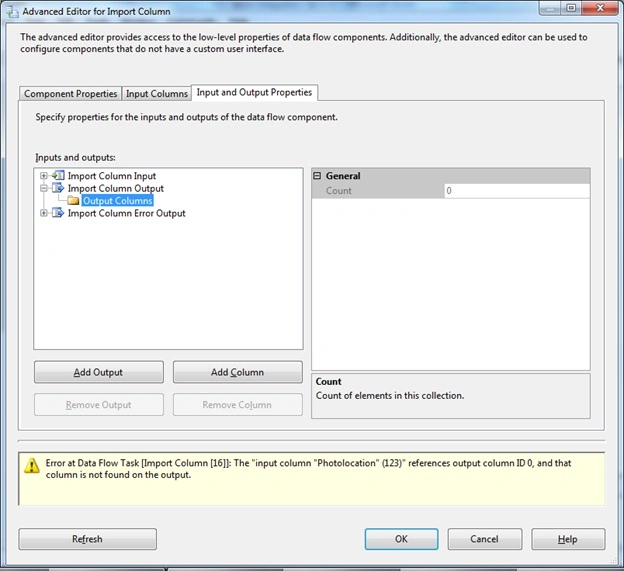
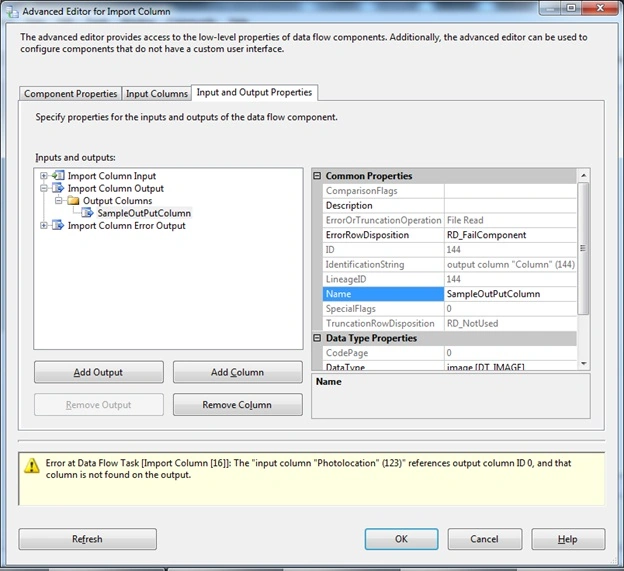
Gowtham RajamanickamPosted Apr 26, 2016, 3:05 AM
good article
Gowtham RajamanickamPosted Apr 26, 2016, 3:05 AM
good article
Gowtham RajamanickamPosted Apr 26, 2016, 3:05 AM
good article
huzefa petitPosted Jan 30, 2012, 7:08 AM
First of all very much thank you for the easy steps you have given, but I am not able to understand after importing where the import files goes ?? means no table or any thing is defined, so how we can find the that importing is working. I hope you have understood my question. thanxs awaiting for ur reply. Sahil - Beginner in SSIS.
Dinesh BeniwalPosted Apr 25, 2011, 5:01 AM
Good 9 article in one day...great job karthikeyan....