

Introduction
I think we all are familiar with the configuration of the default startup page in the previous versions of AP.NET but it’s slightly different in ASP.NET Core applications. In this article, I will explain how to configure the default startup page In ASP.NET Core.
Default Startup Page Configuration
There are two ways to implement the default startup page in ASP.NET Core.
- Default Configuration
- Customized Configuration
Before reading this article, you must read the articles given below for ASP.NET Core knowledge.
- Getting Started With ASP.NET CORE 1.0
- Project Layout In ASP.NET Core 1.0
- Middleware And Staticfiles In ASP.NET Core 1.0 - Part One
- Middleware And Staticfiles In ASP.NET Core 1.0 - Part Two
Default Configuration
We can use UseDefaultFiles() extension method in ASP.NET Core 1.0. UseDefaultFiles() will only search for the files given in "wwwroot". If any of the files are detected first in "wwwroot", the files are run as default in the client browser.
- default.html
- default.htm
- index.html
- index.htm
UseDefaultFiles must be called before UseStaticFiles or any other method (app.Run, app.Use) to serve the default file in the client-side browser. As you state UseStaticFiles() method after UseDefaultFiles(), it will run UseStaticFiles() method as a default and automatically terminates the other files which come after UseStaticFiles() method.
Customized Configuration
In this case, we are calling other customized pages as default startup pages in ASP.NET Core 1.0. Thus, we can use DefaultFilesOptions in ASP.NET Core 1.0. If you want to run other files as default, check the code given below in Startup.cs.
Full Code
The following code containsthe full source code of startup page configuration in ASP.NET Core.
- using Microsoft.AspNetCore.Builder;
- using Microsoft.AspNetCore.Hosting;
- using Microsoft.AspNetCore.Http;
- using Microsoft.Extensions.DependencyInjection;
- using Microsoft.Extensions.Logging;
- namespace StartupConfig
- {
- public class Startup
- {
- // This method gets called by the runtime. Use this method to add services to the container.
- // For more information on how to configure your application, visit http://go.microsoft.com/fwlink/?LinkID=398940 Jump
- public void ConfigureServices(IServiceCollection services)
- {
- }
- // This method gets called by the runtime. Use this method to configure the HTTP request pipeline.
- public void Configure(IApplicationBuilder app, IHostingEnvironment env, ILoggerFactory loggerFactory)
- {
- loggerFactory.AddConsole();
- DefaultFilesOptions DefaultFile = new DefaultFilesOptions();
- DefaultFile.DefaultFileNames.Clear();
- DefaultFile.DefaultFileNames.Add("Welcome.html");
- app.UseDefaultFiles(DefaultFile);
- app.UseStaticFiles();
- if (env.IsDevelopment())
- {
- app.UseDeveloperExceptionPage();
- }
- app.Run(async (context) =>
- {
- await context.Response.WriteAsync("Hello World!");
- });
- }
- }
- }
The versions will be change based on the latest version's updation in ASP.NET Core.
- {
- "dependencies": {
- "Microsoft.NETCore.App": {
- "version": "1.0.1",
- "type": "platform"
- },
- "Microsoft.AspNetCore.Diagnostics": "1.0.0",
- "Microsoft.AspNetCore.Server.IISIntegration": "1.0.0",
- "Microsoft.AspNetCore.Server.Kestrel": "1.0.1",
- "Microsoft.Extensions.Logging.Console": "1.0.0",
- "Microsoft.AspNetCore.StaticFiles": "1.1.1"
- },
- "tools": {
- "Microsoft.AspNetCore.Server.IISIntegration.Tools": "1.0.0-preview2-final"
- },
- "frameworks": {
- "netcoreapp1.0": {
- "imports": [
- "dotnet5.6",
- "portable-net45+win8"
- ]
- }
- },
- "buildOptions": {
- "emitEntryPoint": true,
- "preserveCompilationContext": true
- },
- "runtimeOptions": {
- "configProperties": {
- "System.GC.Server": true
- }
- },
- "publishOptions": {
- "include": [
- "wwwroot",
- "web.config"
- ]
- },
- "scripts": {
- "postpublish": [ "dotnet publish-iis --publish-folder %publish:OutputPath% --framework %publish:FullTargetFramework%" ]
- }
- }
- DefaultFilesOptions DefaultFile = new DefaultFilesOptions();
- DefaultFile.DefaultFileNames.Clear();
- DefaultFile.DefaultFileNames.Add("Welcome.html");
- app.UseDefaultFiles(DefaultFile);
- app.UseStaticFiles();
Downloads
You can download ASP.NET Core source code from the MSDN Code using the links mentioned below.
- Middleware And Staticfiles In ASP.NET Core 1.0 - Part One
- Middleware And Staticfiles In ASP.NET Core 1.0 - Part Two
- Create An Aurelia Single Page Application In ASP.NET Core 1.0
- Create Rest API Or Web API With ASP.NET Core 1.0
- Adding A Configuration Source File In ASP.NET Core 1.0
- Code First Migration - ASP.NET Core MVC With EntityFrameWork Core
- Building ASP.NET Core MVC Application Using EF Core and ASP.NET Core 1.0
- Send Email Using ASP.NET CORE 1.1 With MailKit In VisualStudio 2017
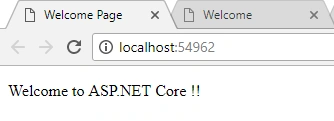
Output
Summary
We learned how to configure the default startup page in ASP.NET Core 1.0. I hope this article is useful for all ASP.NET Core 1.0 beginners.
Ankit SharmaPosted Sep 27, 2017, 12:00 PM
Project.json is no longer supported in .Net core 2.0.So how can we use this for newer version of .net core applications?