

Introduction
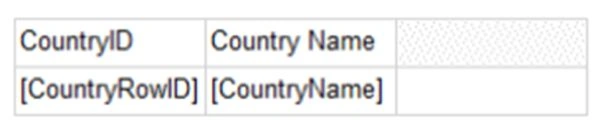
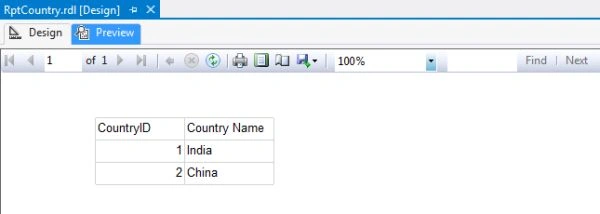
We try to get a list of countries from the CountryMaster table.
Contents
- Hour 1: What is SSRS and determine whether it is installed
- Hour 2: Report using wizard
- Hour 3: First SSRS report
- Hour 4: Report with parameter
- Hour 5: Custom template
- Hour 6: Drill down report
- Hour 7: Sub report
- Hour 8: Report with style
- Hour 9: Report with chart
- Hour 10: Report deployment
- Hour 11: RDL file to ASP.Net
First SSRS Report
Step 1
- Open Visual Studio 2012 ad click on "Project…" to create a new project.
- Expand "Business Intelligence" under the Installed Templates from the left panel.
- Click on "Report Server Project".
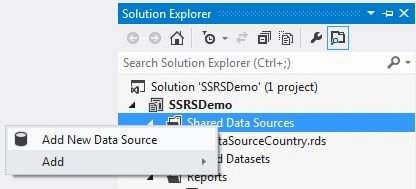
- Right-click on "Shared Data Sources".
- Click on "Add New Data Source" to create a new shared data source.
Step 2
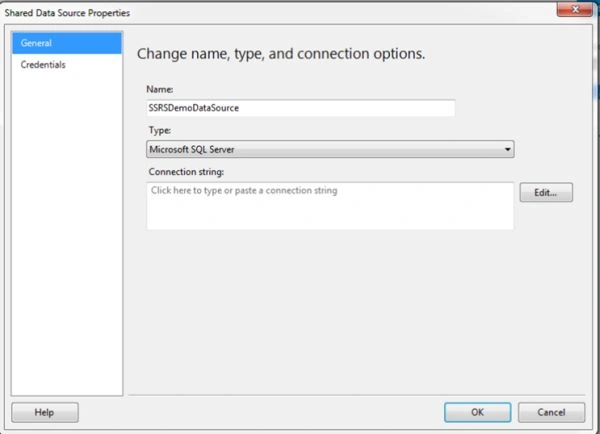
- Select the "General" Tab.
- Provide appropriate an name of the data source.
- Select "Microsoft SQL Server" from the type drop-down list.
- Click on the "Edit" button to set up the connection string.
Step 3
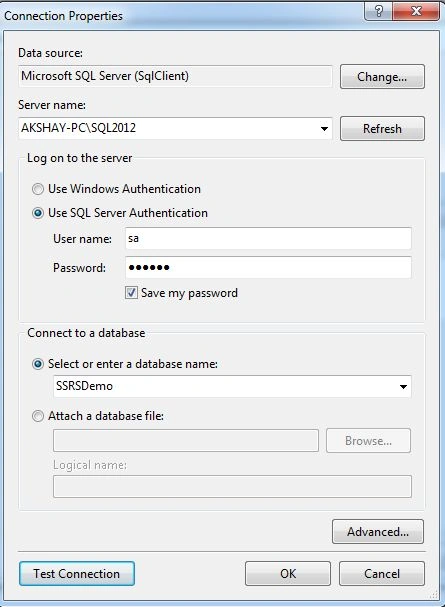
- Select "Server name" from the server name drop-down list.
- Select the "Use SQL Server Authentication" radio button.
- Provide the SQL Server Authentication a user name.
- Provide the password.
- Select "SSRSDemo" as the database name.
Step 4
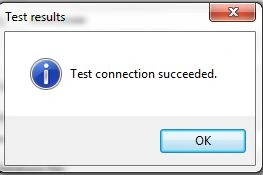
- Click on "Test Connection", it shows a message box with test connection status.
Step 5
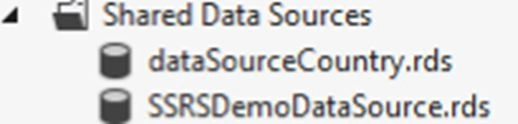
- Right-click on "Shared Data Sources" and click on "Add New Data Source".
- Provide a data source name and connection string.
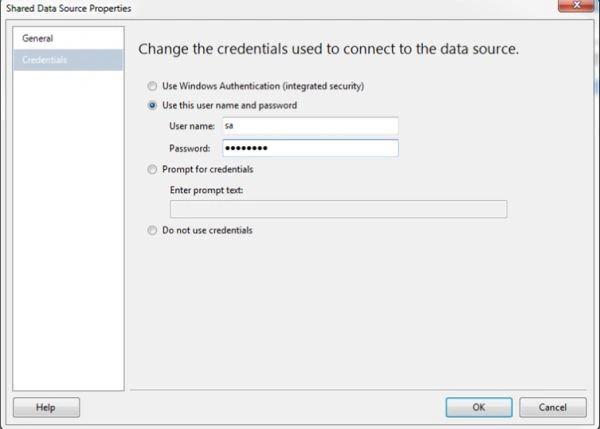
- You can also change the credentials of your data source.
Step 6
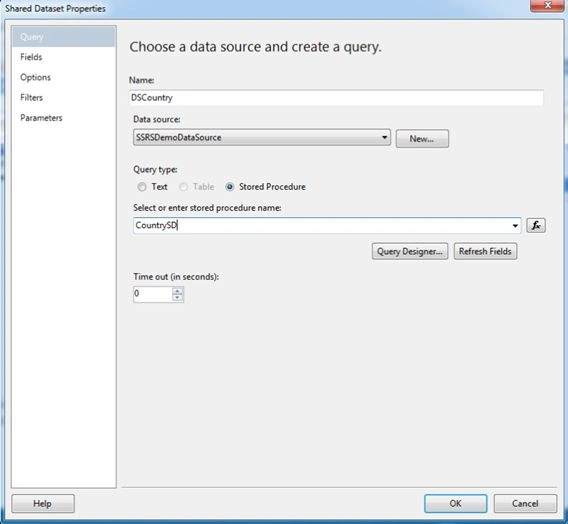
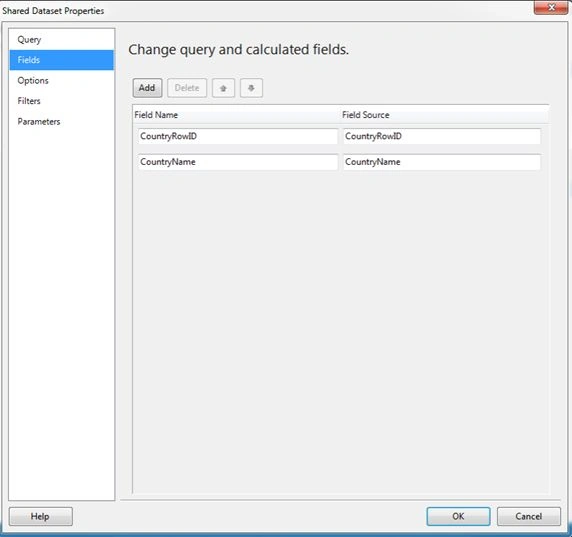
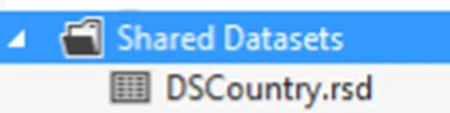
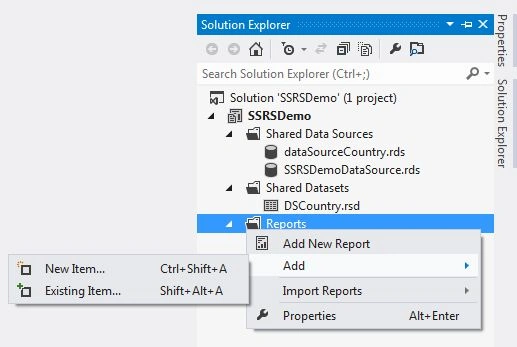
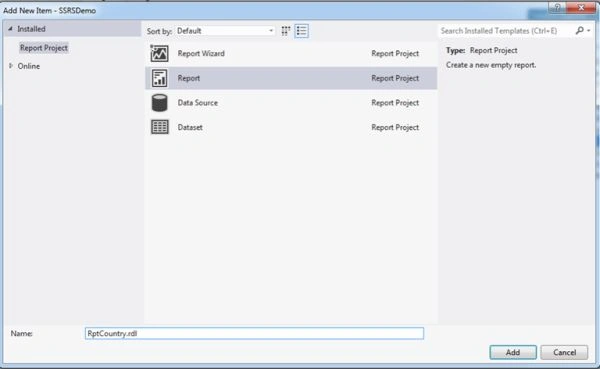
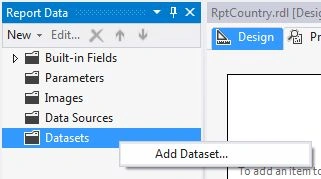
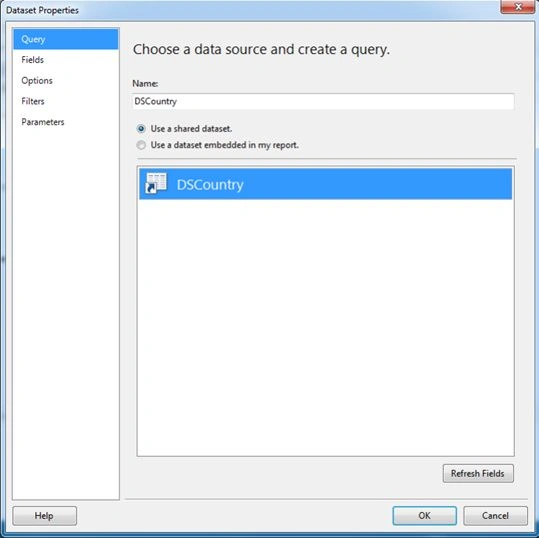
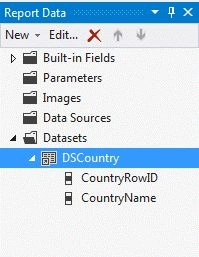
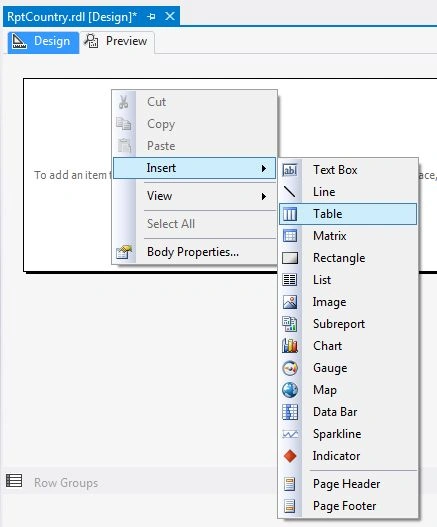
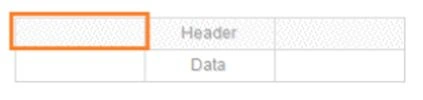
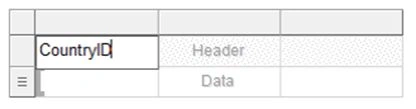

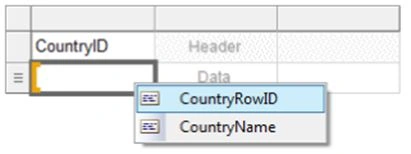
sreenivasa kPosted Feb 20, 2015, 3:28 PM
Nice ones. looking for other articles.....
Santhakumar MunuswamyPosted Feb 18, 2015, 9:26 AM
Thanks for nice articles
Michal HabalcikPosted Feb 18, 2015, 2:11 AM
great example. looking forward on your upcoming articles regarding SSRS.