

Introduction
This article shows how to create a report that expects a parameter, in other words, a parameterized report. We pass CountryRowId as the parameter and we get all the states of that country.
Contents
- Hour 1: What is SSRS and determine whether it is installed
- Hour 2: Report using wizard
- Hour 3: First SSRS report
- Hour 4: Report with parameter
- Hour 5: Custom template
- Hour 6: Drill down report
- Hour 7: Sub report
- Hour 8: Report with style
- Hour 9: Report with chart
- Hour 10: Report deployment
- Hour 11: RDL file to ASP.Net
SSRS Report with Parameter
Step 1
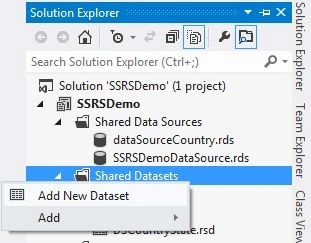
- In order to create a shared dataset, right-click on "Shared Datasets" and click on "Add New Dataset".
Step 2
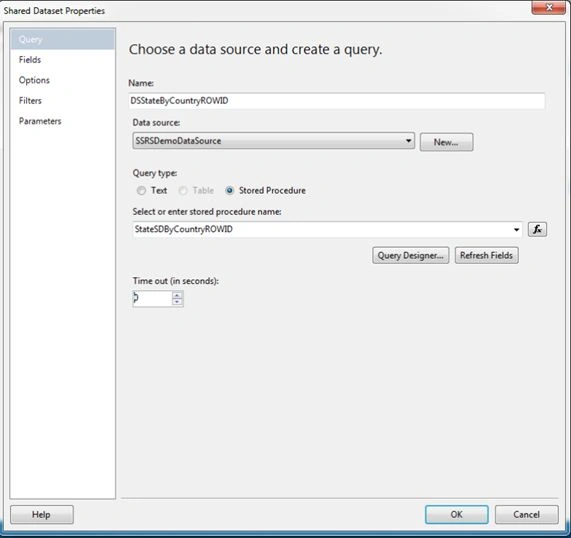
- Provide an appropriate name of dataset.
- Select the data source.
- Select the "Stored Procedure" radio button and provide the Stored Procedure name.
Step 3
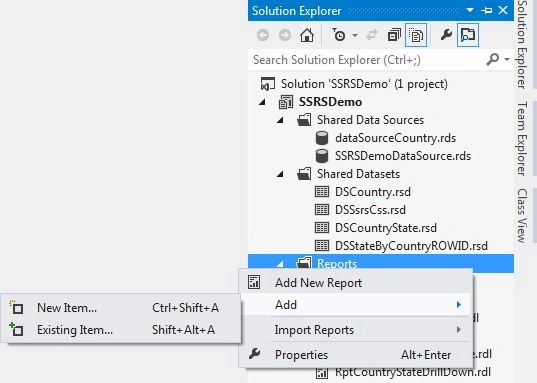
- Now let's add the report. Right-click on "Reports", select "Add" and click on "New Item…".
Step 4
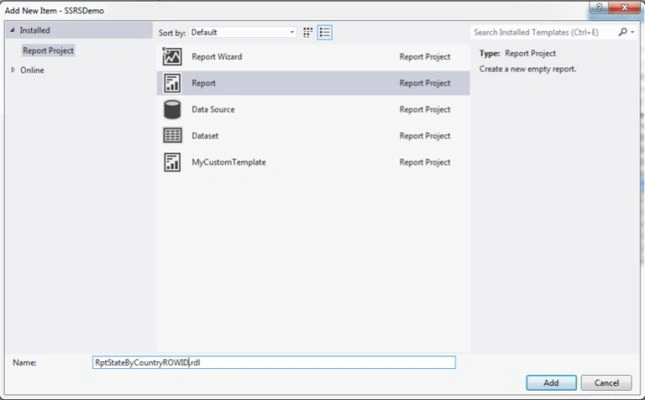
- Select Report and provide an appropriate report name.
Step 5
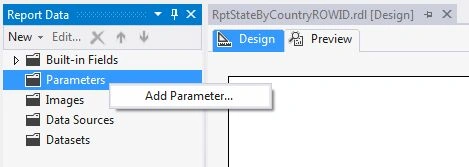
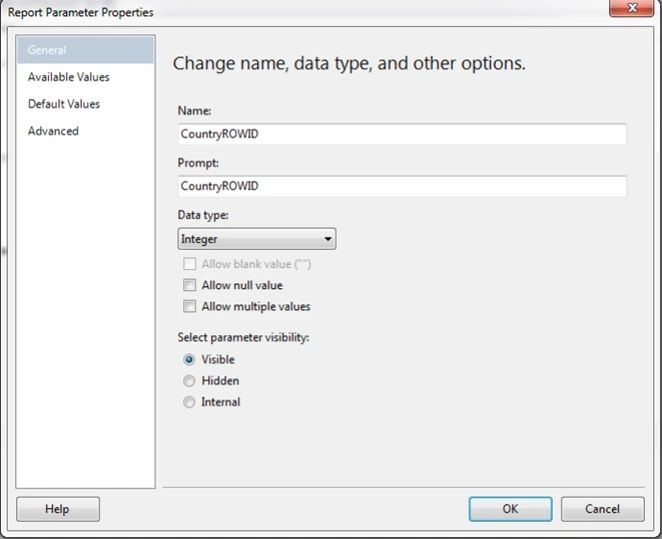
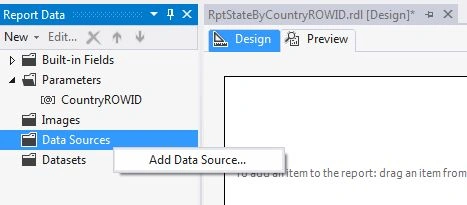
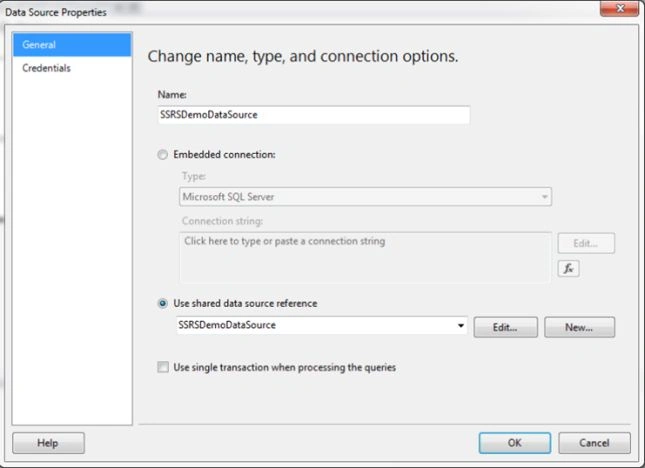
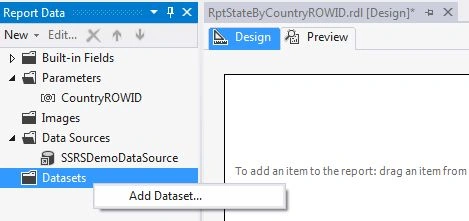
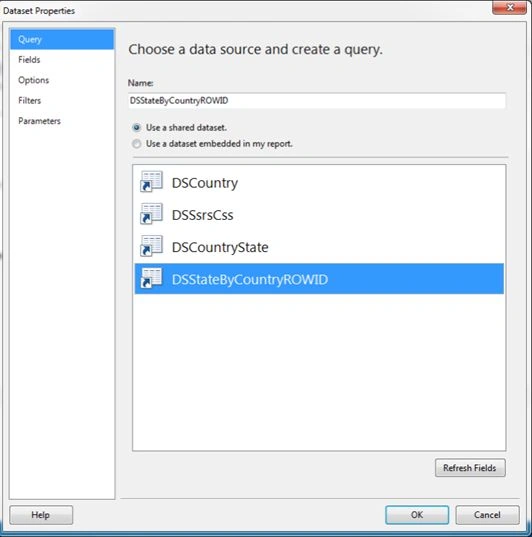
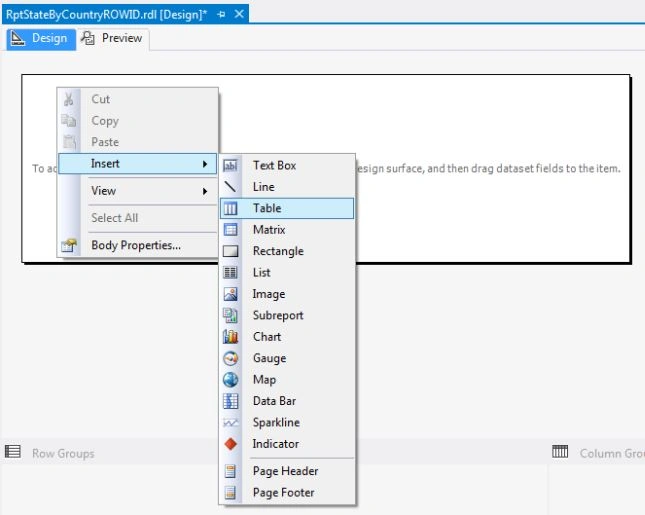
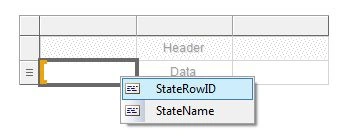
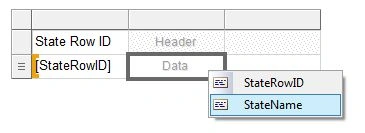
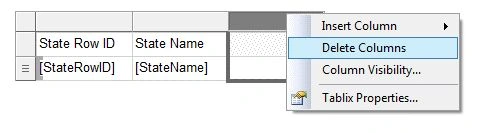
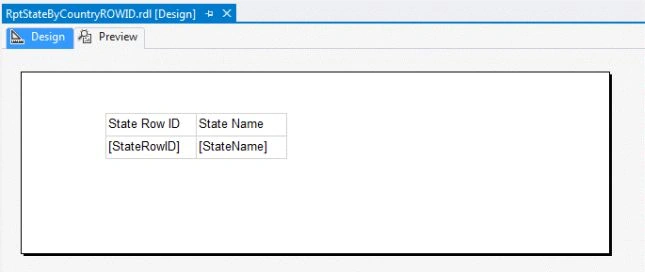

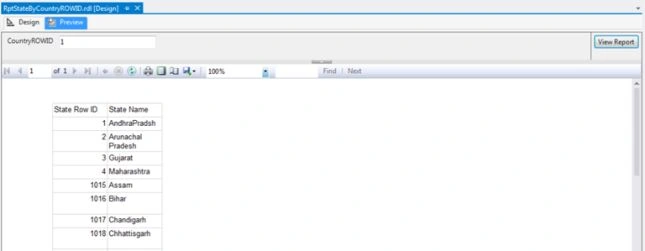
Rahul Kumar SaxenaPosted Feb 25, 2015, 12:16 PM
Gud Work ...
sreenivasa kPosted Feb 23, 2015, 10:17 PM
really nice job brother
Sibeesh VenuPosted Feb 21, 2015, 1:08 AM
Good One .