

Introduction
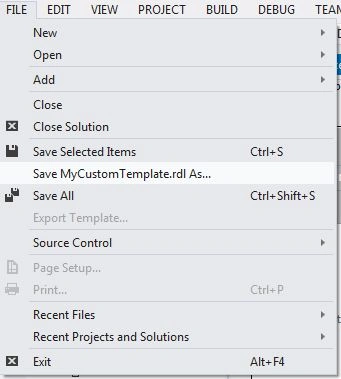
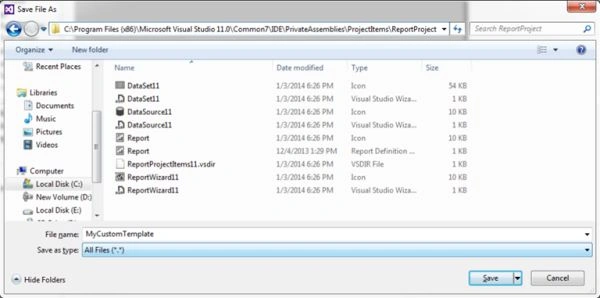
This article shows how to create a custom template inside the report.
Contents
- Hour 1: What is SSRS and determine whether it is installed
- Hour 2: Report using wizard
- Hour 3: First SSRS report
- Hour 4: Report with parameter
- Hour 5: Custom template
- Hour 6: Drill down report
- Hour 7: Sub report
- Hour 8: Report with style
- Hour 9: Report with chart
- Hour 10: Report deployment
- Hour 11: RDL file to ASP.Net
Custom Template in SSRS Report
Step 1
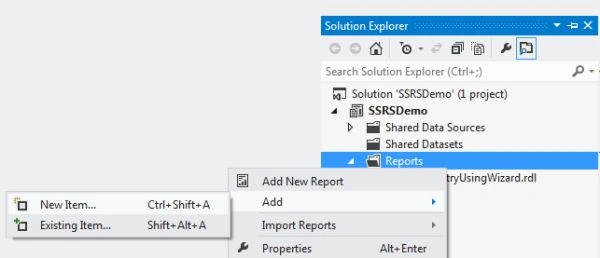
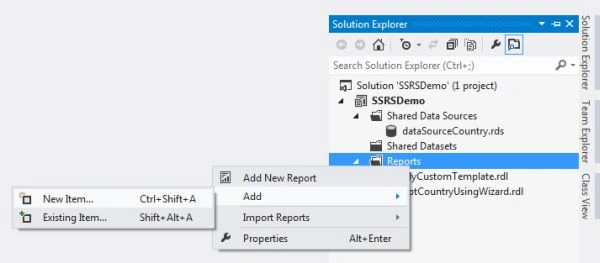
- Right-click on "Reports", select "Add" and click on "New Item".
Step 2
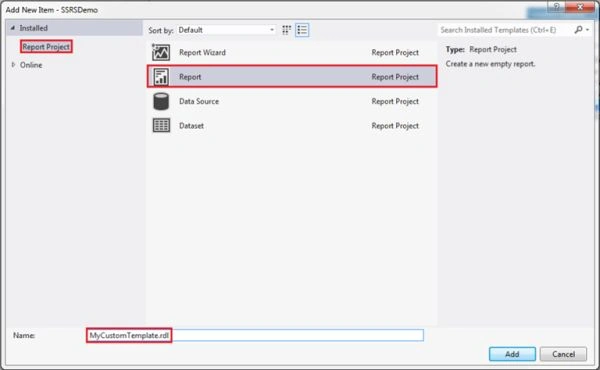
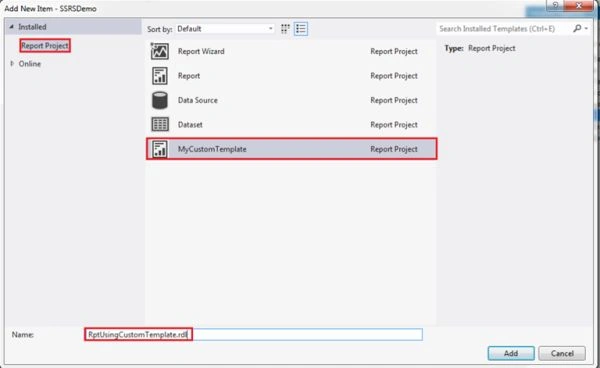
- Select "Report Project" from the left panel and select "Report".
- Provide an appropriate name to the RDL.
- Press the "Add" button.
Step 3
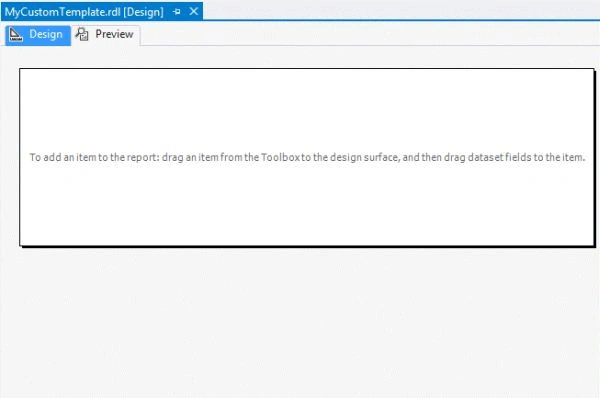
- The RDL file is created and we have the design surface to design the report.
Step 4
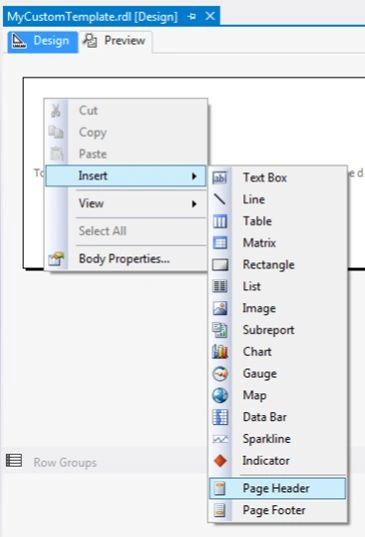
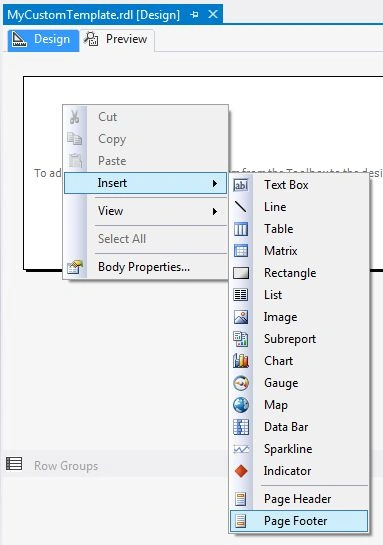
- Right-click on the design surface then select "Insert" and click on "Page Header".
Step 5
- Right-click on the design surface then select "Insert" and click on "Page Footer".
Step 6
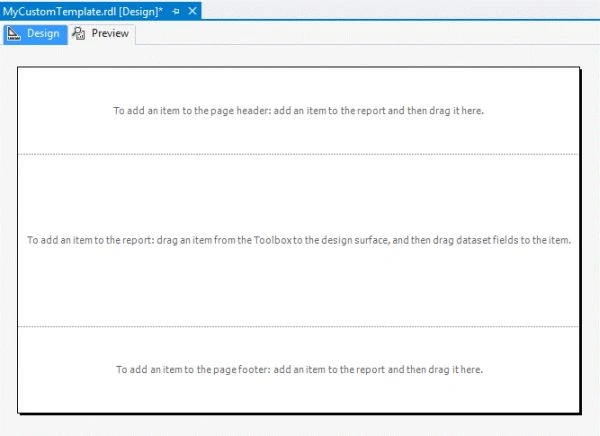
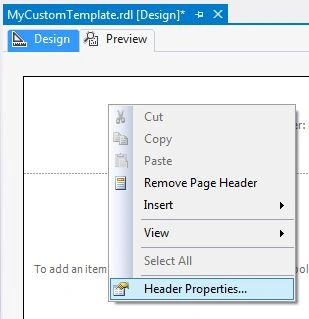
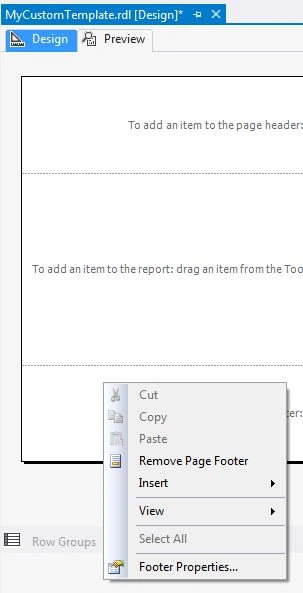
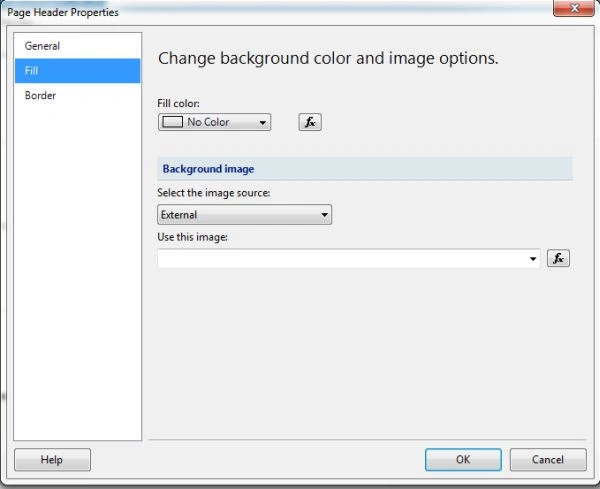
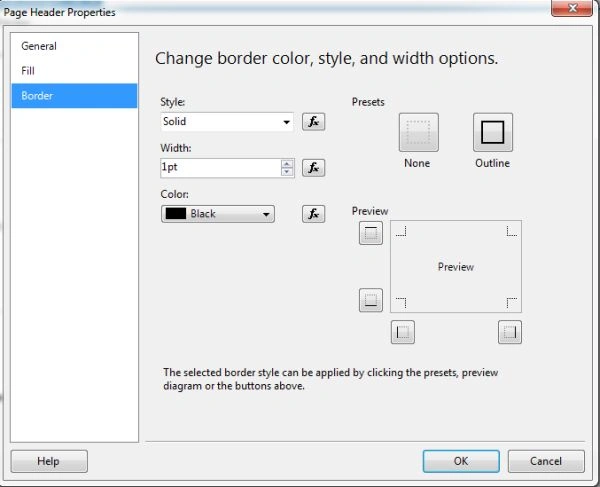
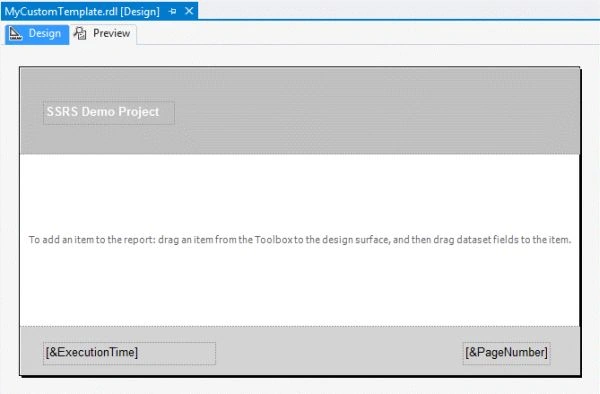
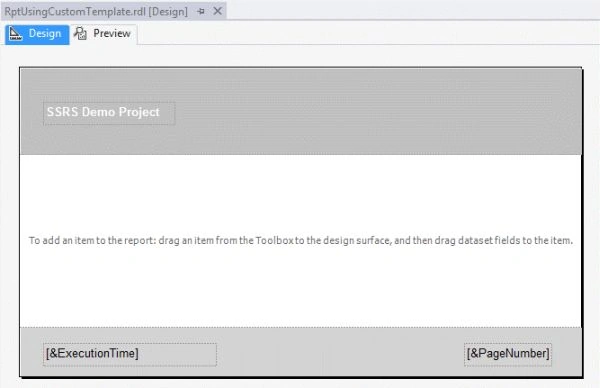
- The page header and page footer is created in the RDL file.
Hari PrasadPosted Mar 6, 2015, 4:07 AM
Thank you very much!!!
Hari PrasadPosted Mar 6, 2015, 4:05 AM
very useful and easy to learn.
Vishal SutharPosted Feb 25, 2015, 1:58 AM
nice article sir !!thank you so much
Rahul Kumar SaxenaPosted Feb 24, 2015, 7:18 AM
Nice one Akshay Patel...
Sibeesh VenuPosted Feb 24, 2015, 1:32 AM
Good one.