

Introduction
Many organizations still struggle with password problems—people forget them, reuse them, or they get stolen through phishing attacks. Even when strong passwords and multi-factor authentication are used, they still depend on something the user knows, which can be exposed or misused. Passwordless authentication is designed to address these issues, and FIDO2 passkeys are one of the most secure and modern methods to achieve this.
Microsoft Entra ID supports FIDO2-based passkey authentication, allowing users to sign in securely using biometric factors such as Windows Hello, Touch ID, or physical security keys, without needing to enter a password. By eliminating passwords altogether, organizations can significantly improve the user experience while reducing the identity-based attack surface.
In this article, we’ll explore how FIDO2 passkey authentication works within Microsoft Entra ID, including the prerequisites and configuration steps, as well as best practices for deployment at scale. Whether you're enhancing security posture, modernizing workforce authentication, or aiming for a fully passwordless journey, this guide will help you integrate passkeys seamlessly into your identity strategy.
Enable FIDO2 Authentication Method in Microsoft Entra ID
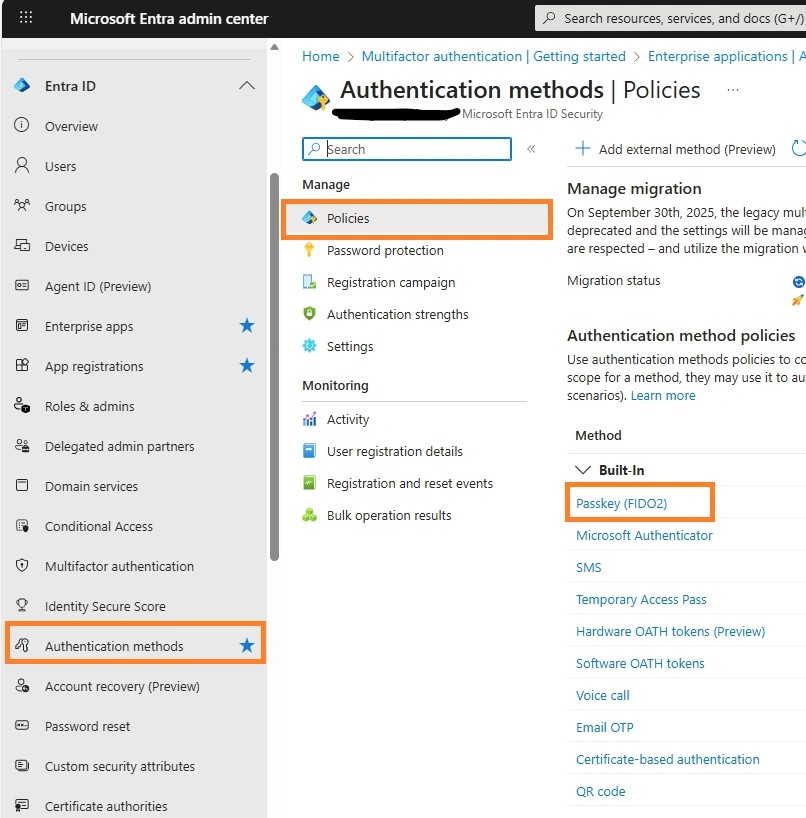
Step 1. Log in to Microsoft Entra Admin Center, click on the Authentication Methods menu, or search for it. from the Authentication Methods Policies, click on Passkey (FIDO2).
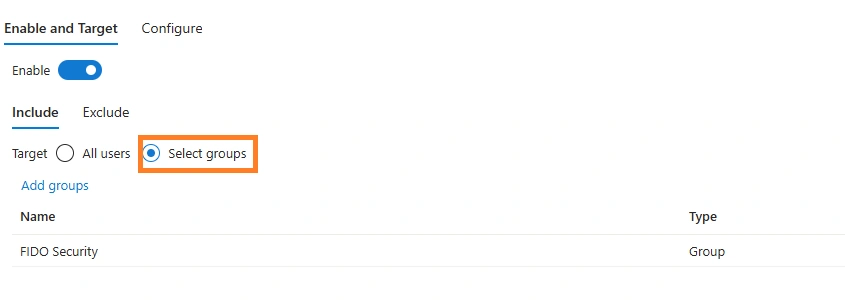
Step 2. Under Enable and Target, enable the settings and select 'Include All users' or a specific group. In my case, I used a group
Step 3. Under Configure, set 'Yes' to Allow Self-Service Setup, enforce attestation, and enforce key restrictions. Set Block to restrict specific keys
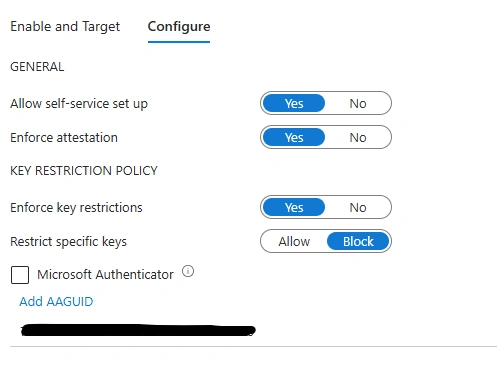
Step 4. Click on ADD AAGUID. AAGUID (Authenticator Attestation Globally Unique Identifier) is a 128-bit identifier used in the FIDO2 authentication framework. It uniquely identifies the type, make, and model of an authenticator, such as a security key or a passkey provider. In my case, I used a YubiKey. Use the link below to identify the AAGUID for the YubiKey below.
YubiKey hardware FIDO2 AAGUIDs , add AAGUID and save the configuration
Configuring the FIDO Key device
Step 1: Log in to mysigns.microsoft.com, go to My Account-> Security Info, and click on Add Sign-in method
Step 2: From the Add Sign-in method Screen, select Security key
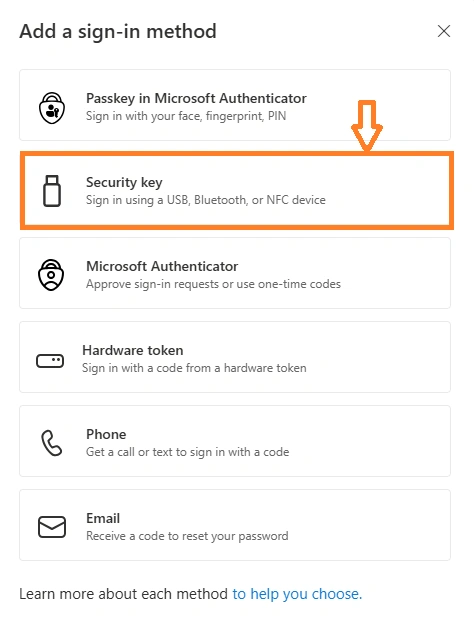
From the Security Key, select either USB Device or NFC, depending on your device's compatibility.
Step 3: Provide a Security Key
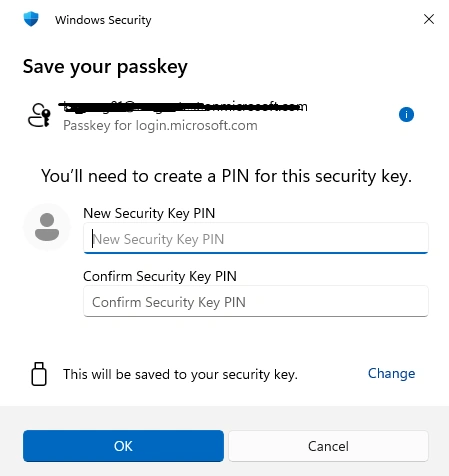
Next, it will ask you to touch the FIDO key. Please proceed with that.
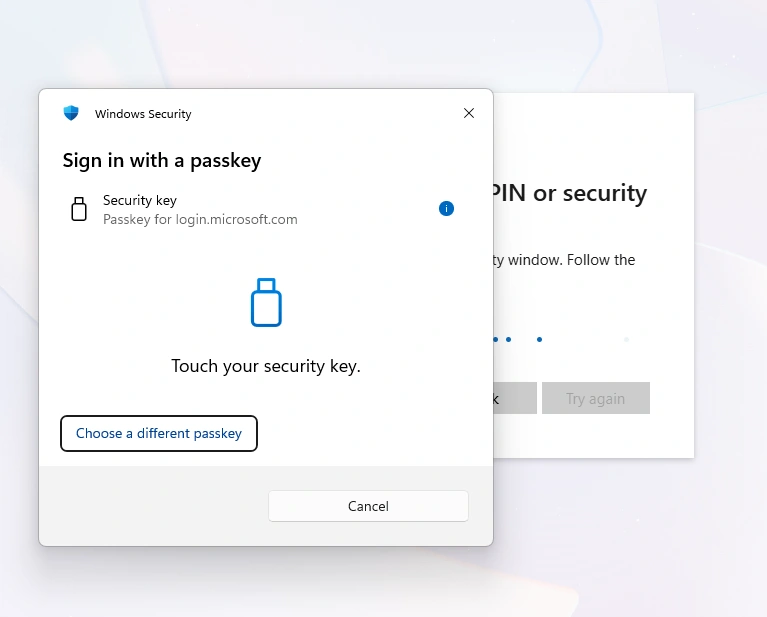
The FIDO key prompts you to touch it during the configuration process to confirm your physical presence and ensure that the key is functioning correctly.
Summary
We have seen how to enable and use FIDO2 passkey authentication in Microsoft Entra ID as part of a passwordless identity strategy. The walkthrough began by enabling the FIDO2 authentication method in the Entra admin portal, followed by configuring security key settings and policies. We then demonstrated how to prepare and use a YubiKey as a FIDO2 device, including prerequisites and recommended security considerations.
Finally, the article guided users through the self-service registration process, showing step-by-step how to enroll, configure, and verify the passkey using their YubiKey for secure sign-in. By following this process, organizations can simplify authentication, reduce reliance on passwords, and strengthen security using modern, phishing-resistant sign-in methods.
Join the conversation! Your thoughts help the community grow.