

Introduction
Today we are explaining how to create Toast Notification in Windows Store apps using C# and XAML. A Toast Notification is a transient message to the user that contains relevant, time-sensitive information and provides quick access to related content in an app. It can appear whether you are in another app, the Start Screen, the Lock Screen, or on the Desktop. Toasts should be viewed as an invitation to return to your app to follow up on something of interest. Toast Notifications are an optional part of the app experience and are intended to be raised only when your app is not the active foreground app.
To use Toast Notification in an app you need to use the "Windows.UI.Notifications" namespace. In Windows Store apps there are many types of notification templates available that can be used to display a notification message.
Step 1
Open Visual Studio 2012 and start a new Windows Store apps project.
Step 2
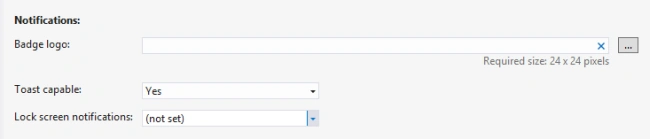
Toast Notification by default is disabled so first you must enable it. To do that go to Solution Explorer and double-click on "Package.appxmanifest" to open it. In the "Application UI" tab go to "Notifications" and select "Yes" in Toast capable.
Step 3
Now go to the "MainPage.xaml" page and add a Button control.
<Button Content="Click to show Notification" x:Name="NotificationBtn" HorizontalAlignment="Left" VerticalAlignment="Top" Click="NotificationBtn_Click"/>
Step 4
For the Button click use the following code and run the program.
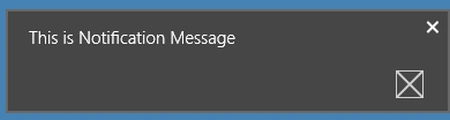
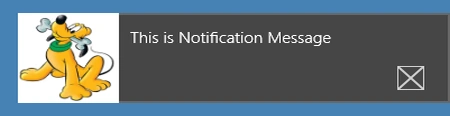
ToastText 01
This is a simple Toast template that displays a single line that can be wrapped up to three lines.
private void NotificationBtn_Click(object sender, RoutedEventArgs e)
{
var notificationXml = ToastNotificationManager.GetTemplateContent(ToastTemplateType.ToastText01);
var toeastElement = notificationXml.GetElementsByTagName("text");
toeastElement[0].AppendChild(notificationXml.CreateTextNode("This is Notification Message"));
var toastNotification = new ToastNotification(notificationXml);
ToastNotificationManager.CreateToastNotifier().Show(toastNotification);
}
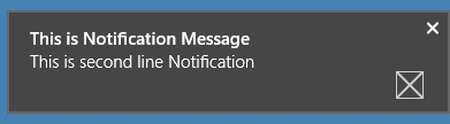
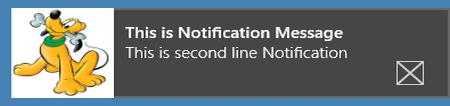
ToastText 02
This is the second Toast template that displays two text. The first text is displayed on the first line and the second text is displayed on the second line.
private void NotificationBtn_Click(object sender, RoutedEventArgs e)
{
var notificationXml = ToastNotificationManager.GetTemplateContent(ToastTemplateType.ToastText02);
var toeastElement = notificationXml.GetElementsByTagName("text");
toeastElement[0].AppendChild(notificationXml.CreateTextNode("This is Notification Message"));
toeastElement[1].AppendChild(notificationXml.CreateTextNode("This is second line Notification"));
var toastNotification = new ToastNotification(notificationXml);
ToastNotificationManager.CreateToastNotifier().Show(toastNotification);
}
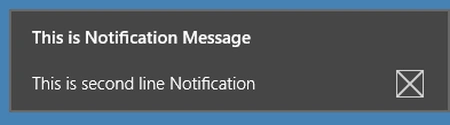
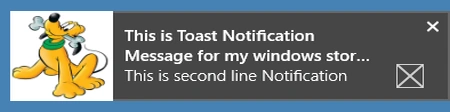
ToastText 03
This is the third Toast template that displays two text. In this template the first text will be displayed in bold format.
private void NotificationBtn_Click(object sender, RoutedEventArgs e)
{
var notificationXml = ToastNotificationManager.GetTemplateContent(ToastTemplateType.ToastText03);
var toeastElement = notificationXml.GetElementsByTagName("text");
toeastElement[0].AppendChild(notificationXml.CreateTextNode("This is Notification Message"));
toeastElement[1].AppendChild(notificationXml.CreateTextNode("This is second line Notification"));
var toastNotification = new ToastNotification(notificationXml);
ToastNotificationManager.CreateToastNotifier().Show(toastNotification);
}
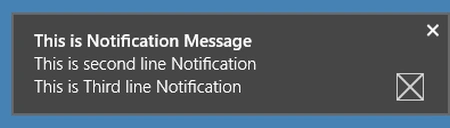
ToastText 04
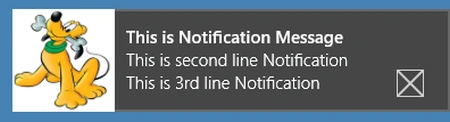
This template displays tree text in three lines. The first text will be displayed in bold format.
private void NotificationBtn_Click(object sender, RoutedEventArgs e)
{
var notificationXml = ToastNotificationManager.GetTemplateContent(ToastTemplateType.ToastText04);
var toeastElement = notificationXml.GetElementsByTagName("text");
toeastElement[0].AppendChild(notificationXml.CreateTextNode("This is Notification Message"));
toeastElement[1].AppendChild(notificationXml.CreateTextNode("This is second line Notification"));
sunil bhoopalamPosted Nov 22, 2017, 1:44 AM
Superb very good article.
ankit sainiPosted Jun 30, 2016, 7:35 AM
Very helpful article it is, many things on the same place. Can you please help me to know about how to receive Toast Notification coming to window device, when the Application is not running (for Universal Window Applications 10).