

Introduction
Toggle Button act as a base class for controls that can switch states, such as CheckBox and RadioButton. It is a button that is mainly used for switching states. It is possible to have a three-state also. It will check the IsChecked property to verify selected or not.
Step 1
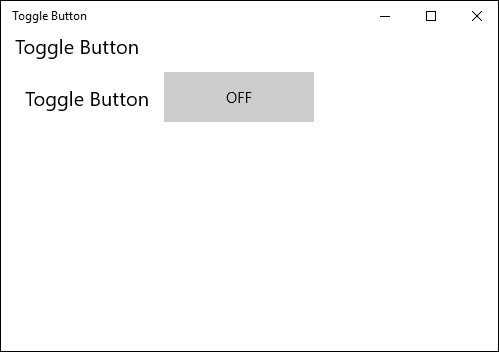
Open a blank app and add a ToggleButton control either from the toolbox or by copying the following XAML code into your grid.
- <TextBlock Text="Toggle Button" FontSize="20"></TextBlock>
- <StackPanel Margin="10,40,0,0">
- <StackPanel Orientation="Horizontal">
- <TextBlock Text="Toggle Button" VerticalAlignment="Center" FontSize="20"></TextBlock>
- <ToggleButton Name="myToggleButton" Content="OFF" Margin="15,0,0,0" Width="150" Height="50" Click="myToggleButton_Click">
- </ToggleButton>
- </StackPanel>
- </StackPanel>
Step 2
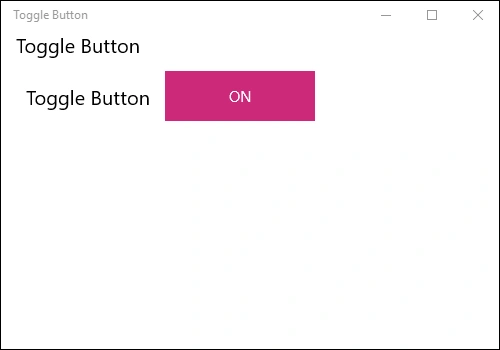
Copy and paste the following code to the cs page to handle the events generated on checking and unchecking.
- private void myToggleButton_Click(object sender, RoutedEventArgs e)
- {
- if(myToggleButton.IsChecked == true)
- {
- myToggleButton.Content = "ON";
- }
- else
- {
- myToggleButton.Content = "OFF";
- }
- }
Step 3
Run your application and test yourself.
Summary
In this article, we learned about Toggle Button Control For Windows 10.
Kuppurasu NagarajPosted Feb 11, 2016, 12:36 PM
Nice Ramees..
Nilesh JadavPosted Nov 3, 2015, 2:23 AM
Good one sir
Harshad PansuriyaPosted Nov 3, 2015, 2:07 AM
Nice one