

Introduction
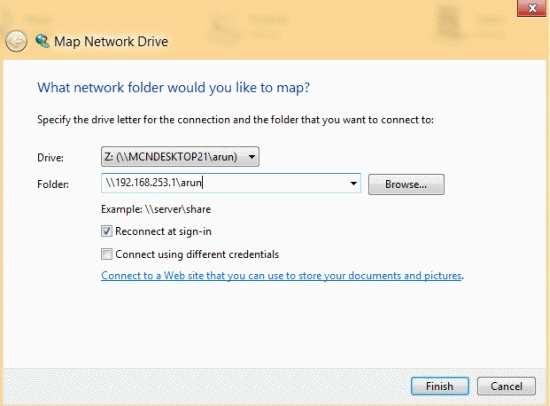
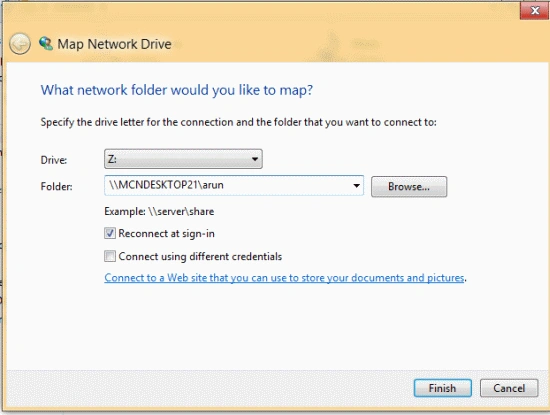
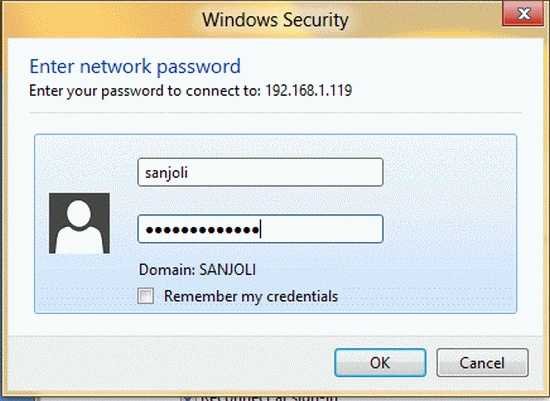
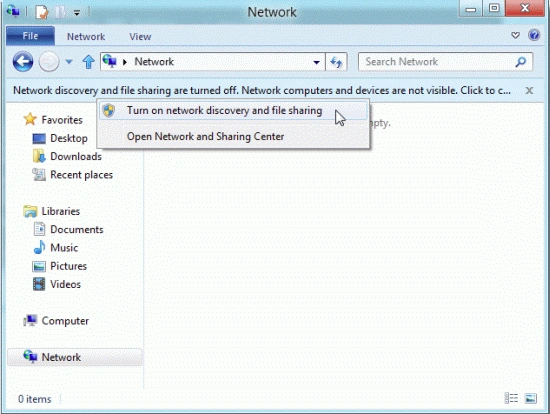
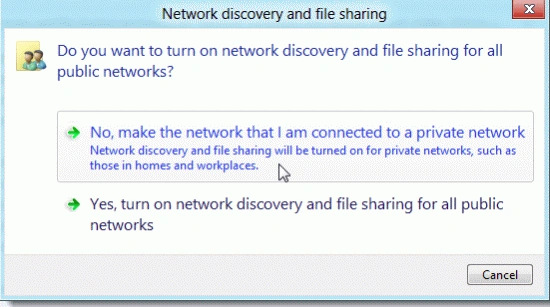
In this article, we will describe all the steps to transfer a file between a Windows 8 PC and a Windows 7 PC. When you are switching to a new PC, Windows Easy Transfer helps you transfer your files, folder, email, pictures, and settings. If you install Windows 8 on a spare PC and now need to get files from that PC to your Windows 7 PC or vice versa. It is easy to network the two machines if both are in a home network. We will show how you can share files between a Windows 8 PC and a Windows 7 PC by sharing a folder in the Windows 7 machine and then mapping it to that folder in Windows 8 as a network drive. First, you create a folder in the Windows 7 PC. You could share your C: drive and have access to all folders from Windows 8. You can play around with Windows 8 and be able to transfer any files you create or download in Windows 8 to your Windows 7 PC, as well. You can also put files in the shared folder from your Windows 7 PC and copy them to your Windows 8 PC.
Steps to Transfer Files Between a Windows 8 PC and Windows 7 PC
Step 1
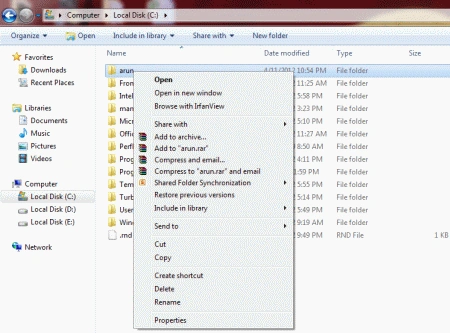
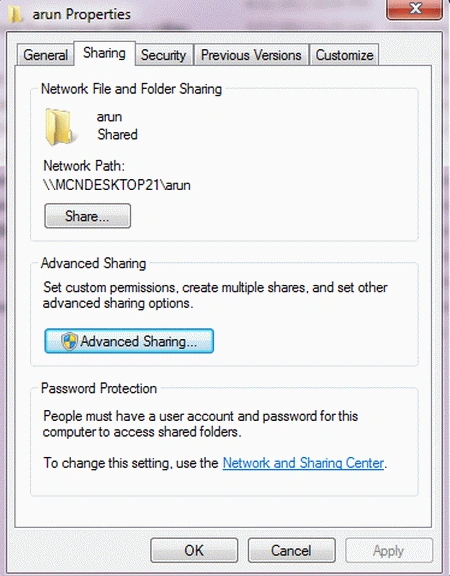
First, you create a new folder in any drive in your Windows 7 PC and right-click on it, and select Properties from the popup menu.
Step 2
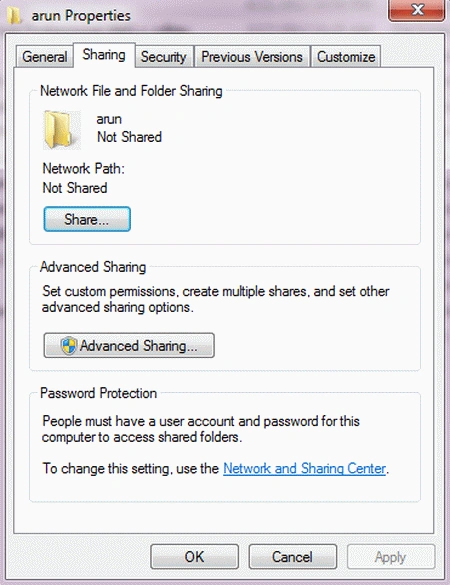
On the Properties dialog box, click the Sharing tab and then click Advanced Sharing.
Step 3
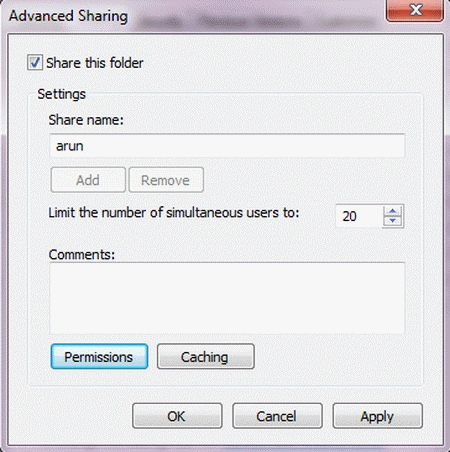
On the Advanced Sharing dialog box, click the Share this folder checkbox to turn on sharing for this folder. Then, click Permissions.
Step 4
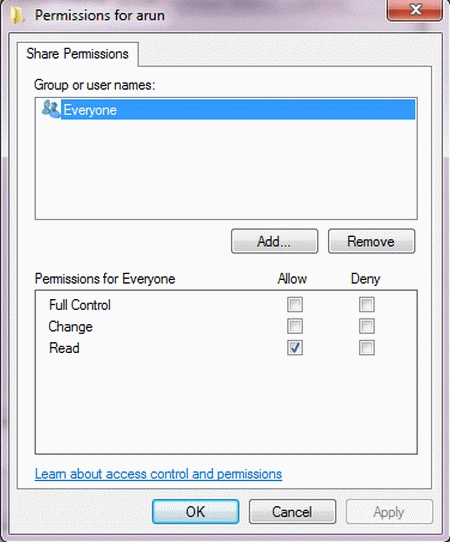
On the Permissions dialog box, you will see Everyone listed in the Group or user names list. You can leave that if there are other users of your Windows 7 PC who you want to have access to this folder from the Windows 8 PC. If that's the case, click the Full Control checkbox in the Allow column to give full read and write privileges and click OK.
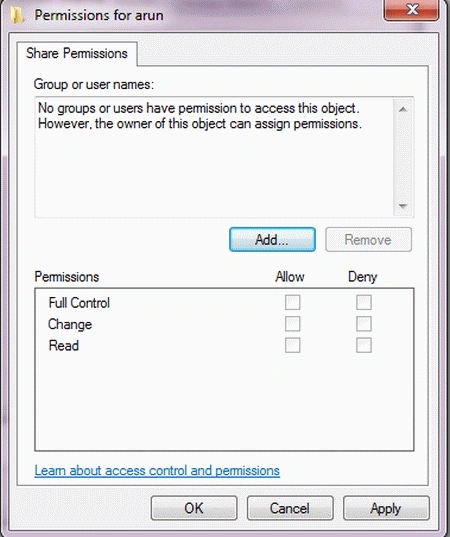
We will also show you how to restrict access on the Windows 8 PC to your user account only on your Windows 7 PC. Click on Everyone in the Group or user names list and click Remove.
Step 5
After step four, you can click on the add button.
Step 6
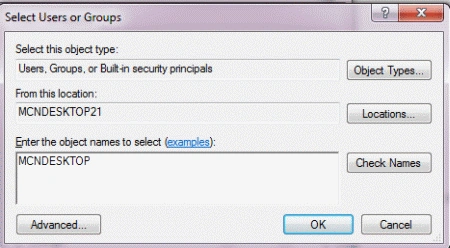
On the Select Users or Groups dialog box, type your username for the Windows 7 PC in the Enter the object names to select box. Click Check Names and if you cannot write the right object name, then show the examples link given in the Select Users or Groups.
Step 7
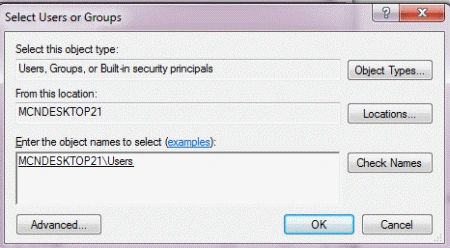
If the Windows 7 Computer name is added to your username and Click ok.
Step 8
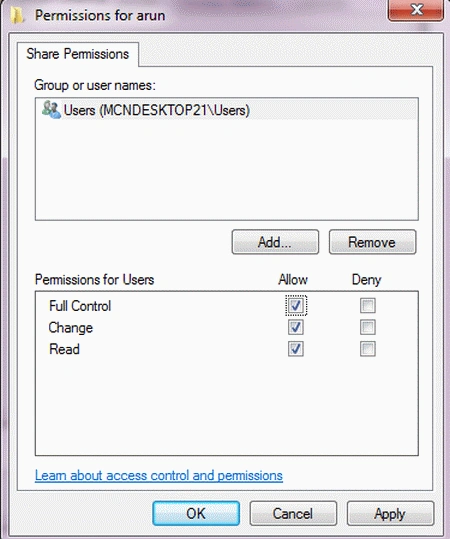
You will now see your username in the Group or user names list. Select it and click the Full Control checkbox in the Allow column to give yourself full read and write privileges for the folder and click OK. You can see the full name in the Share Permission.
Step 9
You are returned to the Advanced Sharing dialog box. Click OK to close it.
Step 10
Then, click Ok to close the Properties dialog box for the folder.
Step 11
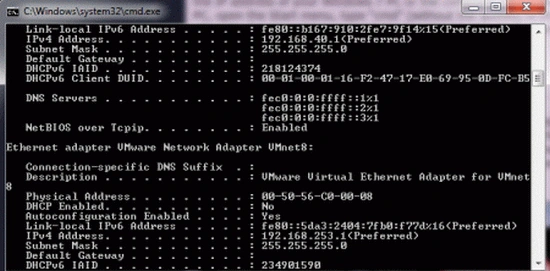
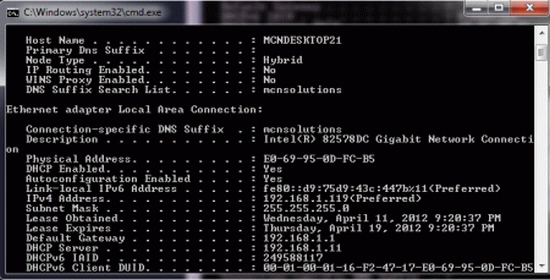
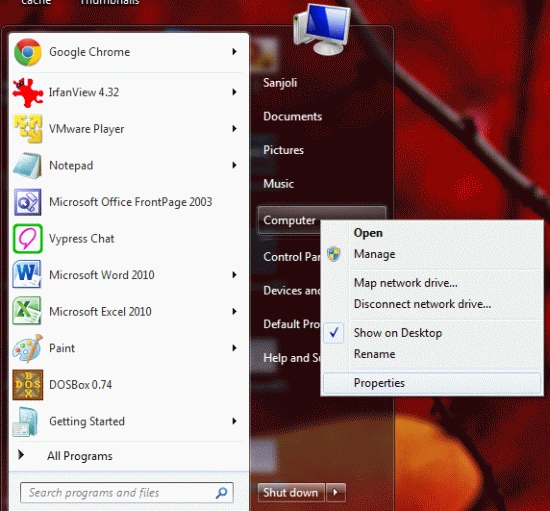
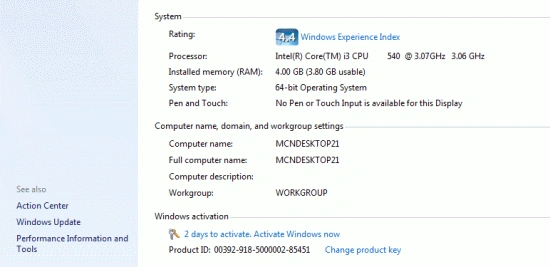
Before mapping to your new shared folder on your Windows 7 PC, you need to know either the IP address of your Windows 7 PC or the computer name. To check the IP address for your PC, open the Start menu, type "cmd" (without the quotes) in the search box, and press enter when the "cmd.exe" link is highlighted in the results. At the command prompt, you can type ipconfig/all.


Join the conversation! Your thoughts help the community grow.