

Introduction
Fast Startup is a new feature in Windows 8 thatmakes Windows 8 faster and different from previous versions of Windows. The reason for Fast Startup is that when a Windows 8 computer is shut down, it actually goes into a hibernation state and all the settings and Kernel sessions are stored in the hiberfil.sys file located in the RAM of your computer and your computer is not completely shutdown. The next time you start your computer it starts faster. Thus startup and shutdown are so easy in Windows 8.
However, some Windows 8 users want to completely shut down the computer because a complete shutdown increases the life of your computer compression to hibernate. To do it you must disable the Fast Startup option in Windows 8.
How to disable fast startup in windows 8?
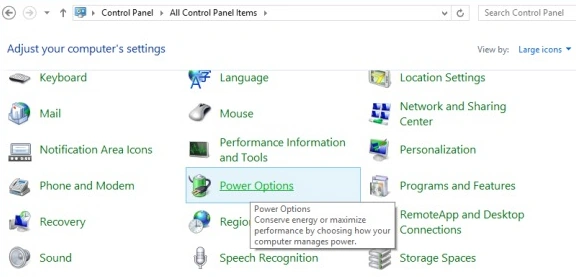
Step 1. Go to Control Panel and click on "Power options".
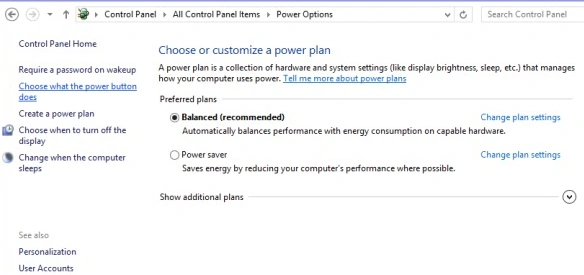
Step 2. In the power options window click on "Choose what the power button does".
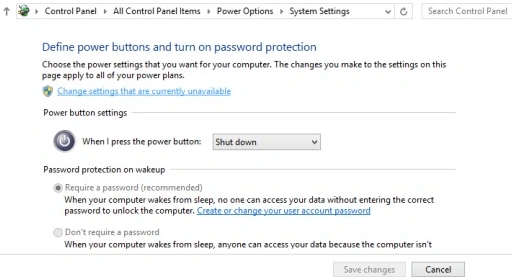
Step 3. In this step click on "Change the settings that are currently unavailable".
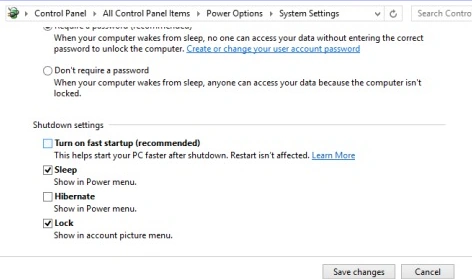
Step 4. In this step uncheck "Turn on Fast Startup" and click on "Save changes".
Step 5. Now restart your computer.
Summary
In this article, we learned aboutTurn Off Fast Startup in Windows 8.
Sam HobbsPosted Apr 13, 2013, 5:56 PM
Actually hibernation was available in previous versions of Windows but I do not see it in Windows 7. Windows 7 has a sleep mode but it uses a little bit of power to keep memory going. Hibernation writes memory to disk the totally turns off power. So sleep mode is faster but hibernation uses no electricity. Hibernation will retain data even if power is totally lost whereas I think memory would be lost if the computer loses power.