

Introduction
In this article, I'll explain how to create an ASP.NET MVC web application with two-factor authentication using Google Authenticator to decrease the possibility of account takeovers and boost user and account security.
As it authenticates users using two possible authentication factors, two-factor authentication is a wonderful technique to help secure user accounts.
In this article, we are not taking user id and password from database but using static data. Here we only learn about Two-Factor Authentication using Google Authenticator.
Two-Factor Authentication using Google Authenticator in Asp.Net MVC
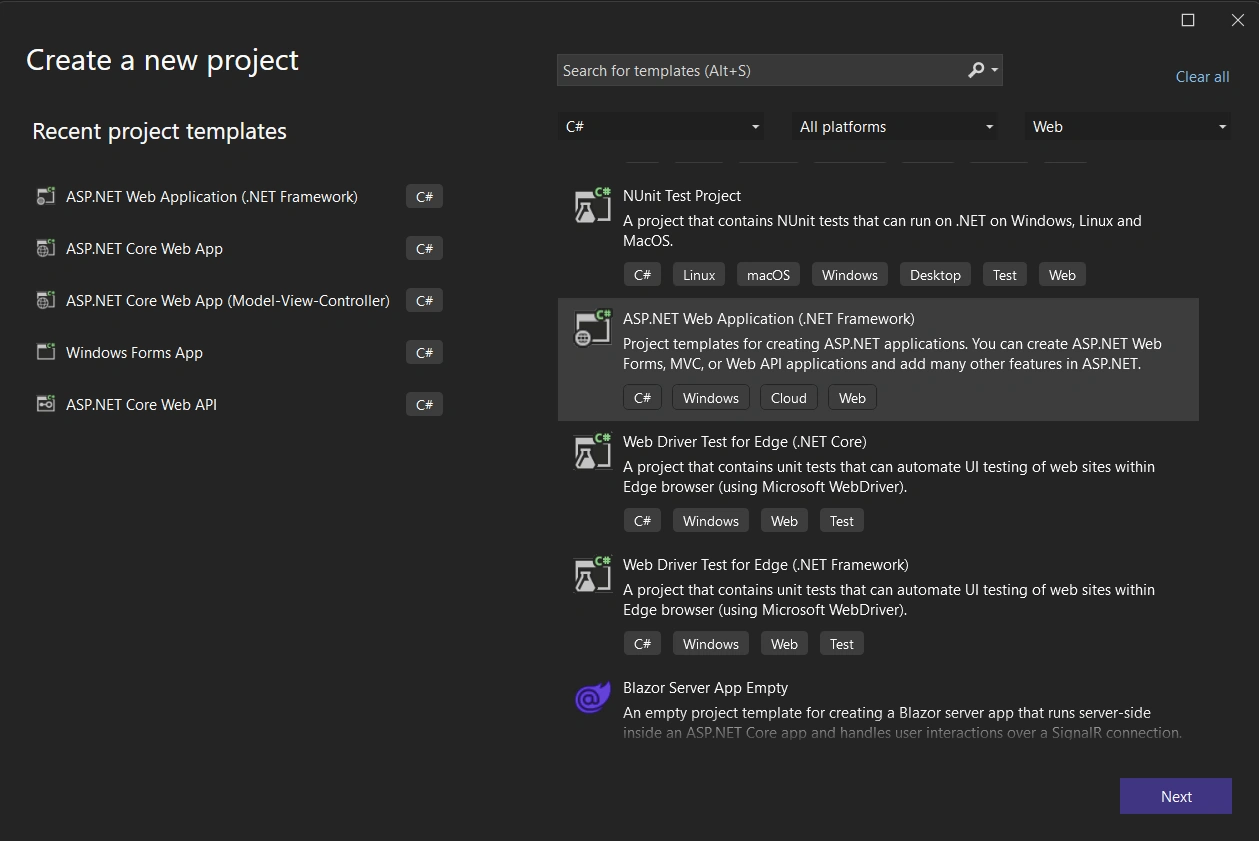
Step 1
Create a new project in Visual Studio, select an ASP.NET Web Application (.Net Framework), and press the Next button.
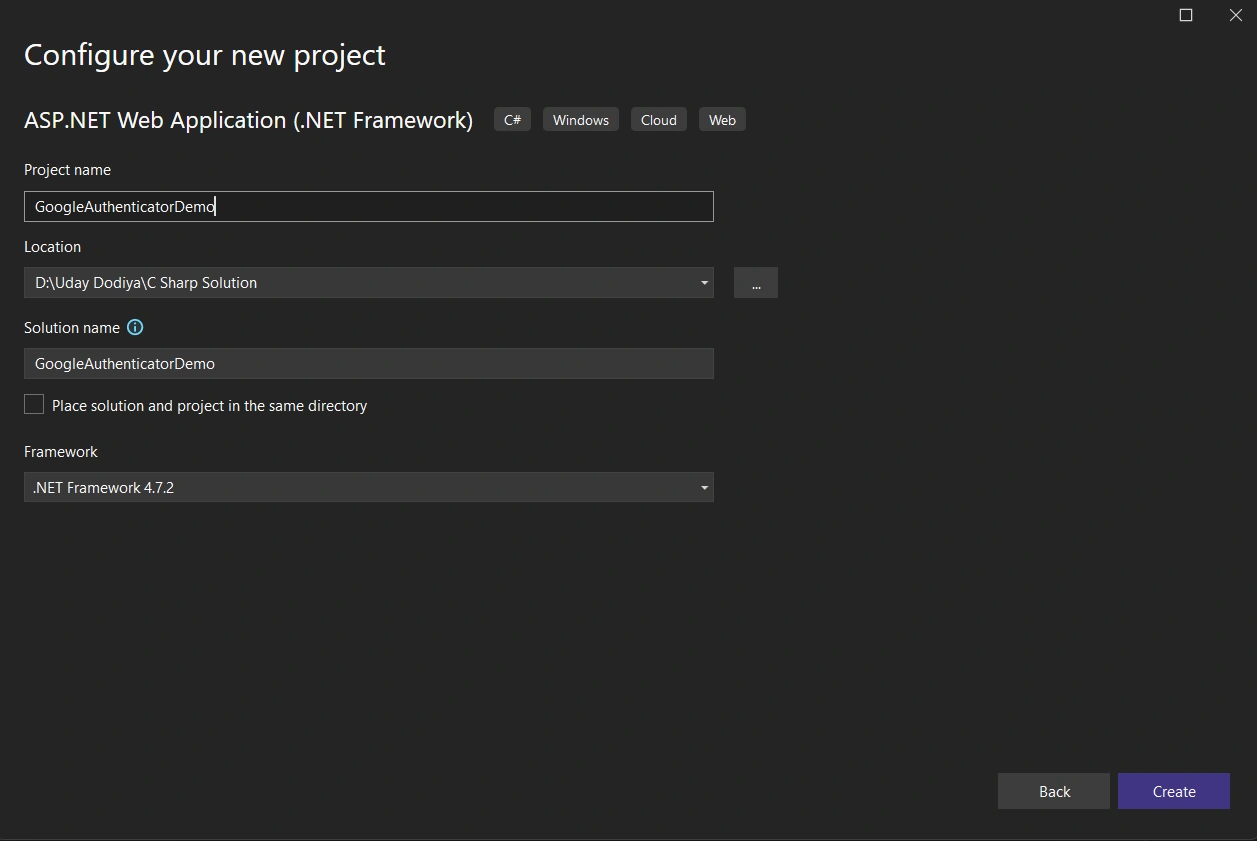
Step 2
Give the project a name, select the save location folder, and click on the Create button.
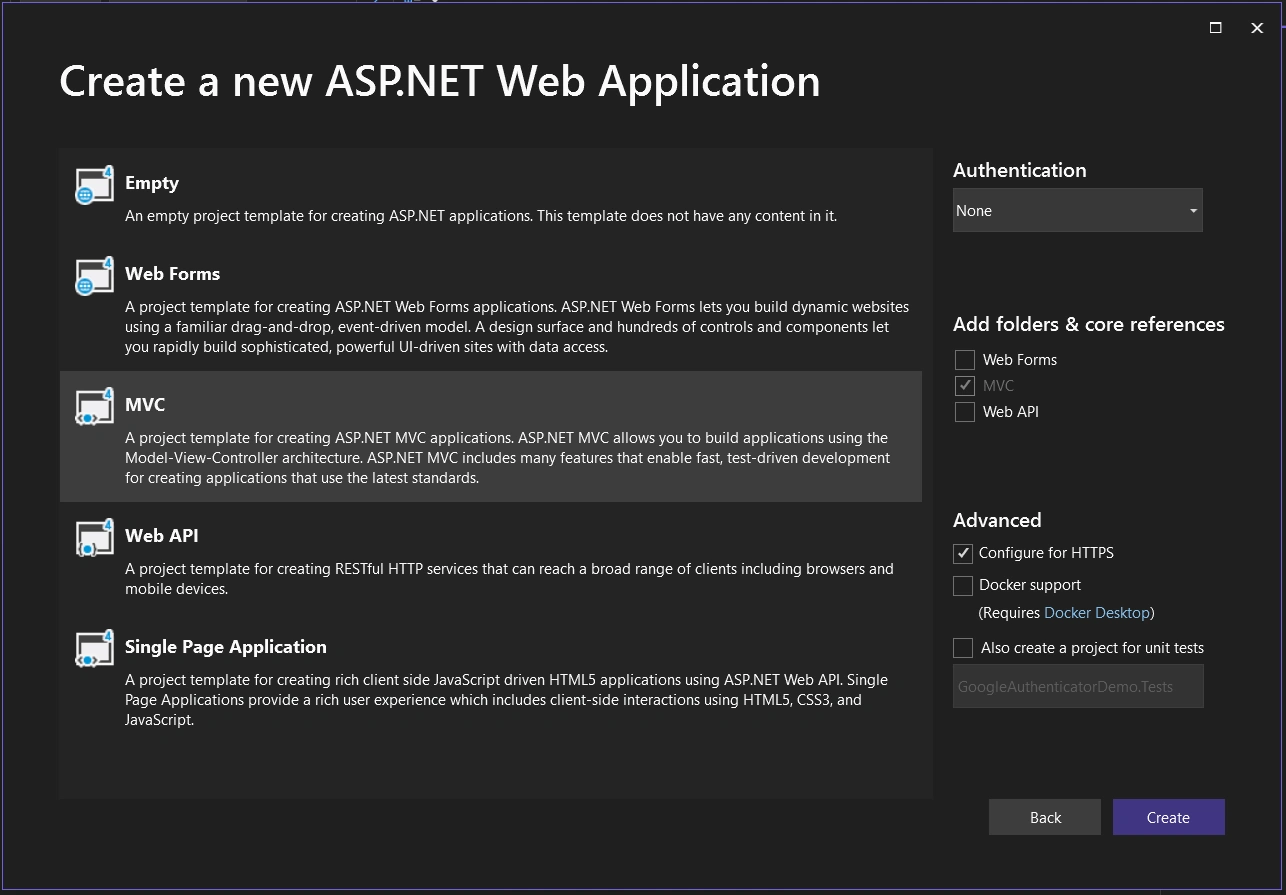
Step 3
Select MVC Option for project type and click on the Create button. Now your project is created.
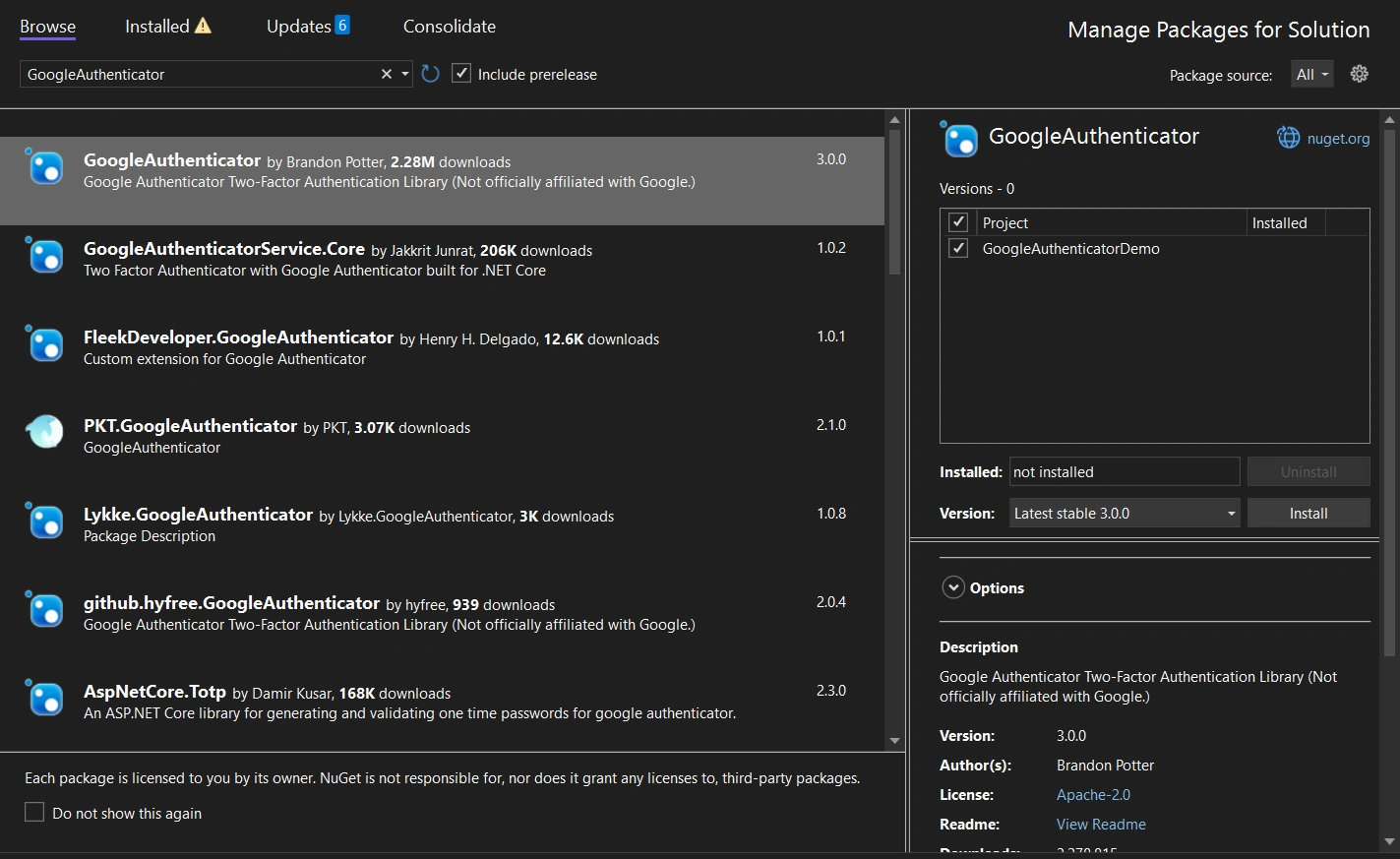
Step 4
Add the Google.Authenticator package from NuGet.
Go to Tools Menu - NuGet Package Manager - Manage NuGetPackages For Solution - Search for Google.Authenticator > Install > Close.
Step 5
Add the Model class LoginModel.cs under Model Folder for login details that stores the username and password.
using System;
using System.Collections.Generic;
using System.Linq;
using System.Web;

namespace GoogleAuthenticatorDemo.Models
{
    public class LoginModel
    {
        public string UserName { get; set; }

        public string Password { get; set; }
    }
}
Step 6
Add the Google Authentication Private Key In Web.Config File under <appSettings>.
This key is not fixed; you can create it yourself with any character combination.
Any character combination use as private key in google authenticator.
<appSettings>
    <add key="webpages:Version" value="3.0.0.0" />
    <add key="webpages:Enabled" value="false" />
    <add key="ClientValidationEnabled" value="true" />
    <add key="UnobtrusiveJavaScriptEnabled" value="true" />

	<add key="GoogleAuthKey" value="U1d2A3y4" />
</appSettings>
Step 7
Create a Login action method in your controller; in my case, it's HomeController.
public ActionResult Login()
{
    Session["UserName"] = null;
    Session["IsValidTwoFactorAuthentication"] = null;
    return View();
}
Step 8
Right click on the Login action method and select Add View Option, and then select the following: Then click the Add Button button to add a view for this action method.
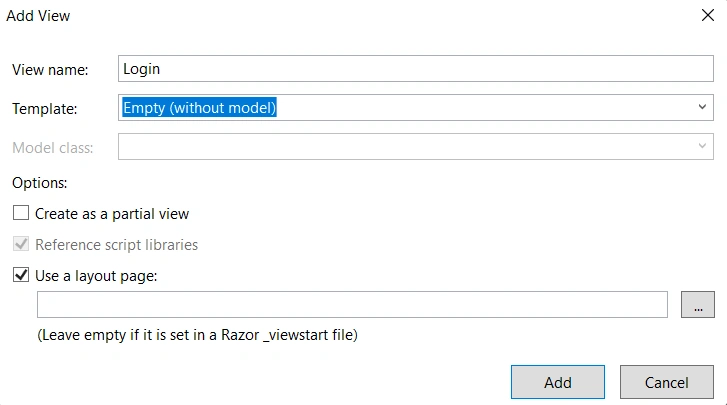
Now a new file is created under View > Home > Login.cshtml.
Step 9
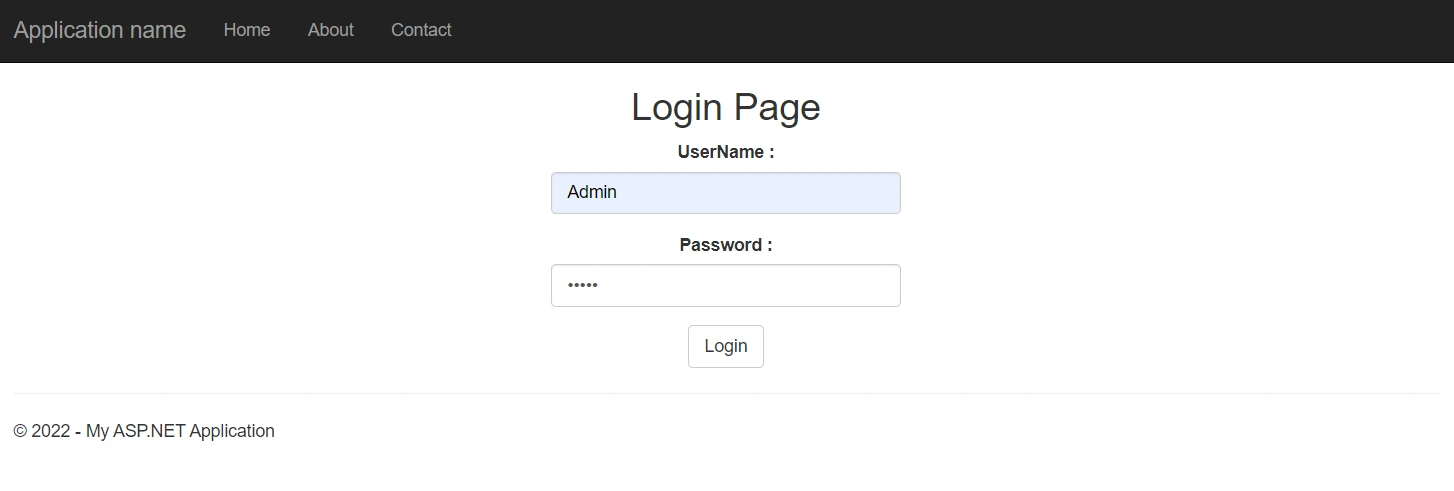
Add the following code into Login.cshtml:
@model GoogleAuthenticatorDemo.Models.LoginModel
@{
    ViewBag.Title = "Login";
}

<center>
    <h2>Login Page</h2>
    @if (ViewBag.Status == null || !ViewBag.Status)
    {
        <div>@ViewBag.Message</div>
        <div>
            @using (Html.BeginForm())
            {
                <div class="form-group">
                    <label for="UserName">UserName : </label>
                    @Html.TextBoxFor(a => a.UserName, new { @class = "form-control" })
                </div>
                <div class="form-group">
                    <label for="Password">Password : </label>
                    @Html.TextBoxFor(a => a.Password, new { @class = "form-control", type = "password" })
                </div>
                <input type="submit" value="Login" class="btn btn-default" />
            }
        </div>
    }
    else
    {

        <div>@ViewBag.Message</div>
        <div>
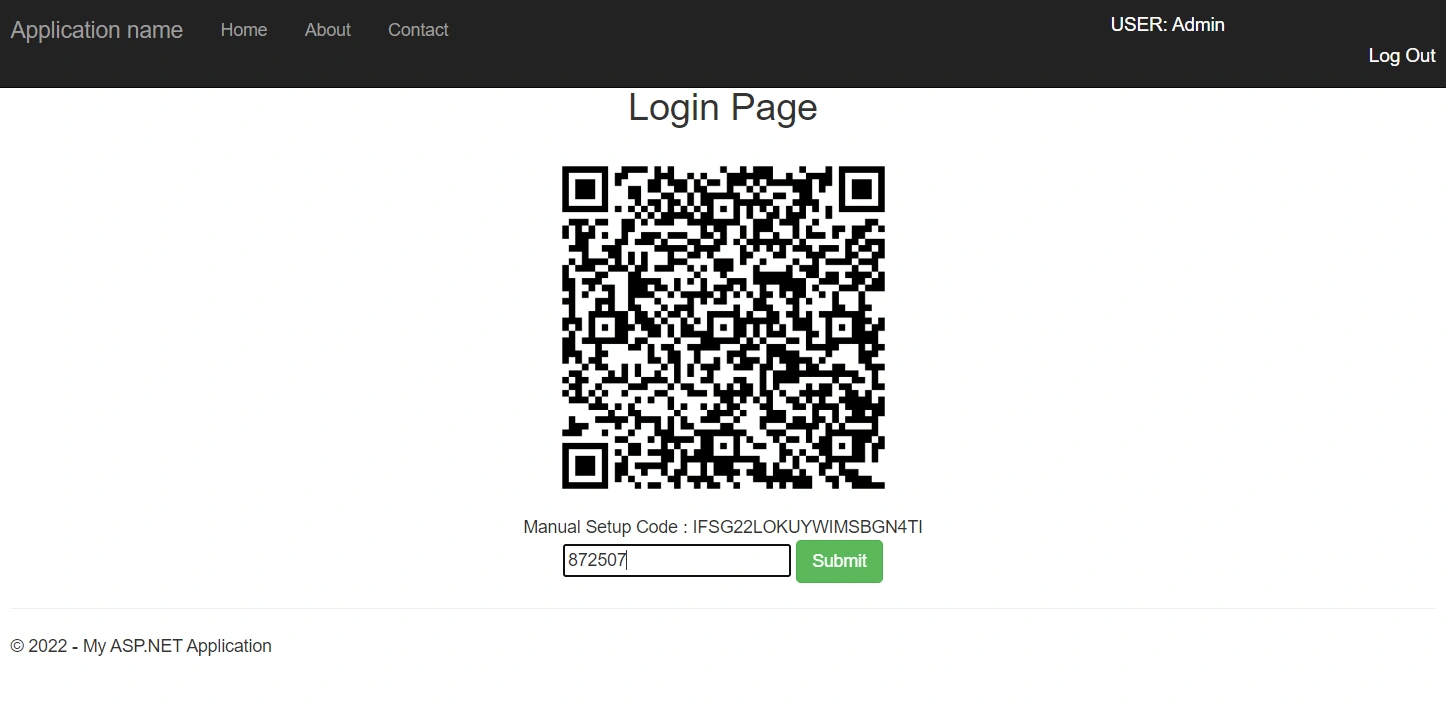
            <img src="@ViewBag.BarcodeImageUrl" width="300" height="300" />

        </div>
        <div>
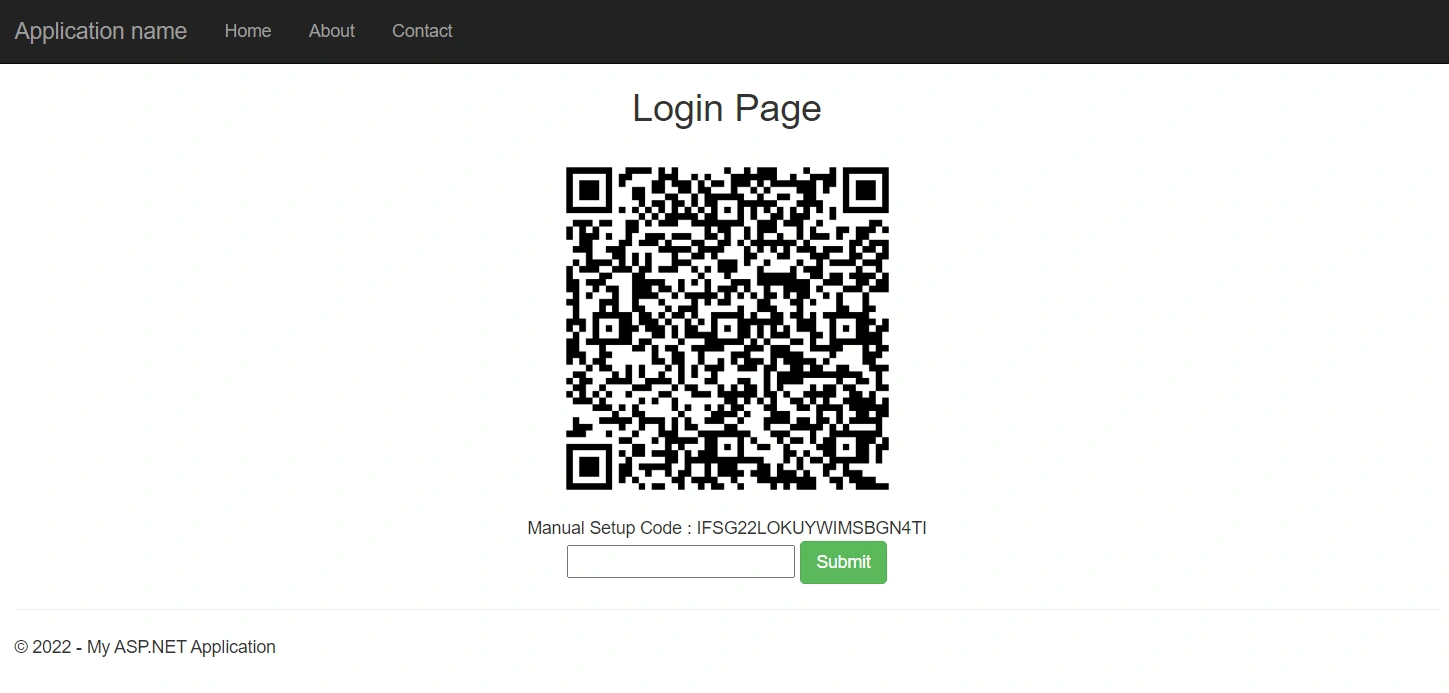
            Manual Setup Code : @ViewBag.SetupCode
        </div>
        <div>
            @using (Html.BeginForm("TwoFactorAuthenticate", "Home", FormMethod.Post))
            {
                <input type="text" name="CodeDigit" />
                <input type="submit" class="btn btn-success" />
            }
        </div>
    }
</center>
Step 10
Create a Post type Login Action method in your controller and add the following code:
[HttpPost]
public ActionResult Login(LoginModel login)
{
  bool status = false;

  if (Session["Username"] == null || Session["IsValidTwoFactorAuthentication"] == null || !(bool) Session["IsValidTwoFactorAuthentication"])
  {
      string googleAuthKey = WebConfigurationManager.AppSettings["GoogleAuthKey"];
      string UserUniqueKey = (login.UserName + googleAuthKey);

      //Take UserName And Password As Static - Admin As User And 12345 As Password
      if (login.UserName == "Admin" && login.Password == "12345")
      {
         Session["UserName"] = login.UserName;

         //Two Factor Authentication Setup
         TwoFactorAuthenticator TwoFacAuth = new TwoFactorAuthenticator();
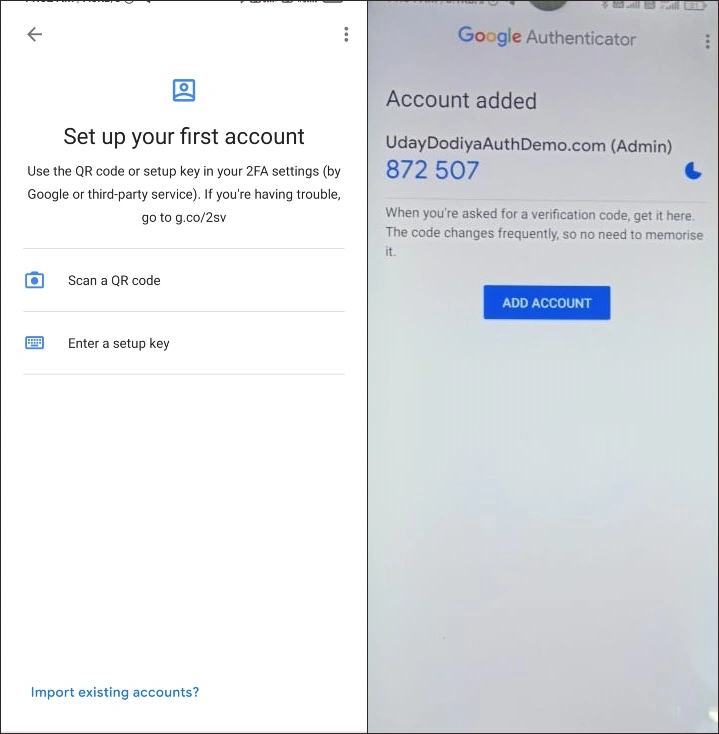
         var setupInfo = TwoFacAuth.GenerateSetupCode("UdayDodiyaAuthDemo.com", login.UserName, ConvertSecretToBytes(UserUniqueKey, false), 300);
         Session["UserUniqueKey"] = UserUniqueKey;
         ViewBag.BarcodeImageUrl = setupInfo.QrCodeSetupImageUrl;
         ViewBag.SetupCode = setupInfo.ManualEntryKey;
         status = true;
      }
  }
  else
  {
    return RedirectToAction("Index");
  }
  ViewBag.Status = status;
  return View();
}
Step 11
Create the ConvertSecretToBytes function in the controller.
private static byte[] ConvertSecretToBytes(string secret, bool secretIsBase32) =>
           secretIsBase32 ? Base32Encoding.ToBytes(secret) : Encoding.UTF8.GetBytes(secret);
Step 12
Create a TwoFactorAuthenticate Action action method for your controller.
public ActionResult TwoFactorAuthenticate()
{
     var token = Request["CodeDigit"];
     TwoFactorAuthenticator TwoFacAuth = new TwoFactorAuthenticator();
     string UserUniqueKey = Session["UserUniqueKey"].ToString();
     bool isValid = TwoFacAuth.ValidateTwoFactorPIN(UserUniqueKey, token, false);
     if (isValid)
     {
         HttpCookie TwoFCookie = new HttpCookie("TwoFCookie");
         string UserCode =Convert.ToBase64String(MachineKey.Protect(Encoding.UTF8.GetBytes(UserUniqueKey)));

         Session["IsValidTwoFactorAuthentication"] = true;
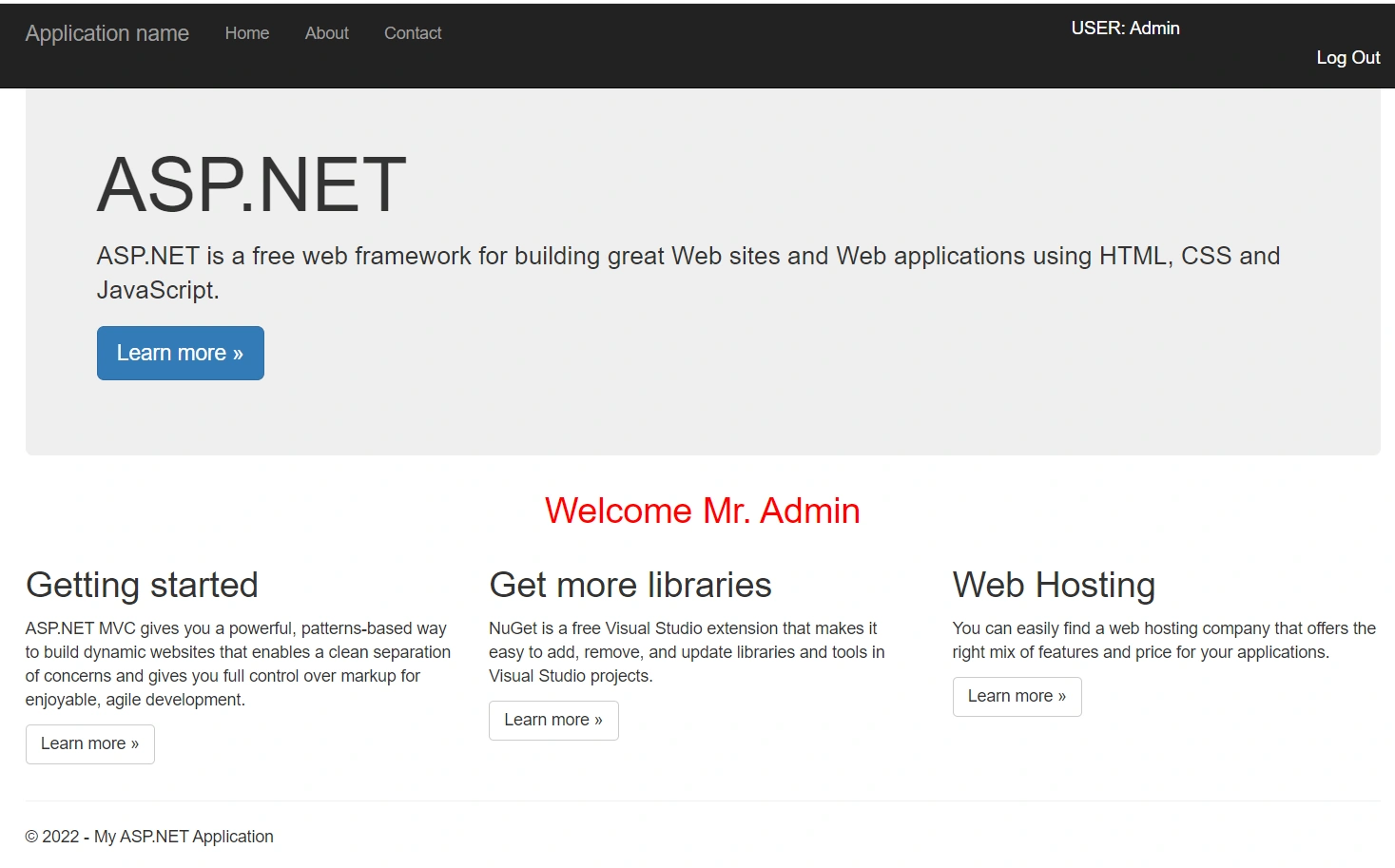
         return RedirectToAction("Index");
      }

      ViewBag.Message = "Google Two Factor PIN is expired or wrong";
      return RedirectToAction("Login");
}
Step 13
Create a Logoff Action Method in your controller to handle the logout action.
public ActionResult Logoff()
{
     Session["UserName"] = null;
     Session["IsValidTwoFactorAuthentication"] = null;
     return RedirectToAction("Login");
}
Step 14
To handle an unauthorised login, add the following condition to all of your action methods, which in my case are three method.
public ActionResult Index()
{
    if (Session["Username"] == null || Session["IsValidTwoFactorAuthentication"] == null || !(bool)Session["IsValidTwoFactorAuthentication"])
    {
        return RedirectToAction("Login");
    }
    return View();
}

public ActionResult About()
{
     if (Session["Username"] == null || Session["IsValidTwoFactorAuthentication"] == null || !(bool)Session["IsValidTwoFactorAuthentication"])
     {
         return RedirectToAction("Login");
     }

     ViewBag.Message = "Your application description page.";
     return View();
}

public ActionResult Contact()
{
     if (Session["Username"] == null || Session["IsValidTwoFactorAuthentication"] == null || !(bool)Session["IsValidTwoFactorAuthentication"])
     {
         return RedirectToAction("Login");
     }

     ViewBag.Message = "Your contact page.";
     return View();
}
Final HomeController.cs File
Dattatray KanakiPosted Jan 3, 2025, 5:05 AM
Hi Udya, i seen the code, is any one scan the QRCode it will give the Code, how can this secure?
nick tabPosted Feb 21, 2024, 2:41 PM
How can i add a second user to login in, because when i try to add right now the "bool isValid = TwoFacAuth.ValidateTwoFactorPIN(UserUniqueKey, token, false);if (isValid)" returns false
abbas khanPosted May 8, 2023, 11:59 AM
Thank you Uday Dodiya for quick reply, please share the updated code after that.
abbas khanPosted May 8, 2023, 10:18 AM
QR code generate process is too much slow and old code has not expired.
long lePosted Feb 10, 2023, 7:10 AM
Can you create example for microsoft authenticator?
tom okilaPosted Jan 20, 2023, 10:23 AM
Thanks man
Tanju BozokPosted Dec 21, 2022, 7:28 PM
Nice share, thanks
Innocent LangaPosted Dec 21, 2022, 8:08 AM
Super awesome i have been looking for the piece like this. Thanks man for sharing.
Vishal YelvePosted Dec 16, 2022, 9:05 AM
Great content