

Download from Dropbox link.
ASP.NET has provided developers with a new framework for website development that makes it possible to easily distinguish between a data layer, a business layer and the methodology they use to render these objects on the screen. They call this framework ASP.NET MVC, in which MVC stands for Model, View, Controller. I will elaborate on these items in this article as well as other objects and technologies. I will use other things too. First let's talk about what the MVC pattern itself is and what ASP.NET MVC offers compared to other ASP.NET frameworks that include something and are well-known, such as web pages and web forms and all other web-scripting frameworks.
ASP.NET MVC
The first thing is to understand the ASP.NET MVC framework itself, once we've gotten enough understanding of the ASP.NET MVC framework, then it will be much easier us to understand why the ASP.NET team provided us with this framework. In web development, there are various schemes used to create web sites and web applications that at a minor age don't seem to cause a problem. Solving a bug might take hours of head-scratching and some other help too. It is harder to find the problem that is scripted inside the HTML web page. In these scenarios, it is always helpful to separate your code from your data and from your HTML markup. This will make it much easier to find and solve the problem. Because then all of the code has been separated and finding the problem at the exact location won't be such a hard task. These three fields are divided and make up the MVC; they are the Model, View and Controller pattern for web development.
Actually this is not a pattern, specific to the web development. If you go to the Wikipedia's web page for this, you will find that it is actually a framework used for software development, meaning that it can be applied anywhere, where you want to distinguish between your application's data link layer, business logic layer and the rendering code.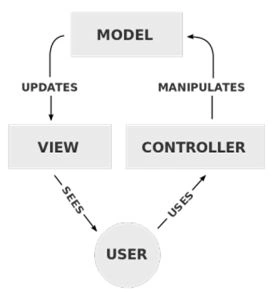
The link among these three objects of the MVC pattern have been depicted in this image above.
Controller
The Controller in the MVC comes at the last, but the most used part, of the MVC pattern. It is used to work with the HTTP requests, coming from the clients, in other words, from the browsers or from any other application that can generate an HttpRequest (not to be confused with the .NET's HttpRequest object, but a simple HTTP Request). Each request, when it comes, is handled by the Controller and then the Controller, depending on the request, makes decisions to load the data, create the response and then return the data back to the client.
It should also be noted here that your Controller acts as a bridge between your Model and the View. Because they, as themselves, cannot perform any action. The Controller triggers their events and makes them do something, like return data from a Model or to render the HTML document from the View and so on. All of the resources and errors are also handled by the Controller, making it the heart of the pattern, because the response is also sent back from a controller. You can think of an example of a Controller to be the entire Business logic layer. The code that is used to run the application's back-end processing, like creating accounts, managing solutions and so on, would make up the Controller section of this pattern.
View
Next comes the View. It is the actual web page that is being displayed to the user. It contains the HTML code to be returned to the data as a response to his request. Correct, the Controller sends this response back to the client and the View itsself doesn't send the response to the client whereas Controllers take the data and sends it back to the client.
A View can also be created dynamically. As already said, all of the requests are handled by the Controller, so any parameter (including QueryStrings) can also be handled by Controllers. Using these parameters, we can generate dynamic Views. So dynamic content in our View changes their layouts or shows some other error messages if the data sent is not of our own choice. The View generally depends on the Model that is being used to create the View and these dynamic data objects are captured from the Model (the Model is discussed in the next section).
The point to be noted here is that whereas a section-in-action is a View, still Controllers play a vital role for ing the values and for retrieving the data to be sent to client.
Model
As the name suggests, it is a model of some object. The object in this case is our application's data. It can be of any type, like extracted from a database; no matter which one, SQL Server, MySQL or Microsoft Access and so on, or it can be a simple data that comes from a Reporting, or from a Spreadsheet and so on. The Model is never shown to the user (actually, the client) because he is supposed to see the data and the results we want him to see, that is why, it is a good approach to keep a substantial abstraction layer between the Model and the user (the client).
Model doesn't only store the data, it, at the same time, keeps the View and the Controller updated of any changes made to it. Models are designed, just like Controllers and Views are designed, just so that there is no ambiguity among the three of them and it is easy for them to communicate to make the web application fluent. Every time a change is made, the View is updated by the Controller, because the Controller is informed about the change (this informing event is also raised by the Controller; as I already said, a Controller handles the events). To store anything in the Model, the user has not been provided with any form that is directly connected to the Model, instead a form is generated in the View by the Controller for the user to fill in. Once the form is filled in, the form values are then ed to the model for storing. All kinds of data validations (the most special type of which are SQL Injections) can be checked at the Controller level rather than losing (important) data.
The user must be allowed to interact with the Model himself, instead a Controller must be used to connect to the Model to get the data for the user's View that would be shown to him.
Until now, we've been discussing the ASP.NET MVC itself, in the next section we will be discussing a real-world example of an ASP.NET MVC Application and I will show showing how to create custom Controllers, Views and Models. In an ASP.NET MVC project a user triggers the Controller, the controller then reads and manipulates the requests, Requests the Model for data, gets the data and then updates the View to be sent back to the client.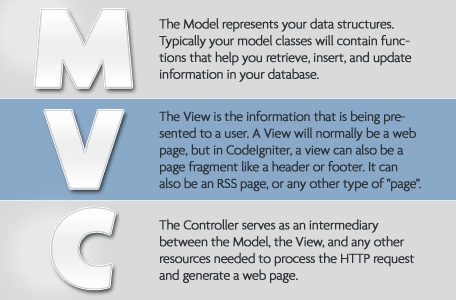
Overview of MVC pattern
Real world example of ASP.NET MVC Application
In this article, I will explain the creation of an MVC application to control your client's data. For that, I will use the Model, View and Controller architecture, so that I can easily distinguish between the data of my application (that would be the data for the clients), the code for the requests and responses (that would constitute the controller) and how the data is shown to the users (the views of my application). I will create everything from scratch, to make everything understandable for you. For that I will start from creating every single object in my application, every controller, every view and model in my project.
One thing you should think about here is that I will use JSON files as the data source, because database fields have already been covered by the ASP.NET team at its best. I don't think there is any need to re-write the same thing, which is why I will explain how to use anything as your model. If you want to read that one and want to stick with SQL Server database then you can go to the ASP.NET MVC's tutorial website to learn that. You're right, Entity Framework won't be supported here! That is why I am saying I will create everything from scratch, to explain every bit of the MVC pattern for you and how you can create actions that respond to your actual processes, not just to the built-in ones.
Real-life example
Let's have an example of a simple office, where a person gets multiple clients, whose name and address are stored. Just to distinguish among them, an ID is also stored. Whether the client is trusted or not, it is also stored along with him. The office manager wants to be able to create new clients and modify the existing ones and once he is done with them he wants to be able to delete the previous ones. To implement this basic example in ASP.NET MVC, we will start off by creating a simple ASP.NET MVC application. To do so, you can either press CTRL+SHIFT+N, or you can click on File, then New and a Project ("File" -> "New" -> "Project..."). Like this: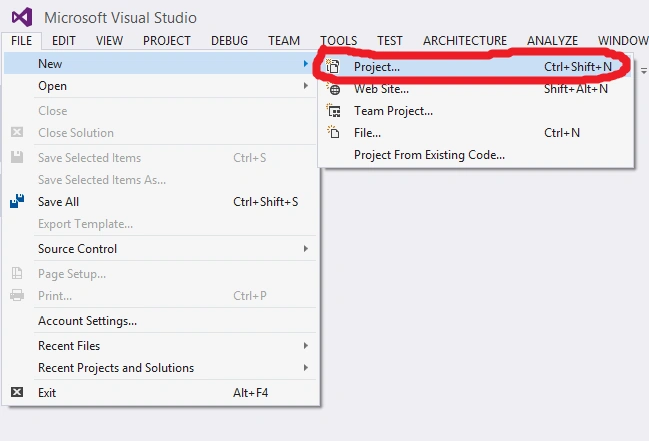
Creating a new project - in Visual Studio 2013
After this, please select the Web and inside that select ASP.NET Web Application, then name it as you want. I named it ASPNET_MVC_Application. You can use any name you want.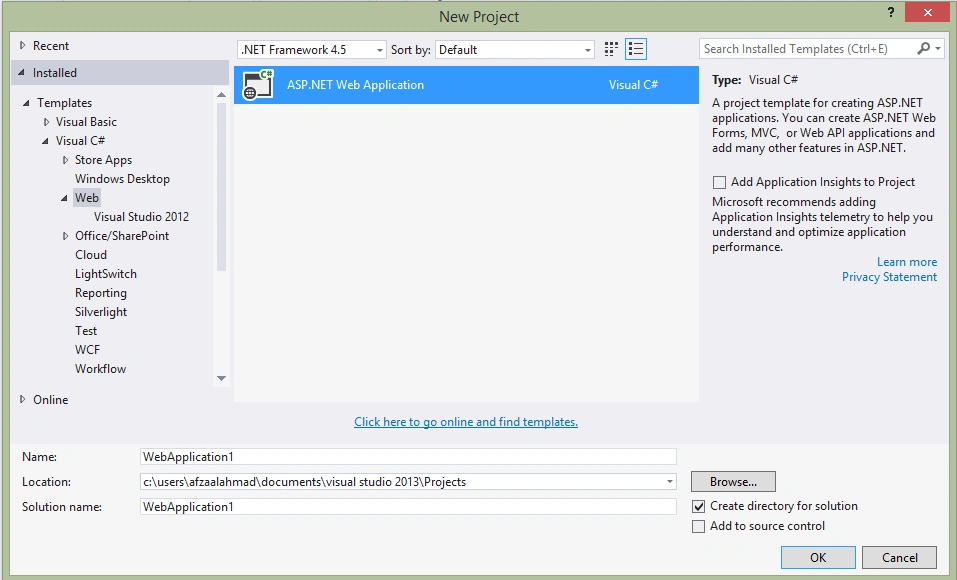
Selecting an ASP.NET web application
Then you will be required to make the selections for your application in the next tab. You shouldn't make any change for now, keep the selected options selected and click Next on this tab.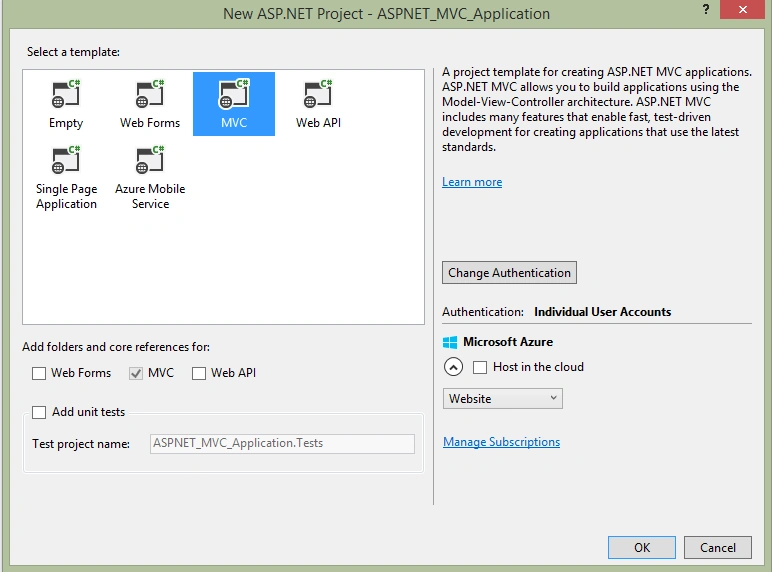
This would then create your application, with the default content for your application settings. You might see this web page inside your Visual Studio.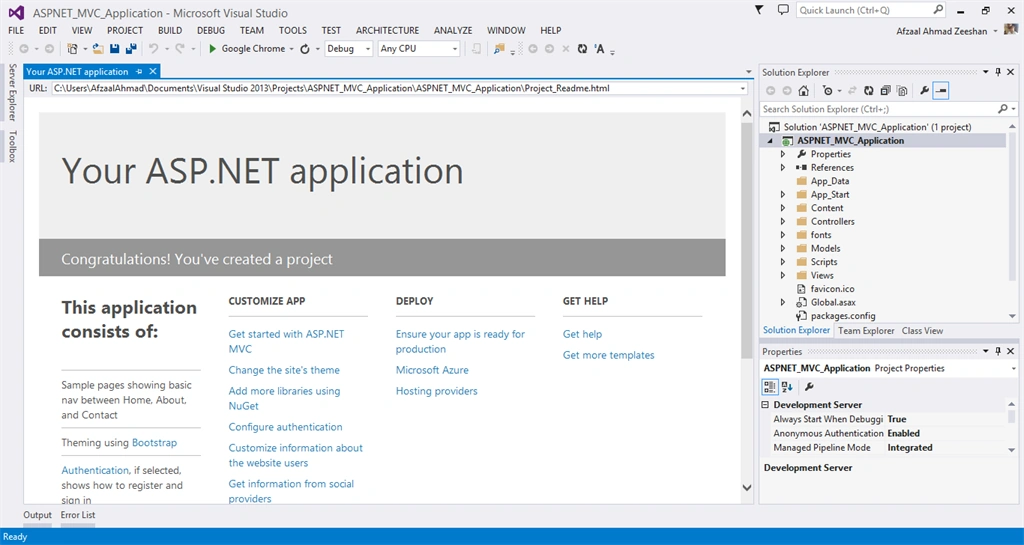
The ASP.NET MVC read me page viewed inside the Visual Studio 2013 application's first run.
This is the tutorial until the creation of the application. This web page is also a sign of success, if you still want to be sure that everything runs, just press the Green button (with a Browser's name on it; mine had Google Chrome) to see your application run in the browser. In the next section, I will be creating the application's objects (MVC) and then showing you how they can interact and in the end I will provide some tips for making your application better.
Customizing the ASP.NET MVC Application
Once all of the things are set and your application runs, you can continue to make changes to it, so that it would reflect your own application and not the default ASP.NET MVC application that is a sample. The first thing to do is to create a controller that we're going to be using inside our application to control all of the requests and will send back the response (view). How to create views and what would be the model will be covered in future sections. For now, just make up your mind to understand the Controller in MVC.
Required package: Since we're going to use JSON data, the Newtonsoft.Json package is a very useful package to use, so before you go any further open your NuGet package manager console (inside the Tools) and run the following command to download and include it in your project. It is required.
Install-Package Newtonsoft.Json
Creating a custom Controller
A custom controller is something that you can use to create your custom controllers for your application, that would handle the requests coming for them and they will provide the user with a view filled in with the data from the model. You can name them as you would like to name them, there is no convention. There is however just the one convention that is to append “Controller” to the name of the class. Controller is a real class that inherits from the System.Web.Mvc.Controller class, making it able to inherit all of the functions and members of the Controller (parent) class. Let us create a Controller. Inside your source code, there is a folder named Controllers. If you open it, there will be 3 controllers by default, you can create your own.
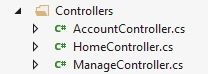
Default controllers in ASP.NET MVC application
Right-click on the Controller folder and inside the Add option, click Controller to create a new one.
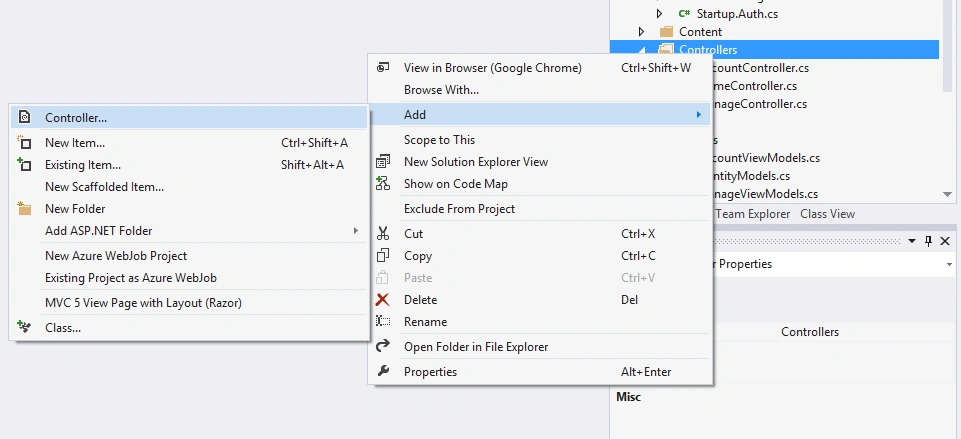
Creating a new Controller
Provide a custom name to your controller. Remember to have that Controller at the end of your class's name. You must create an empty controller, because for the sake of this article we're not going to use anything built-in but instead just scratch classes.
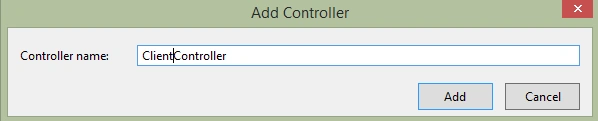
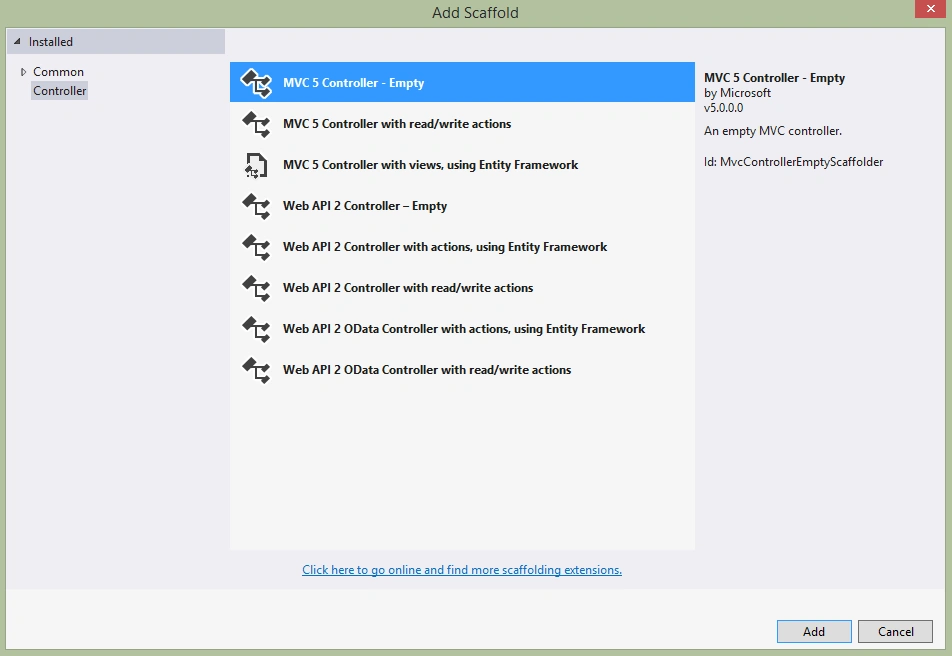
We just need an Empty controller, to create our own functions (actions in MVC) for it to handle and perform.
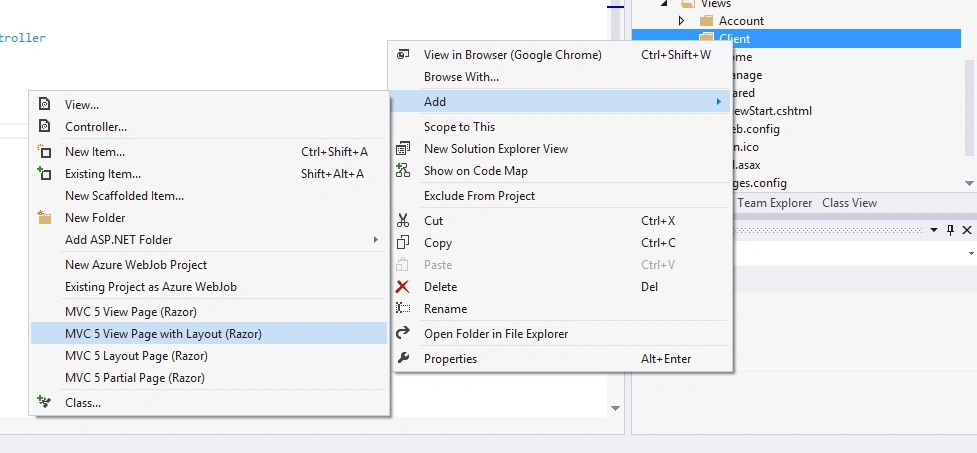
At this stage, your basic Controller has been created and you're now ready to customize it. Before we move on to create actions for this Controller to perform. I wanted to remind you about (automatic) changes that were made in your Views folder. What is the Views folder about? Well it is, yes, well it is self-explanatory but we'll be talking about it too in the future section. Right now, there is a new Client (or whatever Controller you created is named) folder inside your View folder. Now it is beginning to make some sense, isn't it? Every controller has its own specific view to display data for, and each time the request will be initiated from the client (not our class, but the user of course). The Controller would be used (you can think that an instance of that class would be created) and then the Action of Controller would be checked against (inside the URL that would then trigger the function of the Controller that we're going to create next). Like every class, we can create multiple functions for our Controllers that are known as Actions. Let us think what we're supposed to let our manager do with the client, he wants to:
- Create a new client: Create
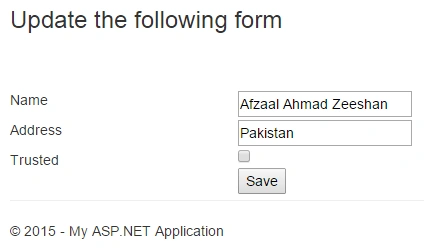
- Modify the current client's data: Update or Edit
- Delete clients when he has finished the work: Delete
We can use the preceding logic to create our functions for the Client Controller. Open your ClientController.cs file and edit it, to write this code in it.
- using System;
- using System.Collections.Generic;
- using System.Linq;
- using System.Web;
- using System.IO;
- using System.Web.Mvc;
- using ASP.NET_MVC_Application.Models;
- using Newtonsoft.Json;
- namespace ASP.NET_MVC_Application.Controllers
- {
- public class ClientController : Controller
- {
- // GET: Client
- public ActionResult Index()
- {
- // Load the data for the client
- var clients = Client.GetClients();
- // Return the view.
- return View(clients);
- }
- public ActionResult Create()
- {
- ViewBag.Submitted = false;
- var created = false;
- // Create the Client
- if (HttpContext.Request.RequestType == "POST")
- {
- ViewBag.Submitted = true;
- // If the request is POST, get the values from the form
- var id = Request.Form["id"];
- var name = Request.Form["name"];
- var address = Request.Form["address"];
- var trusted = false;
- if(Request.Form["trusted"] == "on") {
- trusted = true;
- }
- // Create a new Client for these details.
- Client client = new Client()
- {
- ID = Convert.ToInt16(id),
- Name = name,
- Address = address,
- Trusted = Convert.ToBoolean(trusted)
- };
- // Save the client in the ClientList
- var ClientFile = Client.ClientFile;
- var ClientData = System.IO.File.ReadAllText(ClientFile);
- List<Client> ClientList = new List<Client>();
- ClientList = JsonConvert.DeserializeObject<List<Client>>(ClientData);
- if (ClientList == null)
- {
- ClientList = new List<Client>();
- }
- ClientList.Add(client);
- // Now save the list on the disk
- System.IO.File.WriteAllText(ClientFile, JsonConvert.SerializeObject(ClientList));
- // Denote that the client was created
- created = true;
- }
- if (created)
- {
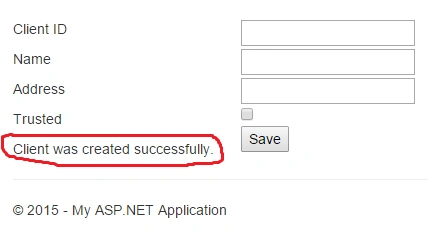
- ViewBag.Message = "Client was created successfully.";
- }
- else
- {
- ViewBag.Message = "There was an error while creating the client.";
- }
- return View();
- }
- public ActionResult Update(int id)
- {
- if (HttpContext.Request.RequestType == "POST")
- {
- // Request is Post type; must be a submit
- var name = Request.Form["name"];
- var address = Request.Form["address"];
- var trusted = Request.Form["trusted"];
- // Get all of the clients
- var clints = Client.GetClients();
- foreach (Client client in clints)
- {
- // Find the client
- if (client.ID == id)
- {
- // Client found, now update his properties and save it.
- client.Name = name;
- client.Address = address;
- client.Trusted = Convert.ToBoolean(trusted);
- // Break through the loop
- break;
- }
- }
- // Update the clients in the disk
- System.IO.File.WriteAllText(Client.ClientFile, JsonConvert.SerializeObject(clints));
- // Add the details to the View
- Response.Redirect("~/Client/Index?Message=Client_Updated");
- }
- // Create a model object.
- var clnt = new Client();
- // Get the list of clients
- var clients = Client.GetClients();
- // Search within the clients
- foreach (Client client in clients)
- {
- // If the client's ID matches
- if (client.ID == id)
- {
- clnt = client;
- }
- // No need to further run the loop
- break;
- }
- if (clnt == null)
- {
- // No client was found
- ViewBag.Message = "No client was found.";
- }
- return View(clnt);
- }
- public ActionResult Delete(int id)
- {
- // Get the clients
- var Clients = Client.GetClients();
- var deleted = false;
- // Delete the specific one.
- foreach (Client client in Clients)
- {
- // Found the client
- if (client.ID == id)
- {
- // delete this client
- var index = Clients.IndexOf(client);
- Clients.RemoveAt(index);
- // Removed now save the data back.
- System.IO.File.WriteAllText(Client.ClientFile, JsonConvert.SerializeObject(Clients));
- deleted = true;
- break;
- }
- }
- // Add the process details to the ViewBag
- if (deleted)
- {
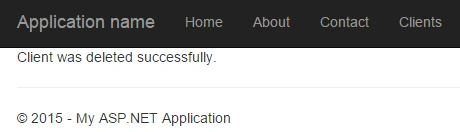
- ViewBag.Message = "Client was deleted successfully.";
- }
- else
- {
- ViewBag.Message = "There was an error while deleting the client.";
- }
- return View();
- }
- }
- }



Sr KarthigaPosted Feb 14, 2016, 7:59 AM
Good one sir
Abhishek YadavPosted Jul 18, 2015, 2:25 AM
Very nice and informative Afzaal Ahmad Zeeshan!!!!
Sibeesh VenuPosted Jun 12, 2015, 1:44 AM
Good One.
NitinPosted Jun 12, 2015, 1:36 AM
good one
Debasis SahaPosted Jun 11, 2015, 2:39 PM
Nice one ...
Rahul Kumar SaxenaPosted Jun 11, 2015, 10:44 AM
Good Show..
Nitesh KejriwalPosted Jun 11, 2015, 10:14 AM
Excellent article.
Former memberPosted Jun 11, 2015, 9:58 AM
Nice article
Lalit RaghavPosted Jun 7, 2015, 12:54 PM
nice
Safayat ZisanPosted Apr 23, 2015, 6:30 AM
Awesome. Best article to begin MVC framework.
Ervis TrupjaPosted Mar 20, 2015, 7:01 PM
Best article! :)
Khargesh RajputPosted Feb 28, 2015, 6:04 AM
nice to begin mvc
Ravi PatelPosted Feb 18, 2015, 3:39 AM
excellent explanation
Michal HabalcikPosted Feb 5, 2015, 1:51 AM
excellent!
Vithal WadjePosted Feb 3, 2015, 9:49 AM
outstanding article ,keep it up
satish GPosted Feb 2, 2015, 9:30 AM
Good article...