

In this article you will learn about SharePoint Content Types.
MSDN defines a content type as “A reusable collection of metadata (columns), workflow, behavior, and other settings for a category of items or documents in a list or document library. Content types enable you to manage the settings for a category of information in a centralized, reusable way.”
In SharePoint, every list item, document, or folder is associated with a content type. A content type defines the attributes of any item that can be stored within SharePoint.
How to create Content type.
1. Go to Gearbox - Site settings,
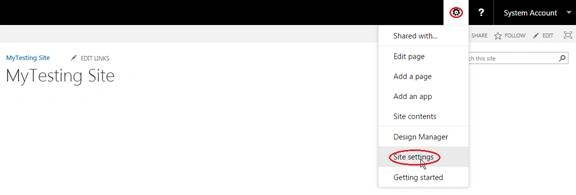
Click Site content types.
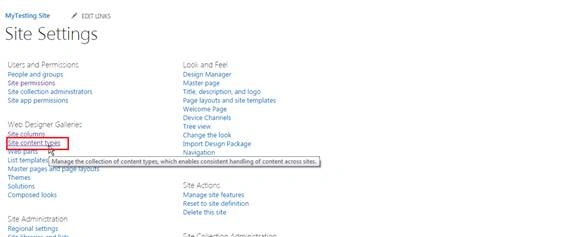
Click Create.
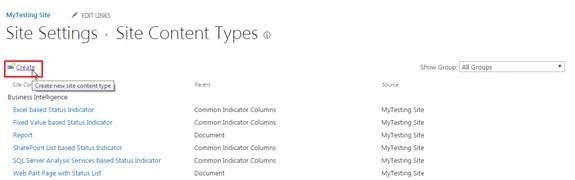
I am creating content type for List.
Fill the particulars.
Name: Employee Details
Description: For General Purpose
Select parent content type from: List Content Types
Parent Content Type: Item
Put this site content type into: New group and named it HR Content Type.
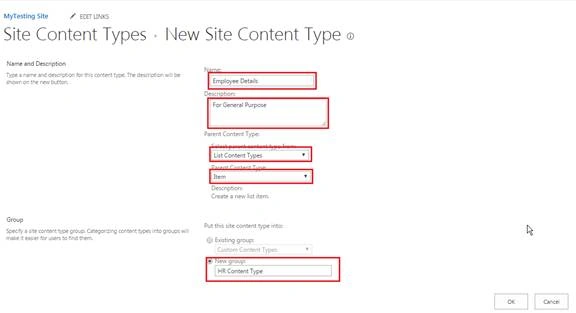
Click Ok.
Employee Details content type created. Now add some site columns to this content type.
Click on Add from existing site columns (If you have already created site columns or built-in site columns serve your requirement) or Add from new site column.
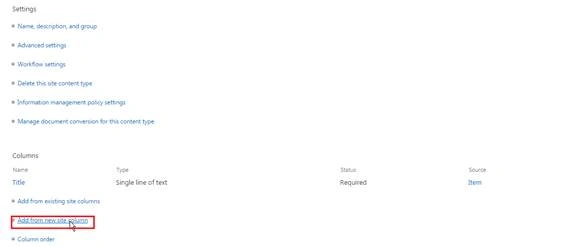
I am going to Add from new site column.
Add site column FirstName of Single line of text type,
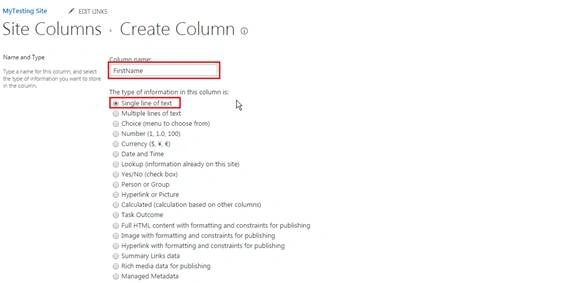
Put it in New group and named it HR Columns.
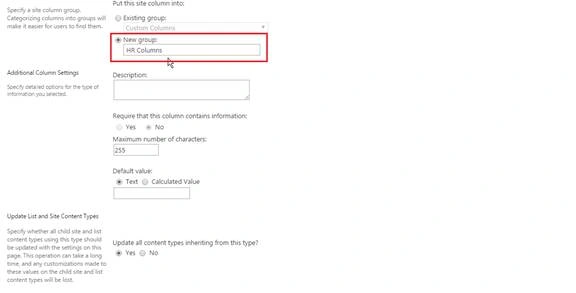
Click Ok.
Repeat above steps and create EmployeeDepartment, EmployeePosition.
This time put all site columns in existing group HR Columns created above.
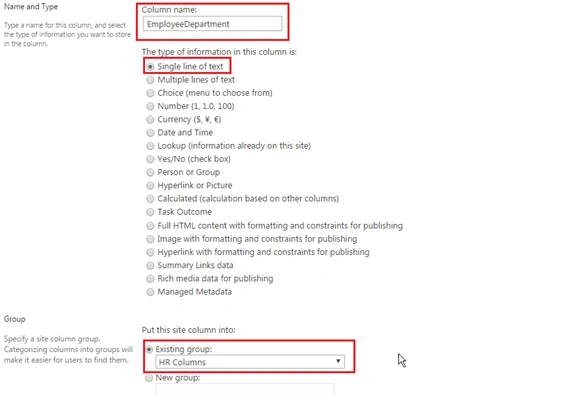
Now you can cross check your content type.
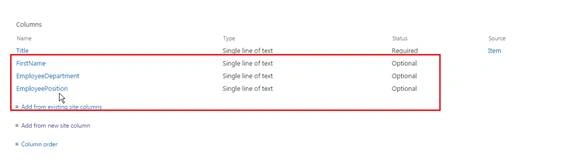
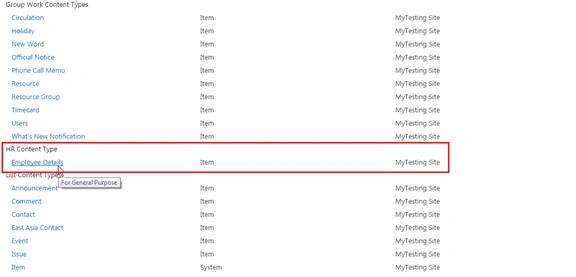
Verify newly created HR Content Type by Click on content type and find HR Content Type.
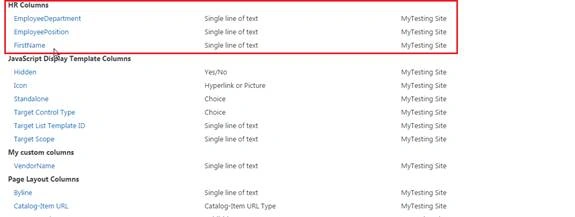
You can also verify your newly created site columns by clicking on site columns and findHR Columns. Under HR Columns all Site columns listed.
Now let’s use this Content type in List. I will use Employee Record List.
Create Custom List Named Employee Record.
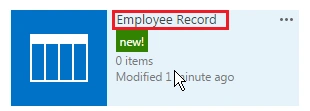
Make Employee Record to use Content Type.
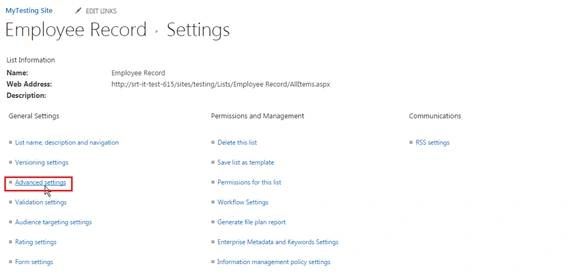
Click on Employee Record-List-List Settings.

Click Advanced settings,
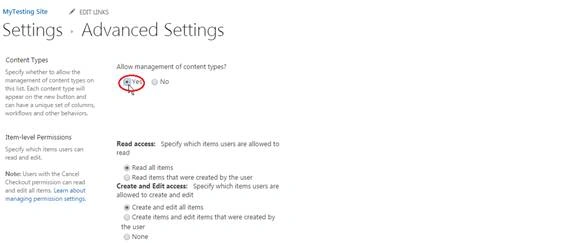
Click Allow management of content types - Yes,
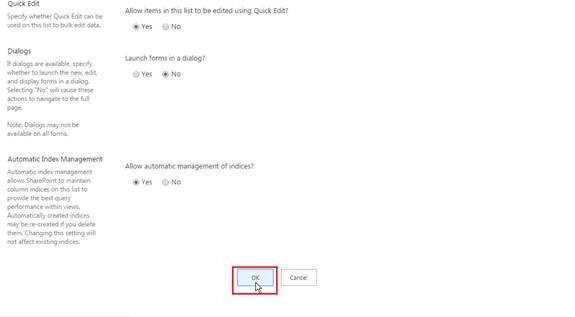
Click OK.
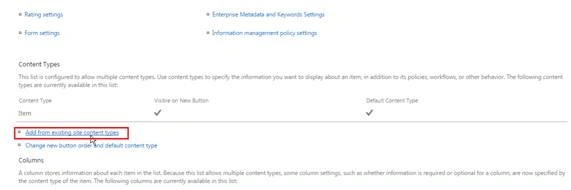
On Employee Record Setting Page.
Click Add from existing site content types.
Select HR Content Type (Which we created above) in Select site content types from.
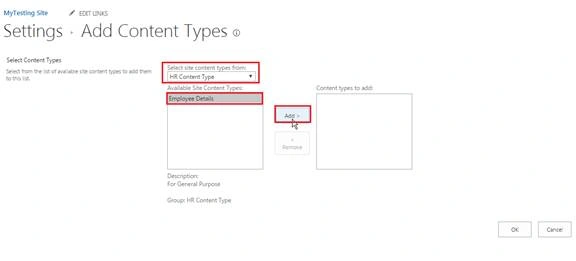
Add Employee Details from Available Site Content Types to Content types to add:
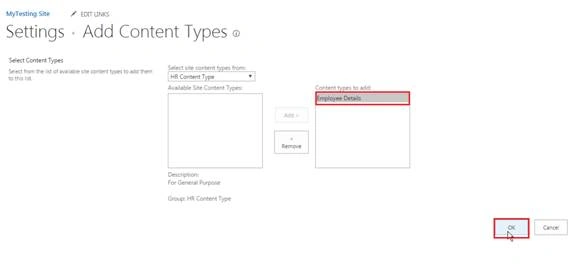
Click Ok.
Now go back to Employee Record.
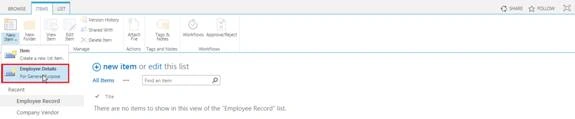
Click Employee Record- Items-New Item-Employee Details,
Now Fill The Details and Click Save,
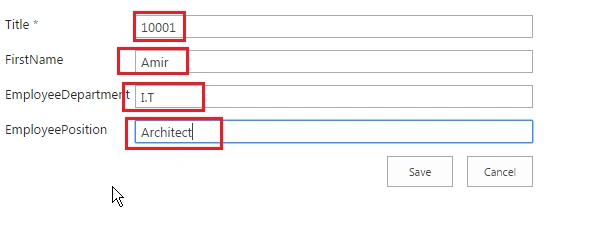
Your Employee Record will look like this,
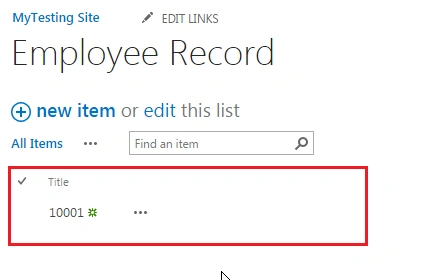
Let’s change the view and check record.
Employee Record - List- List Settings- Modify View-Checked (EmployeeDepartment, EmployeePosition, FirstName)- Ok
Now check Employee Record again.
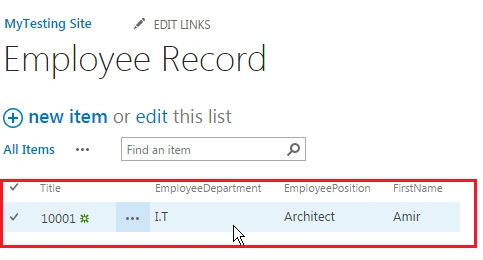
How to create Content type.
1. Go to Gearbox - Site settings,
Click Site content types.
Click Create.
I am creating content type for List.
Fill the particulars.
Name: Employee Details
Description: For General Purpose
Select parent content type from: List Content Types
Parent Content Type: Item
Put this site content type into: New group and named it HR Content Type.
Click Ok.
Employee Details content type created. Now add some site columns to this content type.
Click on Add from existing site columns (If you have already created site columns or built-in site columns serve your requirement) or Add from new site column.
I am going to Add from new site column.
Add site column FirstName of Single line of text type,
Put it in New group and named it HR Columns.
Click Ok.
Repeat above steps and create EmployeeDepartment, EmployeePosition.
This time put all site columns in existing group HR Columns created above.
Now you can cross check your content type.
Verify newly created HR Content Type by Click on content type and find HR Content Type.
You can also verify your newly created site columns by clicking on site columns and findHR Columns. Under HR Columns all Site columns listed.
Now let’s use this Content type in List. I will use Employee Record List.
Create Custom List Named Employee Record.
Make Employee Record to use Content Type.
Click on Employee Record-List-List Settings.
Click Advanced settings,
Click Allow management of content types - Yes,
Click OK.
On Employee Record Setting Page.
Click Add from existing site content types.
Select HR Content Type (Which we created above) in Select site content types from.
Add Employee Details from Available Site Content Types to Content types to add:
Click Ok.
Now go back to Employee Record.
Click Employee Record- Items-New Item-Employee Details,
Now Fill The Details and Click Save,
Your Employee Record will look like this,
Let’s change the view and check record.
Employee Record - List- List Settings- Modify View-Checked (EmployeeDepartment, EmployeePosition, FirstName)- Ok
Now check Employee Record again.
Read more articles on SharePoint:
Humayun Kabir MamunPosted Apr 10, 2016, 11:50 PM
Nice...
NitinPosted Apr 10, 2016, 1:23 AM
Good one