

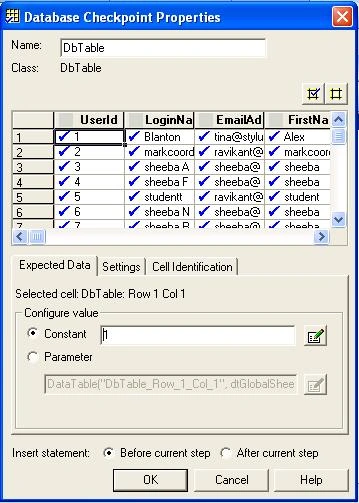
Below the expected data, the Table/Database Checkpoint dialog box contains the following three tabs:
Expected Data
Enables you to set each checked cell as a constant or parametrized value. For example, you can instruct QuickTest to use a value from the Data Table As the expected value for a particular cell.
Settings
Enables you to set the criteria for a successful match between the expected and actual values. For example, you can instruct QuickTest to treat the value as a member so that 45 or 45.00 are treated as the same value, or you can instruct QuickTest to ignore spaces when comparing the values.
Cell Identification
Enables you to specify how QuickTest locates the cells to be checked. However, be aware that each time you run your test or component, it is possible that the rows may be in a different order, depending on the sorting that was performed in a previous step. Therefore, rather than finding the data based on row and column numbers, you may want QuickTest to identify the cell based on the column name and the row containing a known value in a key column.

Join the conversation! Your thoughts help the community grow.