

Data binding is a useful technique to populate data into your application. It’s really useful when you’ve massively structured code, and you’ve to handle a lot of data. It binds your whole bunch of data into a single control, such as ListView, ListBox, FlipView or it can be your custom control. XAML gives us the power to bind the data into these structural controls with less effort and in an efficient way.
So, let’s get started with Universal Windows Platform app development with a simple data binding technique.
Different Binding Modes
There are a number of different binding modes, as defined in the BindingMode enumeration:
- TwoWay – Changes to the UI or model automatically update the other. This is used for editable forms or other interactive scenarios.
- OneWay – Updates the UI when the model changes. This is appropriate for read-only controls populated from data.
- OneTime – Updates the UI when the application starts or when the data context changes. This is used when the source data static/does not change.
- OneWayToSource – Changes to the UI update the model.
- Default – Uses the default mode for the particular binding target (UI control). This differs based on the control.
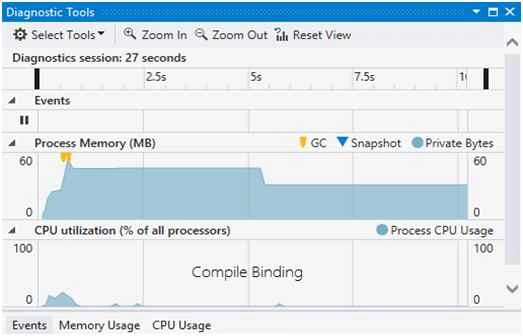
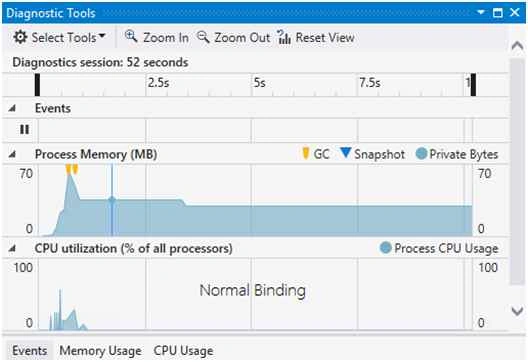
The Universal Windows Platform, introduces a new kind of binding is Compile Binding (x:Bind). Comparing traditional binding techniques, it is really efficient and also faster. If you have less amount of data, may be you won’t notice the actual change of execution time but when you’re working on vast amount of data, you will notice the actual differences. To start with our project, firstly, create a new blank application. Then, create a new folder and give it a name “Images”. I have used Images from Microsoft theme download site. Now, add these images into this folder.
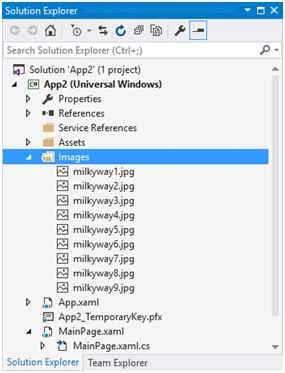
Figure 1
Designing UI
To design the UI element, we’ve used FlipView control. Because we want to show the images by using data binding technique. Paste the code into your main grid element.
- <FlipView Name="MyFlipView" BorderBrush="Black" BorderThickness="1" ItemsSource="{x:Bind Items}" xmlns:m="using:App2">
- <FlipView.ItemTemplate>
- <DataTemplate x:DataType="m:Images">
- <Grid>
- <Image Source="{x:Bind images}" Stretch="Fill" />
- <Border Background="#A5000000" Height="80" VerticalAlignment="Bottom">
- <TextBlock Text="{x:Bind title}" FontFamily="Segoe UI" FontSize="26.667" Foreground="#CCFFFFFF" Padding="15,20" /> </Border>
- </Grid>
- </DataTemplate>
- </FlipView.ItemTemplate>
- </FlipView>
Here, the name of the FlipView control is “MyFlipView” and there are two main child element: Image and TextBox. TextBox control is wrapped by a Border control which give a little bit of effect in the UI.
Most importantly, if you notice we’ve bind the ItemSource by compile binding and that’s why we’ve to define DataType (m:Images) by its class name. Here Images is the name of the class which contains an image and string attribute.
- public class Images
- {
- public BitmapImage images { get; set; }
- public string title { get; set; }
- }

Anish AnsariPosted Nov 12, 2015, 8:41 AM
Very Good
Santhakumar MunuswamyPosted Nov 11, 2015, 4:41 AM
Good article
Mahesh ChandPosted Nov 8, 2015, 11:45 PM
Awesome Rajhat.
Harshad PansuriyaPosted Nov 8, 2015, 11:05 PM
Nice one
Mukesh KumarPosted Nov 8, 2015, 12:30 PM
Nice One