

Introduction
Previously in Universal Applications, page navigation technique was quite different. In Universal Windows Platform app, it could have several pages and when we want to navigate through different pages, it opens a new window. But in Universal Windows Platform, there is only one window. When we want to open a different page, it opens a new frame. So things got changed a little like Windows 10.
So, let’s see how it works in Universal Windows Platform page navigation. Let’s get started.
Creating a New Project
Firstly, open up a new Blank Project. We need another page to navigate from “MainPage” to the second page. So, we need to add a “Blank Page” template and give it a name “SecondPage.xaml”.
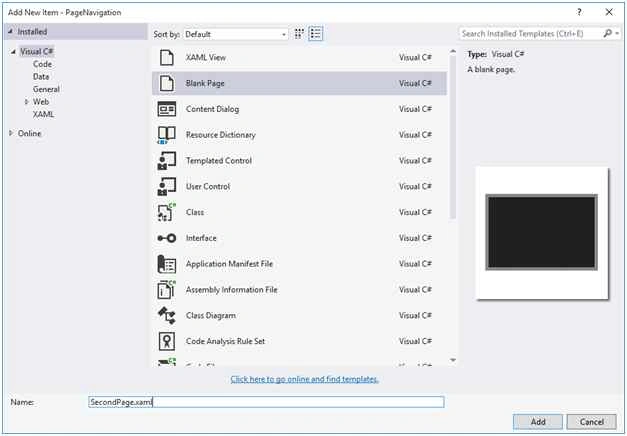
Figure 1
Adding a New Class
Now, we’ve to add another class name “Person.cs”. We’ll create two persons object “Name” and “Blog”, which we’ll pass when we navigate through pages,

Figure 2
And the code is given below.
- class Person
- {
- public string Name { get; set; }
- public string Blog { get; set; }
- }
Here, we’ve created a string variable “Name” and “Blog”. Just type “prop” and press double tab on the keyboard. It will automatically create full code snippet for you, and tab again and change “int” to “string”, hit tab second time and change “MyProperty” to “Name”. Change the second code snippet likewise.
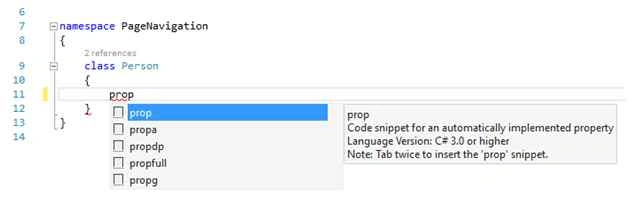
Figure 3
Adding a Button Control
Now, we’ll work on “MainPage.xaml”. Take a Button control and change content to “Next Page” and the other property like below.
- <Button Content="Next Page"
- HorizontalAlignment="Left"
- Margin="10,0,0,0"
- VerticalAlignment="Top"
- Click="NextPage_Click"/>
The C# code of “MainPage.xaml.cs”, mainly the event handler of the Button control is given here.
- private void NextPage_Click(object sender, RoutedEventArgs e)
- {
- var person = new Person { Name = "BD Devs", Blog = "learnwithbddevs.wordpress.com" }
- }
Here, we have created a person object of our Person class, we’ve set our “Name” and “Blog” and passed it through the “Second Page”. As we mentioned before, Navigation Service do not work in Universal Windows Platform app, it opens up a new frame every time. So, here we call Frame class which has another Navigate Method, which has some types. Like here we’ve “Basic Page” template and we’ve passed our person object as parameter.
Displaying Data in Second Page
Now, in our “SecondPage.xaml” we’ve taken two TextBlock “tb1″ and “tb2″. The XAML code is given below,
- <TextBlock x:Name="tb1"
- HorizontalAlignment="Left"
- Margin="10,10,0,0"
- TextWrapping="Wrap"
- VerticalAlignment="Top"
- Height="50"
- Width="302"
- FontSize="20"/>
- <TextBlock x:Name="tb2"
- HorizontalAlignment="Left"
- Margin="10,65,0,0"
- TextWrapping="Wrap"
- VerticalAlignment="Top"
- Height="50"
- Width="302"
- FontSize="18"/>


Nato BoramPosted Jul 26, 2017, 3:44 PM
Wtf is wrong with Listing 3?? Yeah, I'm googling "Pass A Complex Object To A Page" so you can just tell me "Let me show you step-by-step how to create two completely independent pages and a complex object but I won't explain how to do the exact title of this article". Good job, mate. Good job.
Dhaneesh KpPosted Jul 12, 2016, 3:31 AM
Hi,how to navigate with uri in UWP?
Seyed RooholaminiPosted Dec 2, 2015, 12:54 AM
Great, many thanks
Nuwan KarunarathnaPosted Nov 24, 2015, 5:44 AM
Great
Santhakumar MunuswamyPosted Oct 25, 2015, 11:58 AM
Good one
Mukesh KumarPosted Oct 21, 2015, 12:37 AM
Good JOB
Harshad PansuriyaPosted Oct 20, 2015, 3:20 AM
Nice Share
Sibeesh VenuPosted Oct 20, 2015, 3:07 AM
Nice Share
Nilesh JadavPosted Oct 20, 2015, 1:13 AM
Good One !!
Mohammed IbrahimPosted Oct 19, 2015, 9:56 PM
nice