

Multiple list items
Problem Statement – Create a SharePoint survey for Training feedback, and collect all the feedback from a particular training with the date and save as one item to another SharePoint list (loop through training), and send an email notification to the trainer with an average rating and individual rating with suggestion(s).
Survey (Training Feedback) will get a response as below.
Suppose we will get 5 feedback responses for the training ECU Integrator Workshop and the trainer is Pramod, and the training date is 8/11/2019, with 5 different ratings and suggestions.
The workflow will collect all the feedback of a particular training name based on the unique value and store it in another list in HTML table format and trigger an email to the trainer with all feedback including the aggregate rating.
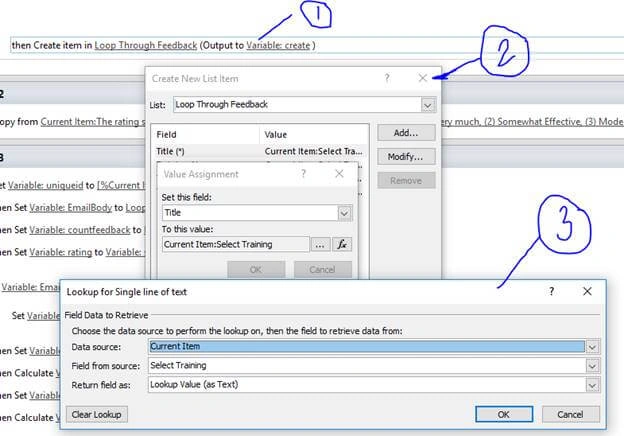
This information will be created in the loop through training as below.
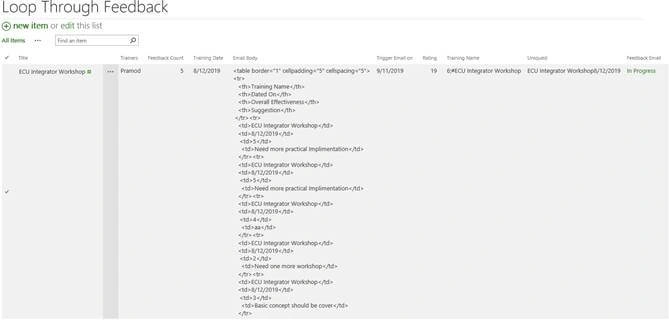
And the feedback will be sent to the trainer on a triggered email date after 30 days from the training, i.e., 9/10/2019.

Following are the steps to follow.
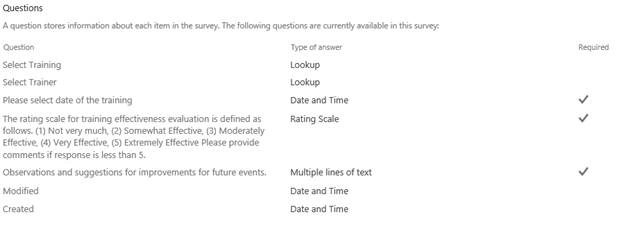
Create SharePoint Survey named “Training Feedback” with questions
- Select Training (Dropdown)
- Select Trainer (Dropdown)
- Select the Date of Training (Date and Time should not be greater than today's date)
- The rating scale for training effectiveness evaluation is defined as follows. (1) Not very much, (2) Somewhat Effective, (3) Moderately Effective, (4) Very Effective, (5) Extremely Effective Please provide comments if the response is less than 5.
- Observations and suggestions for improvements for future events (Multiline Textbox)
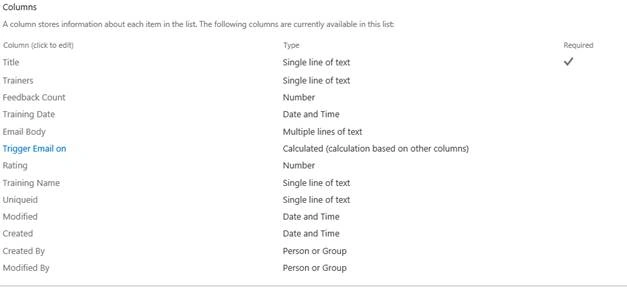
Create SharePoint List named “Loop Through Feedback”,
|
Sr no
|
Column Name
|
Column Type
|
Description
|
|
1
|
Title
|
Single line of text
|
For Training Name(As plain text)
|
|
2
|
Trainers
|
Single line of text
|
For Trainer Name
|
|
3
|
Feedback Count
|
Number
|
To count the number of feedback
|
|
4
|
Training Date
|
Date and Time
|
For Training Date (we can compare with a new item created in the survey by using SharePoint workflow)
|
|
5
|
Email Body
|
Multiple lines of text
|
To Save all feedback in HTML(Table) format
|
|
6
|
Trigger Email on
|
Calculated Column
|
= [Training Date]+30 (To trigger an email when the current date is matched with this date)
|
|
7
|
Rating
|
Number
|
To Save sum of rating given in Survey list
|
|
8
|
Training Name
|
Single line of text
|
For Training Name (As string) we can compare with a new item created in the survey by using SharePoint workflow
|
|
9
|
Uniqueid
|
Single line of text
Bottom of Form
|
When a new item is created in SharePoint survey then unique id will generate using workflow and it will copy in this column and for the next feedback entry - if this value is matched then data will update in the same SharePoint list (Loop through feedback) item
|
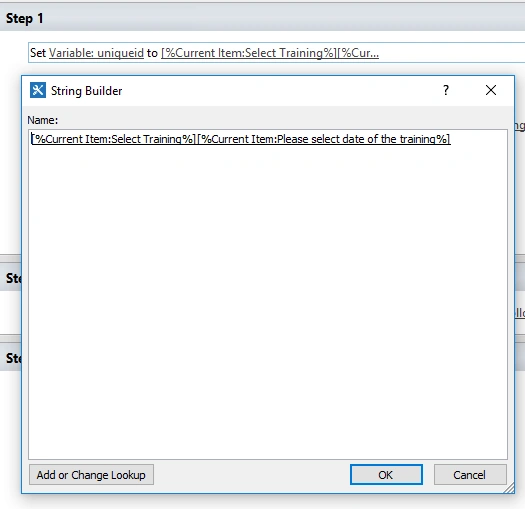
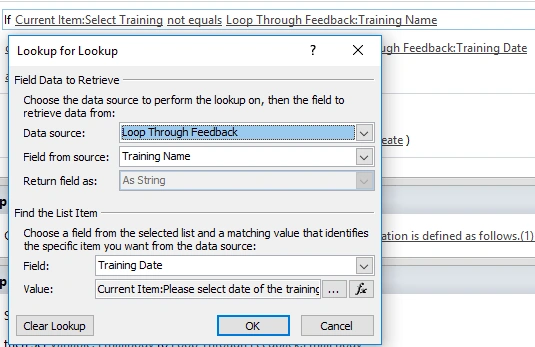
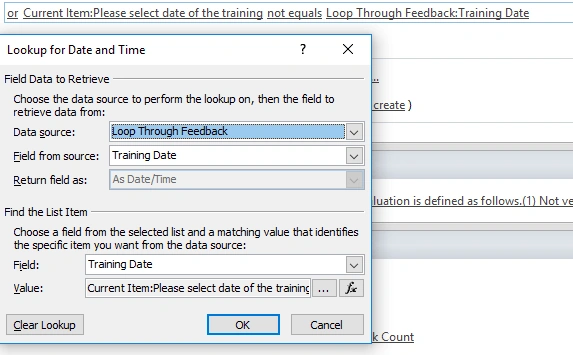
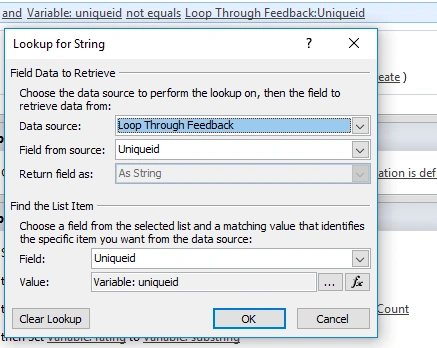
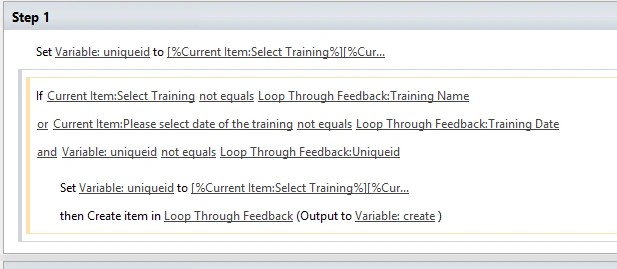
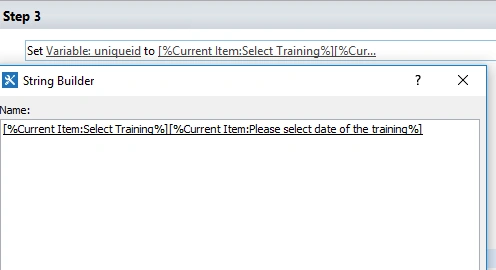
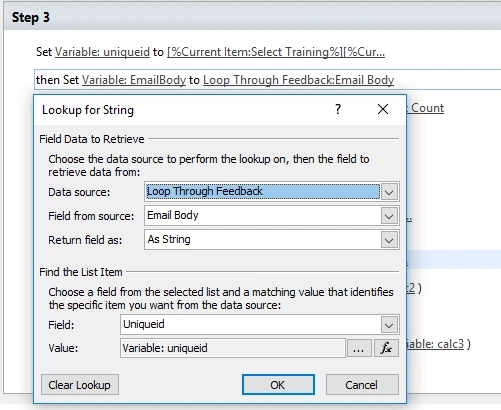
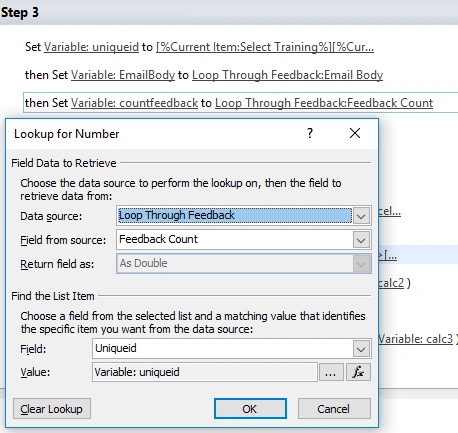
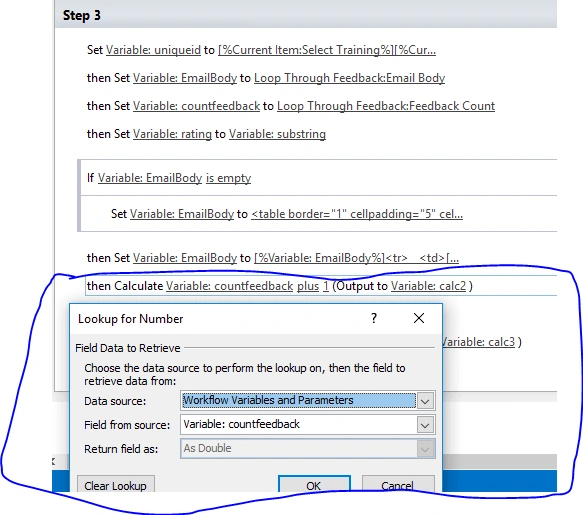
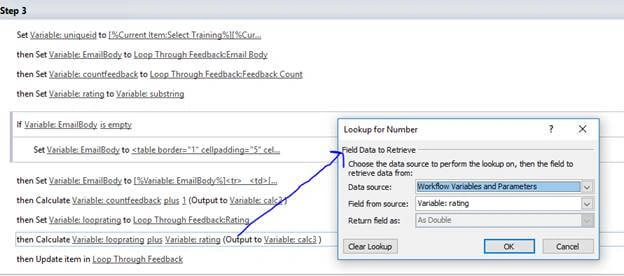
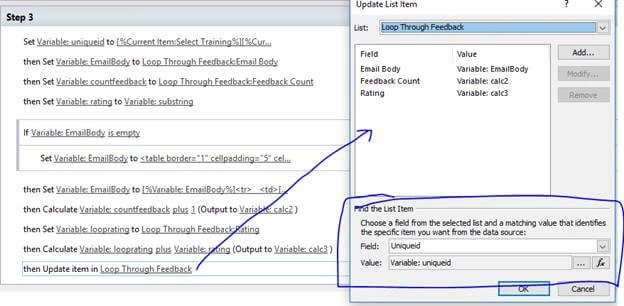
Now we will create a SharePoint designer workflow named “Evaluation” which will do the following operation
Create the variable as shown in the table.








Mageshwaran RPosted Nov 16, 2019, 9:24 AM
Nice Article
Vaibhav BhagarePosted Sep 13, 2019, 1:28 AM
Thank you.....
Vaibhav BhagarePosted Sep 13, 2019, 1:28 AM
Nice article ..very Helpful ..