

Introduction
In this article, we will see how to upload images to a SharePoint Document Library using the Media Control in Power Apps. This is useful when users need to capture or select photos, such as inspection images, profile pictures, or documents, and store them securely in SharePoint.
What is Media Control in Power Apps?
Media Control in Power Apps is a control that allows users to capture, upload, and display images, audio, or video files directly within an app.
Prerequisite
Before following the steps in this article, you should have basic knowledge of creating and connecting Power Automate flows with Power Apps.
Below are the steps to upload images directly from the Media Control in Power Apps to a SharePoint Document Library using Power Automate:
Step 1: Create a SharePoint Document Library
First, create a Document Library in SharePoint to store all uploaded images.
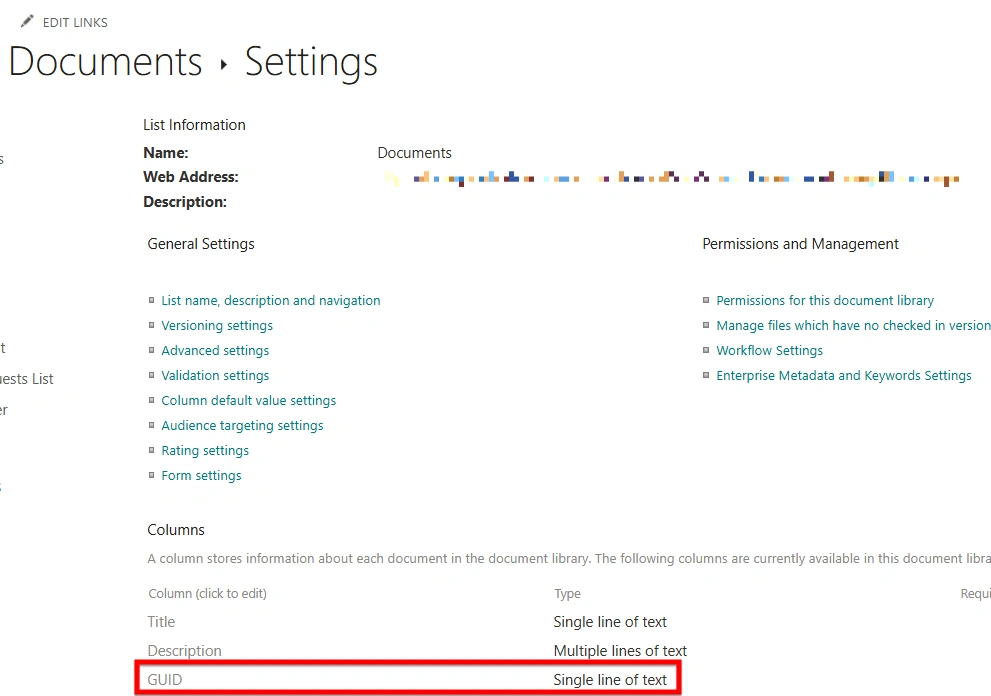
Then, add a single-line of text column named GUID in the document library.
This column will store a unique GUID for each image, enabling easy linking and identification in Power Apps or Power Automate.
Step 2: Create a Power Automate Flow
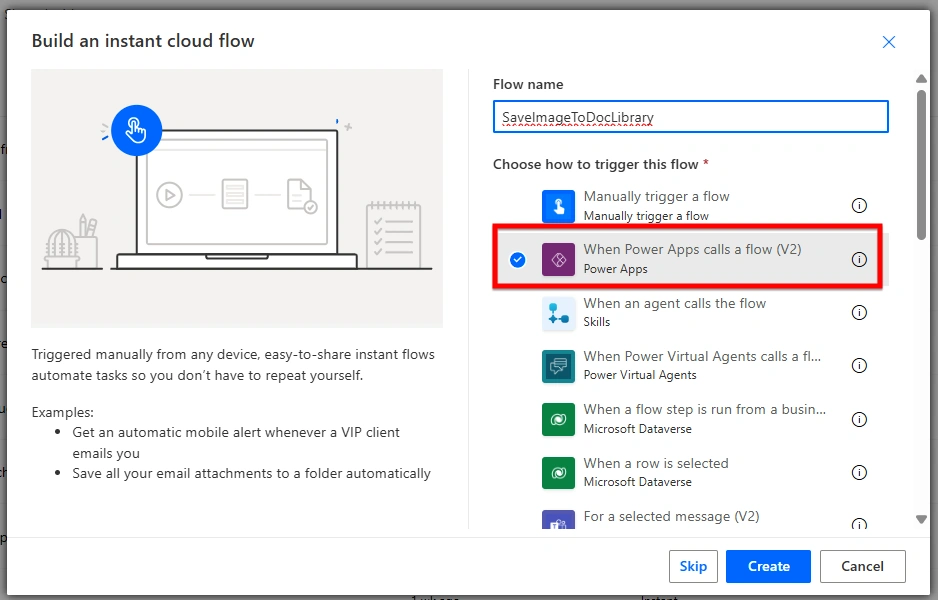
Create a new Instant Cloud Flow and select Power Apps as the trigger.
Give the flow a name: SaveImageToDocLibrary.
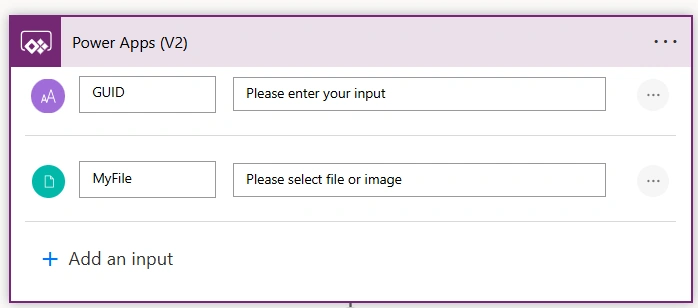
This flow will receive two parameters from Power Apps:
GUID - Text type
MyFile - File type
The GUID will be used to store the unique ID in SharePoint, and MyFile will contain the image file coming from the Media Control in Power Apps.
Step 3: Add SharePoint – Create File Action
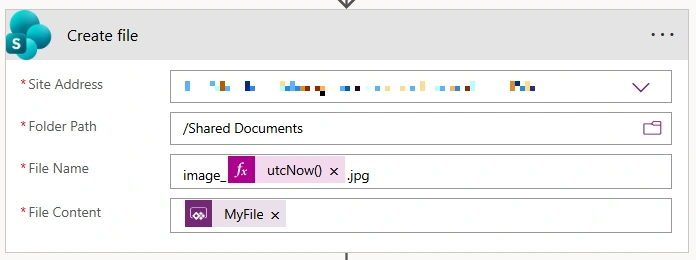
In the SaveImageToDocLibrary flow, add the SharePoint – Create file action.
Configure it as follows:
Site Address – Select your SharePoint site
Folder Path – Select the Document Library folder where images will be stored
File Name – Provide a file name and make sure it ends with .jpg
File Content – Select MyFile from the Power Apps trigger
Step 4: Get File Properties
After the file is created, add the SharePoint – Get file properties action.
Configure it as follows:
Site Address – Select your SharePoint site
Library Name – Select the Document Library
Id – Use the ItemId from the Create file action
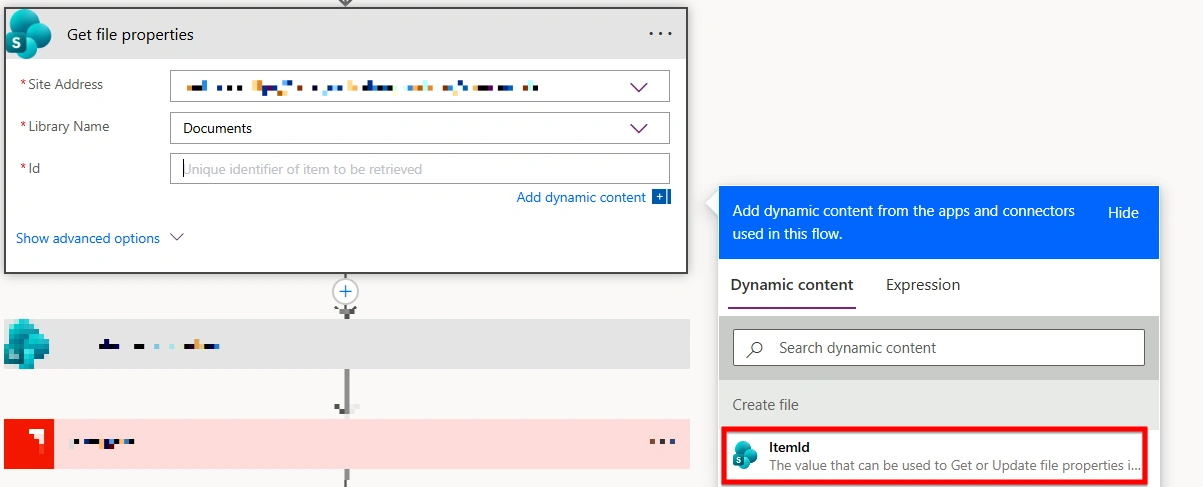
Step 5: Update File Properties
Now add the SharePoint – Update file properties action.
Configure it as follows:
Site Address – Select your SharePoint site
Library Name – Select the same Document Library
Id – Use the Id from the Get file properties action
GUID – Select the GUID parameter coming from the Power Apps trigger
This step stores the unique GUID value against the uploaded image in the SharePoint Document Library.
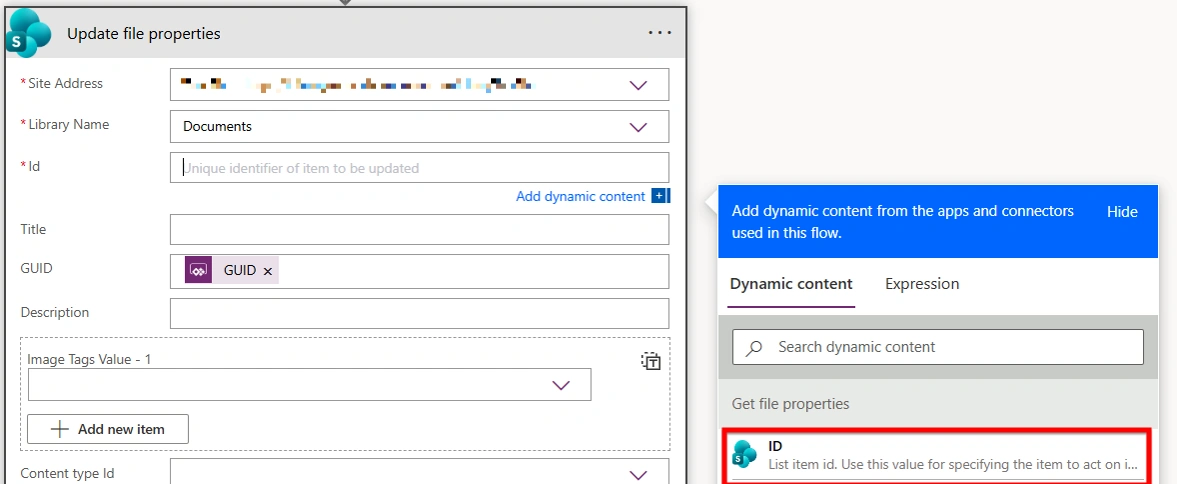
Step 6: Connect the flow in Power Apps
Now go to your Power Apps and connect the SaveImageToDocLibrary flow that you created.
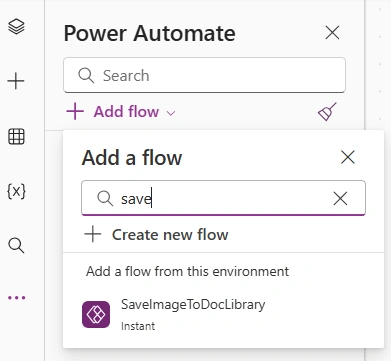
Step 7: Add Picture Control in Power Apps
Now go to your Power Apps and add a Picture / Add Picture (Media) control to the screen.
This control will allow users to capture or upload an image that will be sent to Power Automate and stored in the SharePoint Document Library.
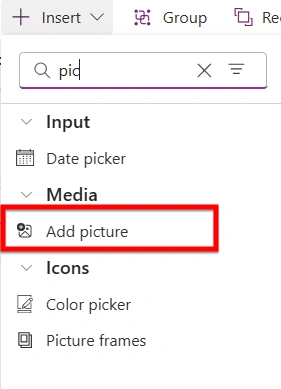
Step 8: Add button Control
Add a Button in your Power Apps screen and set its Text property to "Upload".
In the OnSelect property of the button, add the following formula:
SaveImageToDocLibrary.Run(
    GUID(),
    {
        file: {
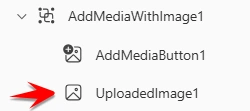
            contentBytes: UploadedImage1.Image,
            name: Text(
                Now(),
                "yyMMddhhmmss"
            )
        }
    }
)
Explanation:
This formula generates a unique GUID, sends the selected image from the Media Control, and calls the SaveImageToDocLibrary flow to store the image in the SharePoint Document Library.
Make sure that in contentBytes, you use the Image property of your Media Control.
In this example, the Media Control name is UploadedImage1, so UploadedImage1.Image is used.
Output
Now add an image using the Media Control and click the Upload button.
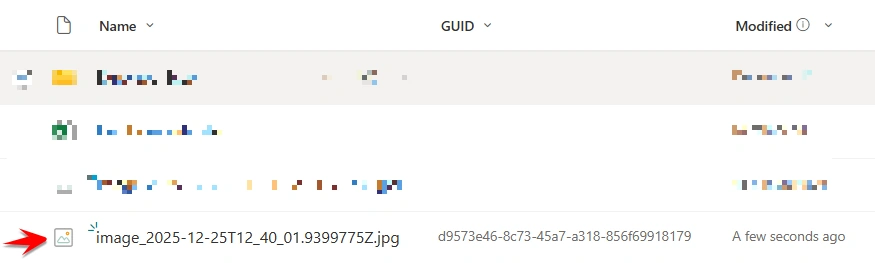
Your image will be saved automatically in the SharePoint Document Library with the generated GUID.
Conclusion
In this article, we learned how to quickly upload images from Power Apps to a SharePoint Document Library using Media Control and Power Automate. Just capture, send, and save the image - easy and straightforward.
Join the conversation! Your thoughts help the community grow.