

In my previous article, we learned how to create a SQL database in the Azure portal, in this article we will see how to use SQL Server Management Studio to connect and query the Azure SQL database.
Before you start the following are the prerequisites:
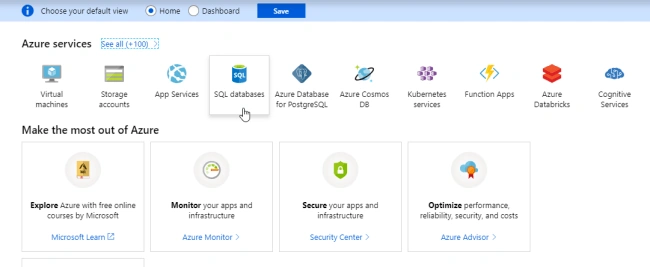
Let's start with the login into Azure Portal from the Dashboard. Click on SQL databases tab from the Azure Services.
- Azure SQL database.
- SQL Server Management Studio.
- A configured server-level firewall rule.
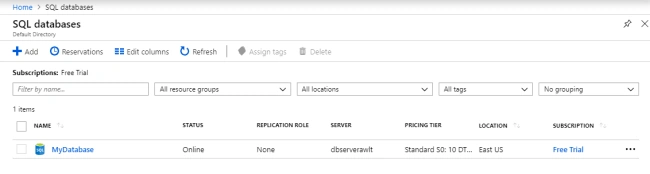
From the list select your database, for example here I have selected 'MyDatabase'
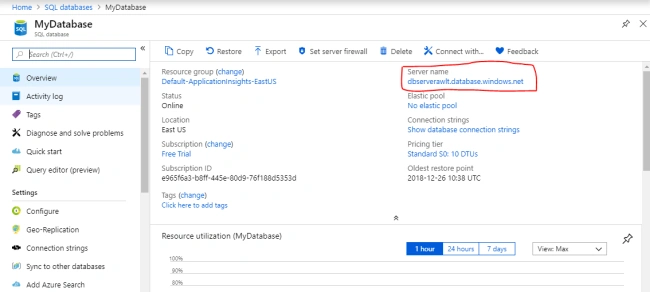
Once you select the database, you can see server information along with all other pieces of information.
Copy the server name and then open SQL Server Management Studio.
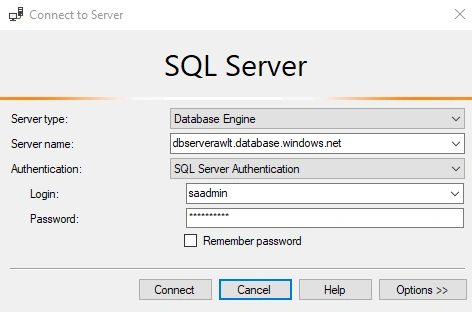
Enter the server name, select SQL Server Authentication mode, enter Login and Password and click on 'Connect'.
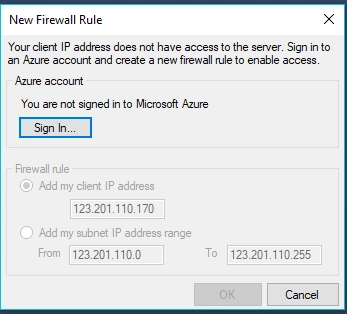
If your firewall rule was not set then it will see the below message, so first, we have to set that rule.
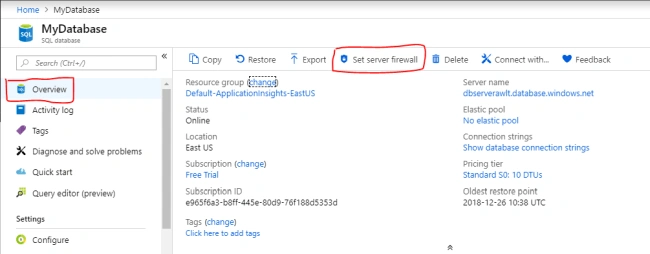
For that click on Set server firewall from the Overview tab.
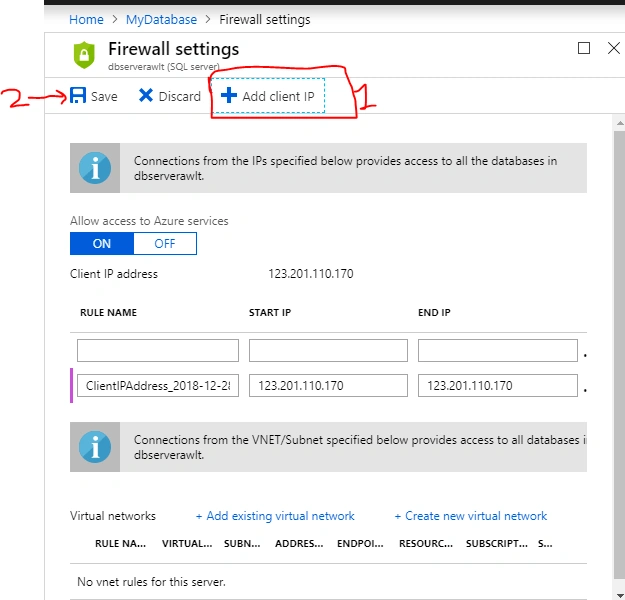
Click on Add client IP and save the details.
Now from the SSMS enter the credentials and click on 'Connect'.
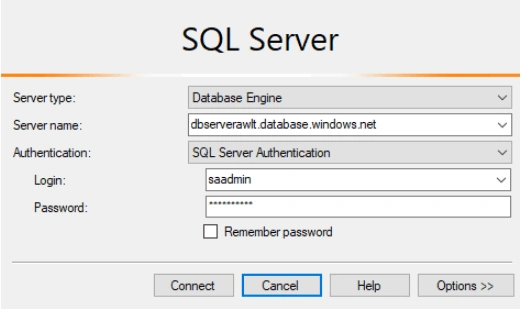
That's it you can now access the database from Azure Database in SSMS.
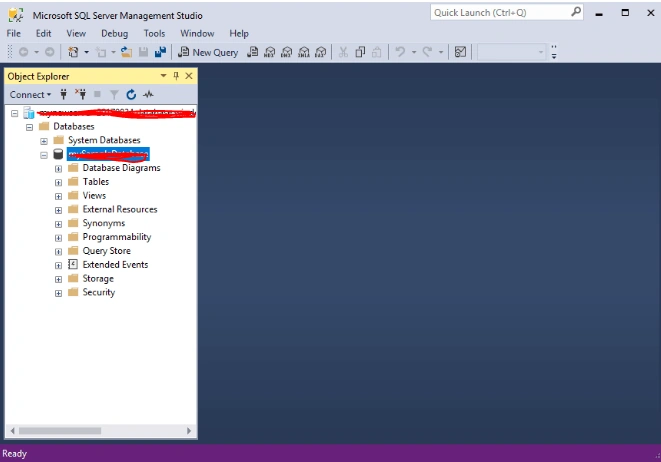
I hope you like these steps, I'm waiting for your feedback or comments in the comment box.
Bobby BrownPosted Jan 19, 2024, 11:21 AM
I appreciate the informative article. For those interested in this topic, I suggest exploring this article (https://blog.devart.com/connect-to-sql-azure.html), which describes how to connect to Azure SQL Database.
Yogesh VedpathakPosted May 21, 2020, 12:59 PM
Awesome Article ...