

User-defined functions (UDFs) are a new experimental feature in Power Apps that allow developers to write a formula once and reuse it multiple times throughout an app. This approach brings modularity, reusability, and cleaner formulas to Power Apps development.
Key Points
Reusable formulas: Write a formula once and call it wherever needed in your app.
Simplifies development: Reduces duplication and makes maintaining formulas easier.
Experimental feature: Currently in preview; intended for testing and learning purposes.
Caution
Since UDFs are not yet in the final release , they should not be used in production apps . Using them in critical applications could lead to unexpected behavior or compatibility issues. It's best to wait for the official release before leveraging this feature in production environments.
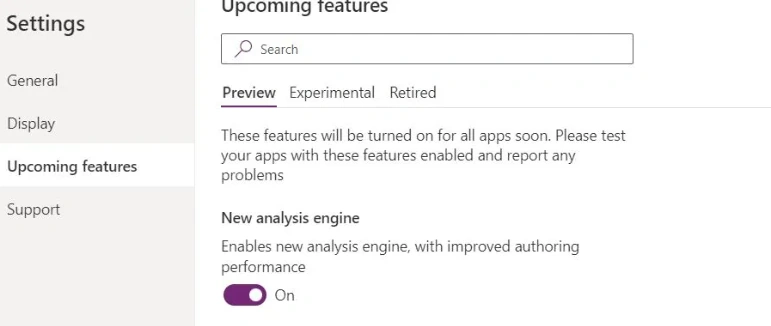
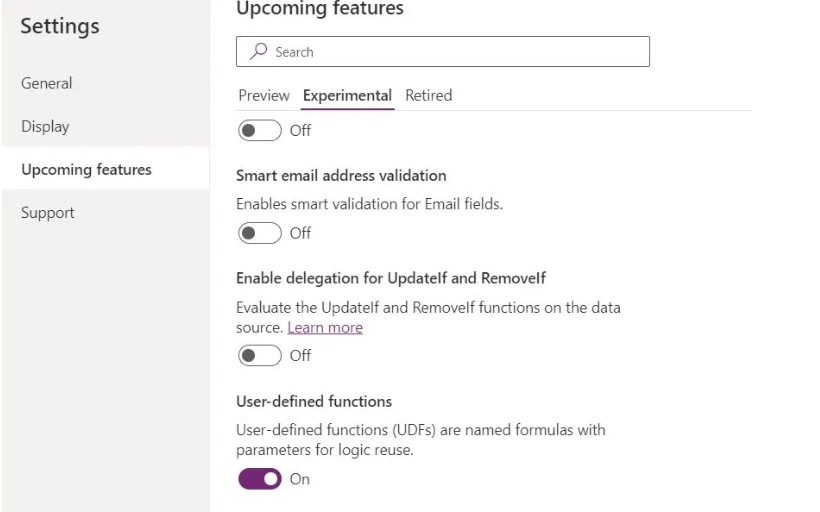
Enable the Power Apps User Defined Function (UDF) feature
Go to Settings
Upcoming features
Select Preview
Enable New Analysis Engine
Select Experimental
Enable User-defined functions
Once these features are enabled, save and refresh the application.
Creating and calling a Power Apps User-Defined Function (UDF)
Creating UDF
Goto App-Formulas
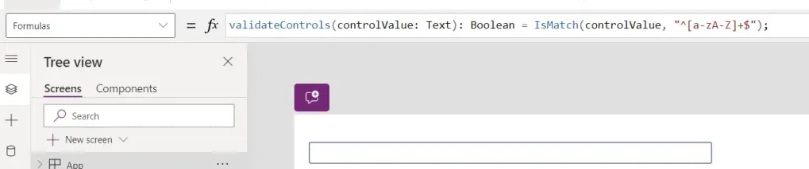
I have created a validateControls function that accepts a text parameter and returns a Boolean value indicating whether the input matches a specific pattern. In this example, the function allows only lowercase and uppercase letters; any other characters will cause it to return false.
validateControls(controlValue: Text): Boolean = IsMatch(controlValue, "^[a-zA-Z]+$");
Syntax
FunctionName (Parameter1: DataType1, Parameter2: DataType2, ...): ReturnType = Formula
Calling UDF
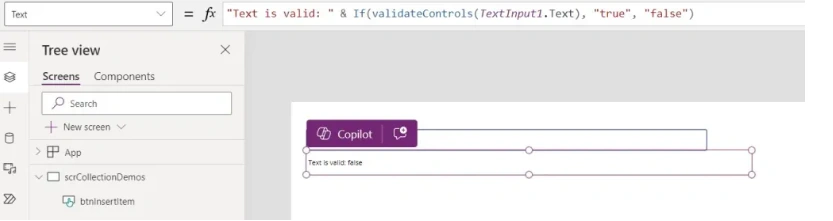
Once created, you can call the UDF anywhere in your app. Here, we add a Textbox and a Label control to the screen and set the Text property of the label. The Label dynamically displays true and false based on input.
"Text is valid: " & If(validateControls(TextInput1.Text), "true", "false")
Advantages of UDFs
Reusability: Write once, use everywhere.
Simplified maintenance: Change the formula in one place, update all usages.
Cleaner formulas: Avoid repeated nested
Ifstatements or complex logic.
Limitations
Still experimental ; may have bugs or breaking changes .
It cannot be used in production apps reliably yet.
Limited to Canvas apps (model-driven apps not supported yet).
Join the conversation! Your thoughts help the community grow.