
In the previous article we saw how to use KnockoutJS (KO) in SharePoint 2013. In this article we will see how to use AngularJS in SharePoint 2013. As in KO, you can perform this in client-side coding and you do not need server-side coding nor Visual Studio nor SharePoint designer to build this user interface (UI). Only knowledge of AngularJS is required. Before going into details, I am pasting the screenshot of how the UI will look once this sample is built. 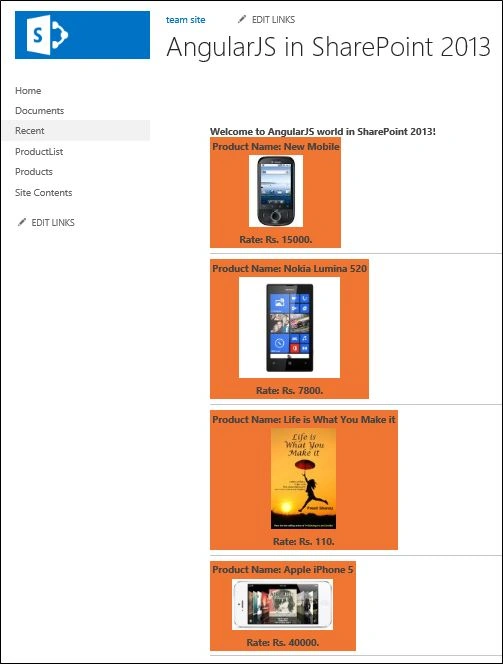
I am building a very simple page here that is just scratching the surface of the vast functionality available within AngularJS. But the point is that it is easy to build fancy user interfaces once the nitty gritty of this language is understood. We will need to refer to the js libraries. I have uploaded them in the style library but as a best practice create a different JavaScript library for them, jquery-2.0.3.min.js and angular.min.js. The angular.min.js file can be downloaded from www.angularjs.org. Some SharePoint data types such as images and hyperlinks need special processing to provide correct results that we will see how to handle.
We will use a simple example of a product list. Build a SharePoint list, ProductList, with the following columns and add a few records in this list.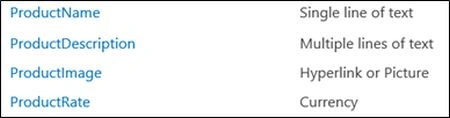
.
Create a Site Page and insert a Script Editor Web Part from Media and Content category onto the page.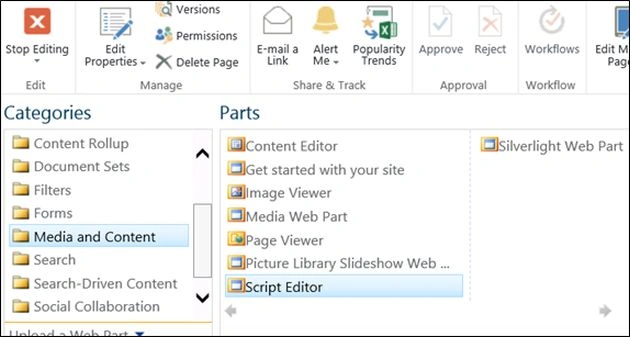
Click on "Edit Snippet" and paste the code as below:
<div ng-app><b>Welcome to AngularJS world in SharePoint 2013!</b>
<div ng-controller="MyController" class="ng-scope">
<div ng-repeat="p in Products">
<table style="background-color:#f07432">
<tr><td align = "center"><b>Product Name: {{p.ProductName}}</b> </td></tr>
<tr><td align = "center"><img ng-src={{p.ProductImage}} /> </td></tr>
<tr><td align = "center"><b> Rate: Rs. {{p.ProductRate}}.</b></td></tr>
</table>
<hr />
</div>
</div>
</div>
<script type="text/javascript">
function MyController($scope)
{ $scope.loadREST = function () {
jQuery.ajax({
url: _spPageContextInfo.webAbsoluteUrl + "/_vti_bin/listdata.svc/ProductList?$select=ProductName,ProductRate,ProductImage",
type: "GET",
dataType: "json",
async: "true",
headers: { "Accept": "application/json;odata=verbose" },
success: function (data) {
var newData = [];
jQuery.each(data.d.results, function(index,value) {
var pImage = value.ProductImage;
prImage = pImage.substring(0, pImage.indexOf(','));
newData.push({ProductName: value.ProductName, ProductRate: value.ProductRate, ProductImage: prImage});
});
$scope.$apply(function(){
$scope.Products = newData;
});
},
error: function () {
alert("error");
}

Using AngularJS in SharePoint 2013
Join the conversation! Your thoughts help the community grow.
Sign in to leave a comment
It is the same account you read, post and publish with — and you will come straight back to this page.
q quePosted Jan 13, 2017, 4:29 PM
Thank you for the article. Is there an article to update and insert with angularjs/KnockoutJS in SharePoint 2013?
Firas KSONTINIPosted Jan 6, 2016, 11:18 AM
[ng:areq] Argument 'MyCtrl' is not a function, got undefined
Vinodh NarayananPosted Sep 22, 2015, 1:48 PM
nice share mam