

Before reading this article, please go through the important article links given below.
Quick Start on Microsoft PowerApps.
- To Use Template
- To Use Blank App
- To Add an Excel File
- To Use Sort And SortByColumn Functions
- To Use Filter, Search, And Lookup Functions
- To Add Contacts
- To Get User Details
- Developing Camera App
- Using Radio Button
- Developing Drawing App
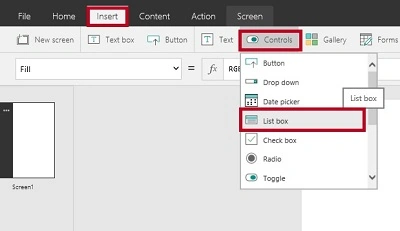
In PowerApps, we can Add the ListBox Control.
ListBox Control
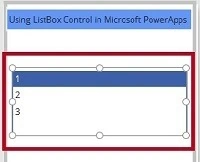
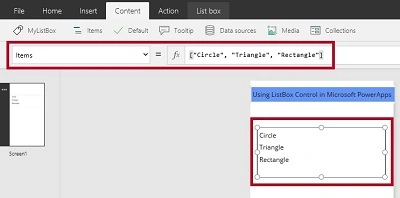
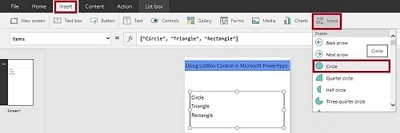
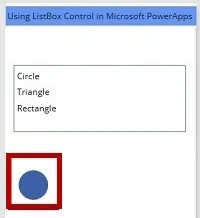
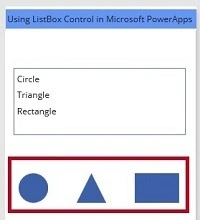
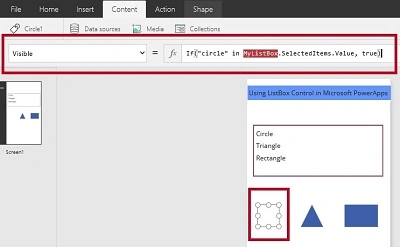
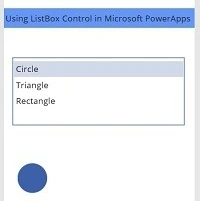
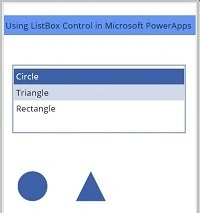
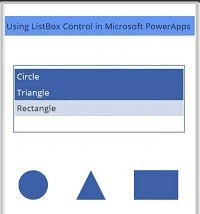
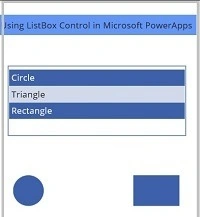
The ListBox is used to display a list of items to a user. A user can select an item from the list. It allows the programmer to add the items at design time by using Item Methods.
Follow the below steps to work with ListBox Control in PowerApps.
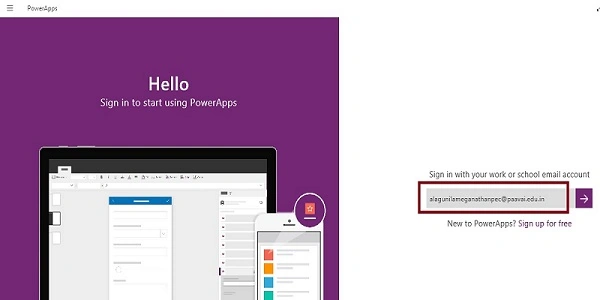
Step 1. Log into the PowerApps
After downloading the PowerApps from the Windows store, here we need a Microsoft-related organization’s Office 365 ID (MSDN, Microsoft, Skype, Office 365, etc.,), to log in with it.
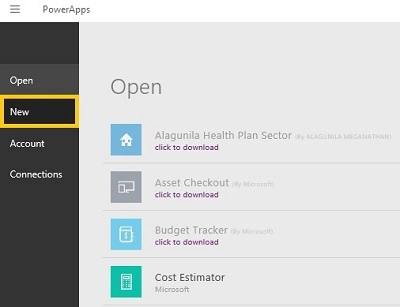
Step 2. Create a New App in PowerApp.
After Login, we can see the Dashboard. There we click on the New button.
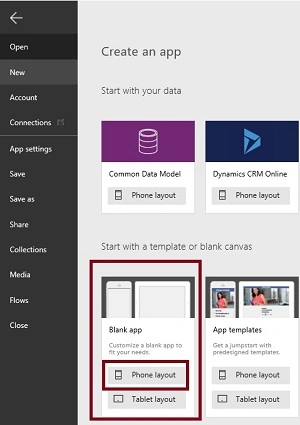
Step 3. Choose the Blank App.
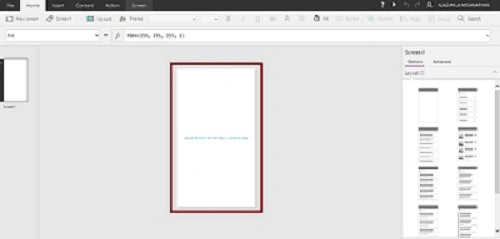
Step 4. Designing the App
Now, let's start to design the App. On the left side, we can see the Individual Screens for adding our data. On the right side, we can see the List of Layouts. In the Top, we can see the formula bar. There you see the Properties of the screen that you select. On the Right Side, we see the Add Data Source to add the external data Source.
Madhanmohan DevarajanPosted Nov 2, 2016, 9:50 AM
Good one.. keep going.