

Power Apps provides powerful functions that help you build dynamic apps with minimal code. One such function is Search(), which allows users to quickly find records from a data source by typing text into an input box. In this article, we’ll explore how to use the Search() function in Power Apps with a simple employee search demo.
What is Search() in Power Apps?
The Search() function in Power Apps is used to:
Search text across one or more columns
Return matching records from a table or collection
Create real-time search experiences
Syntax:
Search(Table, SearchText, Column1, Column2, ...)
Table: The data source or collection to search
SearchText: The text entered by the user
Columns: One or more columns to search within
Step 1: Create a Sample Employee Collection
Before using the Search() function, we need a data source. In this demo, we’ll create an employee collection.
Open Power Apps Studio
Create a Blank Canvas App
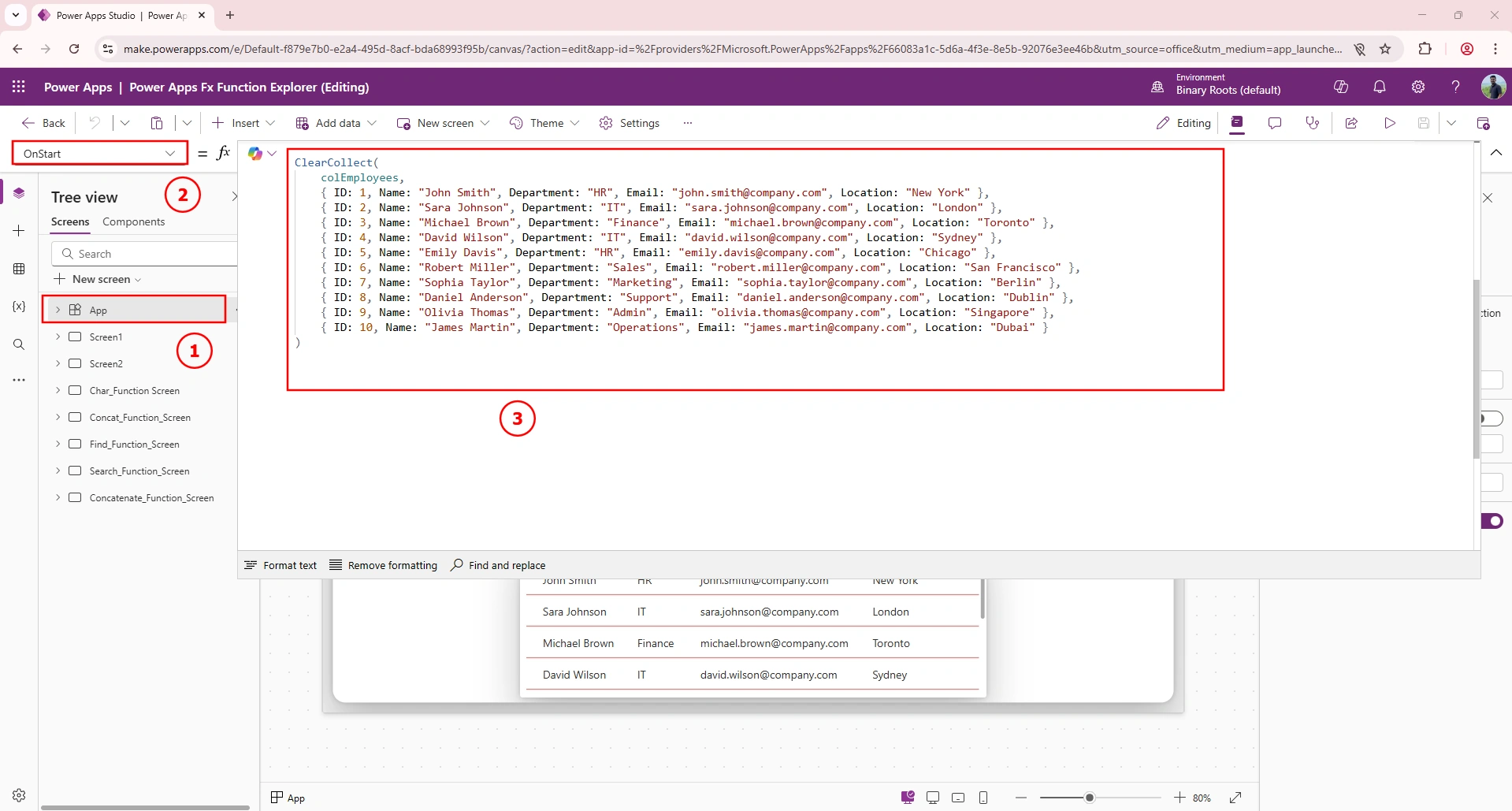
Go to the OnStart property of the App and add the following formula:
ClearCollect(
    colEmployees,
    { ID: 1, Name: "John Smith", Department: "HR", Email: "[email protected]", Location: "New York" },
    { ID: 2, Name: "Sara Johnson", Department: "IT", Email: "[email protected]", Location: "London" },
    { ID: 3, Name: "Michael Brown", Department: "Finance", Email: "[email protected]", Location: "Toronto" },
    { ID: 4, Name: "David Wilson", Department: "IT", Email: "[email protected]", Location: "Sydney" },
    { ID: 5, Name: "Emily Davis", Department: "HR", Email: "[email protected]", Location: "Chicago" },
    { ID: 6, Name: "Robert Miller", Department: "Sales", Email: "[email protected]", Location: "San Francisco" },
    { ID: 7, Name: "Sophia Taylor", Department: "Marketing", Email: "[email protected]", Location: "Berlin" },
    { ID: 8, Name: "Daniel Anderson", Department: "Support", Email: "[email protected]", Location: "Dublin" },
    { ID: 9, Name: "Olivia Thomas", Department: "Admin", Email: "[email protected]", Location: "Singapore" },
    { ID: 10, Name: "James Martin", Department: "Operations", Email: "[email protected]", Location: "Dubai" }
);
Run OnStart by selecting App → Run OnStart
This collection contains employee details such as Name, Department, Email, and Location.
Step 2: Create App Screen with Search Box and Gallery
Add Controls to the Screen
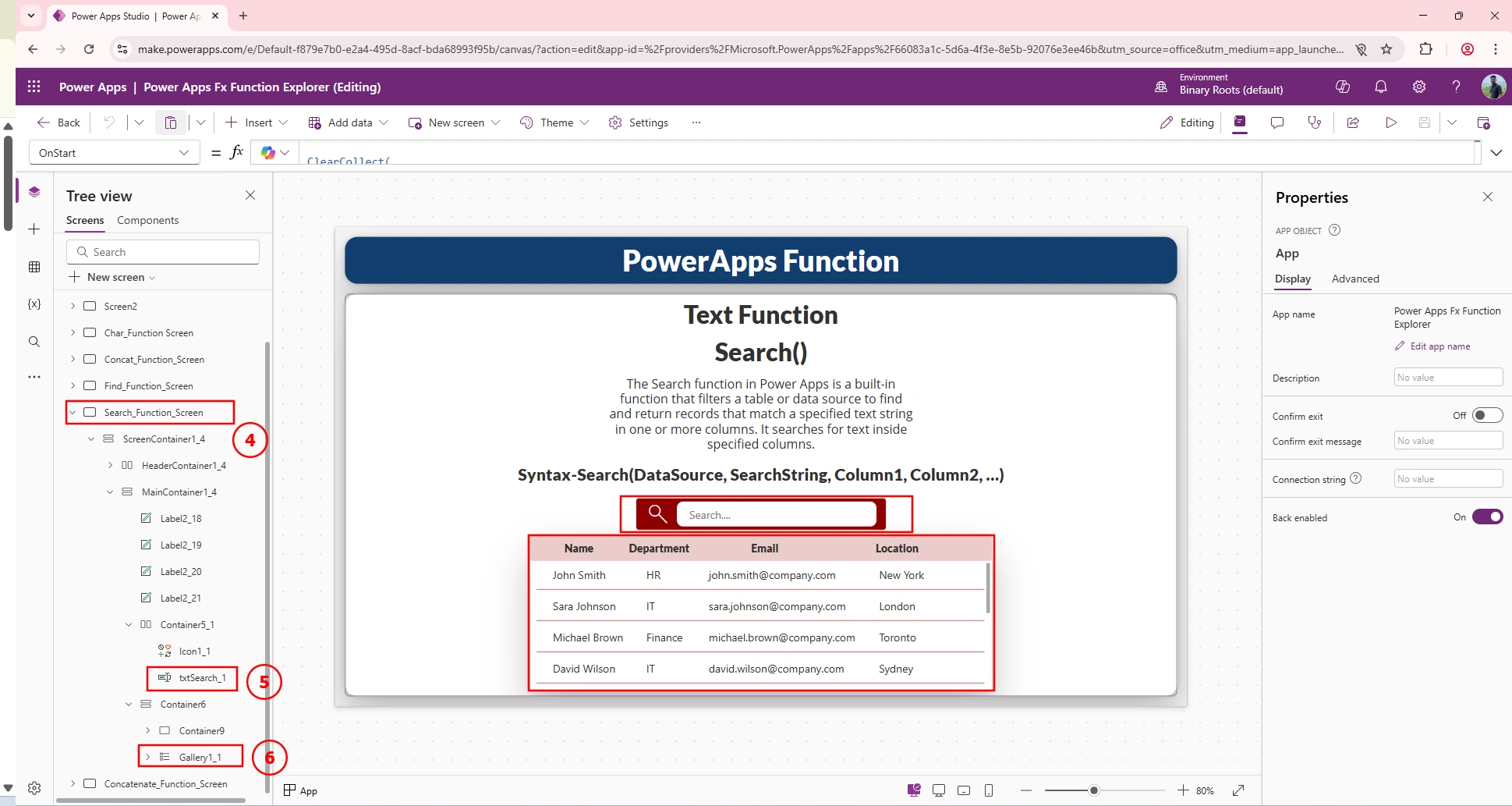
Create a screen named Search_Function_Screen
Insert the following controls:
Text Input
Name:
txtSearch_1
Gallery (Vertical)
Name:
Gallery1_1
This gallery will act as the library to display employee data.
Step 3: Map Employee Data to the Gallery
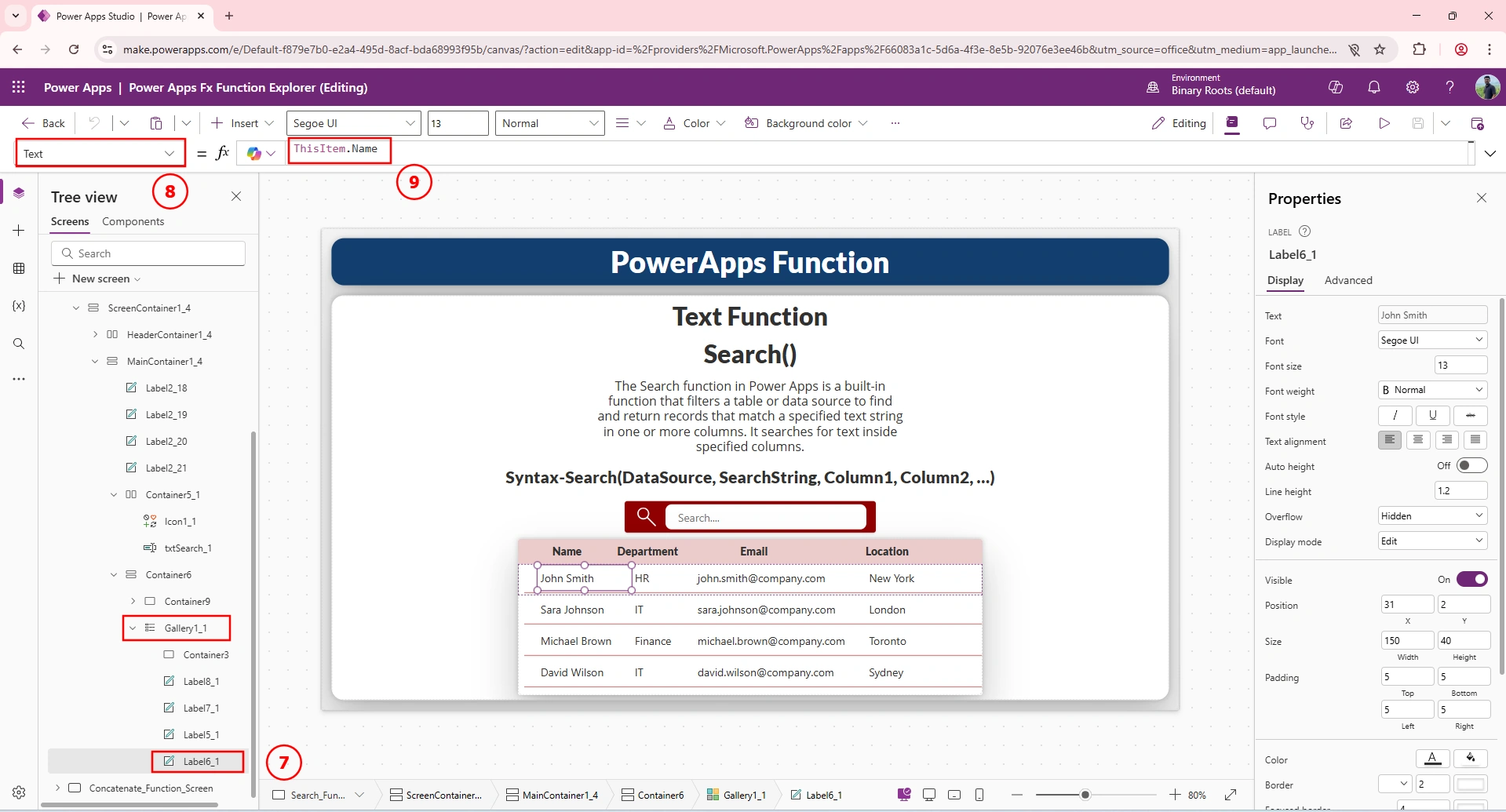
Inside the gallery, add labels and map them to employee fields:
Name Label →
ThisItem.NameDepartment Label →
ThisItem.DepartmentEmail Label →
ThisItem.EmailLocation Label →
ThisItem.Location
This ensures all employee details are visible in the library.
Step 4: Apply the Search() Function
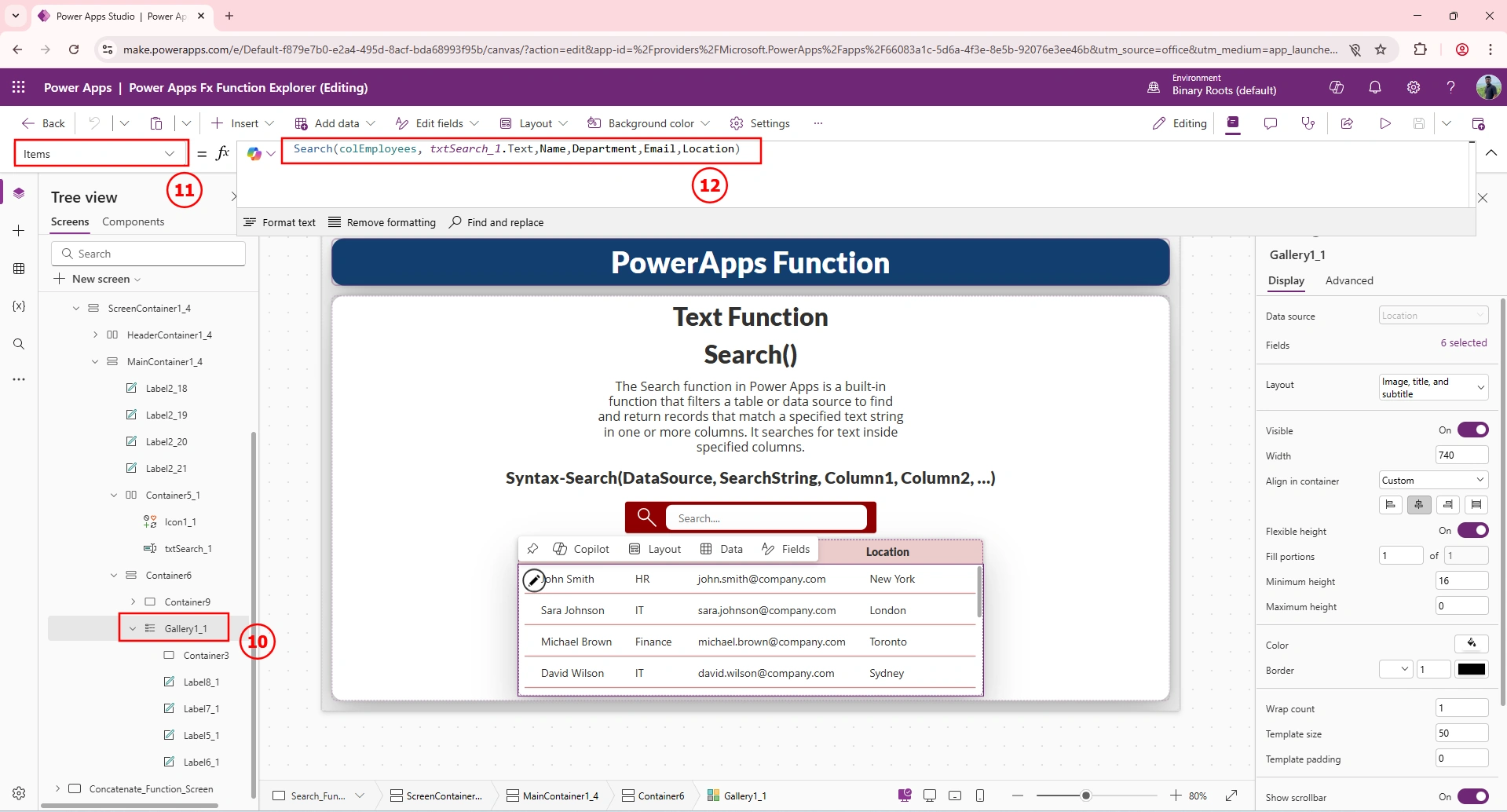
Select the Gallery (galEmployees) and set its Items property to:
Search(
    colEmployees,
    txtSearch_1.Text,
    Name,
    Department,
    Email,
    Location
)
Explanation:
colEmployees → Source collection
txtSearch_1.Text → User-entered search text
Name, Department, Email, Location → Columns to search
The search is case-insensitive and works across all specified columns.
Step 5: Test the App
Click the Play button in Power Apps Studio
Start typing in the search box
Example Searches:
Type “IT” → Displays employees from the IT department
Type “John” → Displays John Smith
Type “London” → Displays employees located in London
Type “@company.com” → Displays all employees
The gallery updates automatically as you type.
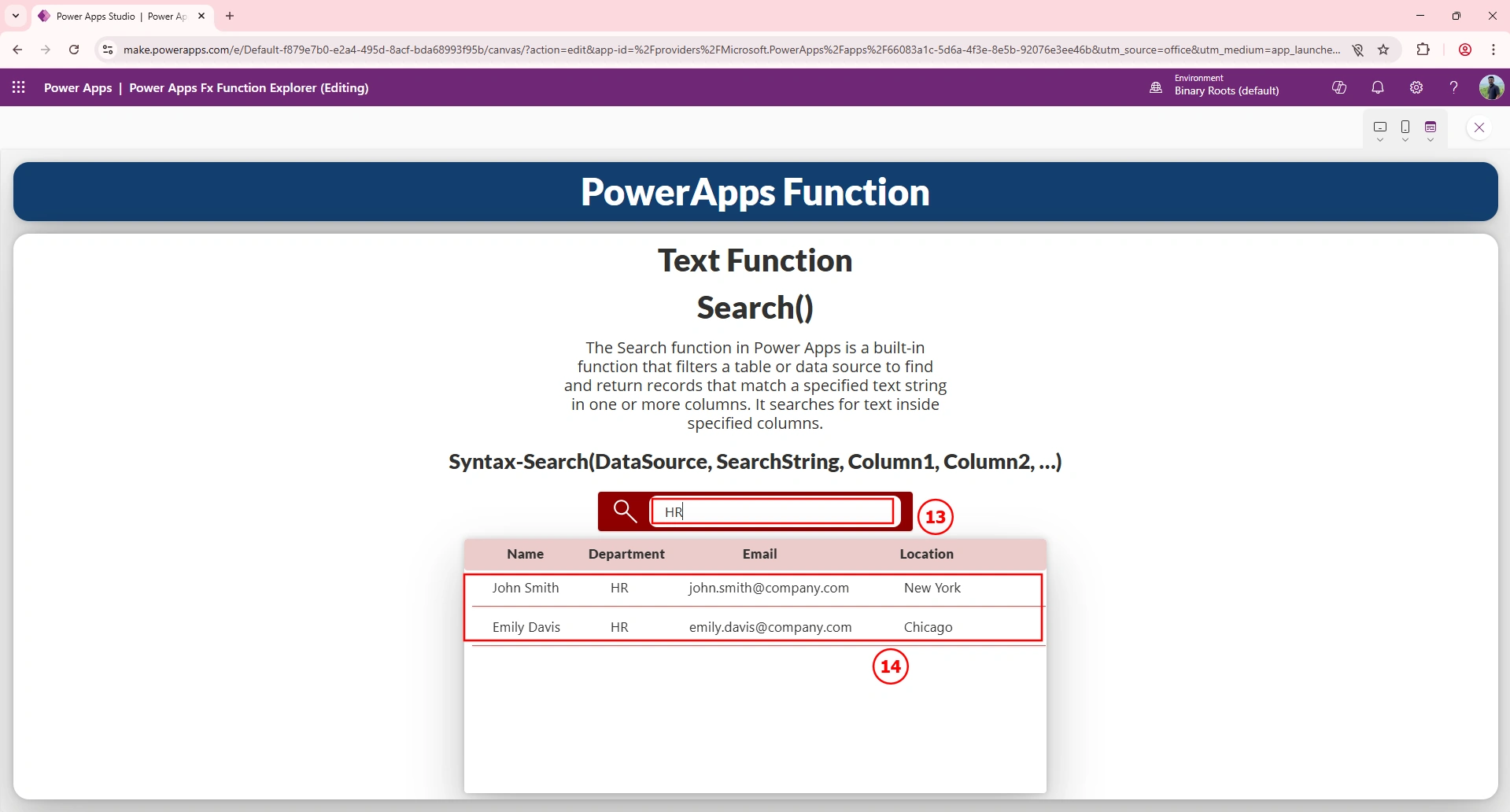
How It Works
The text input captures user search text
The Search() function scans multiple columns
Matching records are returned instantly
The gallery refreshes in real time
Conclusion
In this article, we demonstrated how to use the Search() function in Power Apps to build a real-time employee search feature. By using a single input box, a collection (colEmployees), and a gallery (library), we created a clean and efficient search experience. This approach is commonly used in employee directories, contact lists, and admin dashboards.
Join the conversation! Your thoughts help the community grow.