

Today we are discuss a Value Converter while binding data to a control in Windows Store Apps.
In this article I show how to implement an IValueConverter Interface for performing a Custom Value converter and create our own Converter Class. Conversion of a value is used where you want to display a non-type value in a control, then you can implement an IValueConverter Interface to create a Custom Converter class.
Introduction of IValueConverter Interface.
IValueConverter is an interface that is use to create a custom converter class by deriving from this interface. Basically IValueConverter has two methods:
- Convert: This method is used to create a One-way data binding to a UI element by converting its value. If you implement one-way binding to a target element, then you have to use the Convert Method. In other words when data is passed from the source, the binding engine calls Convert.
- ConvertBack: This method is used when you bind the data to a target element using Two-way binding. In the other words you can say that when data is passed from the target, the binding engine calls ConvertBack and passes the returned data to the source.
Once a value converter is created, you can select the value converter in the XAML Designer when you configure a data binding.
Let's see an example to understand it better.
Follow these steps..
Step 1
Create a blank Windows Store apps application using XAML and C#.
Step 2
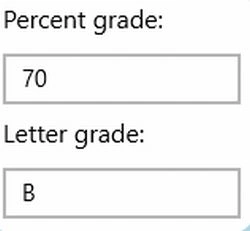
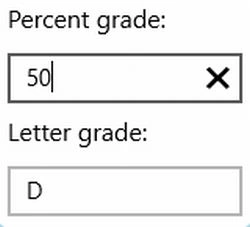
In this example we use two textboxes and convert the value based on the first textbox, then show the converted value into the second texbox.
Here is the code of XAML.
<StackPanel Margin="5">
<TextBlock Style="{StaticResource BasicTextStyle}" Text="Percent grade:" Margin="5" />
<TextBox x:Name="ValueConverter" Text="70" Margin="5"/>
<TextBlock Style="{StaticResource BasicTextStyle}" Text="Letter grade:" Margin="5"/>
<TextBox x:Name="tbValueConverterDataBound"
Margin="5" Width="150"/>
</StackPanel>
Step 3
To create a Custom Converter I will create a converter class that implements the IValueConverter Interface and implements the Convert method in this class. This method takes four types of arguements but we only require the first paremeter that contrains the value to be converted and returned back.
To add a .cs file:
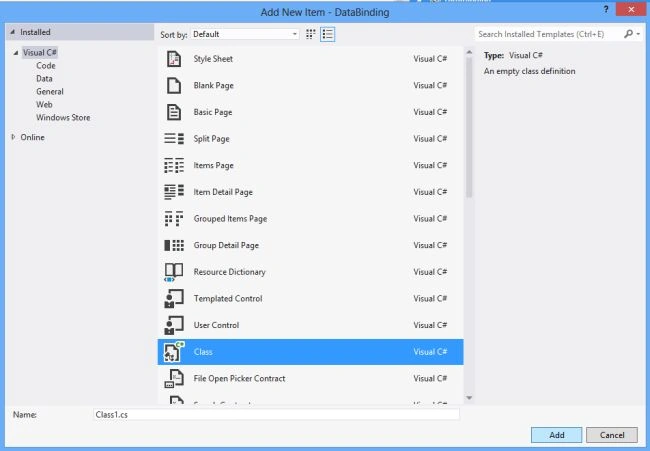
Here is the code of the .cs file:
public class ValueConverter : IValueConverter
{
//Convert the textbox value into Grades
public object Convert(object value, System.Type type, object parameter, string language)
{
int _value;
string _grade = string.Empty;
//try parsing the value to int
if (Int32.TryParse(value.ToString(), out _value))
{
if (_value < 50)
_grade = "F";
else if (_value < 60)
_grade = "D";
else if (_value < 70)
_grade = "C";
else if (_value < 80)
_grade = "B";
else if (_value < 90)
_grade = "A";
else if (_value < 100)
siva kumarPosted May 5, 2018, 9:29 AM
i want to change label color itself based on value is postive or negative.but i always get value in convert null or 0.
Ammar ShaukatPosted Sep 25, 2017, 5:27 AM
In very start of your article . you've written a line " Conversion of a value is used where you want to display a non-type value in a control " , so I'm confuse what is this " Non-type value " in XAML or C# ?
Ammar ShaukatPosted Sep 25, 2017, 5:24 AM
In description of two functions you mentioned " Source " so what is the source in this case ? In Convert Function its a one-way binding and source is i guess our Business Object and in other function " Convert Back " its a two way binding , so what's the source here ? I don't think we have only one source in 2nd case
Gowtham RajamanickamPosted Apr 18, 2016, 2:10 AM
good one..