

Many people feel intimidated by Linux. Linux is considered by many to be not meant for ordinary people who find the Windows operating system very simple and user friendly. Installation is perhaps the most difficult part of working with Linux, more so with the complexities of partitioning the hard disk, installing the boot loader, setting up the applications,
etc.
A major risk which most people face while installing Linux is overwriting the windows partition with Linux or overwriting the windows boot loader with the boot loader of Linux. Though these pitfalls can be avoided and Linux can be set up to dual boot with windows, it is not so easy.
A very efficient and risk-free approach to setting up Linux is virtualization. Virtualization allows you to set up Linux to run on windows. And that too without worrying about accidentally losing your windows installation.
There are various virtualization solutions available, most notably Microsoft Virtual PC, VMWare, Sun Virtual Box and Qemu.
Here I will give step-by-step instructions on how to set up Linux on Windows Operating System using Sun Virtual Box.
Here the Host Operating System is Windows Vista and the Guest Operating System is Ubuntu Linux 9.04 (Jaunty Jackalope)
After starting Sun Virtual Box, you get the following screen:

Clicking the New button will show the welcome screen as follows:
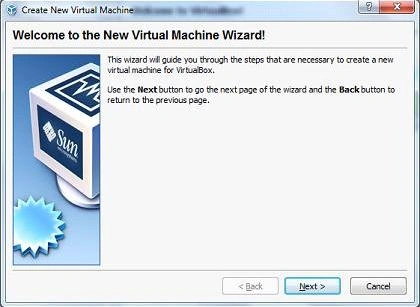
Click the Next button and enter the values as shown.
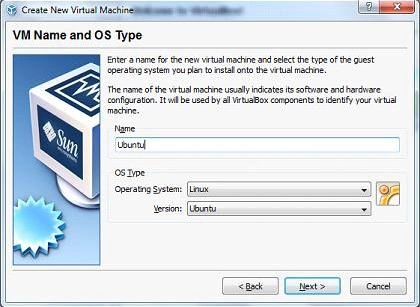
Choose the Operating System and Version and click the Next button. The following screen will be displayed:
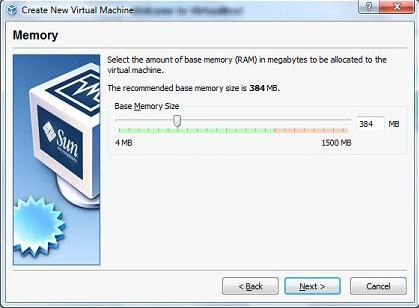
Select the appropriate Base Memory Size and click the Next button. The following screen will be displayed:
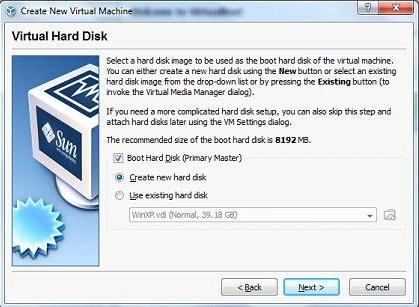
Choose the Boot Hard Disk and 'Create new hard disk' options and click the Next button. The following screen will be displayed:
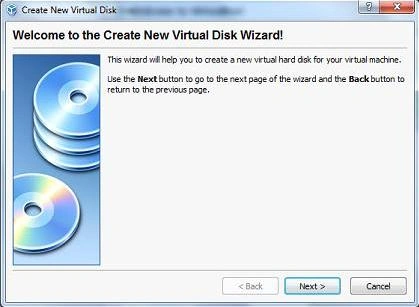
Clicking the Next button will display the following screen:
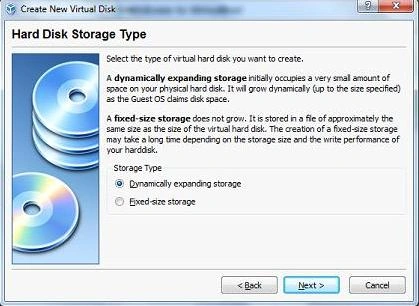
Choose the 'Dynamically expanding storage' option and click the Next button. The following screen will be displayed:
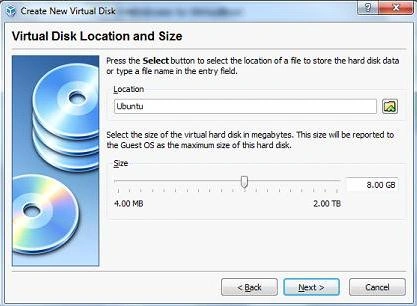
Choose the location and the size of the virtual hard disk and click the Next button. The following screen will be displayed:
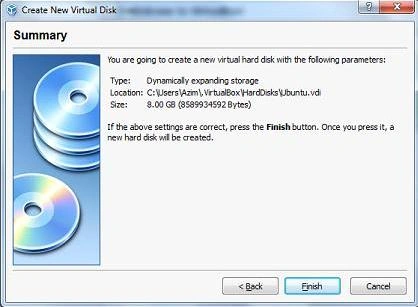
Clicking the Finish button will display the following screen:
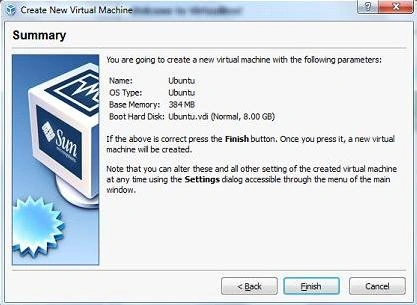
Clicking the Finish button once again will display the following screen:
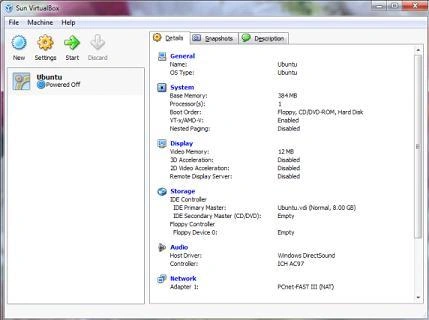
Now click on the Start button at the top of the screen. The following screen will be displayed:
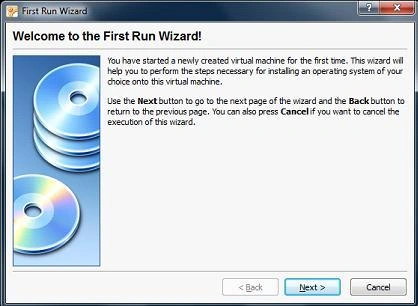
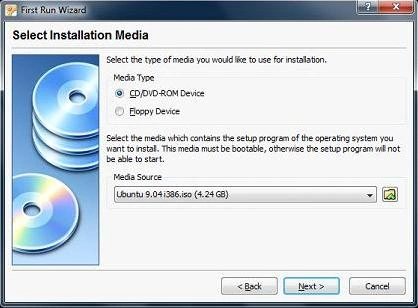
Clicking the Next button will display the Select Installation Media screen as follows:
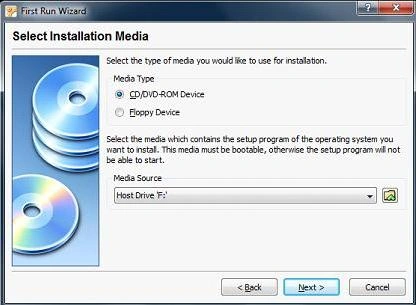 Select the Media Type as CD/DVD-ROM Device and Media Source as the drive automatically selected.
If you have an ISO file of the OS you can browse to the location of the ISO file by clicking on the browse button on the side, otherwise click the next button with the Linux installation CD/DVD in the CD/DVD drive.
If you choose to browse to the location of the ISO file, you will get the following screen:
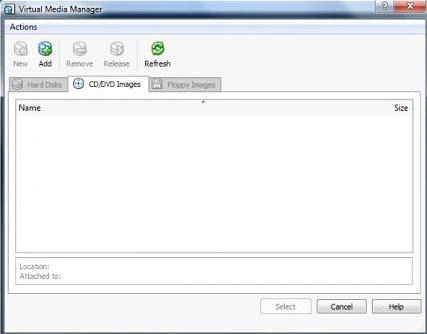
Click the Add button and choose the ISO file as follows
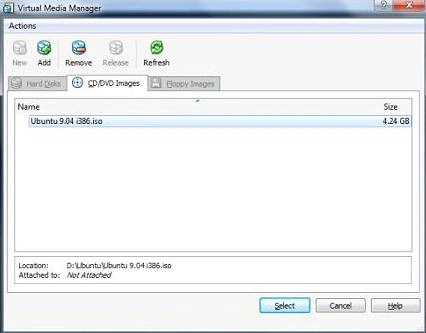
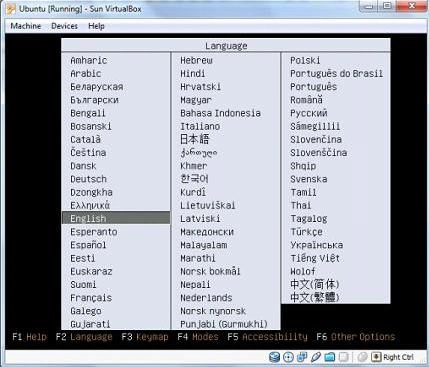
Clicking the Select button will display the following screen with the Media Source selected as follows:





Manish SinghPosted Dec 10, 2011, 12:33 AM
It's really helpful
Vikas MishraPosted Dec 10, 2011, 12:23 AM
Hi Azim you have described this topic in a very interesting way. It's very helpful for this topic...........
Mike StewardeditedPosted Dec 10, 2011, 12:23 AMEdited Dec 10, 2011, 12:23 AM
Fine job , u did the full justice to the topic....... nice going