

The most feature of office 2007 and later version is that these office systems are Ribbon compatible.
Basically Ribbon in office system is the user interface element that contains controls. Or you can say ribbon is the parant control of command controls.
In this article we will learn that how to customize this ribbon in word application. If you want to see that how to start vsto project click here
We can customize ribbon with two ways in our word addin
Ribbon(visual Designer)
Ribbon(XML)
In this article we will discuss about Ribbon(Visual Designer)
Adding Ribbon in your project:
Select Ribbon (Visual
Designer) item and add
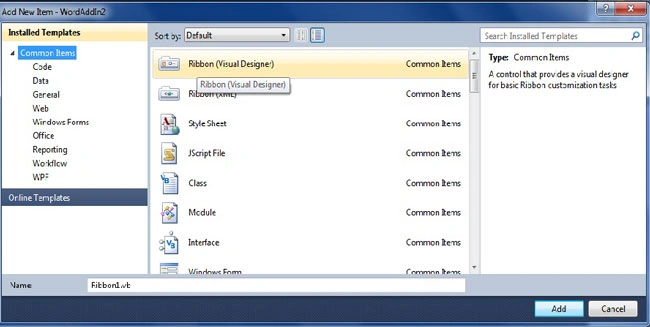
Note: this project requires Visual Studio 2010 and
Word 2010 to run successfully.
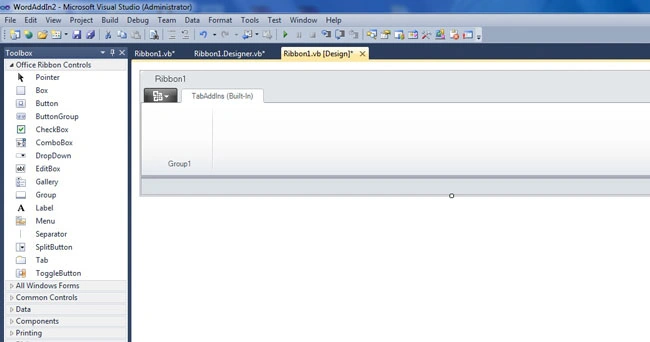
Ribbon will be add in this view.
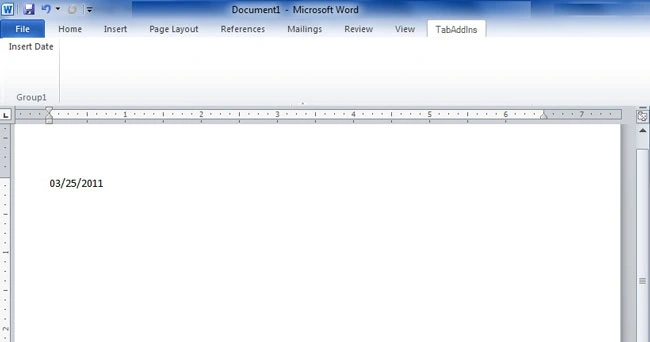
You can see built in 'TabAddIns' tab that contains a group without any control.
We can add various office ribbon controls from toolbox. You can also set the
various properties of the ribbon, tab, group and contained controls from
properties windows.
You can see designer control in Ribbon1.designer.vb file:
Friend WithEvents Tab1 As Microsoft.Office.Tools.Ribbon.RibbonTab
Friend WithEvents Group1 As Microsoft.Office.Tools.Ribbon.RibbonGroup
Friend WithEvents Button1 As Microsoft.Office.Tools.Ribbon.RibbonButton
Me.Tab1 = Me.Factory.CreateRibbonTab
Me.Group1 = Me.Factory.CreateRibbonGroup
Me.Button1 = Me.Factory.CreateRibbonButton
Me.Tab1.SuspendLayout()
Me.Group1.SuspendLayout()
'
'Tab1
'
Me.Tab1.ControlId.ControlIdType = Microsoft.Office.Tools.Ribbon.RibbonControlIdType.Office
Me.Tab1.Groups.Add(Me.Group1)
Me.Tab1.Label = "TabAddIns"
Join the conversation! Your thoughts help the community grow.