

Introduction
Microsoft has launched Windows 8 Release Preview. Windows 8 Release Preview is available with many enhancements packed in it, including a new set of applications from Bing, namely News, Sports, and Travel and Apps installed by default include Mail, Calendar, People, Maps, Weather, Internet Explorer, Music, and Video players, Weather, and several apps and other interesting apps. The Bing apps are a pleasant surprise, drawing together data from a variety of sources into a pleasing and swipe-friendly format. This makes the user experience better.
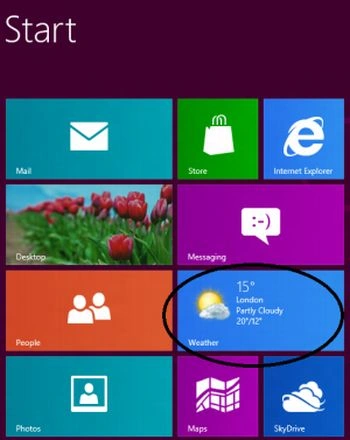
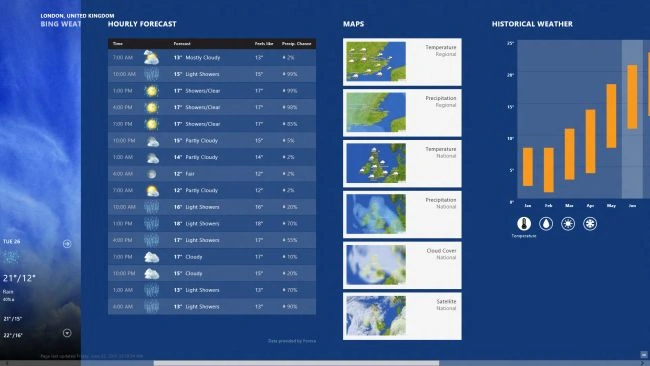
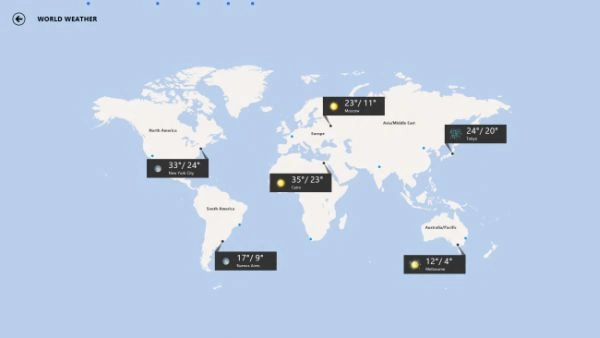
In this article, we going to use the Weather app of Windows 8 Release Preview. The Weather app is beautiful and is also nicely done, with an attractive visual forecast and packed with more detailed information. This weather app shows the prevailing weather condition in your local area or in any other part of the world.
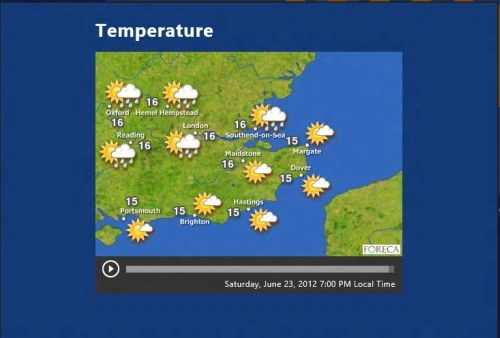
The weather app in Windows 8 Release Preview provides many features that show you the uncertainties in weather conditions. It is free and already installed in Windows 8 Release Preview. It alerts you of the conditions of the weather from time to time and provides all necessary information about weather like humidity, temperature, and many others.
 In this app, there are four options at the top of the app bar.
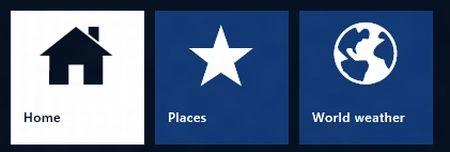
- Right-click on the screen; the app bar will be displayed at the top.
- Select the places from the top of the app bar.
- A window will appear; click on the plus sign to add the location.
- Enter the location name in the given area.
- Then, click the add button.
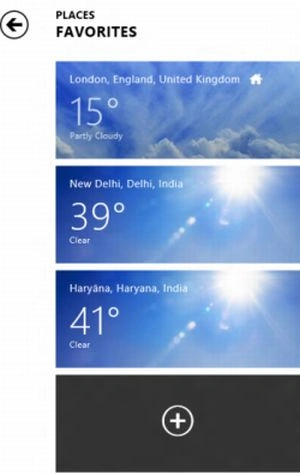
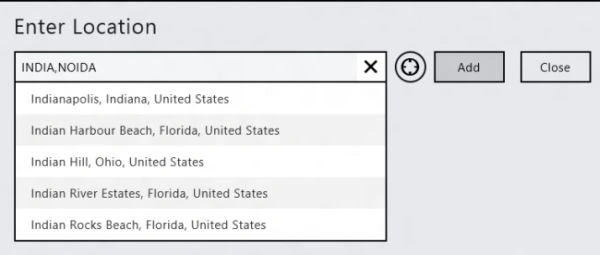
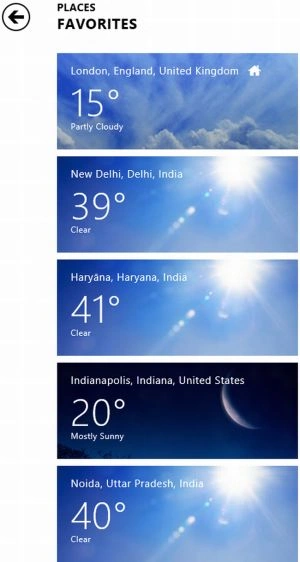
This will add your location to the Favorites list like this. Now this will show you all the relevant weather information in that particular location.
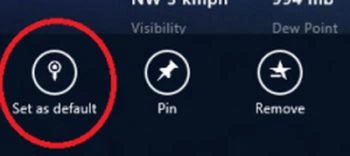
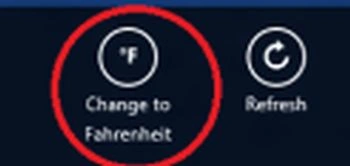
You can also change the temperature of Celsius to Fahrenheit and Fahrenheit to Celsius. To change it click Change to Celsius/Fahrenheit from the bottom-right of the screen.
Summary
In this article, we learned about Weather App in Windows 8.
Join the conversation! Your thoughts help the community grow.