

Today, the innovation in .NET is to integrate all Microsoft development tools, libraries, languages, technologies, purposes, under the same framework. In this sense, there are several tools and controls available for performing applications with .NET. These tools make it easy for us to build applications by using their already established controls and components. One of these tools is DotVVM.
In a previous article, we were able to learn how to design forms with the base controls that DotVVM offers: Web forms with DotVVM controls.
This time we will learn in the same way how to design web forms with DotVVM (with C# and HTML), but using the premium controls that DotVVM offers, in this case, called Business Pack.
Design Pattern - Model, View, ViewModel - MVVM
DotVVM is based on the Design Pattern Model, View, ViewModel over .NET for communication between HTML (web pages) and C# (source code). The purpose of these parts are as follows,
- The model. — is responsible for all application data and related business logic.
- The view. — Representations for the end-user of the application model. The view is responsible for displaying the data to the user and allowing manipulation of the application data.
- Model-View or View-Model. — One or more per view; the model-view is responsible for implementing view behavior to respond to user actions and for easily exposing model data.
Acquire DotVVM Business Pack
DotVVM Business Pack is nothing more than a private NuGet, in which, we can make use of the competent premiums already established for the construction of web applications in the business field.
To install the Business Pack version, in addition to obtaining the corresponding license (there is a trial version), it is necessary to perform a configuration of a few minutes to be able to use these functionalities. The steps to add the private NuGet can be consulted at the following link.
Create a DotVVM project with Business Pack in Visual Studio 2019
To create a project with the Business Pack option in DotVVM from Visual Studio 2019, we'll start by creating the DotVVM project like any other,
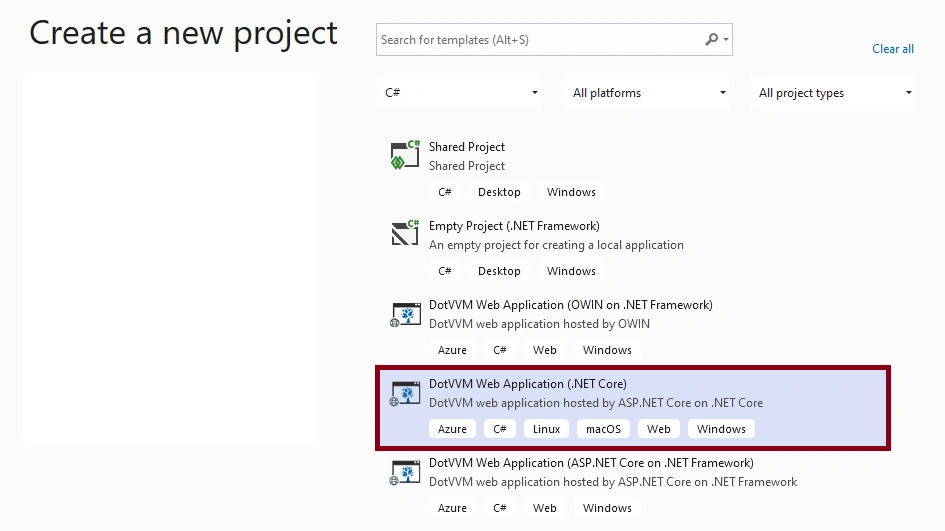
By specifying the name and continuing, the project initialization wizard will give us a number of options to add certain functionality to the project. In this case, the functionality we are interested in is the DotVVM Business Pack located in the DotVVM Commercial Extensions section,
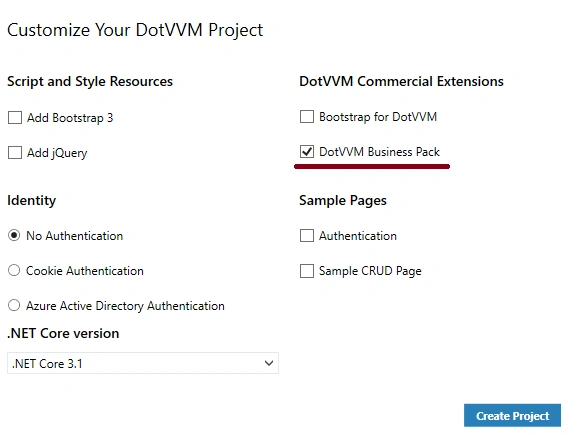
DotVVM Form with Business Pack
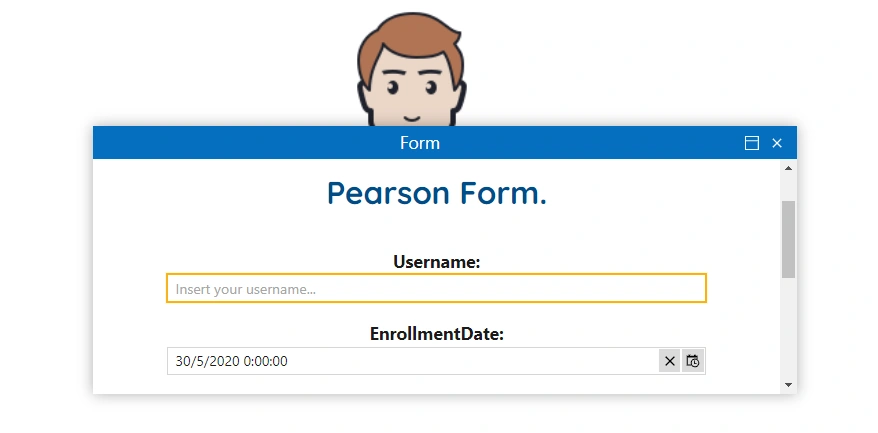
To exemplify the use of DotVVM Business Pack components, we have a small application like this,
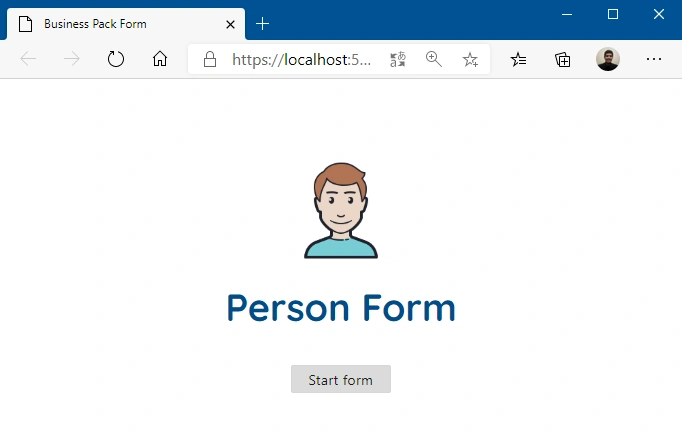
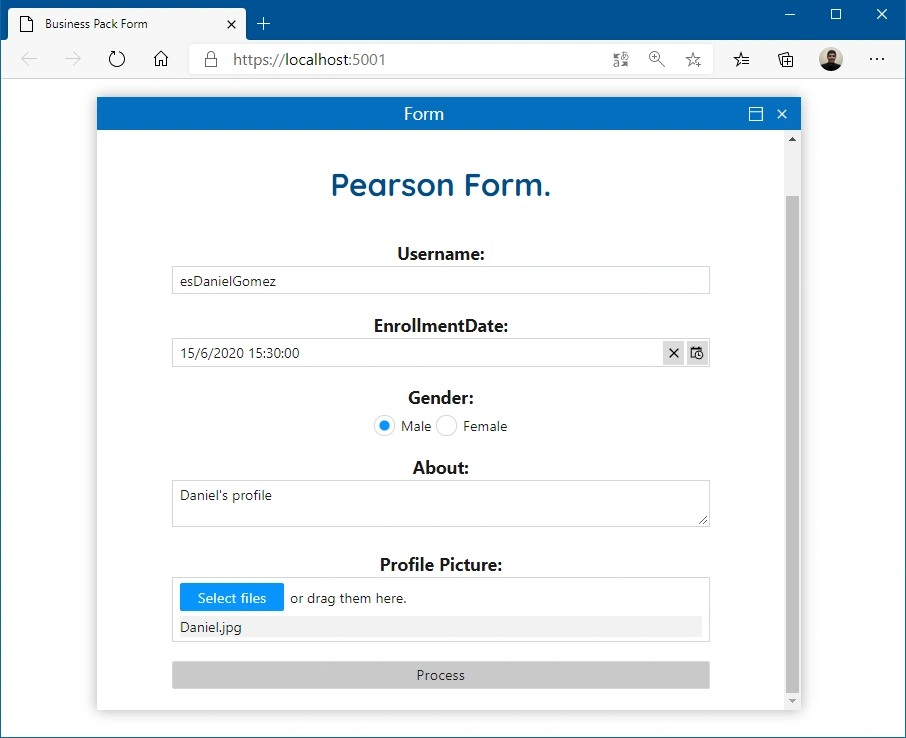
Considering that this website in DotVVM consists of a view and its corresponding model view, let's look at the most important parts as a whole of these elements.
View
- @viewModel BPFormControls.ViewModels.DefaultViewModel, BPFormControls
- @masterPage Views/MasterPage.dotmaster
- <dot:Content ContentPlaceHolderID="MainContent">
- <h1 align="center">
- <img src="UserIcon.png" width="20%" height="20%" />
- <br />
- <b>{{value: Title}}</b>
- </h1>
- <div align="center">
- <bp:Window IsDisplayed="{value: IsWindowDisplayed}"
- HeaderText="Form"
- CloseOnEscape="false"
- CloseOnOutsideClick="false">
- <h1 align="center"><p><b>Pearson Form</b>.</p></h1>
- <div Validator.Value="{value: Person.Username}"
- Validator.InvalidCssClass="has-error"
- Validator.SetToolTipText="true"
- class="page-input-box">
- <b>Username:</b>
- <br />
- <bp:TextBox Text="{value: Person.Username}"
- UpdateTextAfterKeydown="true"
- Type="Normal"
- Placeholder="Insert your username..."
- AutoFocus="true"
- style="width: 80%;" />
- </div>
- <p />
- <div Validator.Value="{value: Person.EnrollmentDate}"
- Validator.InvalidCssClass="has-error"
- Validator.SetToolTipText="true"
- class="page-input-box">
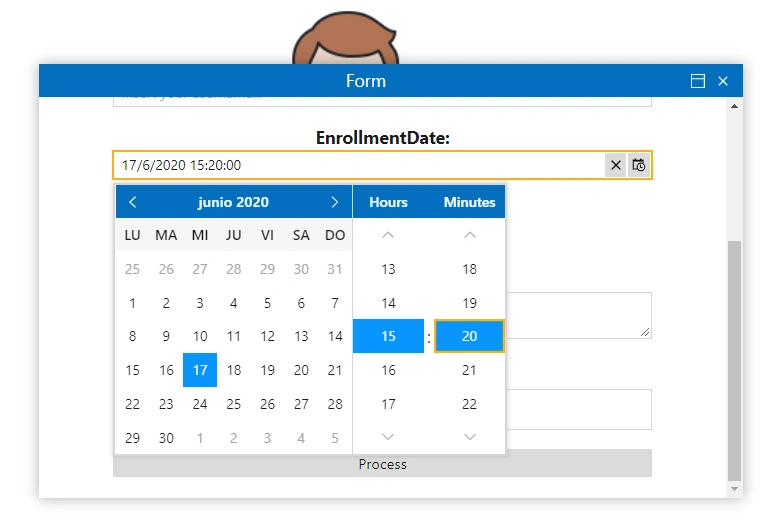
- <b>EnrollmentDate:</b>
- <br />
- <bp:DateTimePicker SelectedDateTime="{value: Person.EnrollmentDate}"
- HourText="Hours"
- MinuteText="Minutes"
- SecondText="Seconds"
- AmPmDesignatorText="AM/PM"
- style="width: 80%;" />
- </div>
- <p />
- <div Validator.Value="{value: Person.EnrollmentDate}"
- Validator.InvalidCssClass="has-error"
- Validator.SetToolTipText="true"
- class="page-input-box">
- <b>Gender:</b>
- <br />
- <bp:RadioButton CheckedItem="{value: Person.Gender}"
- CheckedValue="Male"
- Text="Male" />
- <bp:RadioButton CheckedItem="{value: Person.Gender}"
- CheckedValue="Female"
- Text="Female" />
- </div>
- <p />
- <b>About:</b>
- <br />
- <bp:TextBox Text="{value: Person.About}"
- Type="MultiLine"
- Placeholder="Enter information about you..."
- class="page-input" style="width: 80%;" />
- <p />
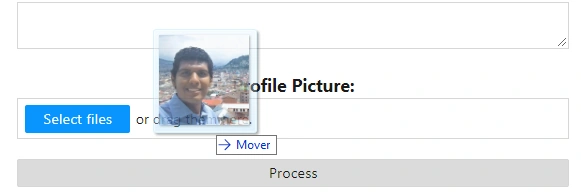
- <b>Profile Picture:</b>
- <br />
- <bp:FileUpload Data="{value: ProfilePicture}"
- AllowMultipleFiles="false"
- UploadCompleted="{command: ProcessFile()}"
- class="page-input" style="width: 80%;" />
- <p />
- <bp:Button Text="Process"
- Click="{command: Process()}"
- style="width: 80%;"/>
- <p />
- </bp:Window>
- <bp:Button Text="Start form"
- Click="{command: IsWindowDisplayed = true}" />
- </div>
- </dot:Content>
Join the conversation! Your thoughts help the community grow.