

In this article, we will learn how to use WebView in Xamarin. If you are new to this series on Xamarin, then I suggest you read my previous articles of this series.
What is WebView?
Webview is a view, which is used to display HTML content or the Web content in your app.
Webview is a view, which is used to display HTML content or the Web content in your app.
Let’s begin.
Example of Load Static HTML in Webview
Create new Xamarin Android project. Click on the Blank android app, give it a meaningful name and then click OK.
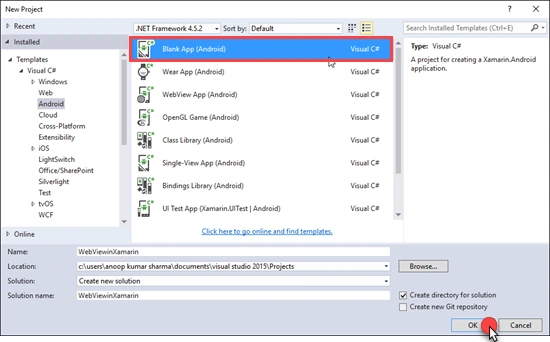
Example of Load Static HTML in Webview
Create new Xamarin Android project. Click on the Blank android app, give it a meaningful name and then click OK.
Add a Webview in LinearLayout(Vertical)
Main.axml Code
Main.axml Code
- <?xml version="1.0" encoding="utf-8"?>
- <LinearLayout xmlns:android="http://schemas.android.com/apk/res/android"
- android:orientation="vertical"
- android:layout_width="match_parent"
- android:layout_height="match_parent"
- android:minWidth="25px"
- android:minHeight="25px">
- <android.webkit.WebView
- android:layout_width="match_parent"
- android:layout_height="match_parent"
- android:id="@+id/webView" />
- </LinearLayout>
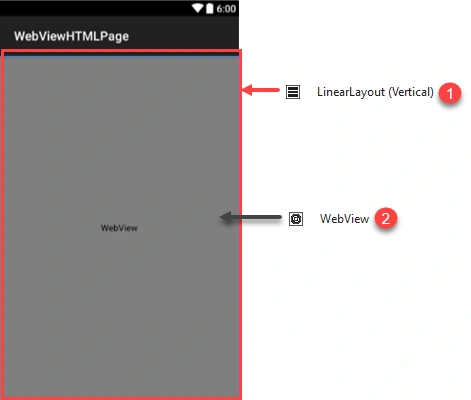
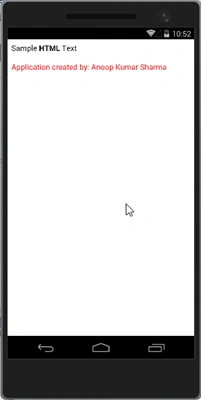
Open MainActivity.cs, get WebView control/view from Main Layout and Load HTML data in WebView, using the code given below.
MainActivity.cs
- using Android.App;
- using Android.Widget;
- using Android.OS;
- using Android.Webkit;
- namespace WebViewHTMLPage
- {
- [Activity(Label = "WebViewHTMLPage", MainLauncher = true, Icon = "@drawable/icon",Theme ="@android:style/Theme.NoTitleBar")]
- public class MainActivity : Activity
- {
- //Creating Instance of Webview
- WebView webView;
- protected override void OnCreate(Bundle bundle)
- {
- base.OnCreate(bundle);
- // Set our view from the "main" layout resource
- SetContentView (Resource.Layout.Main);
- //Get webView WebView from Main Layout
- webView = FindViewById<WebView>(Resource.Id.webView);
- //HTML String
- string HTMLText = "<html>" + "<body>Sample <b>HTML</b> Text<br/><br/>"+
- "<span style='color:red;'>Application created by: Anoop Kumar Sharma<span></body>" +
- "</html>";
- //Load HTML Data in WebView
- webView.LoadData(HTMLText, "text/html", null);
- }
- }
- }
Example of open Web Page or URL in WebView
Let’s add a layout (Horizontal) and WebView controls in LinearLayout (Vertical) in Main Layout. Add a plain text and button widget In Horizontal layout, as shown below.
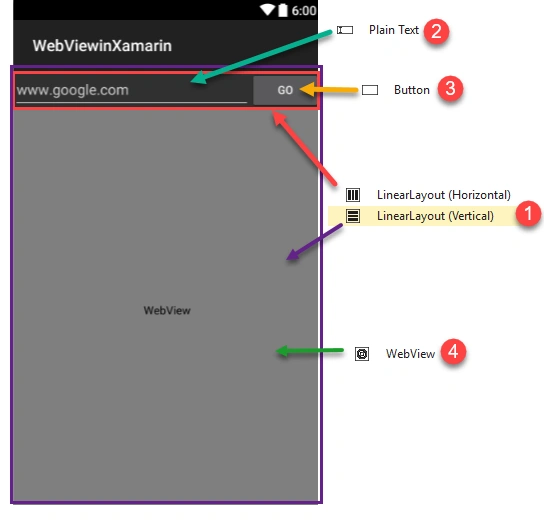
Let’s add a layout (Horizontal) and WebView controls in LinearLayout (Vertical) in Main Layout. Add a plain text and button widget In Horizontal layout, as shown below.
When a user types URL or a Website name in Plaintext view and presses the Go button, we will open a Webpage in Webview widget.
Main.axml
- <?xml version="1.0" encoding="utf-8"?>
- <LinearLayout xmlns:android="http://schemas.android.com/apk/res/android"
- android:orientation="vertical"
- android:layout_width="match_parent"
- android:layout_height="match_parent">
- <LinearLayout
- android:orientation="horizontal"
- android:layout_width="match_parent"
- android:layout_height="wrap_content"
- android:id="@+id/linearLayout1">
- <EditText
- android:layout_height="match_parent"
- android:id="@+id/txtURL"
- android:layout_weight="1"
- android:layout_width="match_parent"
- android:hint="www.google.com" />
- <Button
- android:text="Go"
- android:layout_width="wrap_content"
- android:layout_height="match_parent"
- android:id="@+id/btnGo" />
- </LinearLayout>
- <android.webkit.WebView
- android:layout_width="match_parent"
- android:layout_height="match_parent"
- android:id="@+id/webView" />
- </LinearLayout>
- using Android.App;
- using Android.Widget;
- using Android.OS;
- using Android.Webkit;
- namespace WebViewinXamarin
- {
- [Activity(Label = "WebViewinXamarin", MainLauncher = true, Icon = "@drawable/icon",Theme ="@android:style/Theme.NoTitleBar")]
- public class MainActivity : Activity
- {
- //Creating Instance of Button,TextView, WebView
- Button btnGo;
- TextView txtURL;
- WebView webView;
- protected override void OnCreate(Bundle bundle)
- {
- base.OnCreate(bundle);
- // Set our view from the "main" layout resource
- SetContentView(Resource.Layout.Main);
- //Get txtURL TextView, btnGo Button,webView WebView from Main Resource Layout.
- txtURL = FindViewById<TextView>(Resource.Id.txtURL);
- btnGo = FindViewById<Button>(Resource.Id.btnGo);
- webView = FindViewById<WebView>(Resource.Id.webView);
- //SetWebViewClient with an instance of WebViewClientClass
- webView.SetWebViewClient(new WebViewClientClass());
- webView.LoadUrl(txtURL.Text);
- //Enabled Javascript in Websettings
- WebSettings websettings = webView.Settings;
- websettings.JavaScriptEnabled = true;
- //btnGo Click event
- btnGo.Click += BtnGo_Click;
- }
- private void BtnGo_Click(object sender, System.EventArgs e)
- {
- //Load URL in txtURL in WebView.
- webView.LoadUrl(txtURL.Text);
- }
- }
- internal class WebViewClientClass : WebViewClient
- {
- //Give the host application a chance to take over the control when a new URL is about to be loaded in the current WebView.
- public override bool ShouldOverrideUrlLoading(WebView view, string url)
- {
- view.LoadUrl(url);
- return true;
- }
- }
- }
Example of working with navigation in WebView
WebView has several methods and properties, which support navigation like GoForward(), GoBack(), CanGoBack and CanGoForward. For demonstration, we will add Back and Forward button in Main.axml layout.
Main.axml
WebView has several methods and properties, which support navigation like GoForward(), GoBack(), CanGoBack and CanGoForward. For demonstration, we will add Back and Forward button in Main.axml layout.
Main.axml
- <LinearLayout xmlns:android="http://schemas.android.com/apk/res/android"
- android:orientation="vertical"
- android:layout_width="match_parent"
- android:layout_height="match_parent">
- <EditText
- android:layout_width="match_parent"
- android:layout_height="wrap_content"
- android:id="@+id/txtURL" />
- <LinearLayout
- android:orientation="horizontal"
- android:layout_width="match_parent"
- android:layout_height="wrap_content"
- android:id="@+id/linearLayout1">
- <Button
- android:text="Back"
- android:layout_width="wrap_content"
- android:layout_height="match_parent"
- android:id="@+id/btnBack"
- android:layout_weight="1" />
- <Button
- android:text="Go"
- android:layout_width="wrap_content"
- android:layout_height="match_parent"
- android:id="@+id/btnGO"
- android:layout_weight="2" />
- <Button
- android:text="Forward"
- android:layout_width="wrap_content"
- android:layout_height="match_parent"
- android:id="@+id/btnForward"
- android:layout_weight="1" />
- </LinearLayout>
- <android.webkit.WebView
- android:layout_width="match_parent"
- android:layout_height="match_parent"
- android:id="@+id/webView" />
- </LinearLayout>
- using Android.App;
- using Android.Widget;
- using Android.OS;
- using Android.Webkit;
- using Android.Runtime;
- using Android.Views;
- namespace WebViewwithNavigation
- {
- [Activity(Label = "WebViewwithNavigation", MainLauncher = true, Icon = "@drawable/icon",Theme ="@android:style/Theme.NoTitleBar")]
- public class MainActivity : Activity
- {
- Button btnBack;
- Button btnGo;
- Button btnForward;
- TextView txtURL;
- WebView webView;
- protected override void OnCreate(Bundle bundle)
- {
- base.OnCreate(bundle);
- // Set our view from the "main" layout resource
- SetContentView (Resource.Layout.Main);
- btnGo = FindViewById<Button>(Resource.Id.btnGO);
- btnBack = FindViewById<Button>(Resource.Id.btnBack);
- btnForward = FindViewById<Button>(Resource.Id.btnForward);
- txtURL = FindViewById<TextView>(Resource.Id.txtURL);
- webView = FindViewById<WebView>(Resource.Id.webView);
- webView.SetWebViewClient(new WebViewClientClass());
- WebSettings websettings = webView.Settings;
- websettings.JavaScriptEnabled = true;
- btnGo.Click += BtnGo_Click;
- btnBack.Click += BtnBack_Click;
- btnForward.Click += BtnForward_Click;
- }
- private void BtnForward_Click(object sender, System.EventArgs e)
- {
- //If WebView has forward History item then forward to the next visited page.
- if (webView.CanGoForward())
- {
- webView.GoForward();
- }
- }
- private void BtnBack_Click(object sender, System.EventArgs e)
- {
- //If WebView has back History item then navigate to the last visited page.
- if (webView.CanGoBack())
- {
- webView.GoBack();
- }
- }
- private void BtnGo_Click(object sender, System.EventArgs e)
- {
- webView.LoadUrl(txtURL.Text);
- }
- }
- internal class WebViewClientClass : WebViewClient
- {
- public override bool ShouldOverrideUrlLoading(WebView view, string url)
- {
- view.LoadUrl(url);
- return true;
- }
- }
- }
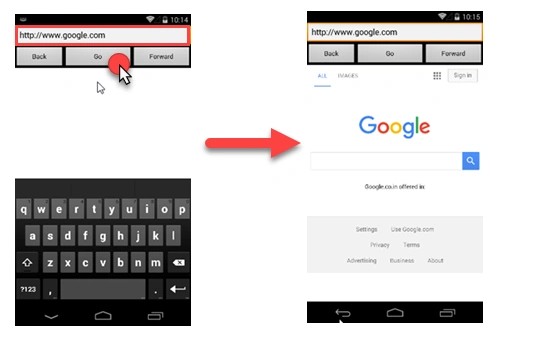
Build and run the Application. Go to any Web URL (In my case, I am visiting http://www.google.com ).
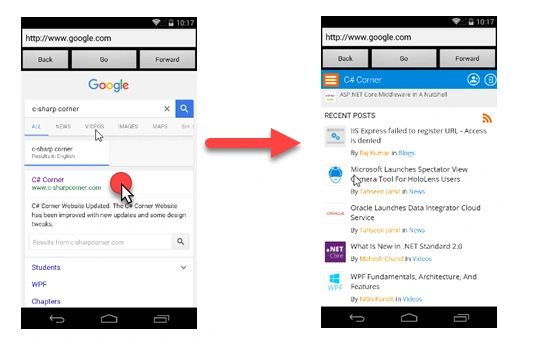
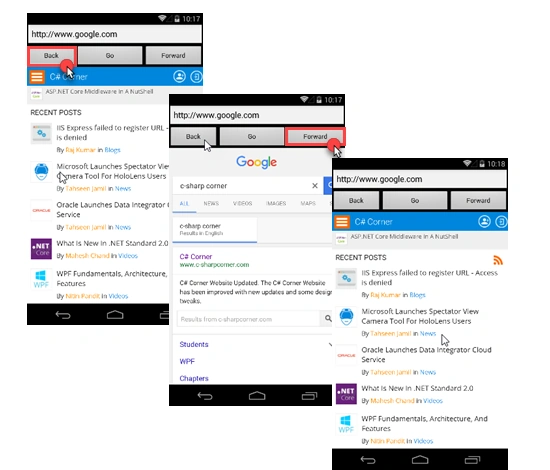
After URL opens, click on Back and Forward button in order to navigate from one page to another.
I hope you liked it. Thanks.
Sergey BelovPosted May 28, 2021, 10:06 PM
SetContentView(Resource.Layout.activity_main);
Sergey BelovPosted May 28, 2021, 10:06 PM
It's actual for VS2019 in 2021 year too.) Except...
Sergey BelovPosted May 28, 2021, 9:54 PM
Nice! Thanks from Russia. )
Satyaprakash SamantarayPosted Feb 16, 2017, 8:28 PM
Nice article well defined