Introduction
Let's get one thing out of the way right up front: .NET is not a programming language.
That single misconception has confused countless new developers, intimidated non-.NET folks, and kept a whole lot of people from ever giving the platform a fair look. When someone says "I don't know .NET," what they usually mean is "I don't know C#" and those two things are not the same. .NET is the ecosystem, the toolbox, the foundation. C#, F#, VB, and even languages outside Microsoft's umbrella can all run on top of it.
And here's the good news: once you understand what .NET actually is , the entire platform suddenly becomes far less mysterious and way more accessible.
This article is your friendly starting point.
No jargon. No gatekeeping. No assumptions.
Just a clear, beginner-ready explanation of what .NET is, what it isn't, and how you can start building real things with it faster than you might think.
If you have ever felt like .NET was a world reserved for "enterprise developers" or people who already know the secret handshake, this guide is here to prove otherwise.
Welcome and let's make .NET simple, together.
What is .NET?
If .NET isn't a programming language, what exactly is it?
At its core, .NET is a development platform. It is a full ecosystem designed to help you build applications of almost any kind.
Think of it as a collection of tools, libraries, runtimes, and languages that all work together to make development easier and more productive.
Here's the simple version:
The platform takes care of the heavy lifting by managing memory, handling security, providing standard libraries, and giving you consistent ways to build things regardless of the device or environment.
.NET can be used to build nearly anything:
In other words, .NET is your all-purpose toolkit for modern software development.
No matter what you want to build, the ecosystem has something for you providing a familiar, unified, consistent development experience.
Components of .NET
| Component | Description |
|---|
| .NET runtime | Executes the code. Includes garbage collector and base libraries |
| .NET SDK | Software Development Kit with compilers, templates and tools |
| Frameworks/libraries | Includes ASP.NET (web), MAUI (mobile/desktop), etc |
| Languages | C#, VB.NET, F# all compile to the same runtime |
Why do developers like .NET
Fast and high performance
Built-in features like Just-In-Time compilation and automatic memory management contribute to high performance. Applications can be scaled easily to handle high loads.
Comes with great tooling
The integration with Visual Studio provides a powerful Integrated Development Environment (IDE) with tools for debugging, profiling, and testing.
Works fluidly with Visual Studio, VS Code, JetBrains Rider
Open source
It is open source since 2014.
Robust security
.NET includes built-in security features, such as code access security, role-based authentication, and strong cryptography support, to help protect against malicious activities and ensure data safety.
.NET against the rest
| Criteria | .NET | Kotlin | Node |
|---|
| Type | Framework + Runtime | Language | JS Runtime |
| Performance | ✓✓✓ | ✓✓ | ✓ |
| Maturity of API | ✓✓✓ | ✓ | ✓✓ |
| Ease of use | ✓✓ | ✓ | ✓✓✓ |
| Best used | High performance + enterprise requirements | JVM ecosystem required | Teams preferring JS end to end |
| Scalability | ✓✓✓ | ✓✓ | ✓✓ |
| Learning curve | Medium | Medium | Low |
| Concurrency Model | Multi-threaded + async | Coroutines | Async + event loop |
Minimal API Design
One of the things that surprises new developers the most is how simple building a web API is today in .NET. You no longer need controllers, inheritance, attributes everywhere, or tons of boilerplate.
With Minimal APIs, you can build a real HTTP API using just a few lines of code.
Minimal APIs are:
The other approach is the 'Controllers' approach which is most used for large and complex tasks.
Advantages of Minimal API design
No ceremony, no noise
You write only what you need.
Perfect for small apps & microservices
Why spin up a whole controller architecture for 3 endpoints?
Easy to read, easy to share
Ideal for demos, prototypes, hackathons, or teaching.
Still powerful and extensible
Minimal doesn't mean limited — you can add:
All without leaving the minimal style.
In short:
Use Minimal APIs when you want simple, fast, clean code.
Use Controllers when you need structure and conventions.
Setting up
Install .NET SDK
The SDK (Software Development Kit) gives you everything you need: compiler, runtime, templates, CLI tools.
The latest LTS version is recommended for beginners.
The current version gives the newest features
Go to https://dotnet.microsoft.com/en-us/download to download the SDK.
Once installed, open your code editor.
I will be using IntelliJ.
After opening the file you want to create your project in, open the terminal and write the following command:
dotnet new webapi -o <<name of your project>>
For our example, the command will be:
dotnet new webapi -o MyDemoProject
After some seconds, the project is created.
When expanded, you see the structure below
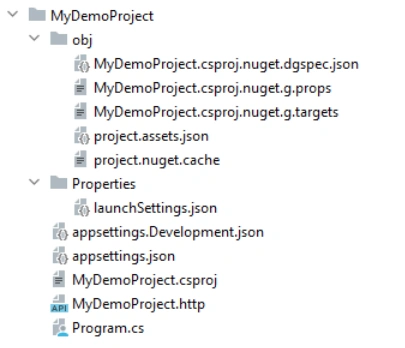
a. The 'obj' folder
This is a build output folder used by the .NET SDK.
It stores temporary files like NuGet packages information and compiled assets.
You do not edit anything here. It is autogenerated.
You can safely delete it. It will be created or re-created next time you build the project.
b. The 'properties' folder
It contains the project's launch settings, called lauchSettings.json.
It defines how the app runs during development.
c. appsettings.Development.json
d. appsettings.json
It is the main configuration file for the application.
It can be used for settings like connection string, logging level, etc
e. MyDemoProject.csproj
This file is like a "manifest" file for the API.
This is the project file that tells .NET:
f. MyDemoProject.http
This file allows you to test the API endpoint directly from the editor
g. Program.cs
It is the entry point of the application; like the main() in other languages.
This file is the brain wires up the API
You will notice that compared to others like SpringBoot, there is no controller, service or repository. This is because as from .NET version 7, Microsoft has modernized the .NET Web API to use the Minimal API project style.
With this, everything is done in the Program.cs and no controller folders is created by default.
Getting started
Open the Program.cs file
On line 24, you will see the following:
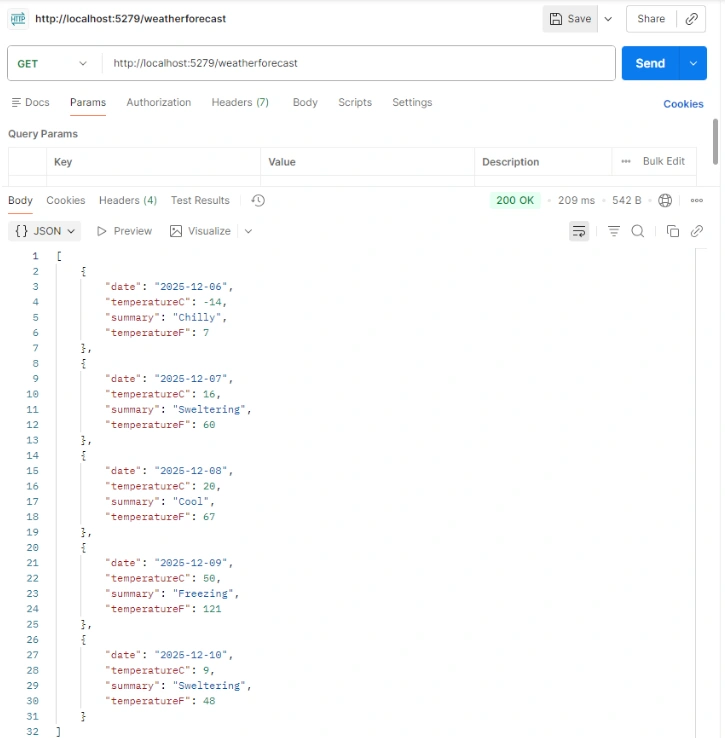
app.MapGet("/weatherforecast", () =>
This is actually the weatherforecast API that is provided by default when creating a project.
The whole API is between line 24 and 37.
It is a great example of how to create a GET call.
In the terminal, navigate in the project and execute the following command to run the project:
dotnet run
In some seconds, you see the following:
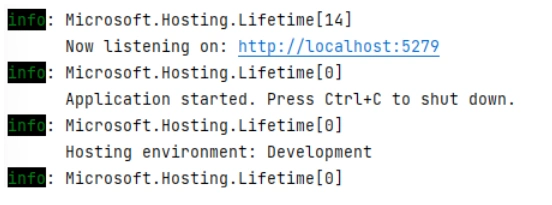
You can access the endpoint in Postman.
The URL is provided in the log. In our case, it is http://localhost:5279.
Creating a custom POST endpoint
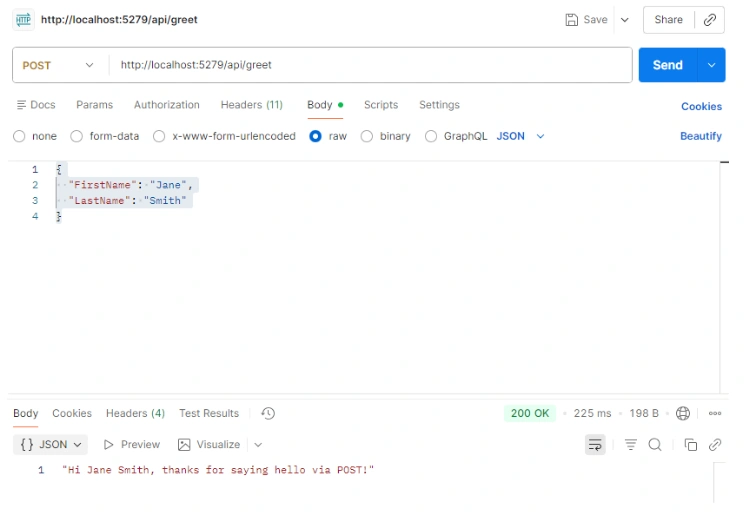
Below is an example of a custom POST endpoint
    app.MapPost("/api/greet", (Person person) =>
{
    var message = person.FirstName == "Admin"
        ? $"Hello, {person.FirstName} {person.LastName}!"
        : $"Hi {person.FirstName} {person.LastName}, thanks for saying hello via POST!";

    return Results.Ok(message);
});
It can be pasted after the weatherforecast API .
Also, since we are using a custom class Person, paste the following line after app.Run():
record Person (string FirstName, string LastName);
Let’s see what we have just done.
On the first line of the function, the app.MapPost means that we are creating a POST.
The first parameter to this function is "/api/greet". This is the route of the API.
The second parameter, (Person person) means that we are taking as parameter an object Person. It is a JSON.
The we pasted the line: record Person (string FirstName, string LastName); after app.Run();
Here, we are defining how an object Person is. Some the JSON defining a Person should have FirstName and LastName.
Below is an example:
    {

  "FirstName": "Jane",

  "LastName": "Smith"

}
To try the changes, cancel the current execution in the terminal and execute the dotnet run again.
Below is how it looks like:
Swagger
.NET 8 comes with Swagger. For newer versions, there is a little setup that needs to be done. Since the aim of this article is to get an understanding of the power of .NET, let’s use .NET 8 as it will help us move faster.
Officially, Swagger is a set of tools and a specification used to design, document, and test REST APIs. In simple terms, it is a generated document that allows you to see, understand, and interact with APIs you have created.
Swagger makes onboarding new members easier as it is a clear documentation and can easily play with the requests. It also makes collaboration better. Everyone (developers, testers, product managers) can look at the same API “contract” and stay aligned.
To access the Swagger documentation, run the project using the “dotnet run” command.
In your browser, enter the URL given in the log followed by ‘/swagger’.
For example:
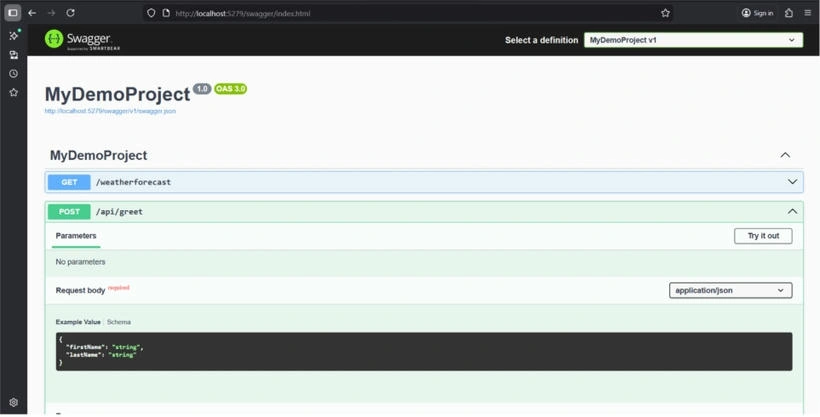
When you click on the ‘Try out’ button, you get to do an API call.
Conclusion
By now, we have seen that .NET is far more approachable and far more flexible than many people assume. It is not a programming language or a complex enterprise-only framework. It is a modern, open-source ecosystem designed to help you build real applications quickly, whether you are creating APIs, mobile apps, cloud services, or even games.
With Minimal APIs, getting started is easier than ever: a single file, a few lines of code, and you already have a working endpoint. No controller folders, no heavy setup, no barriers. Just clean, clear building blocks that grow with you as your projects grow.
You’re officially ready to start building.
Welcome again to your new toolbox for creating anything you can imagine.


Join the conversation! Your thoughts help the community grow.