
Introduction
Ajax (Asynchronous JavaScript and XML) is a new web development technique used for interactive websites. With the help of AJAX we can develop web applications and retrieve small amounts of data from the web server. AJAX consists of a different type of technology.
- JavaScript
- XML
- Asynchronous Call to the server
CollapsiblePanelExtender
The CollapsiblePanelExtender control is a very flexible extender that allows you to easily add a collapsible section to your webpage. The collapsiblePanel is used to collapse and expand any web page content or controls inside an ASP.Net panel control. A panel control will expand and collapse using a label control or linkbutton control.
Property
- TargetControlID
- Collapsed
- AutoCollapsed
- AutoExpand
- ScrollContent
- CollapseControlID
Step 1 : Open Visual Studio 2010.
- Go to File->New->WebSite
- Select ASP.NET Empty WebSite

Step 2 : Go to Solution Explorer and right-click.
- Select Add->New Item
- Select WebForm
- Default.aspx page open
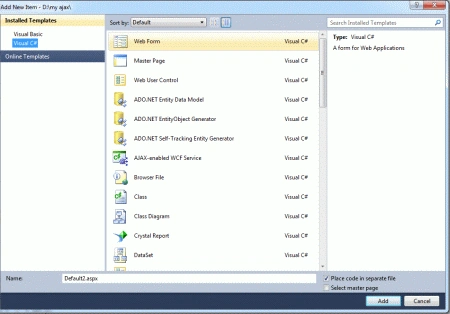
Step 3 : Go to Default.aspx page and click on the [Design] option and drag control from Toolbox.
- Drag Panel, ScriptManager, Label, TextBox, Image
Step 4 : Go to the Default.aspx page[Source]option and define the <style> for the creation of a form.
<style type="text/css">
.pnlCSS
{
font-weight: bold;
cursor: pointer;
border: solid 1px #c0c0c0;
width:30%;
}
.style2
{
height: 11px;
}
</style>
Step 5 : Go to the Default.aspx page[Design] option; drag the image control from the Toolbox and define the URL property.
<asp:Image ID="Image1" runat="server" ImageUrl="~/DO.jpg" Height="50px" Width="50px" />
Step 6 : Go to Default.aspx[source]option and drag CollapsiblePanelExtender from Toolbox and define the AutoCollapsed and AutoExpand proerties.

Code :
<asp:CollapsiblePanelExtender ID="CollapsiblePanelExtender1" runat="server" CollapseControlID="Panel1" Collapsed="true" ExpandControlID="Panel1" TextLabelID="Label1" CollapsedText="Show" ExpandedText="Hide" ImageControlID="Image1" CollapsedImage="~/DO.jpg"
ExpandedImage="~/UP.jpg" ExpandDirection="Vertical" TargetControlID="Panel2" ScrollContents="false">
</asp:CollapsiblePanelExtender>
Step 7 : Drag two panels from the standard toolbox and drop them on the page and define all the div properties.
Code :
<asp:Panel ID="Panel1" runat="server">
<div style="background-image:url('green_bg.gif'); height:30px; vertical-align:middle">
<div style="float:left; color:White;padding:5px 5px 0 0">
Collapsible Panel
<div style="float:right; color:White; padding:5px 5px 0 0">
</div>
<asp:Label ID="Label2" runat="server" Text="Label"></asp:Label>
<asp:Image ID="Image1" runat="server" ImageUrl="~/DO.jpg" Height="50px" Width="50px" />
</div>
<div style="clear:both"></div>
</div>
</asp:Panel>
<asp:Panel ID="Panel2" runat="server">
<table align="center" width="100%">
<tr>
<td class="style2"></td>
<td class="style2">
<b>Registration Form</b>
</td>
</tr>
<tr>
<td align= "right" >
Step 8 : Go to Default.aspx[Source] file option and write a code.
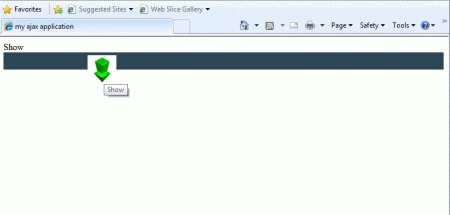

Join the conversation! Your thoughts help the community grow.