

Introduction
Today we'll learn to create a form using HTML elements and use them from the ASP.NET Web Pages 2 (Razor). Since you already know how to connect to the database from the page and Display Data in Web Page, So we'll learn here the basics of forms and apply searching in the database.
In that context we need to create some HTML elements in the forms of web pages using the following sections:
- Working with Forms
- Reading Values
- Working with SQL Queries
- Apply Query to Web Page
Working with Forms
We'll create some HTML elements in the forms using the following procedure.
Step 1: Insert the following highlighted code:
<h1>Best Cricketers</h1>
<form method="get">
    <div>
        <label for="searchCricketer">Find Cricketer:</label>
        <input type="text" name="searchCricketer" value="" />
        <input type="Submit" value="Search Cricketer" />
    </div>
</form>
In the code above we create a form in which there are two elements that exist named TextBox and button. We've put both elements inside the form element otherwise nothing will be submitted. We are using "Get" here because we're creating a form that does not make any changes on the server.
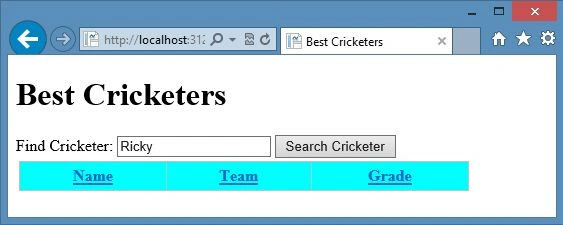
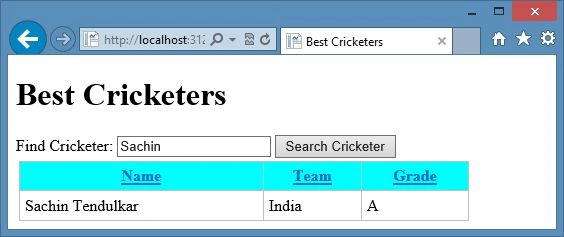
Step 2: Run the current Cricketers.cshtml page. The page will look such as below:
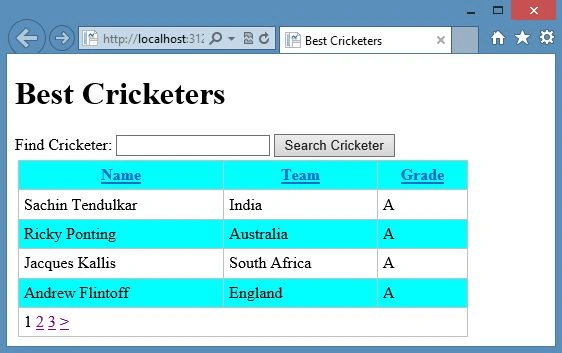
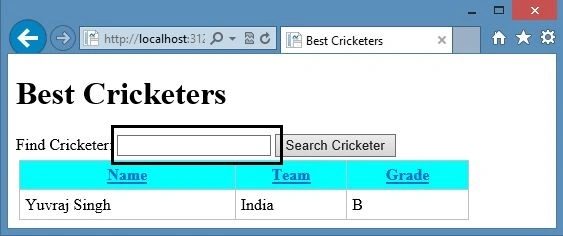
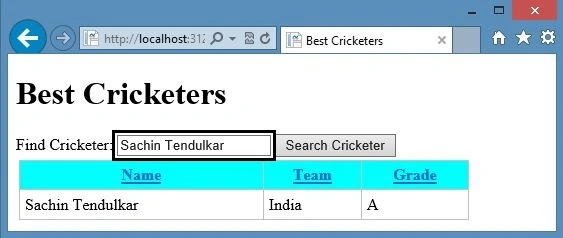
Step 3: Enter the cricketer name to search in the TextBox. However the search is not complete because we've not defined the blocks but the URL of the page contain the query string as you can see in the following URL code:
http://localhost:31257/Cricketers.cshtml?searchCricketer=Sachin+Tendulkar
Reading Values
We've already created some code that accesses the values from the database. Now we use code to access the value of the TextBox and return the value. As we've used the Query String here, so we need to use the following code in the code:
var search = Request.QueryString["searchCricketer"];
The Request.QueryString includes the values of elements that were submitted as part of the GET operation. It contains a collection of the value. If we need to get any individual value then we need to specify it. Therefore we need to have a "name" attribute of the "input" element in which we defined the query string.
Working with SQL Queries
- If we want to display the entire table then we need to use the following query:
Select * from Cricketers - If we want to display any specific then we need to use the following query:
Select * from Cricketers where name= 'Sachin Tendulkar' - If we want to display any user specified record then we need to pass the parameter as shown below:
Select * from Cricketers where name= @0
Apply Query to Web Page
Now we apply the query to the web page and update our code. Use the following procedure to do that.
Step 1: Replace the code block with the code below:
@{
   var CricDb= Database.Open("Cricketer Site");
   var CommandText = "Select * from Cricketers";
   var search = "";
   if(!Request.QueryString["searchCricketer"].IsEmpty()){
       CommandText = "Select * from Cricketers where Name= @0";
       search = Request.QueryString["searchCricketer"];
   }
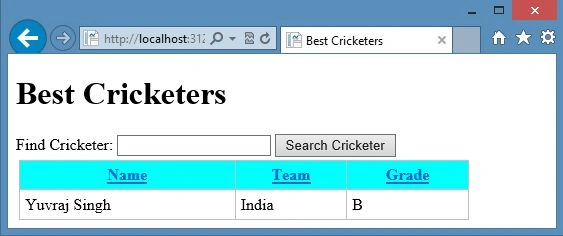
   var CricData = CricDb.Query(CommandText, search);
   var CricGrid= new WebGrid(source: CricData, rowsPerPage:4);
}
Join the conversation! Your thoughts help the community grow.