

Introduction
This article will help you to authenticate an ASP.NET MVC 5 web application with the Google OAuth2.0. Now, we can also provide the client ID and client Secret of the Google application in the MVC applicaiton.
You can get the important advantages in your websites when you authenticate your websites using external authentication providers like Google and Facebook because those users can already have accounts with these providers.
Now with the update of Visual Studio 2013 RC, we can apply the Google OAuth2.0 in the ASP.NET MVC 5 Web Applications. Microsoft revealed the RC update of Visual Studio 2013. Read here. So, let's get started with the following sections:
- Create MVC 5 Web application
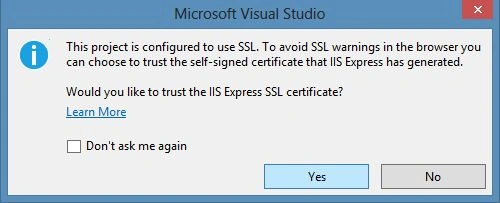
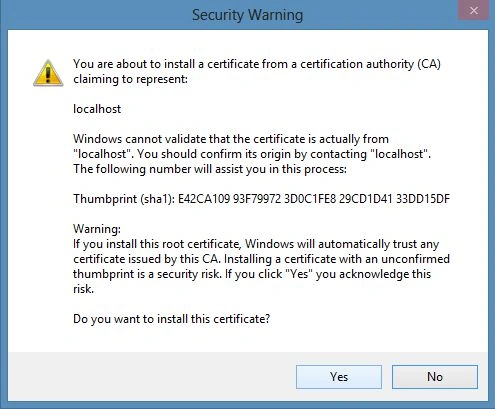
- Enable the SSL Certificate
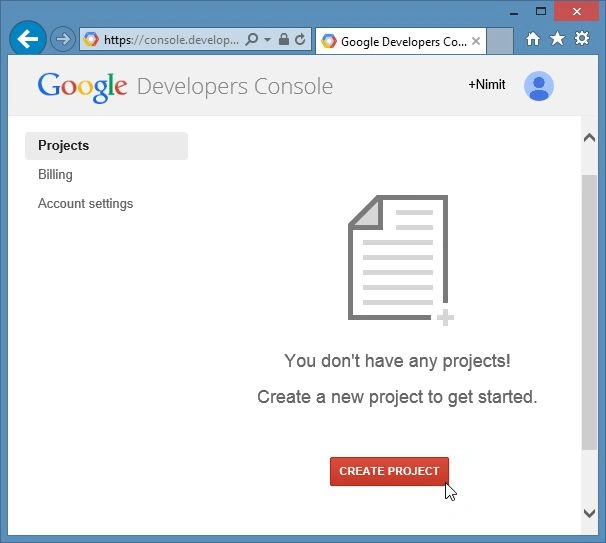
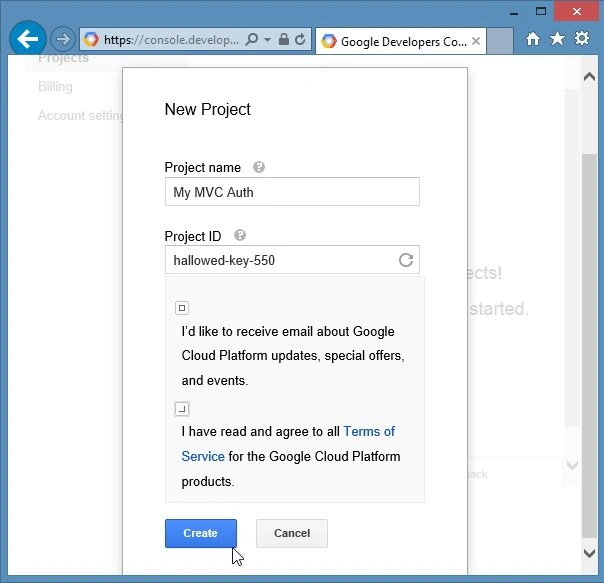
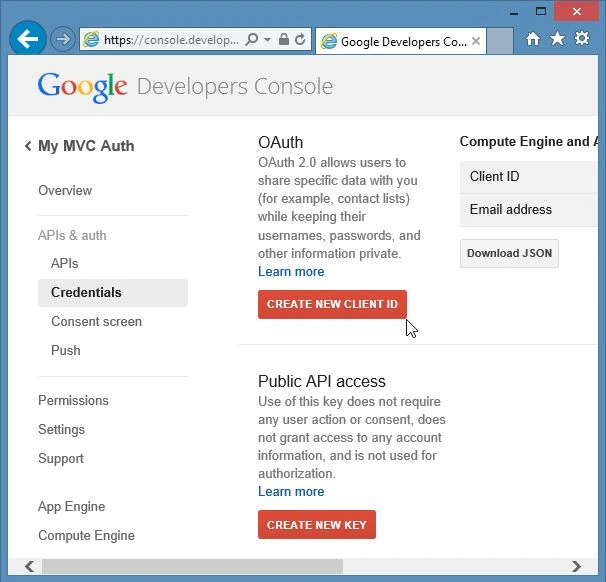
- Getting Started with Google Developer Console
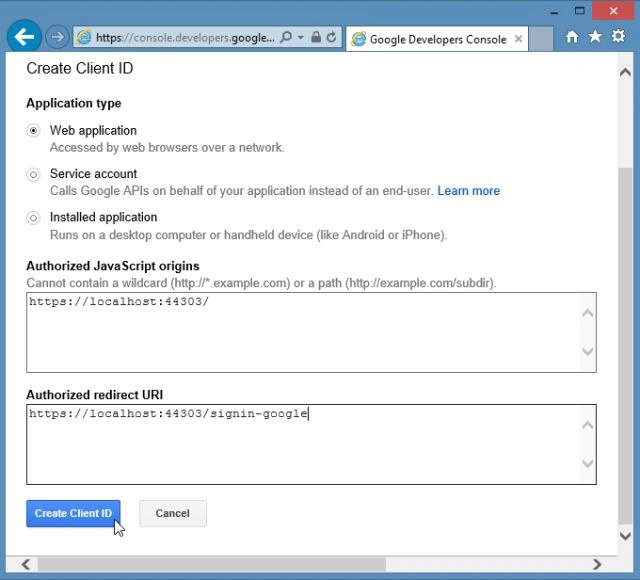
- Enabling Google OAuth 2.0
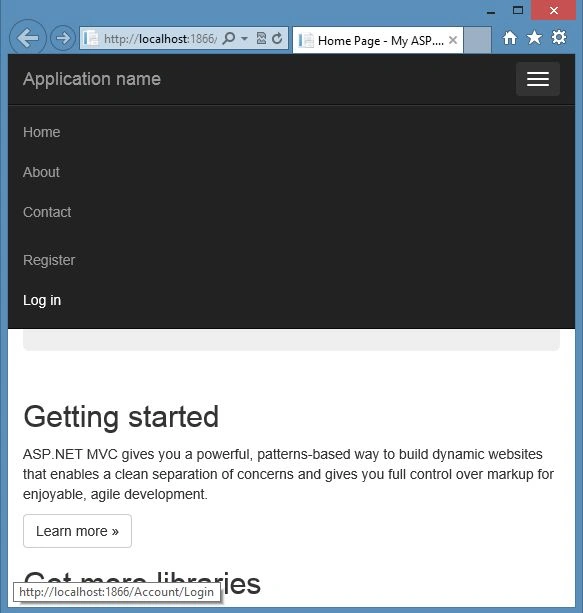
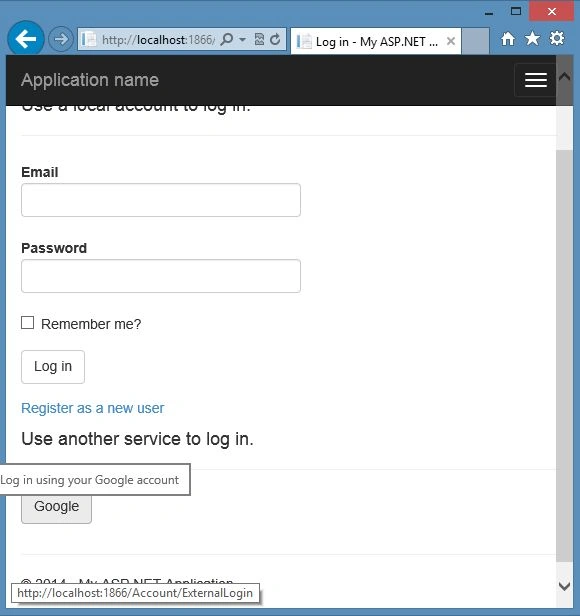
- Login with Google
Note: Please upgrade the Visual Studio 2013 to the Release Candidate update of Visual Studio 2013.
Create MVC 5 Web Application
In this section we'll create the ASP.NET MVC 5 application using the following procedure.
Step 1: Open the Visual Studio 2013 and click on "New Project".
Step 2: Select the ASP.NET Web Application and enter the name.
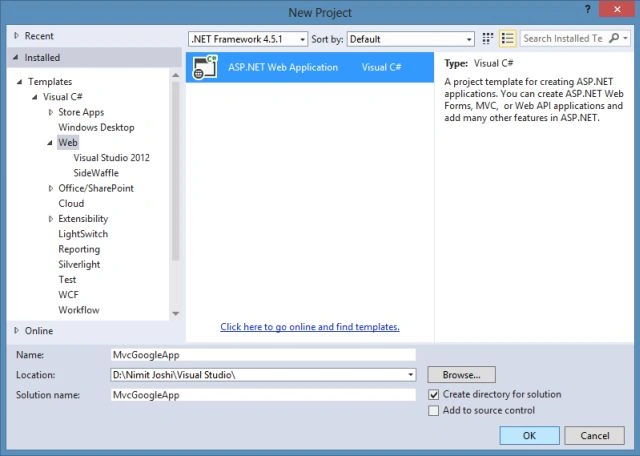
Step 3: Select the MVC Project Template.
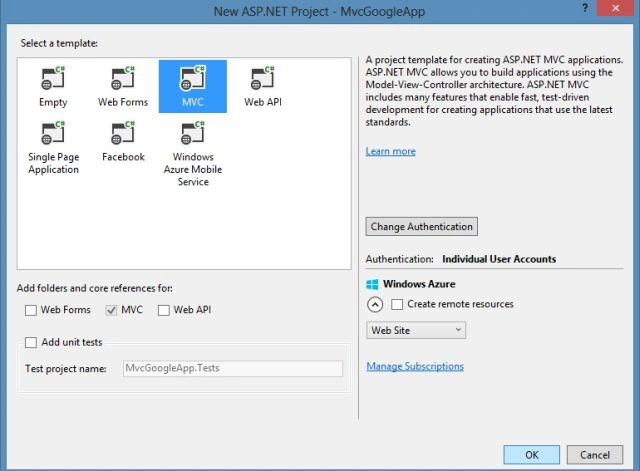
Step 4: Please leave the Create remote resources checkbox if you do not have the Windows Azure Account.
Visual Studio 2013 automatically creates the ASP.NET MVC 5 Web Application and some files and folders in the application.
Enable the SSL Certificate
As I described in my previous article, you can eliminate the SSL Certificated related security warnings when you browse the HTTPs on the localhost. You will see in this section how to enable the SSL Certificate for the browsers like IE and Chrome.
Step 1: Select the application in the Solution Explorer and hit F4.
Step 2: Set the SSL Enabled option to true and copy the SSL URL.
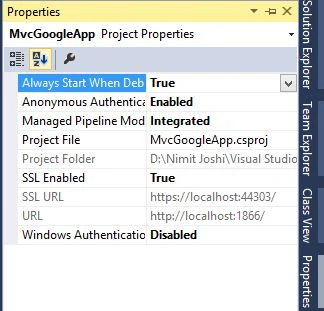
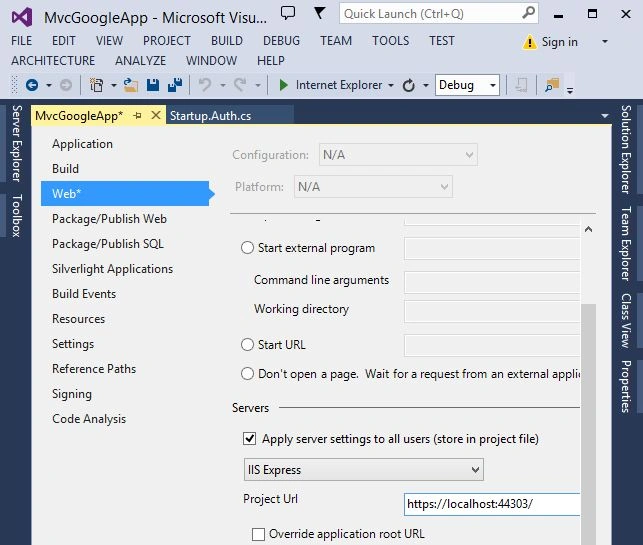
Step 3: Now again select the application and right-click to open the properties.
Step 4: In the left pane select the web tab and paste the SSL URL in the Project URL and save the application.
Step 5: Open the HomeController.cs page and modify your code with the following highlighted code:
- using System.Web.Mvc;
- namespace MvcGoogleApp.Controllers
- {
- public class HomeController : Controller
- {
- [RequireHttps]
- public ActionResult Index()
- {
- return View();
- }
- }
- }
Do DPosted Dec 4, 2014, 5:51 AM
I understood my problem: In google developer Console we have to enable the google+ API also. As described in the next tutorial: http://www.asp.net/mvc/overview/security/create-an-aspnet-mvc-5-app-with-facebook-and-google-oauth2-and-openid-sign-on
Do DPosted Dec 4, 2014, 5:03 AM
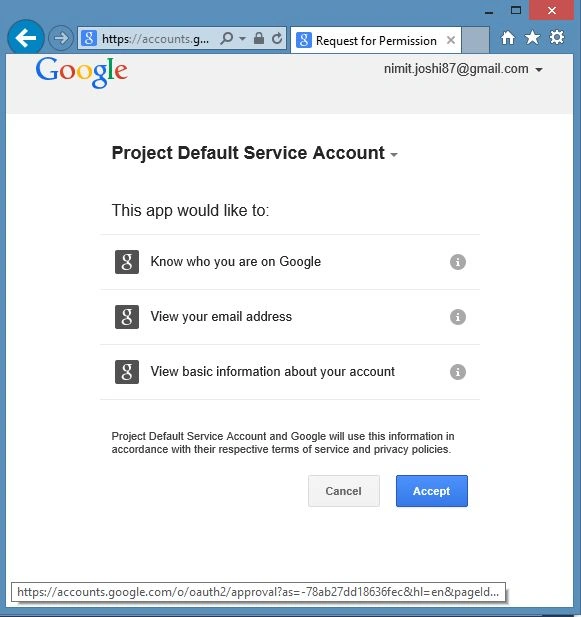
Note: in the stage of "Getting Started with Google Developer Console", it's important to select your email account of the project. Otherwise, I got an error in the google-side.
Do DPosted Dec 4, 2014, 4:55 AM
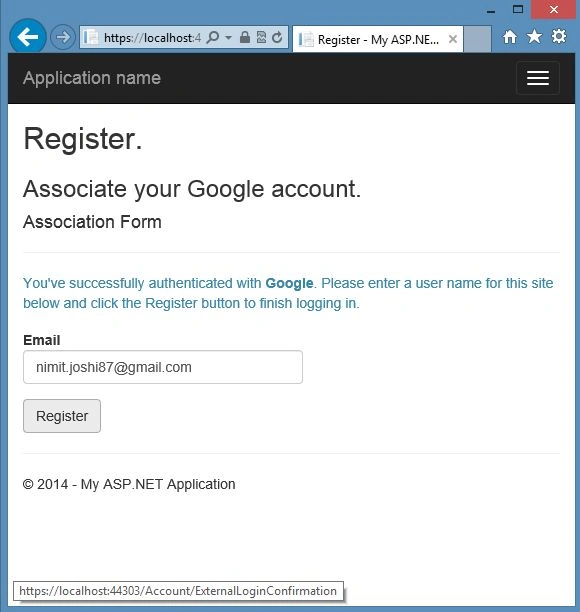
Great. It's seems to work. But in step 4: after redirecting back from google to my localhost site, i am getting back to the same login page and in the upper black toolbar there is the "Log In" button again, which means it's not really sign me in.
Do DPosted Dec 4, 2014, 3:29 AM
Excellent Review. I will check it in my VS. Thanks