

Windows Phone ListBox previous articles:
Introduction
Here we can make a call to the Student, send an SMS to that student and send an Email to that student. For that use this procedure.
Step 1
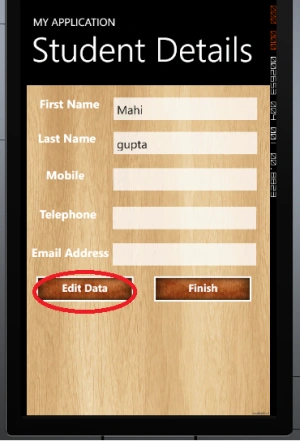
Here we continue the previous article in which we edit the data in the ListBox like this.
 Step 2
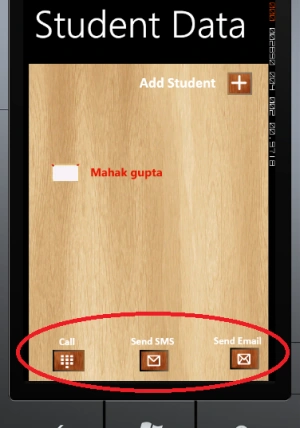
First, we use three buttons (For Call, Send SMS, Send Email) and three TextBlocks like this.
 Note
Note
- <Button Height="65" HorizontalAlignment="Left" Margin="33,532,0,0" Name="btnCall" VerticalAlignment="Top" Width="85" FontSize="18" Click="btnCall_Click" IsEnabled="True"
- Visibility="Collapsed" Grid.ColumnSpan="2">
- <Button.Background>
- <ImageBrush ImageSource="/WorkingWithListBoxInWP7;component/Image/Dialer.png" />
- </Button.Background>
- <Button.BorderBrush>
- <LinearGradientBrush EndPoint="1,0.5" StartPoint="0,0.5">
- <GradientStop Color="Black" Offset="0" />
- <GradientStop Color="#FF905E35" Offset="1" />
- <GradientStop Color="#FF3E352F" Offset="0.082" />
- </LinearGradientBrush>
- </Button.BorderBrush>
- </Button>
- <Button Height="65" HorizontalAlignment="Right" Margin="0,532,178,0" Name="btnSMS" VerticalAlignment="Top" Width="79" FontSize="18" IsEnabled="True"
- Visibility="Collapsed" Click="btnSMS_Click" Grid.Column="1">
- <Button.BorderBrush>
- <LinearGradientBrush EndPoint="1,0.5" StartPoint="0,0.5">
- <GradientStop Color="Black" Offset="0" />
- <GradientStop Color="#FF7C674E" Offset="1" />
- </LinearGradientBrush>
- </Button.BorderBrush>
- <Button.Background>
- <ImageBrush ImageSource="/WorkingWithListBoxInWP7;component/Image/Message1.png" />
- </Button.Background>
- </Button>
- <Button Height="65" HorizontalAlignment="Left" Margin="302,528,0,0" Name="btnEmail" VerticalAlignment="Top" Width="79" FontSize="18" IsEnabled="True"
- Visibility="Collapsed" Click="btnEmail_Click" Grid.Column="1">
- <Button.Background>
- <ImageBrush ImageSource="/WorkingWithListBoxInWP7;component/Image/Send%20Email1.png" />
- </Button.Background>
- <Button.BorderBrush>
- <LinearGradientBrush EndPoint="1,0.5" StartPoint="0,0.5">
- <GradientStop Color="Black" Offset="0" />
- <GradientStop Color="#FF80644A" Offset="1" />
- </LinearGradientBrush>
- </Button.BorderBrush>
- </Button>
- <TextBlock FontFamily="Calibri" FontSize="20" FontStyle="Normal" FontWeight="Bold" Height="32" HorizontalAlignment="Left" Margin="18,516,0,0" Name="txtBlkCall" Text="Call" TextAlignment="Center" VerticalAlignment="Top" Width="109" Visibility="Collapsed" Grid.ColumnSpan="2" />
- <TextBlock FontFamily="Calibri" FontSize="20" FontStyle="Normal" FontWeight="Bold" Height="32" HorizontalAlignment="Left" Margin="112,515,0,0" Name="txtBlkSMS" Text="Send
- SMS" TextAlignment="Center" VerticalAlignment="Top" Width="109" Grid.Column="1" Visibility="Collapsed" />
- <TextBlock FontFamily="Calibri" FontSize="20" FontStyle="Normal" FontWeight="Bold" Height="32" HorizontalAlignment="Left" Margin="265,514,0,0" Name="txtBlkSendEmail"
- Text="Send Email" TextAlignment="Center" VerticalAlignment="Top" Width="127" Grid.Column="1" Visibility="Collapsed" />
Here we set the Visibility=Collapsed. In this example, the buttons will be visible when we tap a single item in the ListBox For this we create a Tap event of our ListBox and we write the following code in it.
- private void lstStudentname_Tap(object sender, System.Windows.Input.GestureEventArgs e)
- {
- btnCall.Visibility = Visibility.Visible;
- btnSMS.Visibility = Visibility.Visible;
- btnEmail.Visibility = Visibility.Visible;
- txtBlkCall.Visibility = Visibility.Visible;
- txtBlkSendEmail.Visibility = Visibility.Visible;
- txtBlkSMS.Visibility = Visibility.Visible;
- }
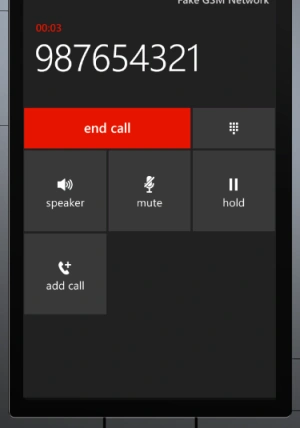
Now we will write the code for the Call Button:Output
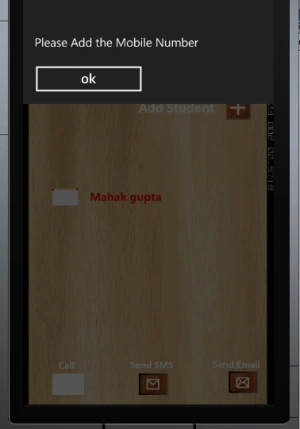
If we cannot enter the Mobile Number then the following message will appear.
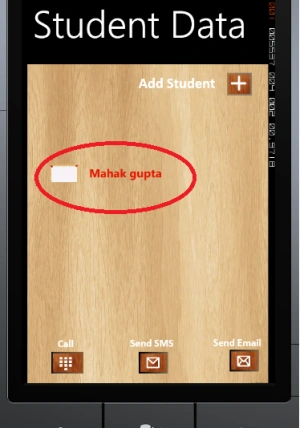
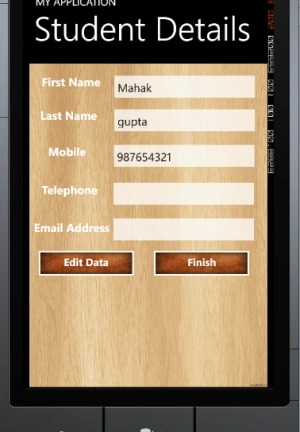
 To enter a Mobile Number we should first edit the data. To do that we double-tap on the ListBox like this.
- private void btnCall_Click(object sender, RoutedEventArgs e)
- {
- var listBoxItem = lstStudentname.ItemContainerGenerator.ContainerFromIndex(lstStudentname.SelectedIndex) as ListBoxItem;
- var txtBlk = FindVisualChildByType<TextBlock>(listBoxItem, "txtBlkExtra");
- a = txtBlk.Text;
- using (StudentdataContext StudentDB = new StudentdataContext(strConnectionString))
- {
- var c = from b in StudentDB.GetTable<StudentInfo>() where b.Extra == a.ToString() select b;
- foreach (var x in c)
- {
- if (x.Mobile == "")
- {
- MessageBox.Show("Please Add the Mobile Number");
- }
- else
- {
- PhoneCallTask pct = new PhoneCallTask();
- pct.PhoneNumber = x.Mobile;
- pct.Show();
- }
- }
- }
- }
Join the conversation! Your thoughts help the community grow.